Maintain machines and moulds
Plan preventive maintenance, run a job order from start to first-part check, and see how open maintenance stops a machine on the floor.
Maintenance keeps machines and moulds fit to run. The default roles are Maintenance (Zulkifli Hassan), the supervisor (Hafiz Rosli) who accepts handbacks, QC (Siti Rahmah) who checks the first part, and Quality (Jason Wong) who signs a revalidation. Open Maintenance.
Read the maintenance plan
Maintenance > Plan shows job orders and upcoming preventive maintenance (PM) on every machine. Switch between Data table, Swimlane, Calendar and Kanban in the toolbar. Dashed items are PM due from a PM plan with no job order raised yet. The tiles at the top show Open job orders, PM overdue, Open breakdowns and PM due · next 30 days.
On the kanban, columns are PM due, Planned, In progress, Handback & checks and Done.
The maintenance plan
Job orders and PM due, by machine and date.
- Tiles: open job orders, PM overdue, open breakdowns, PM due in 30 days.
- Switch between table, swimlane, calendar and kanban.
- Job orders and PM due on each machine.
Set up a PM plan
Maintenance > PM plans lists the plans. A plan covers one machine or one mould.
- Choose Machine or Mould, enter Tasks and choose Interval basis:
DaysorShots. - Enter Interval. A plan counted in days needs Last done. A plan counted in shots needs a mould, because only a mould has a shot count.
- Next due is worked out for you. A plan that is overdue shows
OVERDUE.
A plan is Active or Suspended. On an Active plan choose Raise PM job order to create the job order, or Suspend and type a reason. If an open PM job order on the same machine or mould already has the plan's tasks and belongs to no plan, Raise PM job order links that job order to the plan and opens it instead of raising a second one. Only a job order linked to its plan resets the plan. On a Suspended plan choose Reactivate and type a reason. You cannot suspend an overdue plan that holds an asset. Complete the PM first.
Run a job order
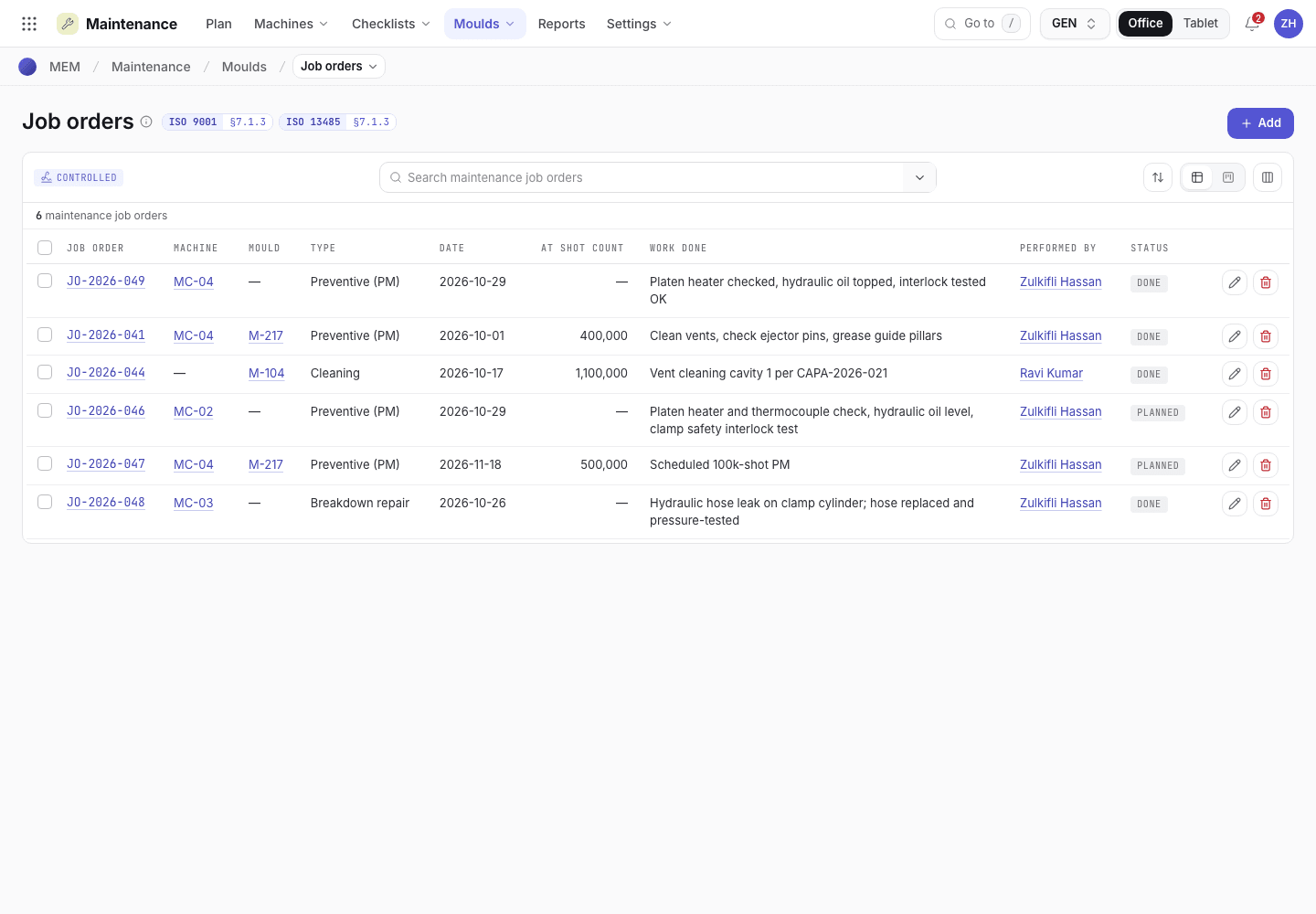
Open Maintenance > Job orders (or Plan) and open the job order, for example JO-2026-046.
View as text
%% title: Maintenance job order status flow
flowchart LR
  A[Planned] -->|Start job| B[In progress]
  B -->|Complete work · hand back| C[Handback]
  B -->|Modification| R[Revalidation required]
  C -->|Accept handback| D[First-part check]
  R -->|Revalidation done · first-part check| D
  D -->|Pass| E[Done]
  D -->|Fail| B
Job order types are Preventive (PM), Breakdown repair, Cleaning and Modification (needs revalidation).
Planned: a breakdown or modification job order needs its Isolation / LOTO reference. Enter it, then choose Start job and sign.
In progress: do the work and record it in Work done. For a breakdown, also enter the order that was running, the lots made since the last good check, and the QC disposition reference. Choose Complete work · hand back: the dialog asks the four handback checks (area clean, guards and interlocks, parameters restored, no contamination) with Yes or No, and you sign once. Anything other than Yes on all four is refused before the signature.
Handback: the supervisor, not the technician, chooses Accept handback and signs. Anyone else, and the technician who did the work, sees the button greyed out with the reason beneath it.
First-part check: QC (who can open Maintenance to view the job order) chooses Record first-part check, picks Pass or Fail, picks the FAI / IPQC reference from the first article reports and in-process checks on record, and signs. Pass releases the machine, completes the job and resets the PM plan. Fail sends the job back to maintenance with the handback cleared.
A Modification (needs revalidation) job goes to Revalidation required instead of Handback, and its mould returns to Pending validation. Quality chooses Revalidation done · first-part check once an approved process validation dated on or after the handback exists in Engineering. Then the first-part check follows.
A planned job order on the desktop
The buttons depend on the status. Breakdown and modification jobs need the isolation reference.
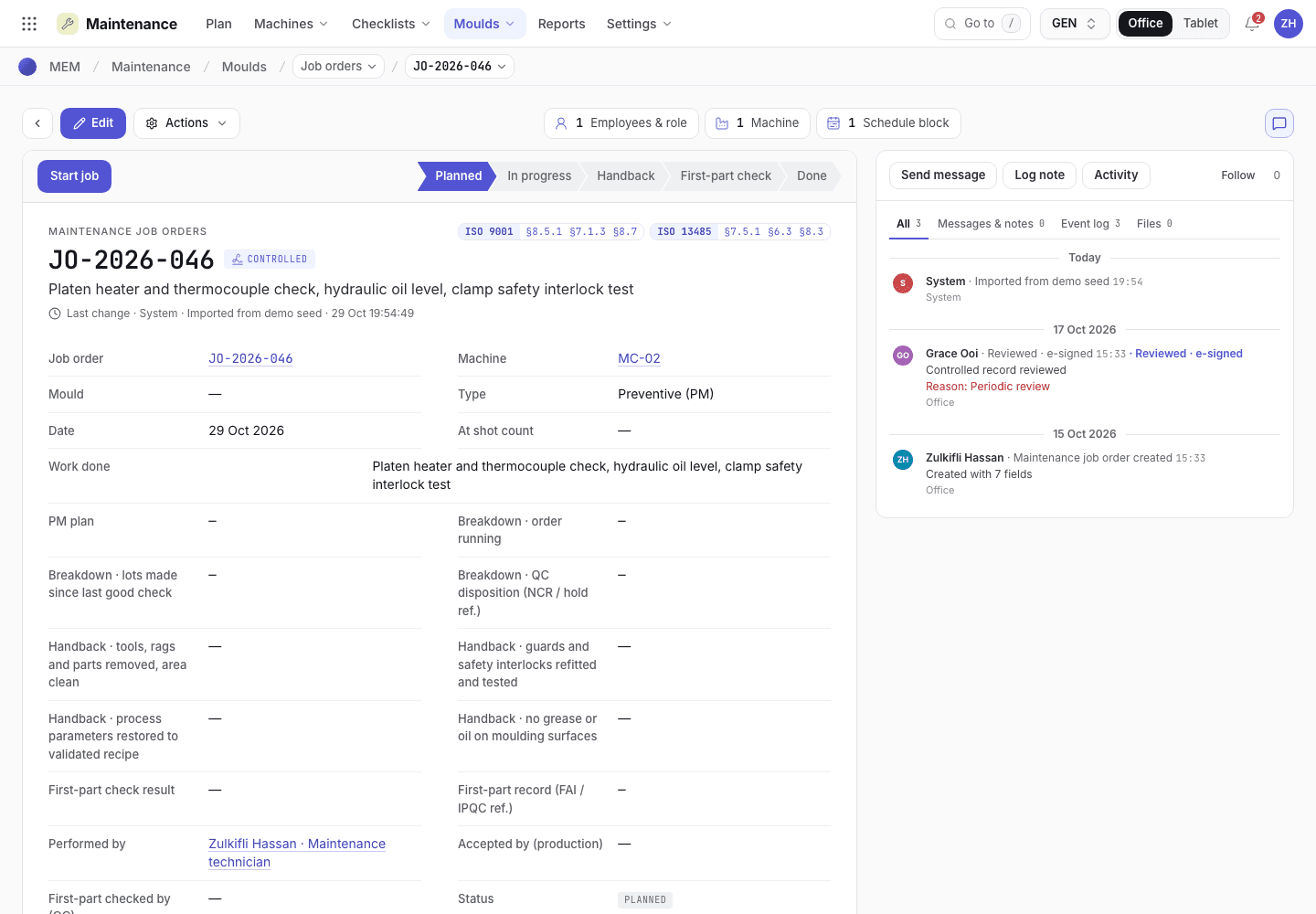
- Start job moves the order to In progress.
- Machine, mould, type and isolation reference.
- Work done and handback checks.
A job order on the phone
Technicians record work from the phone at the machine.
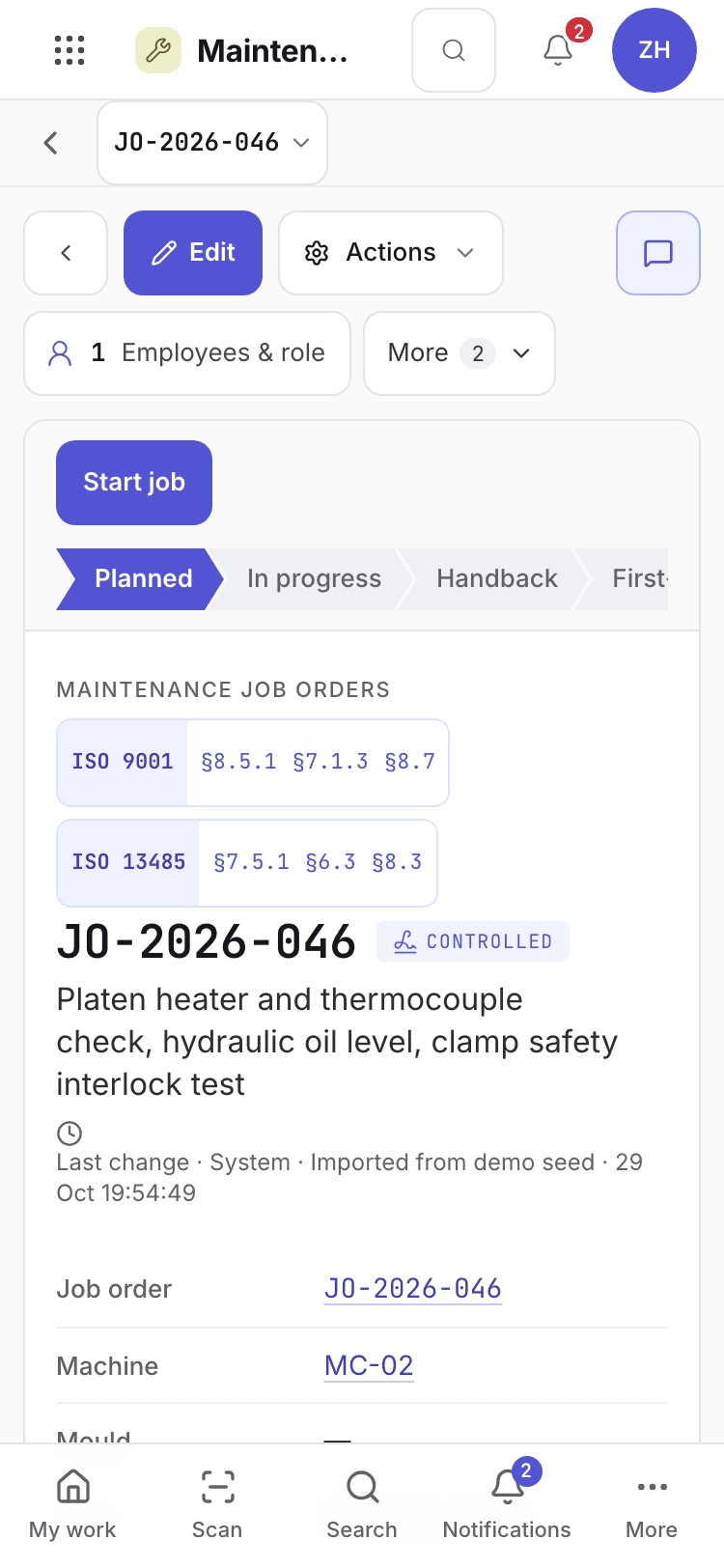
- Job order number and status.
- Machine, type and work done.
- Start job or the next step.
Checklists and NG findings
Maintenance > Checklists shows the daily, weekly and monthly checks for every machine, utility and area. Choose Fill, answer each item OK · good, NG · no good or N/A, add a remark for every NG item, then choose Submit and sign. For an NG item choose Raise maintenance job order, or enter the Corrective action and choose Close NG. At the end of the period the supervisor chooses Approve sheet once no NG finding is open.
Machines and moulds
Maintenance > Machines lists machines and their status: Active, Maintenance or Retired. The
summary shows Active, In maintenance, PM due in 14 days and Validated moulds.
Maintenance > Moulds shows each mould's shots against its life, next PM, and validation. A new
mould starts as Pending validation; only an approved process validation makes it Validated.
Use Adjust shots to correct a count. A decrease needs a request from Maintenance signed by
Engineering.
Machines
Status, PM due and the moulds fitted.
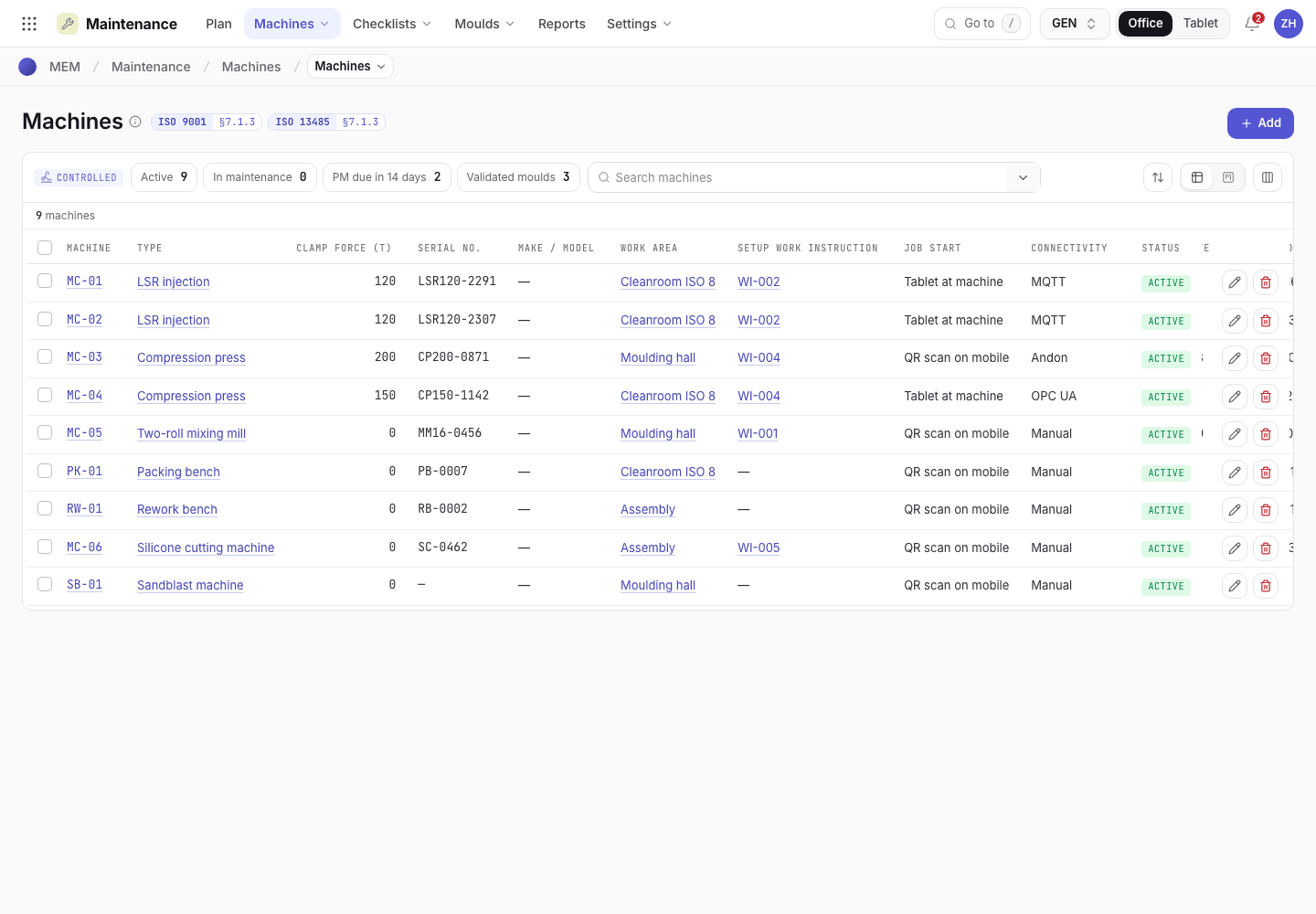
- Machine summary tiles.
- Machine and its status chip.
- Next PM due.
How open maintenance stops a machine on the floor
The floor cannot set up or run a machine or its mould while any of these is true:
- An Active PM plan of the machine or mould is overdue, by date or by shots.
- A checklist record of the machine or mould has an NG open.
- A Breakdown repair or Modification job order of the machine or mould has not been handed back.
The tablet then shows a message such as PM {plan} of {asset} is overdue (...). Complete the PM first. Clear the cause, and the machine is released. A production Request maintenance pause
raises a Breakdown repair job order that holds the machine in the same way.
If the system refuses
The messages are in Maintenance and EHS refusals. Signature authority, reasons and access are in Signatures and refusals.
Next steps
Safety and environment (EHS)Incidents, permits to work and risk assessments.Training and gauges refusals
Every message the system gives when it refuses a training record, a training requirement, a calibration, a gauge or a gauge R&R step, and what to do.
Safety and environment (EHS)
Report incidents, control work with permits to work, assess risks and aspects, and keep the legal register.