Signatures, reasons and common refusals
When Factory OS asks for your e-signature or a reason, who may sign, and what each common refusal means and how to clear it.
Factory OS refuses a step instead of letting a wrong one through. Every refusal says what is wrong in plain words. This page explains the rules behind the refusals that appear on many screens, so the flow pages can link here instead of repeating them.
Set up your signature first
A signed step uses your e-signature. The app keeps one signature specimen for you and attaches it to every record you sign. Set it once.
Open the account menu and choose Set up signature. If you already have one, the same place says Change signature.
Choose Draw and sign with your mouse, finger or stylus, or choose Type and enter your full name in Your full name.
Read the consent line, then choose Save signature. The toast reads Signature saved.
Changing the specimen later is written to the audit trail. Until a specimen is on file, signed
buttons are disabled and the reason under them reads No signature specimen on file for this user. Set one from the user menu (My signature).
When the app asks for an e-signature
A button that signs is marked in its tooltip: Signed step: uses your e-signature. Examples are Approve · e-sign, Submit, Confirm, Complete run and Sign · release lot.
- If the step needs no reason, choosing the button signs at once. Your name, role, the time and a fingerprint of the record as it stood are stored.
- If the step needs a reason, a dialog opens first. It shows Reason * and a Signing as box with your name, role, employee ID, the meaning of the signature and your specimen. The button in the dialog reads **Sign · ** followed by the step name. It stays disabled until the reason has at least 4 characters.
The meaning of the signature comes from the button name:
| Button starts with | Meaning stored |
|---|---|
| Approve | Approved |
| Release | Released |
| Verify | Verified |
| Reject, Not effective | Rejected |
| Close | Closed |
| Anything else | Performed |
Correcting a signed record stores Corrected. Deleting one stores Deleted. The before and after values go to the audit trail.
A signed step asking for your reason
Cancel on a manufacturing order asks for a reason. The dialog shows who signs and what the signature means.
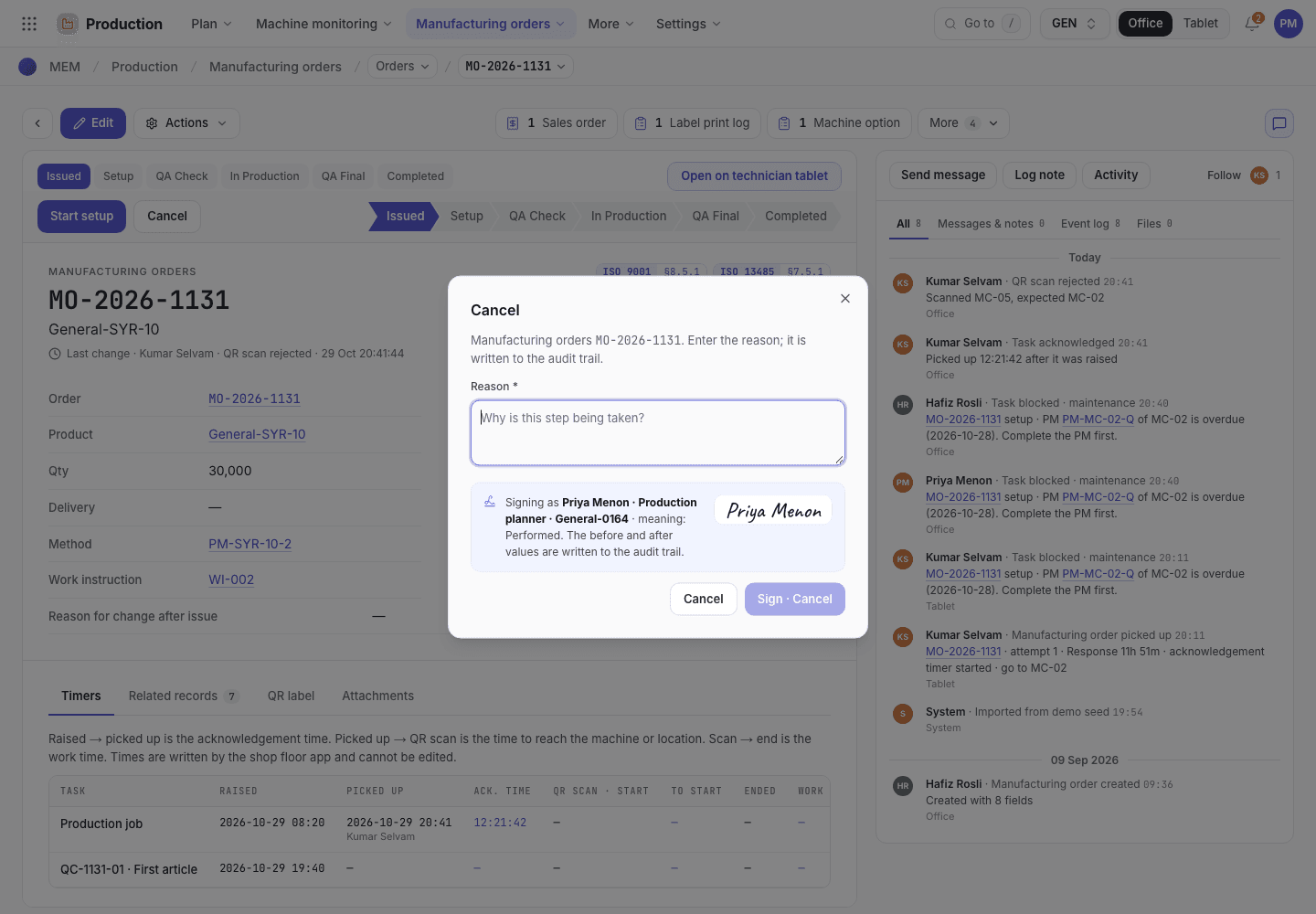
- The step and the record it applies to.
- Reason: at least 4 characters. It is written to the audit trail.
- Signing as: your name, role, employee ID and signature specimen.
- The Sign button names the step. Cancel leaves the record unchanged.
Who may sign
Having access to a module is not enough to sign. Each signed step needs a person with signing authority, and the app checks your person, not your role label:
| Step needs | Who may sign |
|---|---|
| Purchasing officer | Purchasing officer |
| QA manager | QA manager |
| QA engineer | QA engineer or QA manager |
| QC inspector | QC inspector, QA engineer or QA manager |
| Production supervisor | Production supervisor or Production planner |
| Store keeper | Store keeper |
| EHS officer | EHS officer |
The Org admin has no special standing here. The Org admin manages settings and signs only where their own person carries the authority, or through a delegation. In the demo, Grace Ooi is both the Org admin and the QA manager, so she signs QA manager steps as the QA manager.
If you cannot sign, the button is disabled and the line under it reads, for example,
This step needs a QA manager signature. You are signed in as Jason Wong (QA engineer).
Signing on behalf of someone
A person can hand their signing over for a window of dates. An administrator sets this for each person under Settings > Entities & access, in Approval limits, delegation and access expiry: pick a Delegate and the From and To dates. Nobody sets their own. Inside the window the delegate may sign, and the signature records both names. Outside the window, or if either date is empty, the delegation does nothing. A delegate is still checked as themselves for training.
Steps that need a reason
Some steps ask why before they run: cancelling a signed order, closing short, re-deciding a reportability decision, deleting a record, or changing a controlled record. The reason is written to the audit trail with the change. Type at least 4 characters.
The training gate
A signed step is also checked against the training of the person who signs. The records are under Quality, on the Matrix, Requirements and Records pages. A requirement set to Before task for your job title must be Current before you may take the step.
| Training status | Blocks the step? |
|---|---|
| Current | No |
| Effectiveness pending | Yes |
| Retraining due | Yes. The document has a newer revision than the one you were trained on. |
| Not trained | Yes. No record, or the last result was Not yet competent. |
The button then shows the reason and a link, Open Quality > Training. Ask the QA manager or HR to record the training. Nobody records their own training.
View-only access and hidden modules
Access per module is Full (create and edit), View (read only) or hidden. The defaults are on
Roles at a glance. A hidden module does not appear on the launcher. A page you may
not open shows You do not have access to this page, with Back to apps. In view-only modules
the action buttons are disabled with Your role can view this but not change it.
Signed records are locked
Once a record reaches a signed status it changes only through its workflow steps. Examples: a purchase order after Approved, a product after Released, a manufacturing order from QA Final, a device history record after Approved. Editing or deleting such a record is refused, and the audit trail keeps every version.
A released product is locked
A released record shows its status and offers only its workflow steps, such as New revision and Make obsolete.
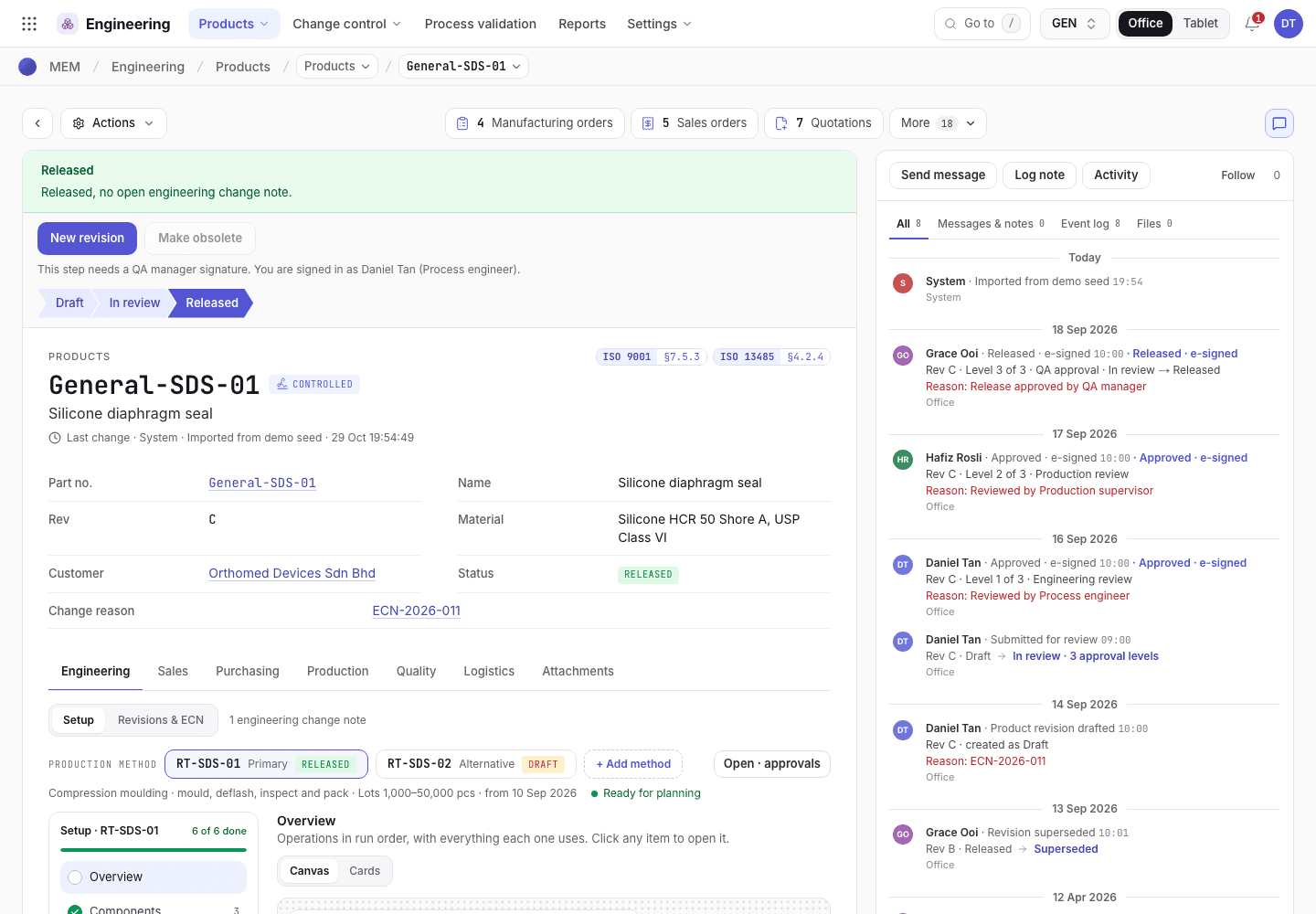
- Status Released: the record is locked.
- Only workflow steps are offered, for example New revision.
- Fields are read only. Edit does not save a change to a locked record.
The way out depends on the record. Use the step the record offers, for example New revision on a released product or method, Amend · new revision on an issued purchase order, or Re-decide reportability on a complaint. If no step exists for the change, raise a new record. A few fields stay open for the people who must fill them after the lock, such as the result of a first-part check.
Some fields stay locked even in an open record because a signed step relied on them. The refusal names them and the step that reopens them.
Field rules
A form checks values before it saves and names the field:
- Required:
{field} is required.Fill it in. - Numbers:
{field} must be a number.,{field} must be a whole number.,{field} must be above {n}.,{field} must be at least {n}.,{field} must be at most {n}. - Dates use the picker, written
YYYY-MM-DD.{field} must be a date (YYYY-MM-DD).appears for a day that does not exist, such as 2026-02-30. Some dates refuse the future ({field} cannot be in the future.) or the past ({field} cannot be in the past.). - Options:
{field} is not one of the options.
Your workspace access
Before any screen loads, the app checks that you belong to the workspace and that your access is current. A card explains the block and what to do:
| Card | Meaning | Do this |
|---|---|---|
| You do not have access to Factory OS yet | Your account has no profile in this workspace. | Ask your administrator to add you under Settings > Users & invitations, then sign in again. |
| Your access has expired | The end date of your access window has passed. | Ask your administrator to extend it under Settings > Entities & access. |
| Choose an organization | No workspace is selected. | Choose Choose organization and pick one. |
| Factory OS could not load | The server returned an error. | Choose Try again. If it repeats, tell your administrator the time of the error. |
Every common refusal
{placeholders} stand for the value the app fills in.
| Message | Why | Fix |
|---|---|---|
This step needs {a/an} {role} signature. You are signed in as {name} ({role}). | You do not hold the signing authority and no delegation covers you. | Ask the person who holds it, or ask them to delegate. |
No signature specimen on file for this user. Set one from the user menu (My signature). | You have not saved a signature. | See Set up your signature first. |
The system cannot sign. A person must take this step. | An automatic process tried to take a signed step. | A person takes the step from the record. |
{name} is not linked to a person, so signed steps and steps that need training are blocked. Ask an administrator to link your person in Settings › Users & invitations. | Your login is not linked to a person. | The administrator links it. |
{name} cannot take signed steps or steps that need training: {reason}. Ask an administrator to link an active employee in Settings › Users & invitations. | The reason is one of: the login is not linked to an employee; the linked employee is not in the employees register; the linked employee is Suspended. | The administrator links an active employee. |
{name} is not current on {document status, ...}. Signed step blocked (ISO 13485 6.2). | Training gate, for example SG-M217 not trained, WI-004 retraining due. | Get the training recorded. |
Training records are recorded by the QA manager or HR (Org admin). | You tried to record training without that authority. | Ask the QA manager or HR. |
{action} needs a reason. Enter why. | The step needs a reason and none was given. | Type the reason, at least 4 characters. |
This is a controlled record. Enter the reason for the change. | You edited a controlled record without a reason. | Enter the reason. |
A reason is required to delete a record. | Delete needs a reason. | Enter it. |
{record} is {status}. It changes only through its workflow actions now. | You edited a locked record. | Use a workflow step. |
{record} is {status}. {fields} can no longer be edited: a signed step relied on it. Use {step} to change it. | Some fields are locked after a signature. | Use the named step. |
{record} is {status}. It cannot be deleted; it stays in the audit trail. | You deleted a signed record. | Nothing to do. Records are never removed once signed. |
{key} is used by {records}. Remove those first. | Another record points to this one. | Remove or change those records, then delete. |
{label} changes through the workflow actions. | You tried to type a status. | Use the step button. |
That action is not available while the record is {status}. | The step is not offered in this status. | Reload the record and use a step it offers. |
This record was changed by someone else. Reload it and try again. | Two people edited at once. | Reload and apply your change again. |
Your role has no access to {module}. | The module is hidden for your role. | Ask the Org admin to change your access. |
Your role can view {module} but not change it. | The module is View for your role. | Same. |
{label} belongs to {standard}, which is switched off for this organization. | An ISO standard is off. | The Org admin switches it on in organization settings. |
Ask your administrator to give you access to the factory system. | You have no profile here. | Ask your administrator. |
Your access to the factory system has expired. Ask your administrator to renew it. | Your access window ended. | Same. |
Choose an organization before continuing. | No workspace selected. | Choose one. |
Only the organization owner or a member with full Settings access can do this. | You tried to rename the workspace or manage invitations without that right. | Ask the owner or the Org admin. |
Your role can view Settings but not change it. | Same, with Settings on View. | Ask the Org admin. |
Only the Org admin can change the organization details. | Only the Org admin edits them. | Ask the Org admin. |
{field} is required. and the number, date and option messages | See Field rules. | Correct the field. |
A refusal never half-saves. If a step is refused, the record stays as it was. Some refusals are also written to the record's audit trail as an event, for example a purchase order approval that was refused.