From new product to repeat order
Every step a product takes in Factory OS, from development item to repeat order, who takes each step, and where the guide explains it.
Factory OS follows one product from the first idea to the second order. Each step is owned by one role, signed by a named person, timed, and written to the audit trail. This page is the map. Each step links to the page that explains it.
The journey at a glance
Read the diagram left to right and top to bottom. Each box is a task page in this guide.
View as text
%% title: From development item to repeat order
flowchart TD
  A["Development item"] --> B["Product and bill of materials"]
  B --> C["Production method"]
  C --> D["Work instruction and inspection plan"]
  D --> E["Process validation"]
  E --> F["Release the documents"]
  F --> T["Quote and sales order"]
  T --> G["Supplier and purchase requisition"]
  G --> H["Purchase order"]
  H --> I["Receive goods"]
  I --> J["Incoming inspection"]
  J --> K["Plan the order"]
  K --> L["Manufacturing order"]
  L --> M["Line clearance"]
  M --> N["Setup and first piece"]
  N --> O["Run and in-process checks"]
  O --> P["Rejects"]
  O --> Q["Complete the run and lot"]
  P --> Q
  Q --> R["Outgoing inspection and lot release"]
  R --> S["Device history record"]
  S --> U["Deliver and ship"]
  U --> V{"All shipped?"}
  V -- "No" --> W["Partial shipment or close short"]
  V -- "Yes" --> X["Repeat order"]
  W --> X
  X -. "same product, new order" .-> T
A new product starts at the top. A product that is already released starts at Quote and sales order, which is also where every repeat order starts again.
Who acts at each step
Roles are the app roles on Roles at a glance. The buttons are the exact names on screen.
| Step | Role | What they press | Page |
|---|---|---|---|
| Development item | Engineering; the QA manager for Approve · qualified | Move to DFM review, Move to Trial, Move to First article, Approve · qualified | Development items |
| Product and bill of materials | Engineering | Submit for review, Approve | Items and products, Bill of materials |
| Production method | Engineering | Submit for review, Approve | Methods and routings |
| Work instruction | Engineering | Submit for review, Approve | Work instructions |
| Inspection plan | QA engineer | Edit the plan | Inspection plan |
| Process validation | QA manager signs | Approve protocol, Submit report, Approve · validated | Process validation |
| Release | Engineering and QA | Each document reaches Released | Document release |
| Quote and order | Sales | Send to customer, Confirm | Quote and order |
| Supplier | Purchasing, QA | Supplier approved by evaluation | Suppliers |
| Requisition | Purchasing | Submit, Approve · e-sign, Create purchase order | Requisitions, Approval ladder |
| Purchase order | Purchasing | Approve · e-sign, Issue to supplier | Purchase orders |
| Receive goods | Store | Receive goods | Receive goods |
| Incoming inspection | QC inspector | Accept · release lot, Reject · hold lot | Incoming inspection |
| Plan | Planner | Plan production from the sales order | Planning |
| Manufacturing order | Planner | Issue to machine | Manufacturing orders |
| Issue material | Store | Issue material to the order | Issue material |
| Line clearance | Production supervisor | Sign · line cleared, Verify clearance | Line clearance |
| Setup and first piece | Technician, then QC | Start setup, Setup done · request first piece, Accept inspection · e-sign | Setup and first piece |
| Run | Technician, operator | Complete run | Run on the tablet, Run on the phone |
| In-process checks | QC inspector | Record patrol check | In-process checks |
| Rejects | QC inspector, technician | Verify rejects, choose rework or scrap | Scrap and rejects |
| Complete and lot | Technician, QC | Complete run, OQC pass · move to FG | Complete and lots |
| Outgoing inspection and lot release | QC, QA manager | Run release checks, Sign · release lot | Outgoing inspection and lot release |
| Device history record | QA manager | Compile DHR, Review · approve DHR | Device history records |
| Deliver and ship | Sales | Mark as picked, Ship · issue CoC | Delivery and shipping |
| Partial or short | Sales | Create delivery order · remaining qty, Close short | Partial shipments and close short |
| Repeat order | Sales | Confirm the next order for the same product | Repeat order |
The Order journey screen on Home shows the same path for a confirmed sales order. It names the next action and the department that owns it. The stages it shows are Order review and MRP, Purchase orders, Incoming QC, Quantity check GRN and store, Production plan, Release and issue MO, Setup and first article, Run and in-process QC, Outgoing QC, and Lot release and DHR.
The apps launcher
Each tile is a module. The Home tile, My work, carries the number of records waiting for you.
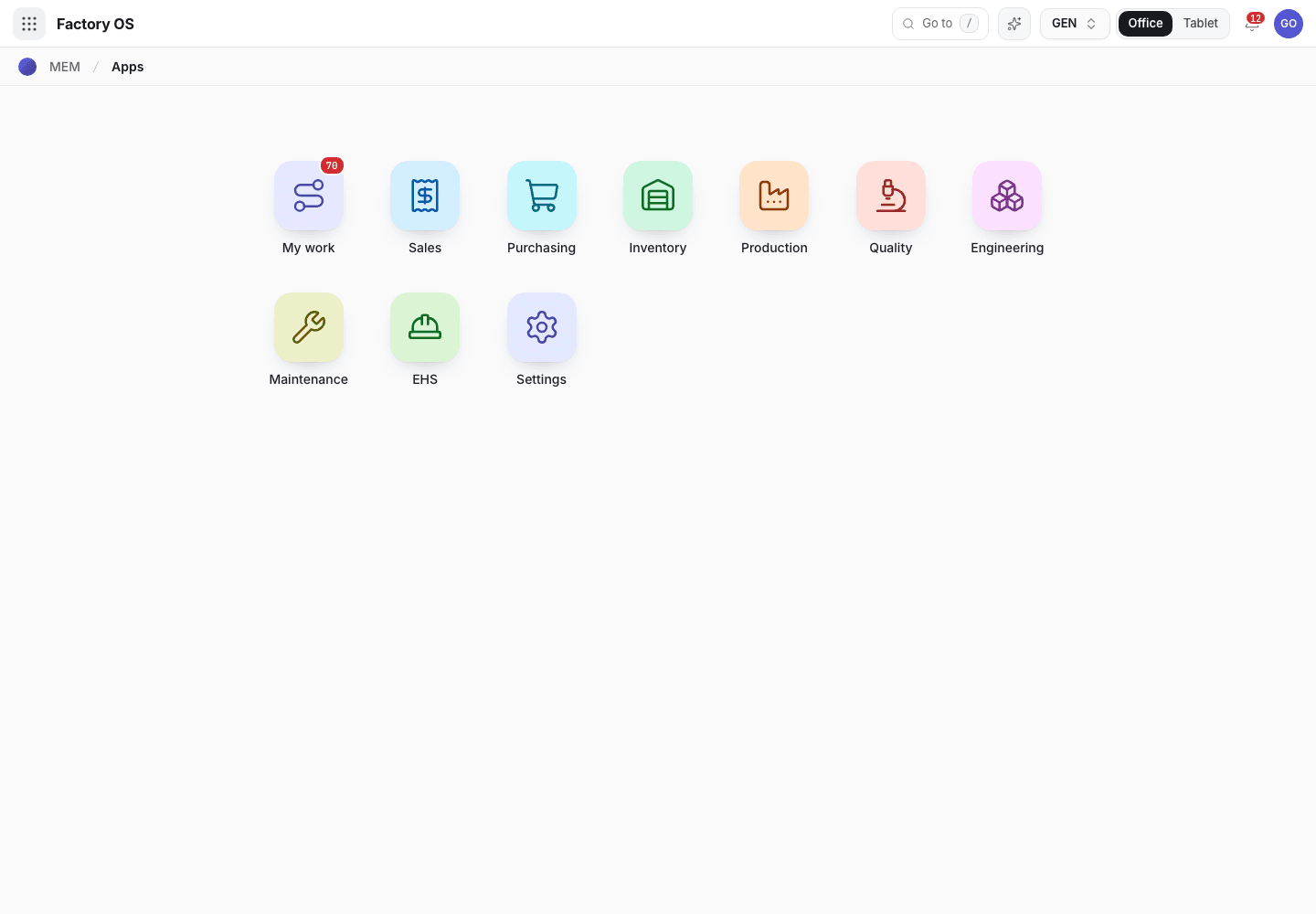
- My work: records waiting on your role. The badge shows how many.
- Module tiles. You see only the modules your role can open.
- Settings: organization, people and permissions, for roles that have it.
What runs alongside
These flows start from the steps above and run beside them.
- Engineering change: a released product, method or work instruction changes only through an engineering change note. See Engineering changes.
- Nonconformance and corrective action: a failed inspection raises an NCR, which can lead to a CAPA. See NCR and CAPA.
- Complaints and recalls after delivery: Complaints and Recalls.
- Training gates every signed step: Training.
- Gauges used in inspections must be calibrated: Gauges and calibration.
- Maintenance of machines and moulds, and EHS: Maintenance and EHS.
Follow a record to the next
Records link to each other. A purchase order shows its requisition, a manufacturing order its sales order and lots, a delivery order its lots.
- Open any record by its number from the search: press
/, or Ctrl J, and type the number, for exampleMO-2026-1127. The box reads Go to a page, or type a record number. - On a record page, the Related records tab lists records that point to this one or mention its number.
- Quality > Trace traces a shipment back to its input lots (Backward trace · shipment to input lots) and forward from a lot to the orders, shipments and customers it reached (Trace forward). Use it first when a customer reports a problem.
Trace a shipment to its input lots
The trace shows which lots went into a shipment and which customers received them.
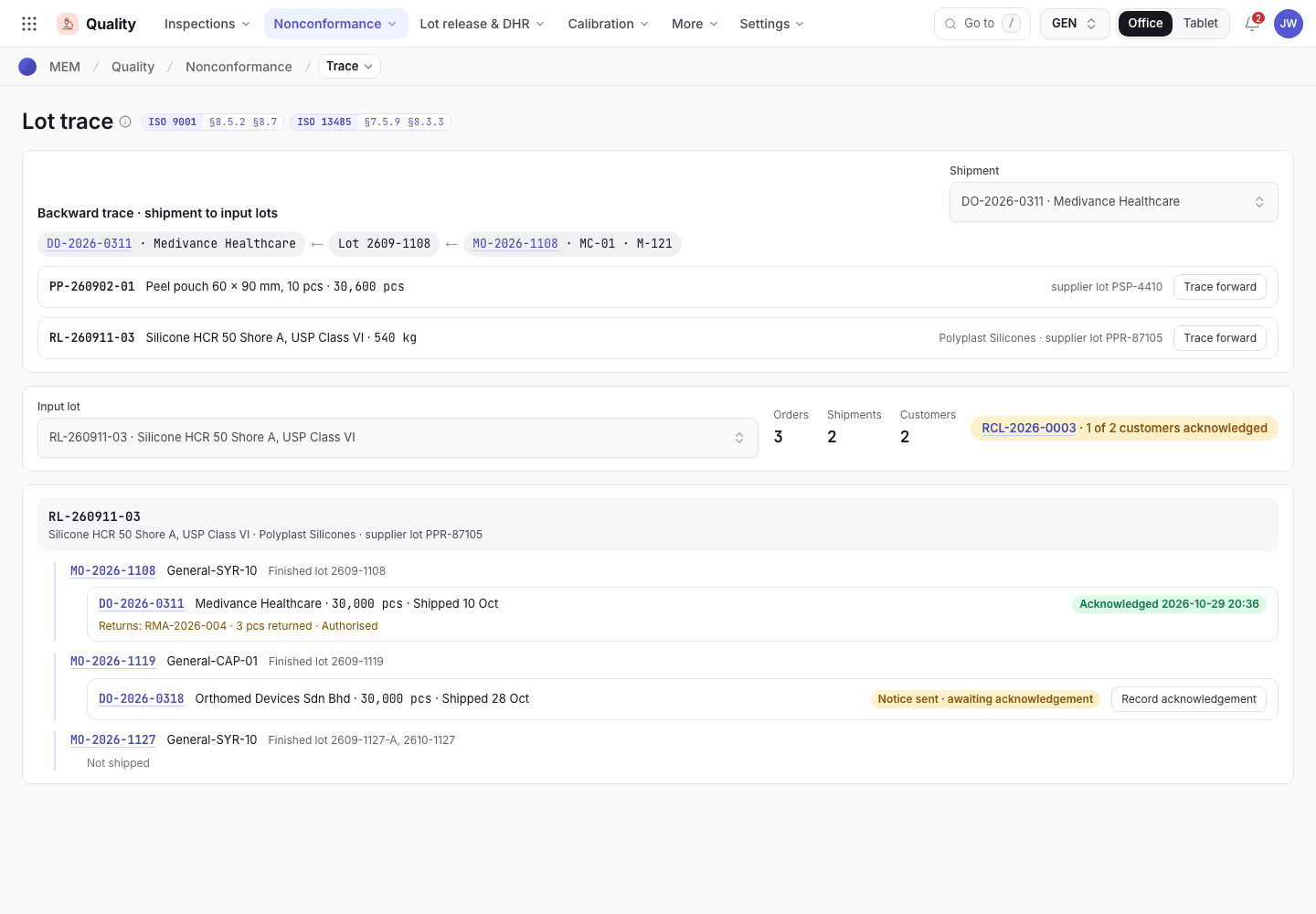
- Pick a shipment or a lot to trace.
- Input lots that went into the shipment.
- Orders, shipments and customers reached. Start recall or notice is here.