Work from your phone
Pick up a task, scan the machine to start it, end it with counts, track any record and move parts along the traveller.
The phone app runs on any phone or handheld. It is for the shop floor roles: technicians, QC, QA,
planning, maintenance, store and engineering. Open Home > Scan (/scan). The app is called My
work and has three tabs: Tasks, SCAN and Profile. Other roles see "Scan is a shop floor
page" and can ask an Org admin for access.
View as text
%% title: A task on the phone
flowchart LR
  A[Waiting pickup] -->|Pick up| B[Picked up, scan to start]
  B -->|Scan the machine or location| C[In progress]
  C -->|End job| D[Done]
Each task records three times: when it was picked up (acknowledgement), when you scanned the machine or location QR (start), and when it ended. The times show on the order's Timers tab. The machine tablet writes the same times when the technician picks the job up and scans the machine, and when QC acknowledges at the machine.
Pick up and start a task
On Tasks, find the job. It shows "Waiting pickup" and the machine, for example "at MC-04". Choose Pick up · waiting {time}. The page reads "Picked up · scan {machine} to start".
Go to the machine. Scan its QR with a scanner or Use the camera, or type the ID in ID or QR text and choose Go. The page reads "Started at {machine}".
Follow the work instruction. The list shows "{work instruction} · {n} of {total} steps".
When finished choose End job. For a production job you may enter Good parts and Scrap. They are whole pieces, 0 or more. The page reads "Task complete. Times are saved to the order's Timers tab and the audit trail."
Three rules protect the order:
- Starting on the phone never moves the order to In Production by itself. If the order is in Setup, the phone says "{order} is in Setup. First-piece inspection and QC acceptance are needed before production starts: ...". Finish setup and the first piece on the tablet.
- The scanned machine must be the machine the order has now. A different machine is refused with "STOP · Wrong machine".
- When the tablet counts a run, its counters apply. The phone says "The tablet counts this run. Its counters apply and the run is completed on the tablet; End job only closes your timer." Typed counts are refused.
Scan on the phone
Tasks waiting for you and the scan tab.
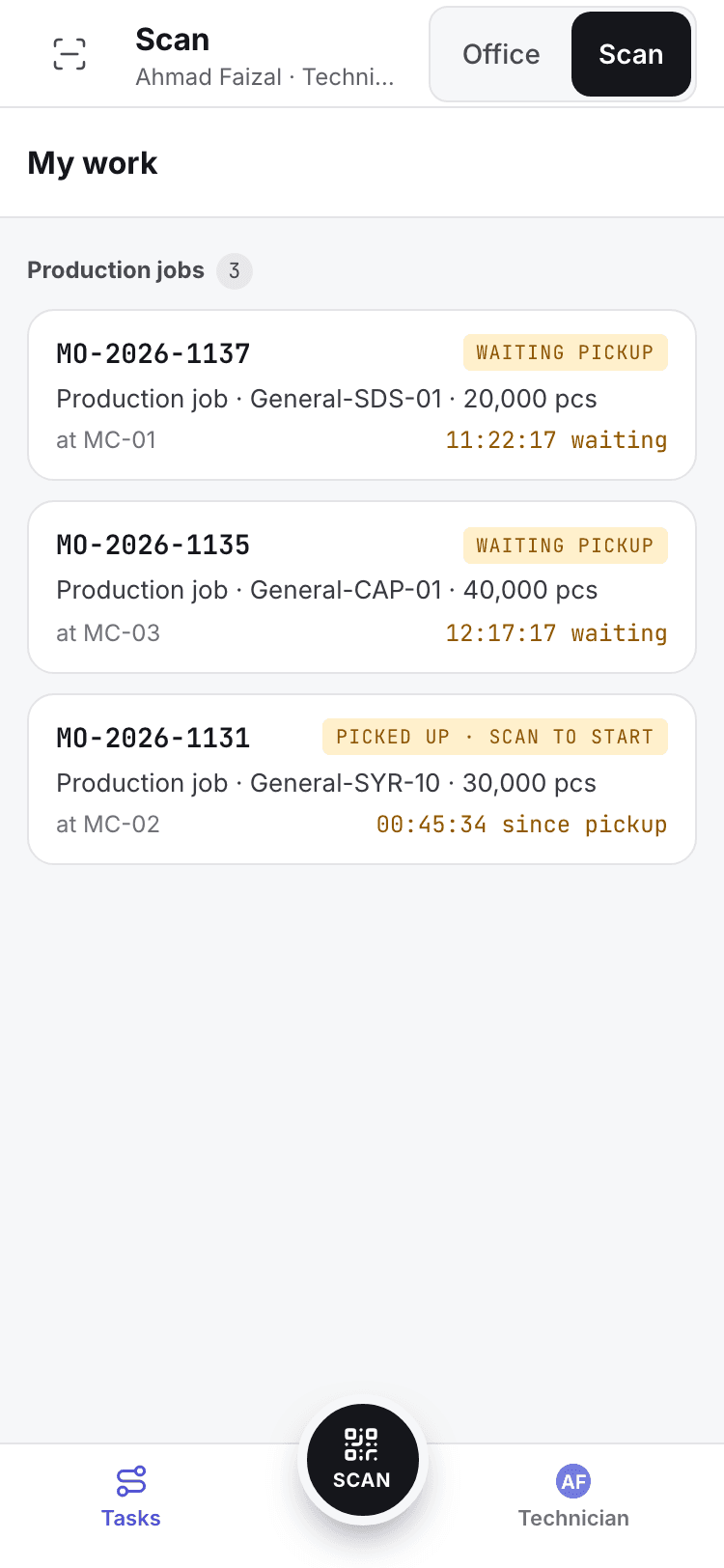
- My work.
- Tasks with their phase and machine.
- Tasks, SCAN and Profile tabs.
A job in progress
Steps of the work instruction and End job.
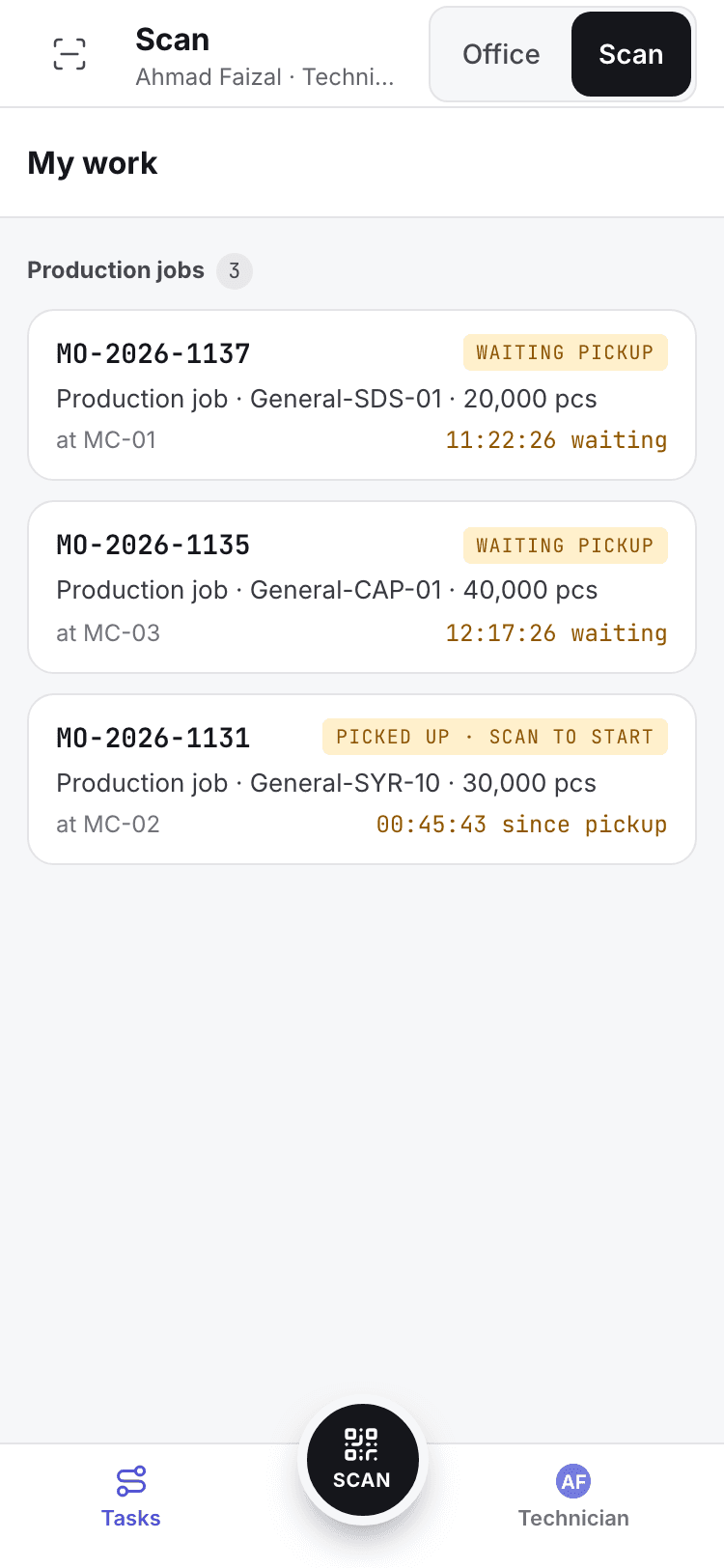
- Order and machine.
- Work instruction steps.
- End job.
Inspect from the phone
QC and QA see inspections as tasks. Pick one up and scan its location the same way. The task shows "Inspect the lot against its sampling plan, then record the decision. It is e-signed with your name and time.", or "In-process check · inspection plan" for a patrol check. Ending an inspection signs it. You need the QC inspector's signing authority and current training. If nothing is open, the phone says "No inspection step is open on {order} right now."
Track any order
On SCAN under Track any order, scan the QR on a printed quotation, sales order, traveller or lot label, or type the number in Record number and choose Track. You see the status, the time in that status, the checkpoints and recent activity. What you see depends on your role: Status only, View only or Full access. If a record is stuck, choose Remind {department}. One reminder is sent until the record changes. A scanned copy that is no longer valid shows STOP with "This copy is not valid for this order".
Follow the traveller
Open Home > Traveller (/home/traveller). The card shows the order quantity, Good so far, Now
at, the Tote and the Route with each station as Done, Here now, Arrived or
Pending.
Choose Record a transfer. The four steps are Scan traveller, Scan tote, Scan station and Count & sign. Scan the card, the tote the parts travel in, and the QR at the destination station. A scan at any other station is refused.
Enter Counted qty, split into Good and Reject, and pick the quality check: Go · all good, Go / No go or Not checked yet. Rejects need a Reject reason, and QC is called to the station. When the operation the parts leave, or the one they go to, is marked QC check at handover in the method, Not checked yet is not offered and no check is chosen for you: check the parts, then pick Go · all good or Go / No go. Parking in a WIP area is not a handover.
Choose Confirm & sign as {name}. The page reads "{transfer} checked in at {station}". You can also park the parts in a WIP area between stations.
A traveller starts at Station 1 when the operator starts production on the machine tablet. When the run is completed, the traveller moves to the last station (the finished lot in Q-FG-01) and takes no more transfers. Operators and technicians record the transfers. Other roles can view the traveller.
The traveller on the phone
Route, quantities and the Record a transfer button.
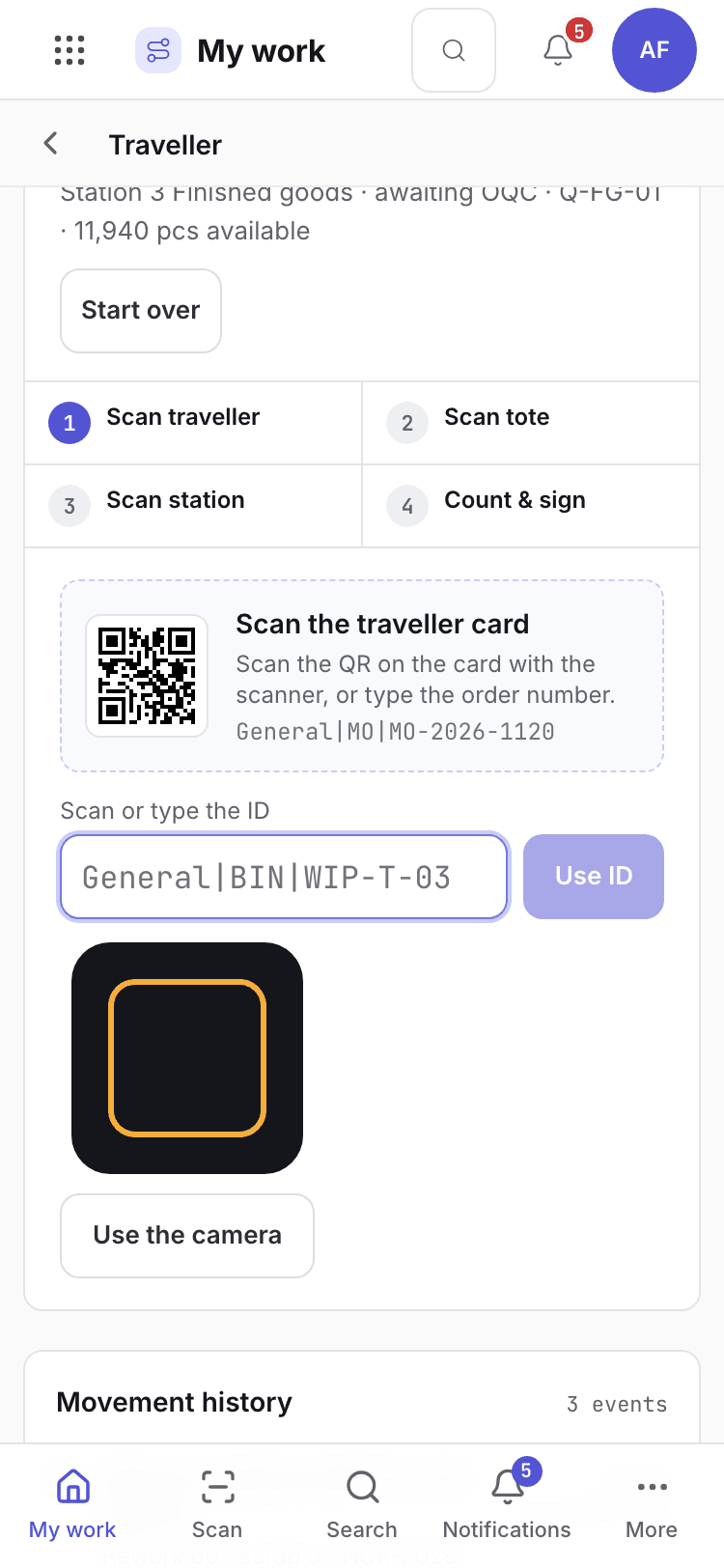
- Order and traveller card.
- Route with each station's state.
- Record a transfer.
If the system refuses
Messages shared by every flow are in Signatures and refusals. Phone and traveller messages are in Machine floor refusals. Examples:
Pick up {order} before you scan.Wrong {machine or location}. You scanned {scanned}; {order} is at {target}.Wrong station: {code}. Op {n} {name} runs on {stations}.