Set up a wallboard TV and tablet stations
Pair a TV so it shows every machine on the floor, and pair a tablet as a station for one machine. Each screen takes a one-time code.
The wallboard shows every active machine on one screen: its state, the order that runs on it and the reason for a stop. A tablet station is a floor tablet that belongs to one machine. You pair both kinds with the same steps: make a code on the Devices page, then enter the code on the screen.
Open Production > Machine monitoring > Devices. A person with view access to Production or to Settings can see the list. Only the Org admin, or a person with full access to Settings, can add a device, make a new code or revoke a device.
The Devices page
Every TV and tablet station of the organization, with its status and the time it was last seen.
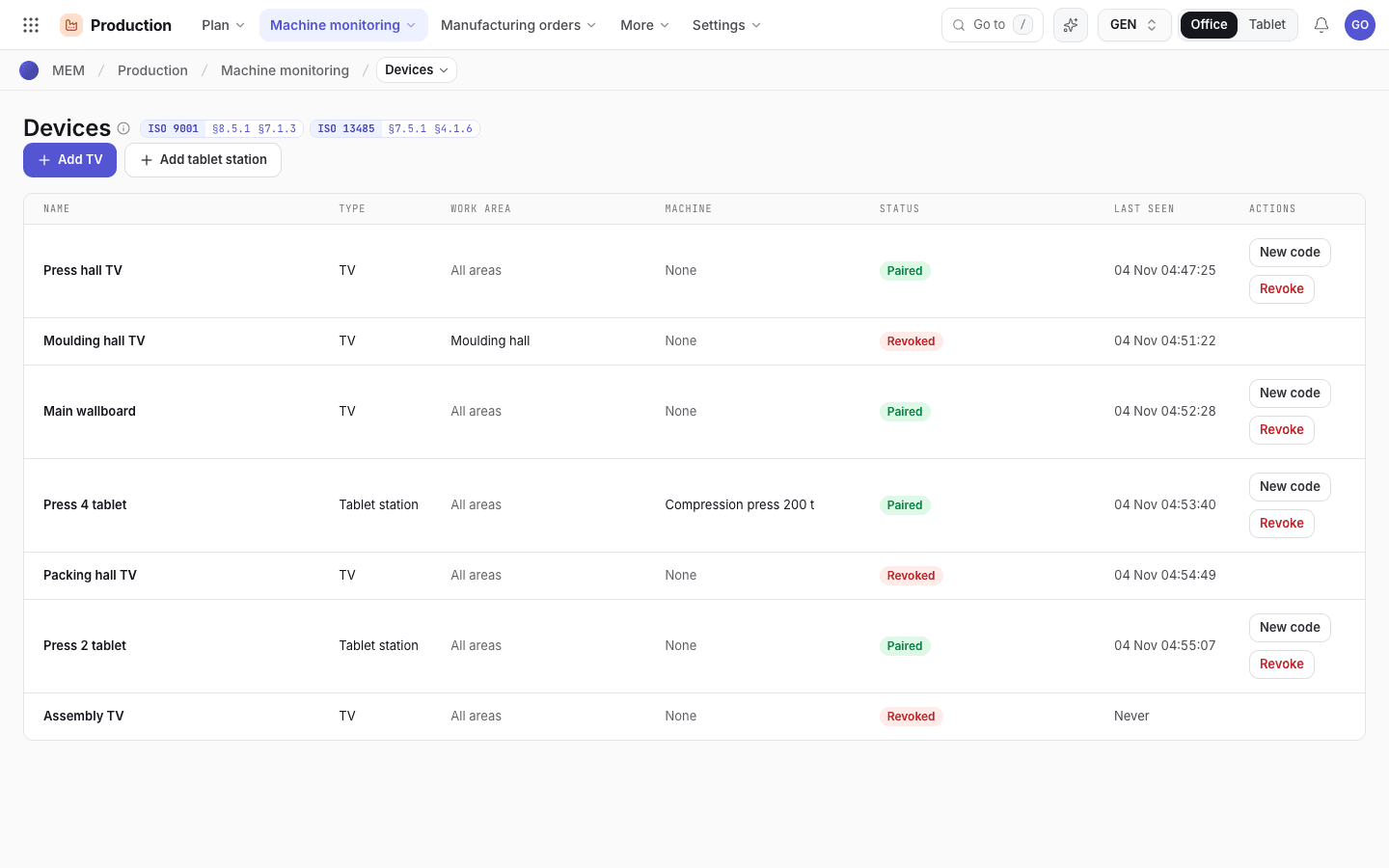
- Add TV.
- Add tablet station.
- Status: Waiting for pairing, Paired or Revoked.
- New code. Revoke is under it.
Add a TV
Choose Add TV.
Type a Name that tells people where the TV hangs, for example Press hall TV.
Optional: choose a Work area. The TV then shows only the machines of this area. If you leave it empty, the TV shows all areas.
Choose Add and show code. The app shows the code in large type, the address to open and the time at which the code lapses. You see the code one time only. A code works for 15 minutes.
On the TV, open the address that the app shows. It ends in /pair. Type the code. You can type it with or
without the dash. Choose Pair. The TV opens the wallboard.
The pairing code
The app shows the code one time, with the address to open and the time at which the code lapses.
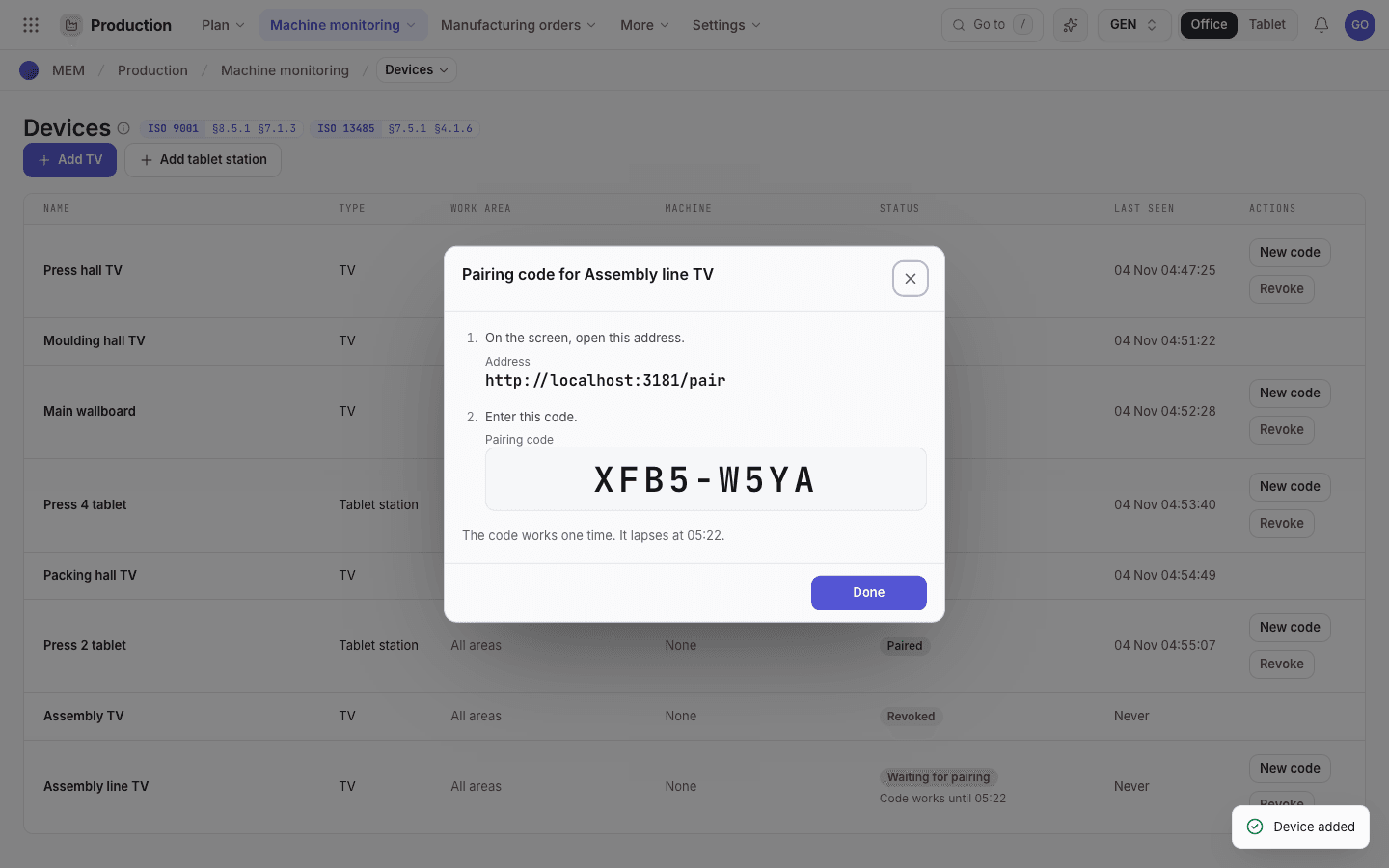
- The address to open on the TV.
- The pairing code.
- The time at which the code lapses.
Add a tablet station
Choose Add tablet station.
Type a Name, for example Press 4 tablet. Choose the Work area and the Machine that the tablet is next
to. Both fields are optional.
Choose Add and show code.
On the tablet, open the address that the app shows and enter the code. The tablet opens the floor. A person then signs in as usual. The name of the station shows at the top of the floor screen.
The tablet tells the app that it is alive when it opens and every 5 minutes. The Last seen column shows the last time.
Read the wallboard
Each tile is one machine. The word and the colour of the state always show together.
| State | Colour | Meaning |
|---|---|---|
| Running | Green | The machine makes parts. |
| Idle and Paused | Amber | The machine waits or an operator paused it. |
| Alarm | Red | The machine has an alarm. |
| Setup | Indigo | The machine is in setup. |
| Offline | Grey | The app has no state for the machine. |
The wallboard on a 1920 x 1080 TV
One tile for each machine. The word and the colour of the state show together.
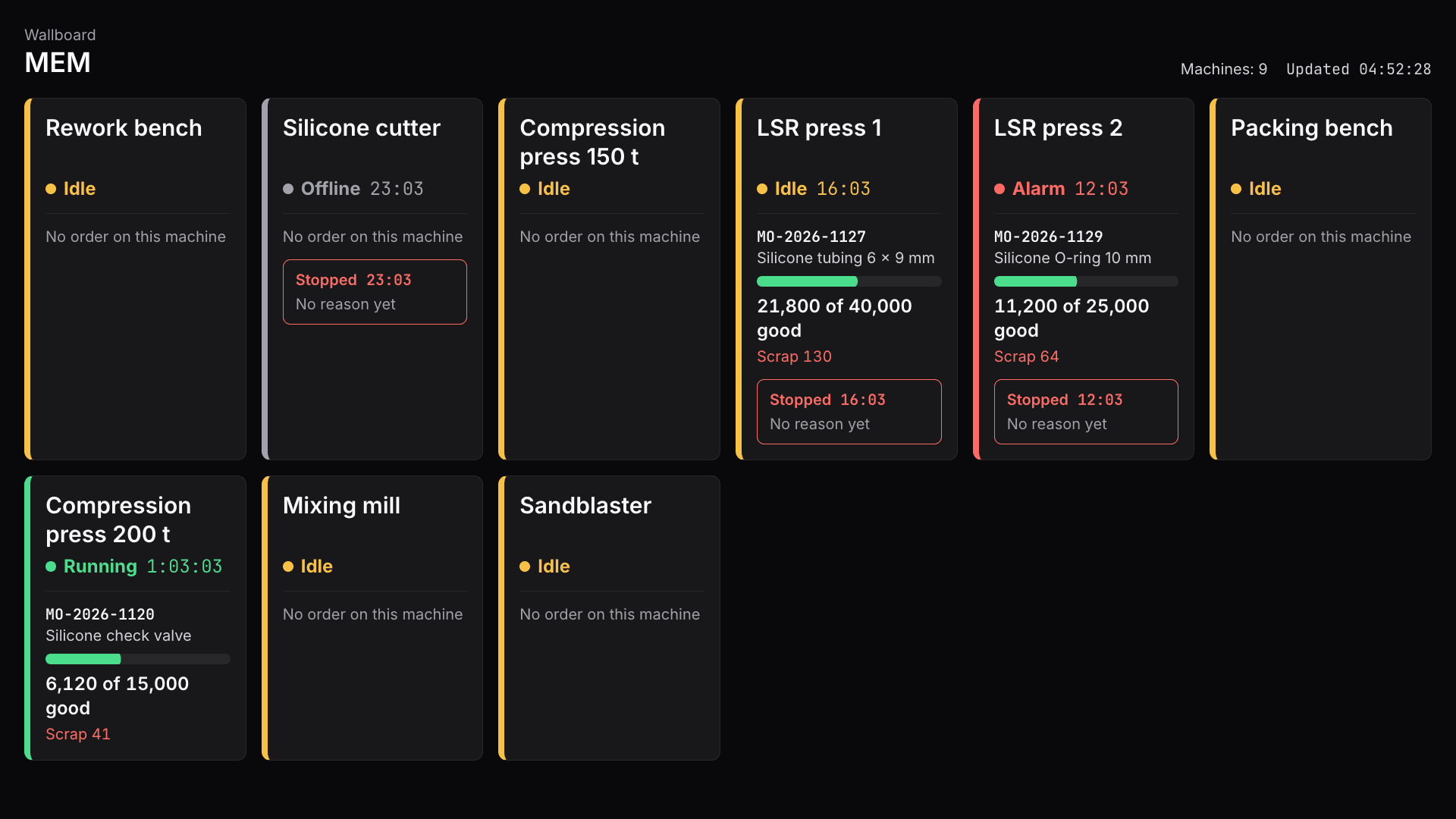
- State and how long the machine has held it.
- The order, the good parts against the quantity, and the scrap.
- A stop: how long it lasts and the reason.
- The time of the last update.
The number next to the state is how long the machine has held it. Under it, the tile shows the order, the product,
the good parts against the quantity, the scrap and the due date. When the machine is stopped, a red box shows the
stop reason and how long the stop has lasted. The text No reason yet means that nobody has answered the question
on the tablet.
The wallboard asks for new data every 15 seconds. If the data is more than 60 seconds old, an amber band at the top says Data is old and the time of the last good update. The screen keeps trying and removes the band when the data comes back.
Use the wallboard without pairing
A signed-in person who can see the floor or production can open /board in a browser. Add ?area= and a work area
to see only that area, for example /board?area=Moulding hall. This view reads the same data as a paired TV.
Make a new code or revoke a screen
- Choose New code on a row to pair the screen again, for example after you move it. The old code stops, and the screen that held it stops at once.
- Choose Revoke to stop a screen for good. The app asks you to confirm. A revoked screen shows This screen is not paired.
If the screen does not pair
| Message | What to do |
|---|---|
The code is not correct, or it has lapsed. Check the code, or ask for a new one. | Check the characters. A code works one time and lapses after 15 minutes. Make a new code with New code. |
Enter all 8 characters of the code. | Type all 8 characters. The characters 0, 1, I, L and O are not in a code. |
Too many tries. Wait one minute and try again. | Wait one minute. |
The server did not answer. Check the network and try again. | Check the network of the screen. |
| This screen is not paired | Open /pair on the screen and enter a code from Production > Machine monitoring > Devices. |
| This screen is a tablet station | A tablet station does not show the wallboard. Pair the screen as a TV, or open the floor tablet. |