Add people and link them to employees
Add people with a username or an email invitation, give each person tasks, link each login to one employee, and set approval limits, delegation and access expiry.
This page is for the Org admin (Grace Ooi). You need full access to Settings. Open Settings > Users & invitations.
To let another person invite people and create logins, give them the Org admin app role. Their organization role then changes to Admin. When you remove Org admin, it changes back to Member. The owner always stays Owner.
Users and invitations
People with access, what each person does, their employee, and the invitations still open.
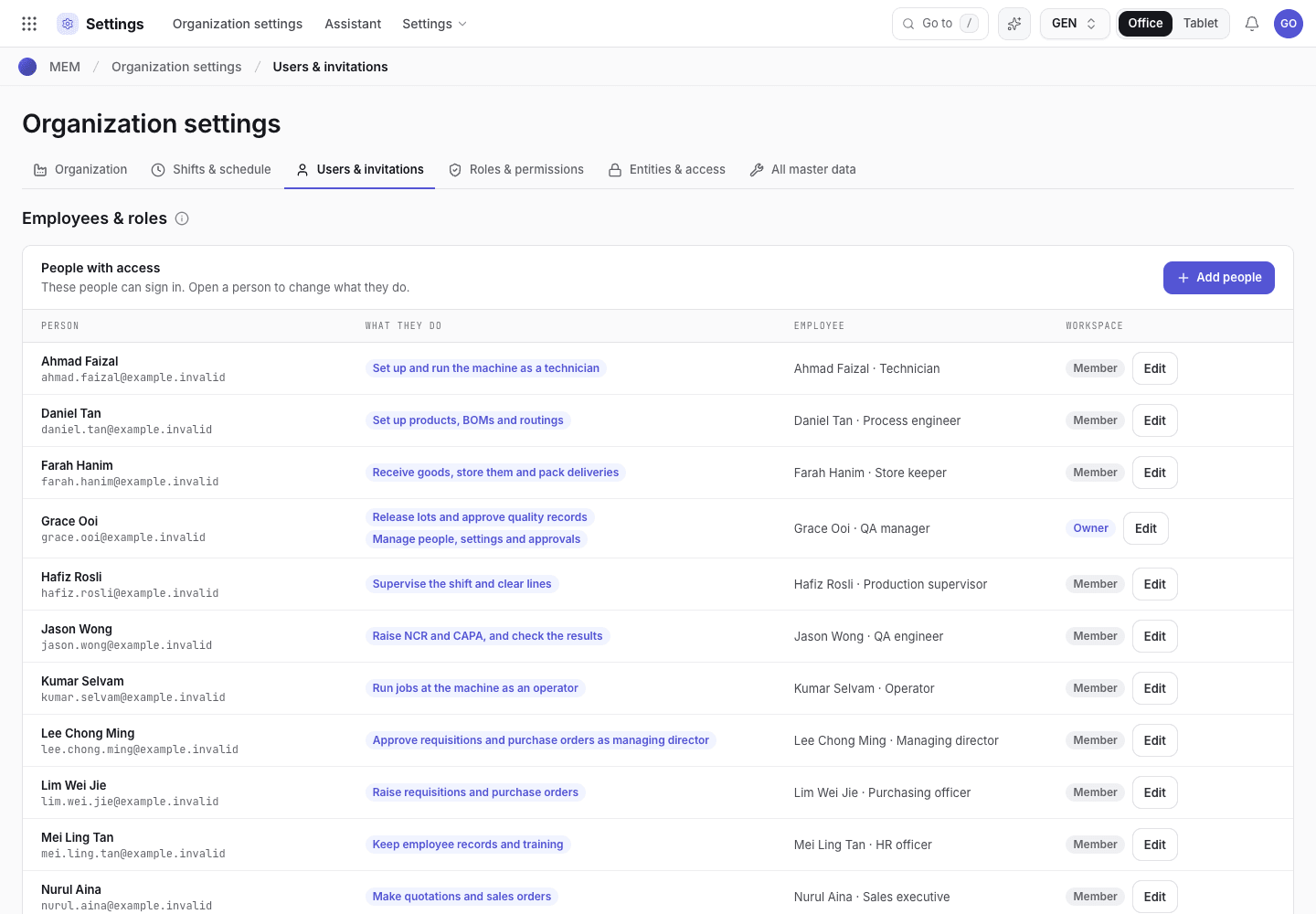
- People with access: person, what they do, employee and workspace role.
- Add people.
- Edit a person to change what they do.
Add people
Choose Add people.
Choose a tab. With a username is for staff without a work email. With an email invitation sends a sign-in link by email. Only the workspace owner can send email invitations.
For each person, choose a template. The template sets the tasks of the person. For an email invitation, paste the Work emails, one on each line or separated by commas. The dialog tells you how many are ready, how many are already invited and how many are invalid.
Choose the create or send button. For an invitation the person gets an email with a sign-in link. The message
reads Invitation sent to {email} or {n} invitations sent.
The steps for a username login, the list of many people and the print slips are in Give a person tasks.
Under Invitations, status is Pending, Active, Revoked or Expired. The owner uses Resend on a pending invitation. Revoke asks you to confirm, because the link then stops working. Revoked invitations are hidden behind Show {n} revoked.
Change what a person does
Choose Edit on the person's row. Tick the tasks. The system sets the app roles and the signing titles. You cannot change your own tasks. Another administrator does that. The organization must always keep at least one administrator. See Give a person tasks.
Link a login to an employee
Each login also links to one Employee in the employees register, which the training records and the
checks that need someone other than who raised a record compare. Choose it on the person's page, under
Employee. The message reads {name} updated.
Each login signs as at least one person: the title it signs with, such as QA manager or Managing director.
The tasks set it. A login that does not sign as anyone cannot take signed steps or steps that need training.
It sees {name} is not linked to a person, so signed steps and steps that need training are blocked.
Signs as is a role, so several logins can sign as the same one: a factory with three production planners gives all three the planner task. The Employee is who the login is, so it belongs to one login: the picker offers only employees no other login has. Link every login that signs to its own employee. The checks that need someone other than who raised a record compare employees and logins, never the role, so two planners count as two people and either may approve what the other raised.
A person with more than one job has more than one task: see
Set up a small team.
Employee lists the employees register further down the page; while it is empty the picker reads
Add employees first. Add employees there once someone who signs as a person can sign the entry.
You cannot change your own: another administrator does, and your page reads Another administrator links your login
until they have. An administrator links others whether or not they are linked themselves. The exception is a new workspace: when you are
its only administrator and your login is not linked yet, you choose your own Signs as and Employee
once. The event log records that you linked yourself. To change them afterwards, add a second
administrator.
Approval limits, delegation and access expiry
Open Settings > Entities & access, section Approval limits, delegation and access expiry. For each person set:
| Column | Meaning |
|---|---|
| Approval limit (RM) | A signature above the limit moves to the next level. Empty shows No limit. |
| Delegate, From, To | During the window the delegate signs on behalf, and both names are recorded. Empty shows No delegate. |
| Access expires | After this date the person is refused at login. |
| Status | Active, Delegating to {name} or Access expired. |
The limit, the delegate, the role, the person, the employee and the expiry carry signing authority. For this reason you cannot set them on your own login or hand yourself a delegation. Another administrator makes the change; only a workspace's only administrator links their own person and employee, once.
If the system refuses
Every message is in Settings refusals.
| Message | What to do |
|---|---|
Only the workspace owner can send email invitations. Ask the owner, or add the person with a username. | Ask the owner, or use the With a username tab. |
Enter valid work email addresses. | Fix the addresses. |
Everyone on this list already has an invitation or account. | Nobody new to invite. |
You cannot change your own app role. Ask another administrator. | Ask another administrator. |
You cannot change your own person. Ask another administrator to link your login. | Ask another administrator. If you are the only one and already linked, add a second administrator first. |
Next steps
Give a person tasksTick what a person does.Remove a user or employee
An Org admin can choose Remove beside a user, enter a reason, and confirm. This removes access to the current workspace. The account can still be used in other workspaces. A login created without email is disabled and signed out. Employee records and previous signatures stay in the audit history.
If the user is invited back, an Org admin must restore the same retained employee link before granting access. Their previous permissions and signature setup are not restored automatically.
You cannot remove yourself or an owner here. Transfer the owner's ownership to another member first. The workspace must retain an Org admin. Platform staff accounts are managed by the platform administrator.
For an unused employee, open the employee record, choose Delete, and enter a reason. Deletion needs your signature specimen and signing identity; it removes the entry from active use while retaining its row and signed history. If the employee is or was linked to a login, or appears in retained records, set Status to Suspended instead. Removing workspace access does not erase or suspend the employee record automatically.
The employee's Role is their job title. App access and Signs as are separate; built-in permission and signing roles keep their existing protections. You cannot change your own employee role, department or status; another administrator makes those changes.
Shifts, working hours and planned downtime
Define the shifts that run in each factory, and the holidays and maintenance windows taken out of operating hours.
Give a person tasks
Tick what a person does and let the system set the app roles and signing titles. Use a template to start, and Advanced for unusual cases.