Modules and your package
See what your package includes, turn optional parts off and on, and ask Xentr to add a part.
This page is for the Org admin (Grace Ooi). Other people see the result: a part that is off goes out of their menus.
Your package is what your company bought from Xentr. ISO 9001 is always in it. ISO 13485, ISO 14001, ISO 45001, machine monitoring and tablet stations can be added. Inside the package, you turn optional parts on or off. Only Xentr changes the package.
Open Settings > Organization and choose Modules in On this page.
Modules on desktop
Your package at the top, the optional parts below it.
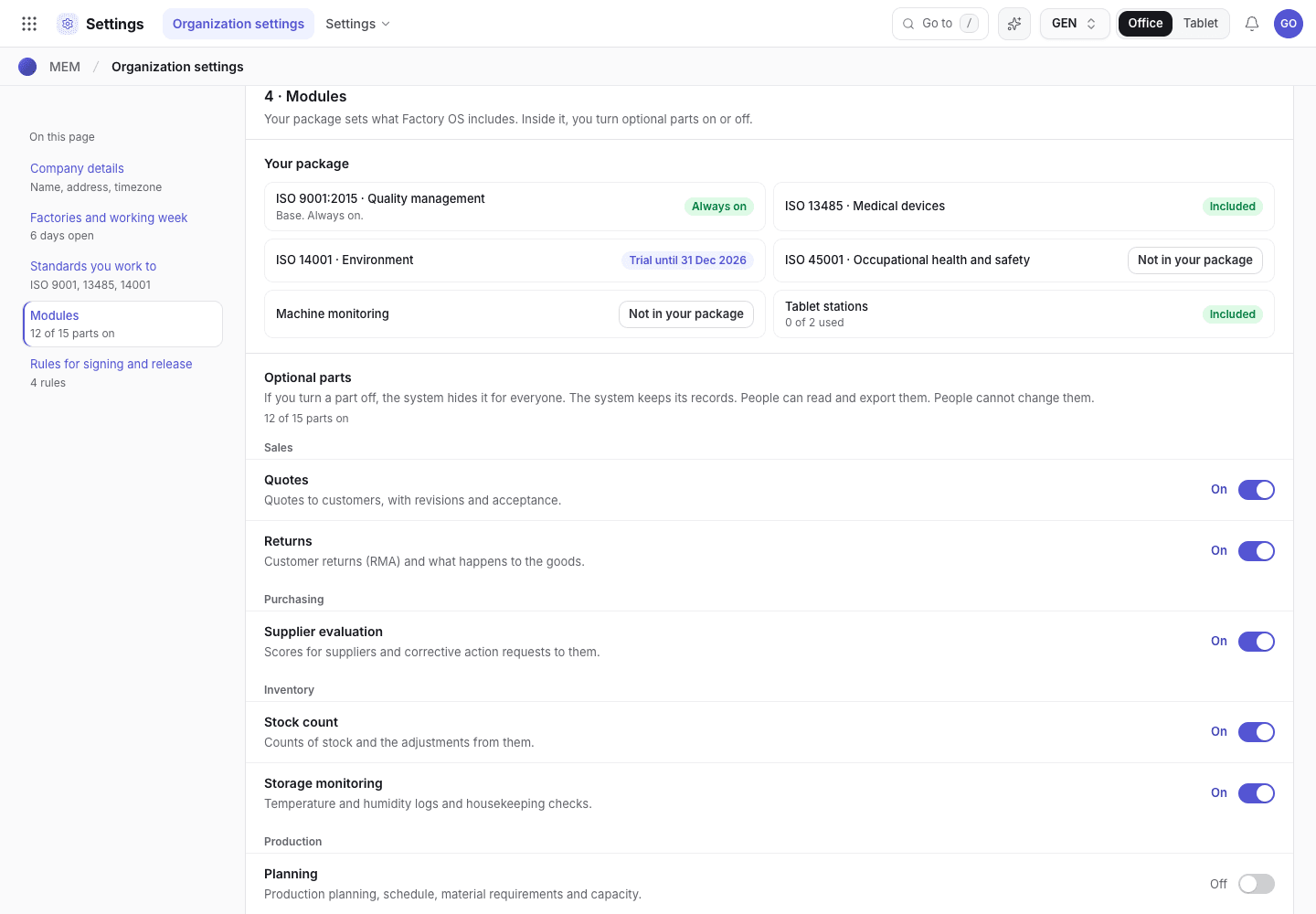
- On this page: Modules shows how many parts are on.
- Your package: each standard shows Included, a trial date or Not in your package.
- Tablet stations: how many you use of how many you bought.
- The switch of an optional part.
Modules on a phone
The same section in one column.
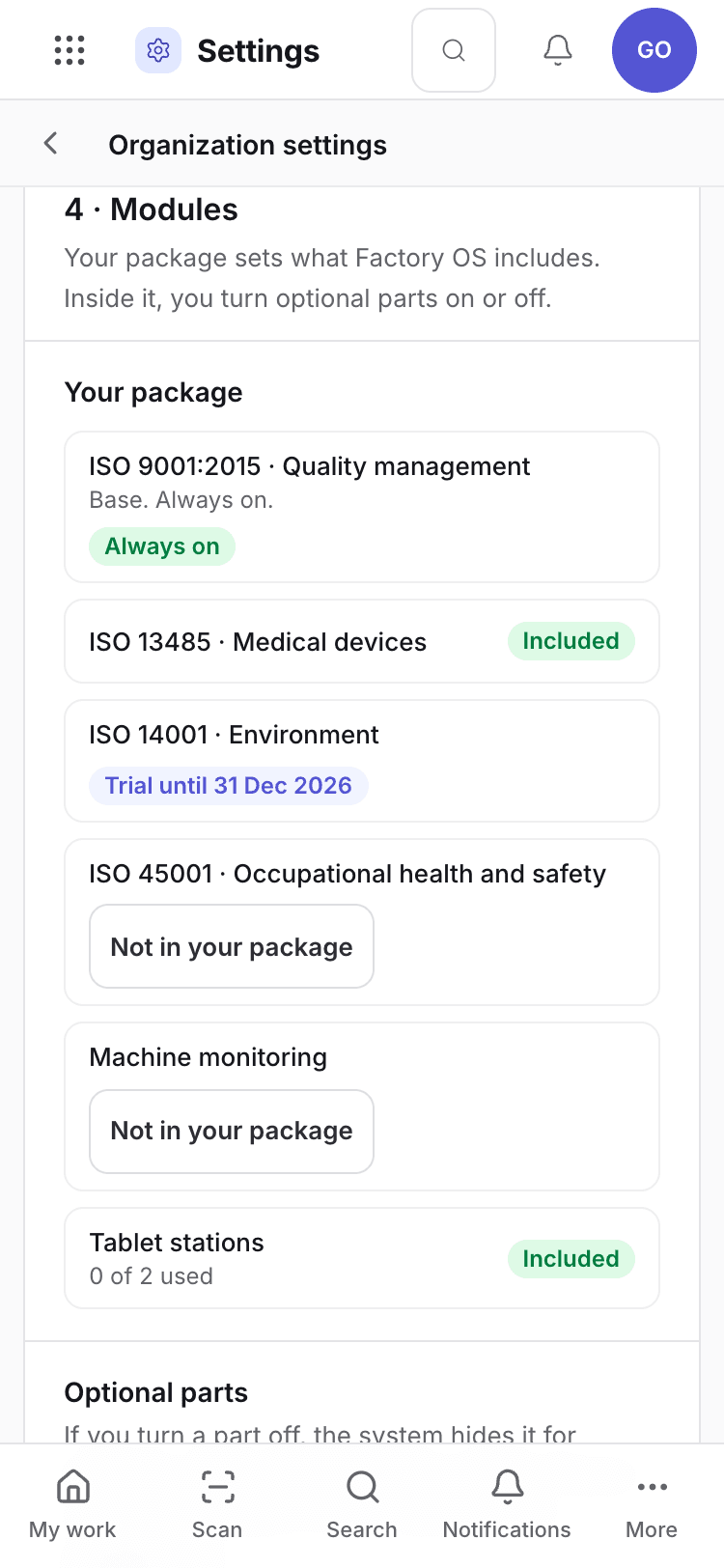
- Your package.
- Not in your package opens the request window.
What each part does
| Part | What it adds |
|---|---|
| Quotes | Quotes to customers, with revisions and acceptance |
| Returns | Customer returns (RMA) |
| Supplier evaluation | Supplier scores and corrective action requests (SCAR) |
| Stock count | Stock counts and their adjustments |
| Storage monitoring | Temperature and humidity logs, housekeeping checks |
| Planning | The production plan, the schedule, material requirements and capacity |
| Order costing | Planned and actual cost of each order |
| Gauge R&R | Gauge R&R studies |
| Audits and reviews | Internal audits, management review, objectives, risks and improvements |
| FMEA | Process FMEA |
| Preventive maintenance | PM plans and the maintenance plan |
| Machine checklists | Checklists at the machine and their records |
| Mould maintenance | Maintenance job orders for moulds and machines |
| Report studio | Your own reports and dashboards |
| AI assistant | Questions about your data in plain words |
The other screens (orders, stock, inspections, NCR and CAPA, lot release, calibration, training, documents, products and change control) are the ISO 9001 base. They are always on.
Preventive maintenance needs Mould maintenance. If you turn Mould maintenance off, Preventive maintenance goes off too.
Turn a part off
Find the part in Optional parts and choose its switch.
Write the reason in one line. The reason goes into the history of the organization settings.
Choose Turn off.
Turn off a part
A reason is necessary. The records stay.
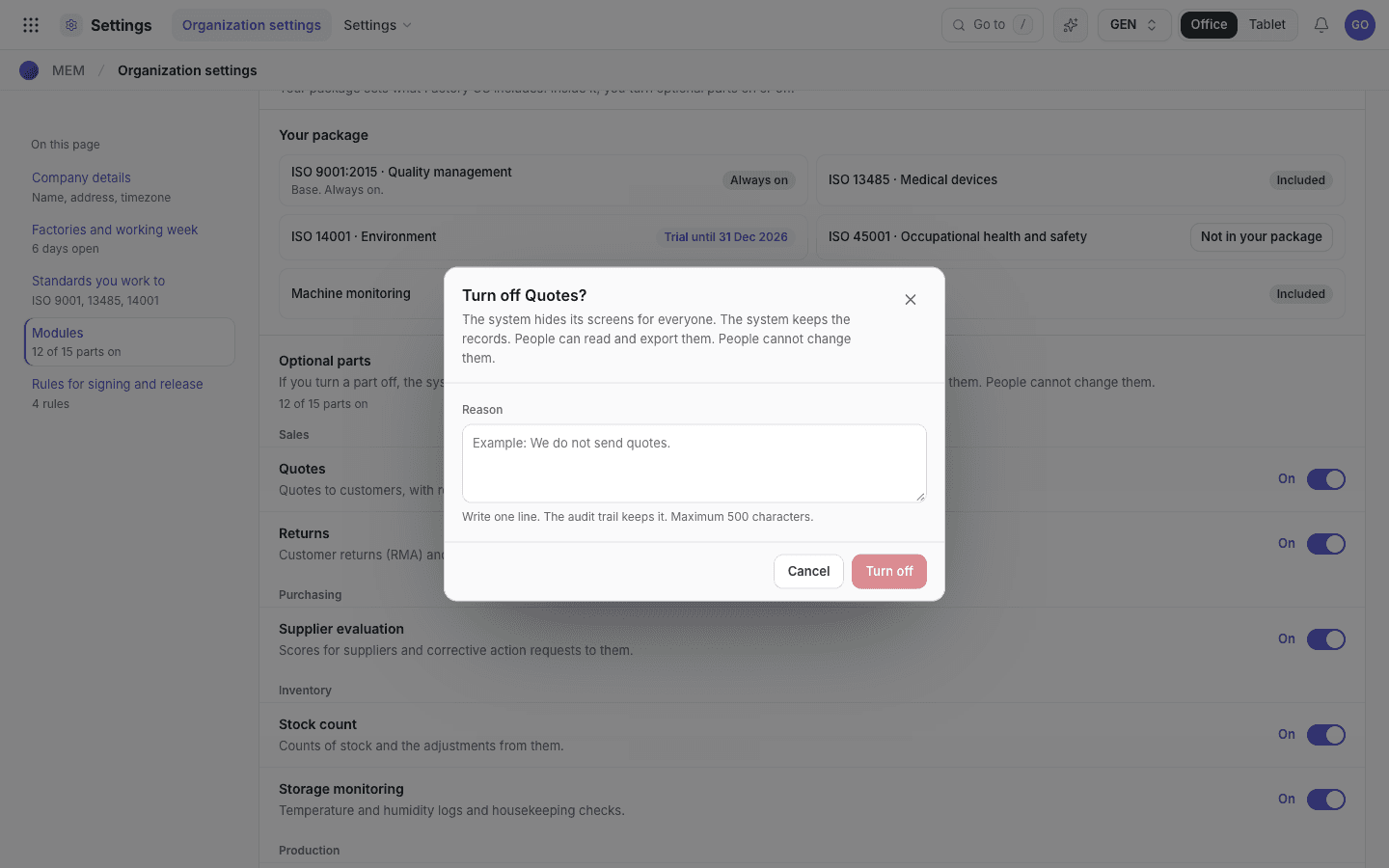
- What happens: the screens go away, the records stay.
- Reason: one line.
- Turn off.
When a part is off:
- Its screens go out of the menus, Go to and search for everyone.
- Its records stay. People can read and export them. People cannot change them.
- The base flows do not ask for its records. For example, with FMEA off, a product release does not ask for a PFMEA. With Supplier evaluation off, a purchase order does not ask for a re-evaluation date.
The system does not let you turn a part off while its open records stop other work. For example, an open breakdown job order holds its mould. The window shows the records. Close them first.
To turn a part on again, choose its switch. The records come back as they were.
A link to a part that is off
A link or a bookmark to a screen of a part that is off still opens. A note at the top tells you that you can read the records but not change them. The Org admin also sees Open Modules settings.
A screen of a part that is off
Read only, with a note at the top.
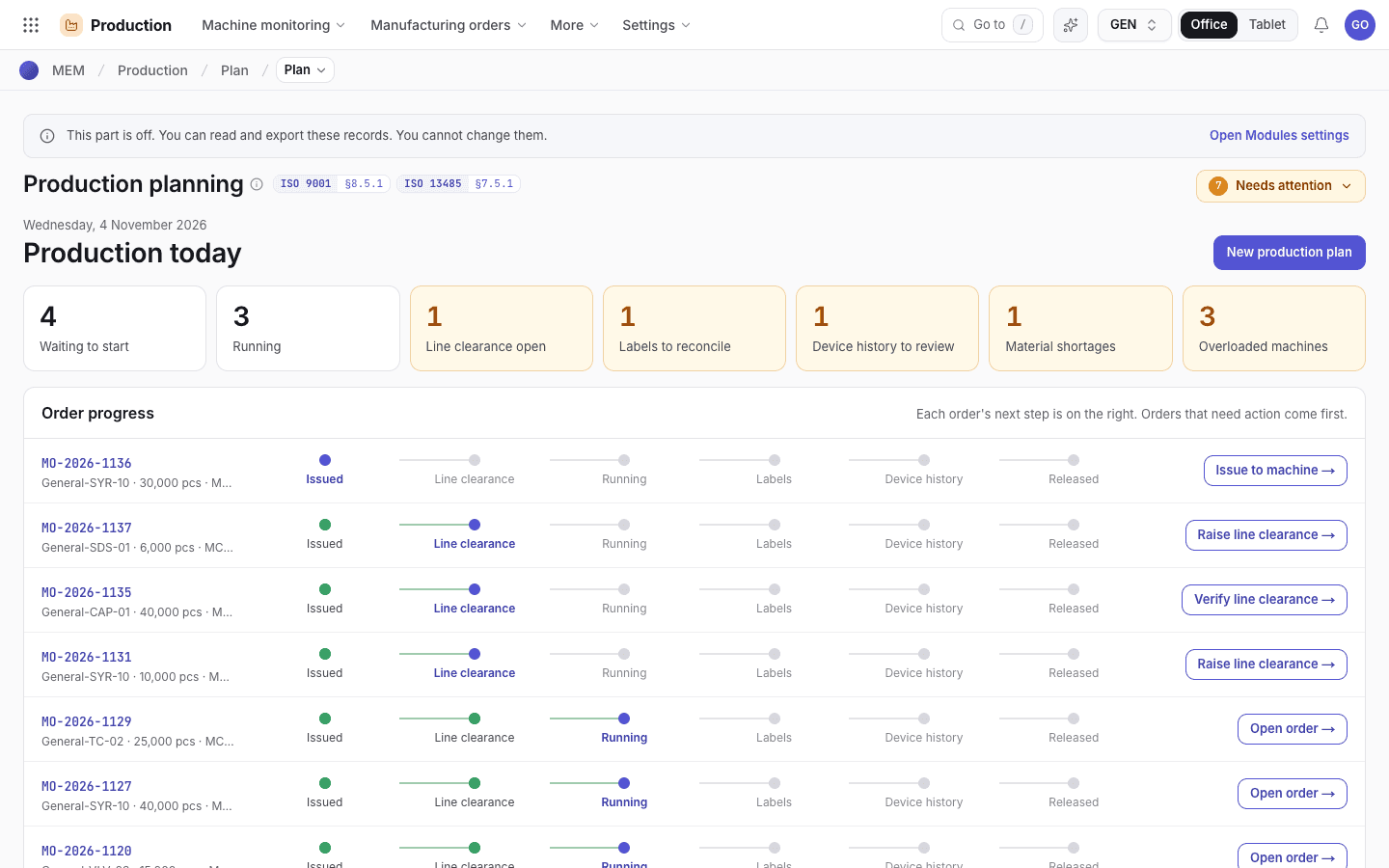
- The note: you can read and export, you cannot change.
- Open Modules settings (Org admin only).
Ask Xentr to add a part
A part, a standard or an add-on that is not in your package shows Not in your package. When you choose it, a window opens. Nothing turns on.
Choose Not in your package, or the switch of the part.
Read what the part adds. Choose Ask Xentr to add it.
The part shows Requested and the date. Xentr contacts you.
Ask for a part
The window for a part that is not in your package.
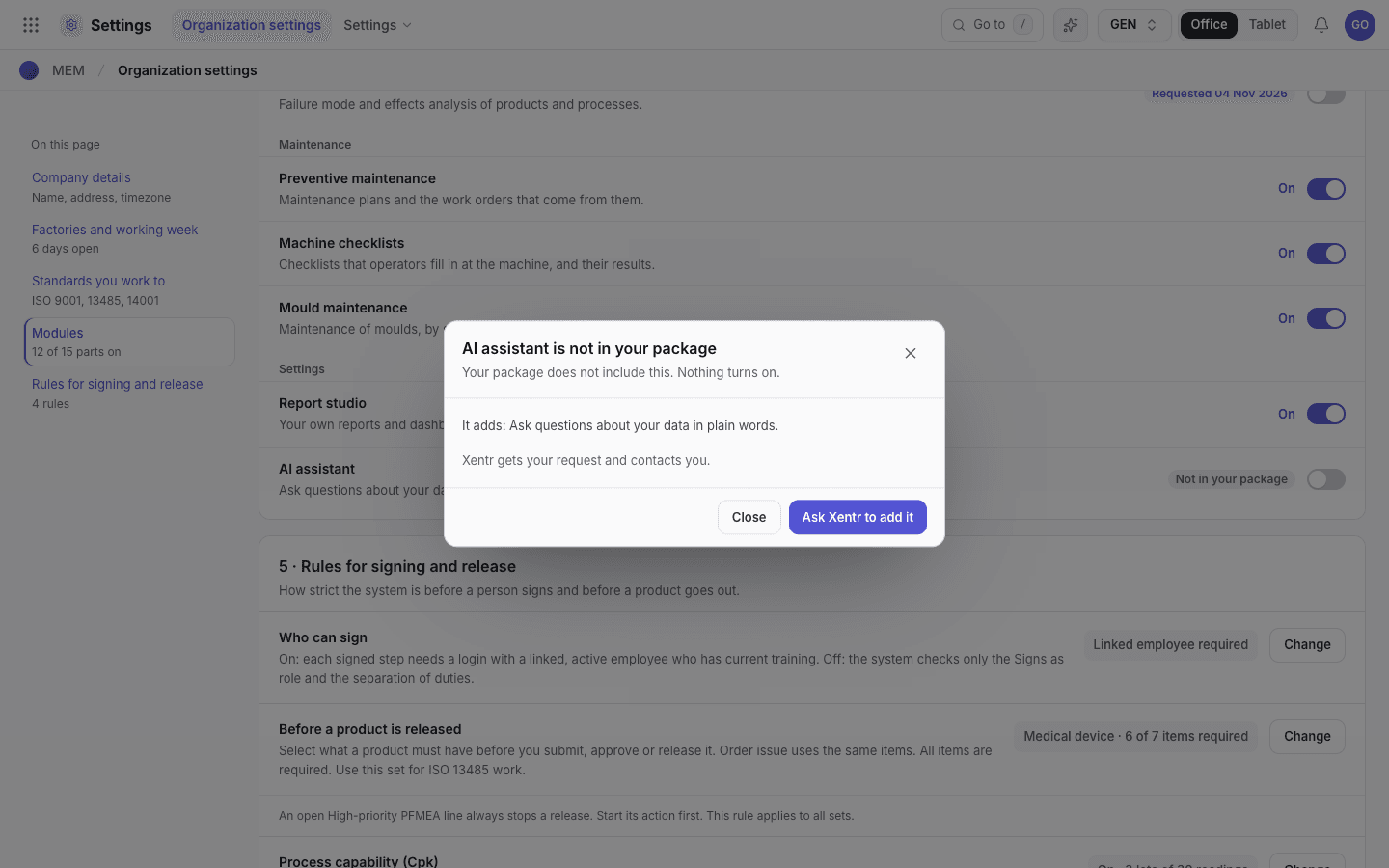
- The part is not in your package. Nothing turns on.
- Ask Xentr to add it.
Tablet stations
Your package sets how many tablets you can pair as stations. A login on the floor screen is not a station: users are not limited. When you use all your stations, adding one more is refused. Revoke a station that you do not use in Production > Machine monitoring > Devices, or ask Xentr for more.
For Xentr: set a customer's package
Platform administrators set the package in the Xentr workspace: Settings > Organization > Customers, then Package on the customer's row.
The package of a customer
Everything on, or a package with standards, counts, trials and parts.
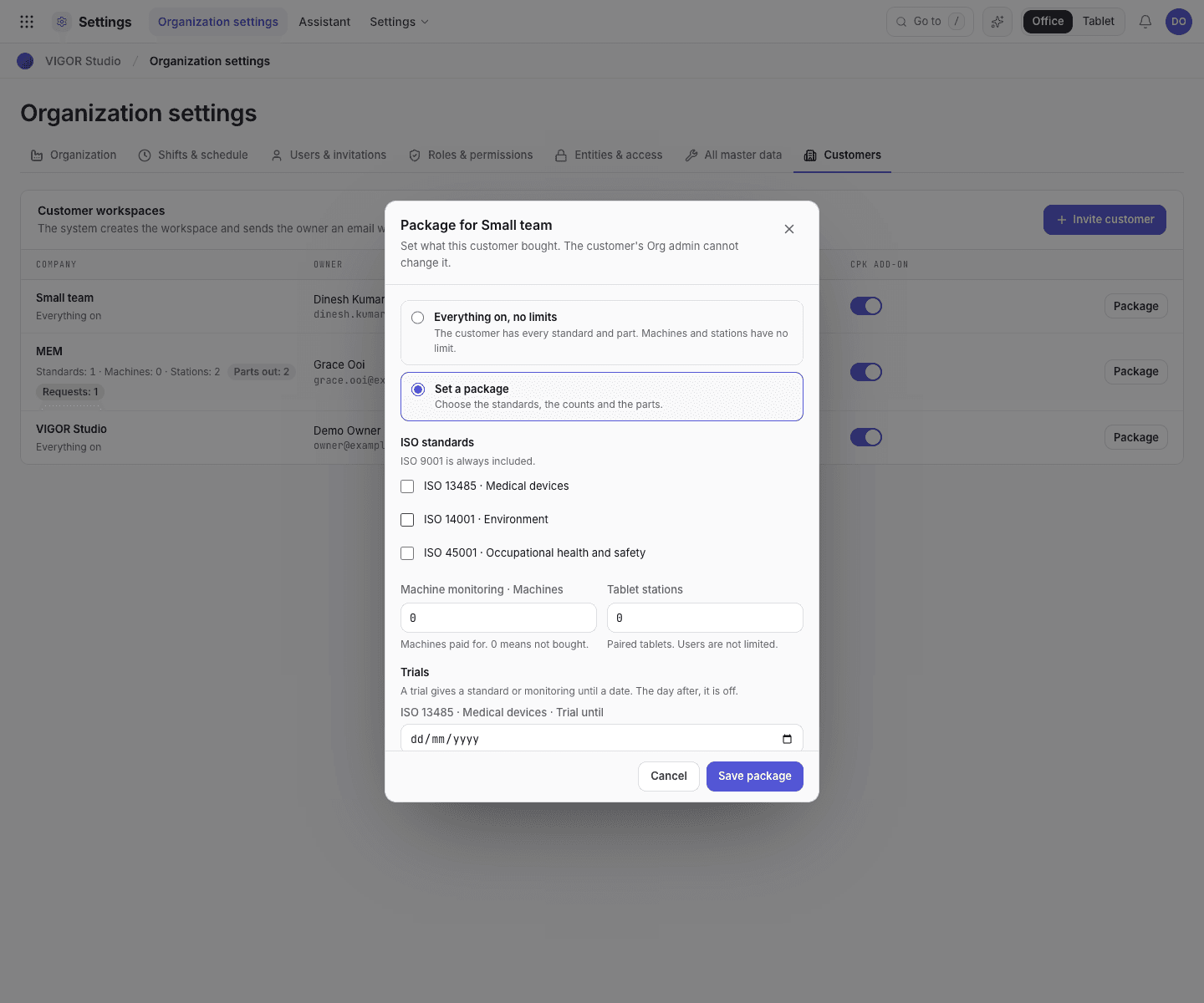
- Everything on, no limits: the customer has every part.
- Set a package: choose what the customer bought.
- ISO standards besides ISO 9001.
- Machines and tablet stations paid for.
- The customer's row shows the package and the requests.
- Trials: a standard or machine monitoring until a date. The day after, it goes off. The records stay.
- Parts out: optional parts that are not in the package.
- Requests: what the customer asked for, with the date and the person.
A workspace with no package has everything on, with no limits.
Organization profile and standards
Set the company details, the working week, factories, the standards your organization works to and the rules for signing and release.
Shifts, working hours and planned downtime
Define the shifts that run in each factory, and the holidays and maintenance windows taken out of operating hours.