Logins without email
Create a username login for someone with no work email, hand over the temporary password, and reset it with a second administrator.
This page is for administrators with full access to Settings and the organization role Owner or Admin. Open Settings › Users & invitations.
Create logins
- In Users with access, choose Add people, then the With a username tab.
- Add one row for each person. Enter the full name and a username (3 to 30 letters, digits, dots or
underscores, such as
ahmad.seri; unique across Factory OS). The dialog checks the username while you type. Choose a Template: it sets the tasks of the person. You can also choose their employee now. To add many people, choose Paste a list. - Choose the create button. Every temporary password shows once on the result screen: choose Show, Copy or Print one slip each and hand each slip over in person.
If one row fails, for example because the username is taken, the others are still made. The dialog keeps the failed row so you can fix it. The steps with pictures are in Give a person tasks.
The person signs in with the username and must choose their own password first, within 72 hours. Until then they can do nothing else. Their row shows the username, No email, and who last set the password.
Only the organization owner can create a login with the Org admin role or any access to Settings, link a person or employee taken from someone else in the last 30 days, or reset an administrator's login. Whoever set a login's password cannot then change its role or links: another administrator does.
Reset a password
Logins without email cannot use Forgot password. On the person's row choose Reset password.
- The owner gets the new temporary password at once.
- Anyone else sends a request. It appears under Password resets waiting for a second administrator, who chooses Approve and gets the new temporary password to hand over. You cannot approve your own request. Unapproved requests lapse after a day.
A reset signs the person out everywhere. Their two-factor stays on.
Users with access
Create login, a username row, and its Reset password and Clear failed sign-ins actions.
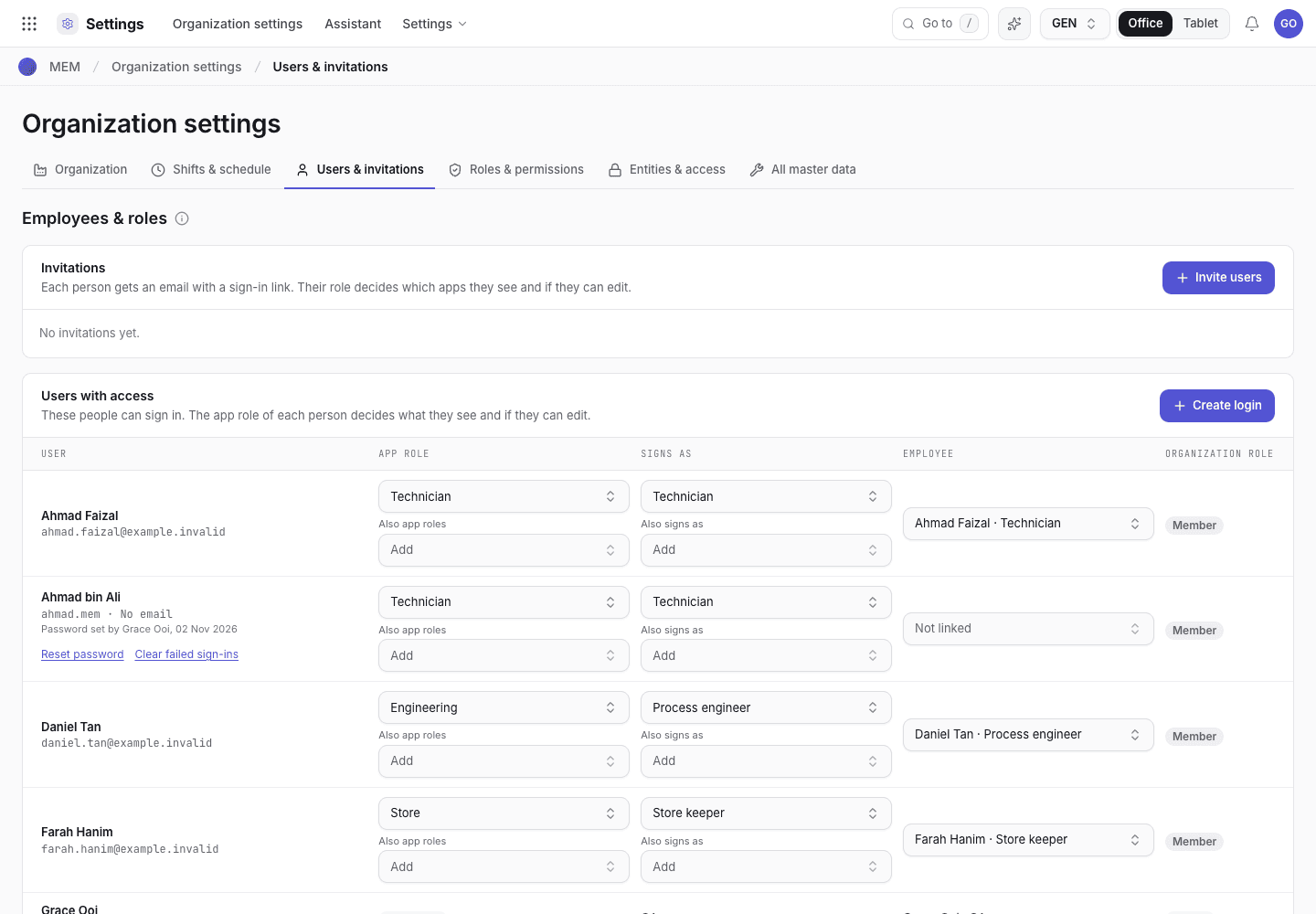
- Create login.
- Username, No email, and who set the password.
Someone is locked out
After 5 wrong passwords on one account from one place, each new try there must wait. The wait is 30 seconds at first, and it doubles after each try, up to 15 minutes. A browser where the person signed in before is not slowed by wrong passwords from other devices at the same place. Choose Clear failed sign-ins on their row to let them try again at once. Only the owner can clear it for an administrator or a person who signs in with email.
Give a person tasks
Tick what a person does and let the system set the app roles and signing titles. Use a template to start, and Advanced for unusual cases.
Set up a small team
Give one person more than one app role and more than one Signs as, so a company of four people can run every flow and still keep a second signature on each approval.