Change what a role can see and do
Set Full, View or None for each role in each app, and see why the Org admin row is locked.
Each role has an access letter for the nine apps: Sales, Purchasing, Inventory, Production, Quality, Engineering, Maintenance, Settings and EHS. Full means create and edit. View means read only. None hides the app. Only the Org admin (Grace Ooi) can see and change this page. Every change is recorded in the audit trail (ISO 13485 5.5.1).
Open Settings > Roles & permissions. The defaults of the demo roles are described on each page in Roles. The matrix shows what your organization has now.
Roles and permissions matrix
One row per role, one column per app. Each cell is a list of Full, View and None.
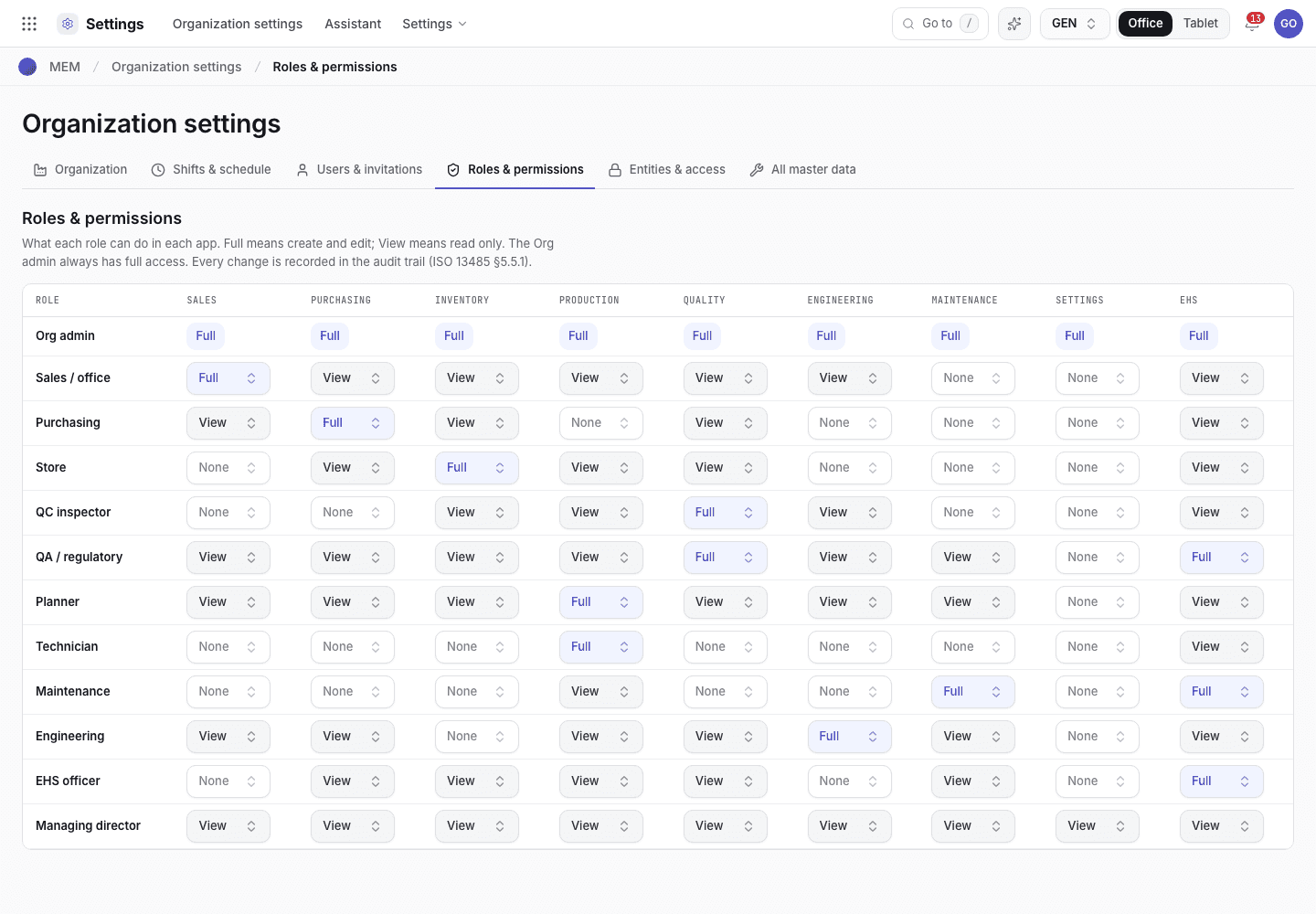
- Role column. The Org admin row is locked.
- App columns: Sales to EHS.
- Cell: Full, View or None.
Change a level
Find the role row and the app column.
Choose the cell and pick Full, View or None. The message reads {role} · {app} set to {level}.
The change applies to the next request of everyone in that role.
Assign delivery and return work
The Workflow responsibilities section offers two optional settings for this workspace:
- Purchasing delivery work adds Delivery orders and Packing & dispatch to Purchasing. Purchasing staff use their Purchasing access level; Store staff use their Inventory level.
- Quality returns adds Returns to Quality. QA and QC staff use their Quality access level.
Both settings start off. Enabling them grants access to the existing records without granting other Sales functions. Full permits changes and View permits reading; individual signing authorities, package switches and signed-record protections still apply. Existing Sales links and audit history are retained. Changes to these settings are recorded in the audit trail.
What is locked
- The Org admin row always has full access and cannot be changed.
- You cannot raise the access of your own role. Another administrator does that.
- Full access to Settings is not signing authority. Who may sign a step is set in the approval chains, the change board and the purchase approval levels, not here.
If the system refuses
Every message is in Settings refusals.
| Message | What to do |
|---|---|
Only the Org admin can change this setting. | Ask the Org admin. |
You cannot raise the access of your own role ({role}: {app} {was} → {now}). Ask another administrator. | Ask another administrator. |
Only the Org admin can see and change roles and permissions. | Ask the Org admin. |