Give a person tasks
Tick what a person does and let the system set the app roles and signing titles. Use a template to start, and Advanced for unusual cases.
This page is for the Org admin. Open Settings › Users & invitations, then choose Edit on a person.
You do not need to know the app roles or the signing titles. Tick the tasks the person does. The system sets the App role, the Also app roles, the Signs as and the Also signs as for you. One person can have any number of tasks.
One person, by tasks
Tasks in six groups on the left. What the tasks give is on the right.
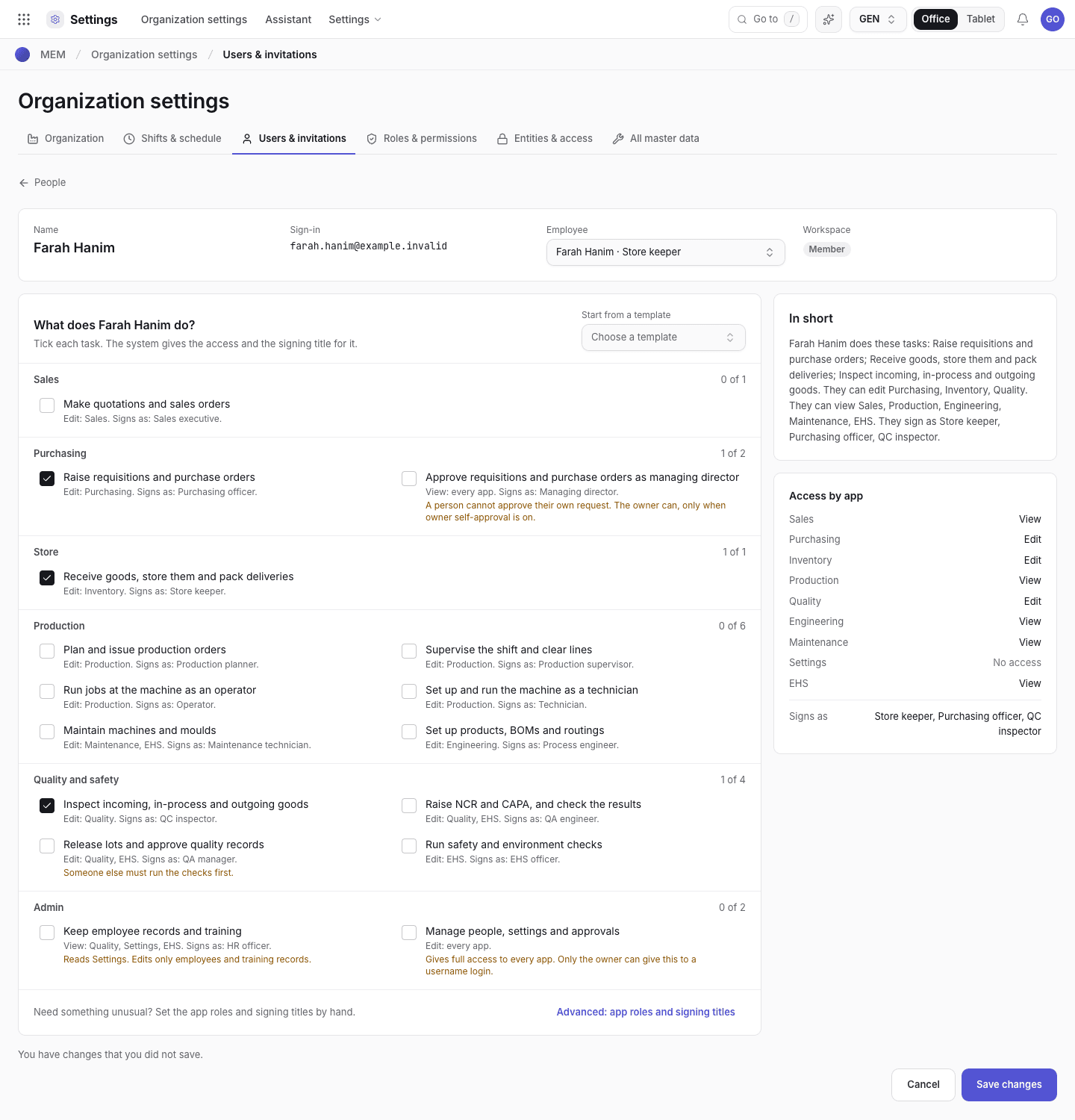
- Start from a template to fill the ticks. You can change them after.
- Tick a task. Under each task you see what it gives and its rules.
- In short: what the person does, what they can edit and what they sign as.
- Access by app and the signing titles, from the same tasks.
Tick the tasks
On Users with access, choose Edit on the person's row.
Choose a template to fill the ticks, for example Store keeper or QA manager. This step is optional.
Tick or untick tasks. Each task shows the apps it lets the person edit, the signing title it gives, and any rule. Example rule: a person cannot approve their own request.
Read In short and Access by app on the right. They show what the person gets before you save.
Choose Save changes. The message reads {name} updated.
An untick removes a role or a signing title only when no other ticked task needs it. The first ticked task gives the main App role and the main Signs as.
Roles that no task gives
A person can have roles that no task gives. Example: the Maintenance role with the Production technician signing title. The page shows these under Advanced, with a yellow note. They stay when you save. You remove them only when you change them in Advanced. A template keeps them too.
Open Advanced: app roles and signing titles to set the app role, the extra app roles, Signs as and the extra signing titles by hand. The Org admin role is always the main role. It has no extra roles.
Only the Org admin changes tasks. You cannot change your own: another administrator does it. The Org admin task gives full access to every app. Only the owner can give it to a username login.
Add people
Choose Add people on Users with access. The dialog has two tabs.
Add people with a username
One row for each person. The username check runs while you type.
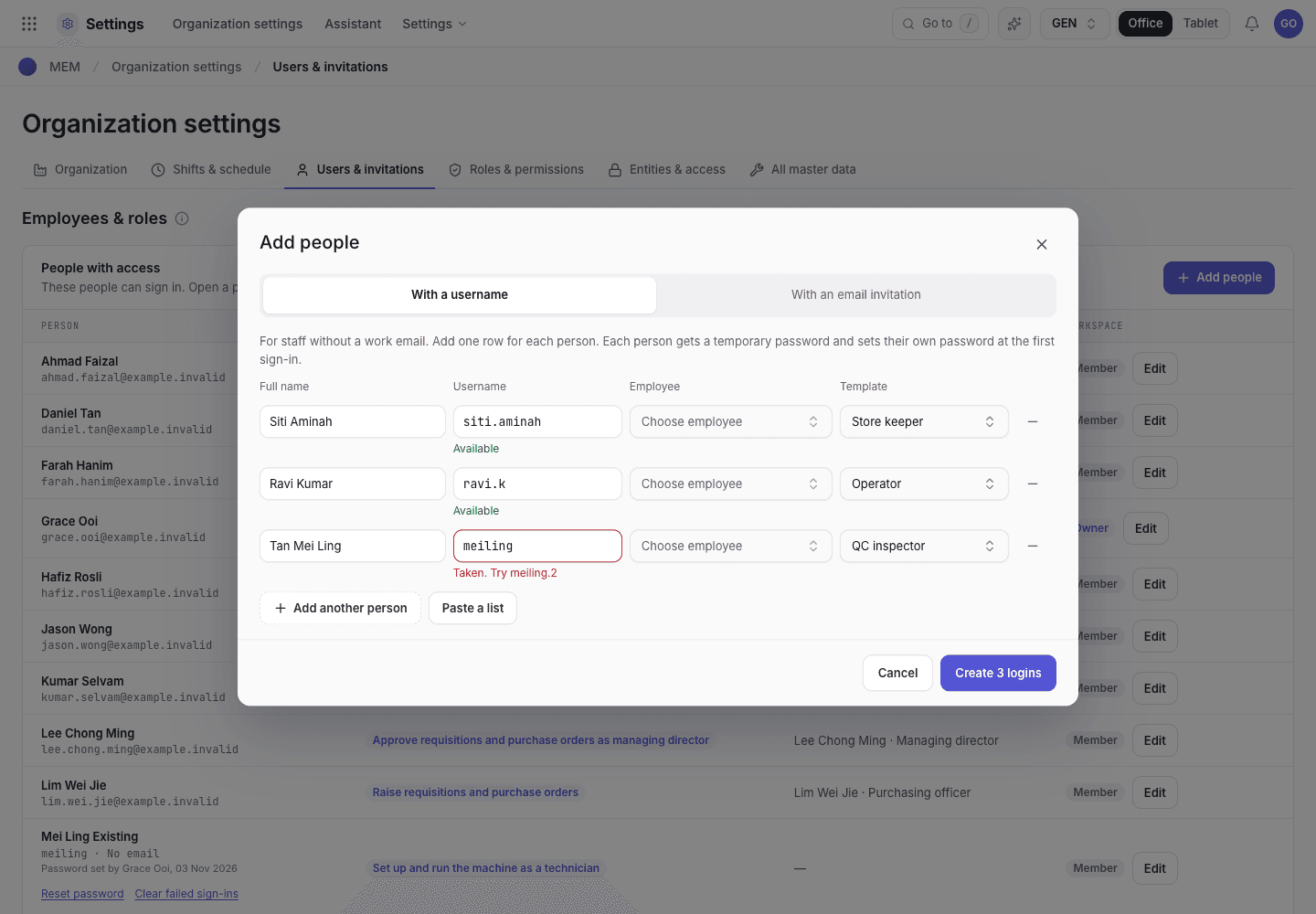
- Full name. The username fills in from it.
- Username with its check: Available, or Taken with a free name to try.
- Template: the tasks of this person.
- Add another person, or paste a list with one person on each line.
With a username is for staff without a work email. Add one row for each person: Full name,
Username, Employee (optional) and Template. Choose Paste a list to add many people at once:
write one person on each line as Full name, username. Choose the create button. It shows the number of logins.
The system sends one request for each row. If one row fails, the others are still made. The failed rows stay in the dialog, with the reason, so you can fix them.
Every new login, once
Each password shows one time only. Print one slip for each person.
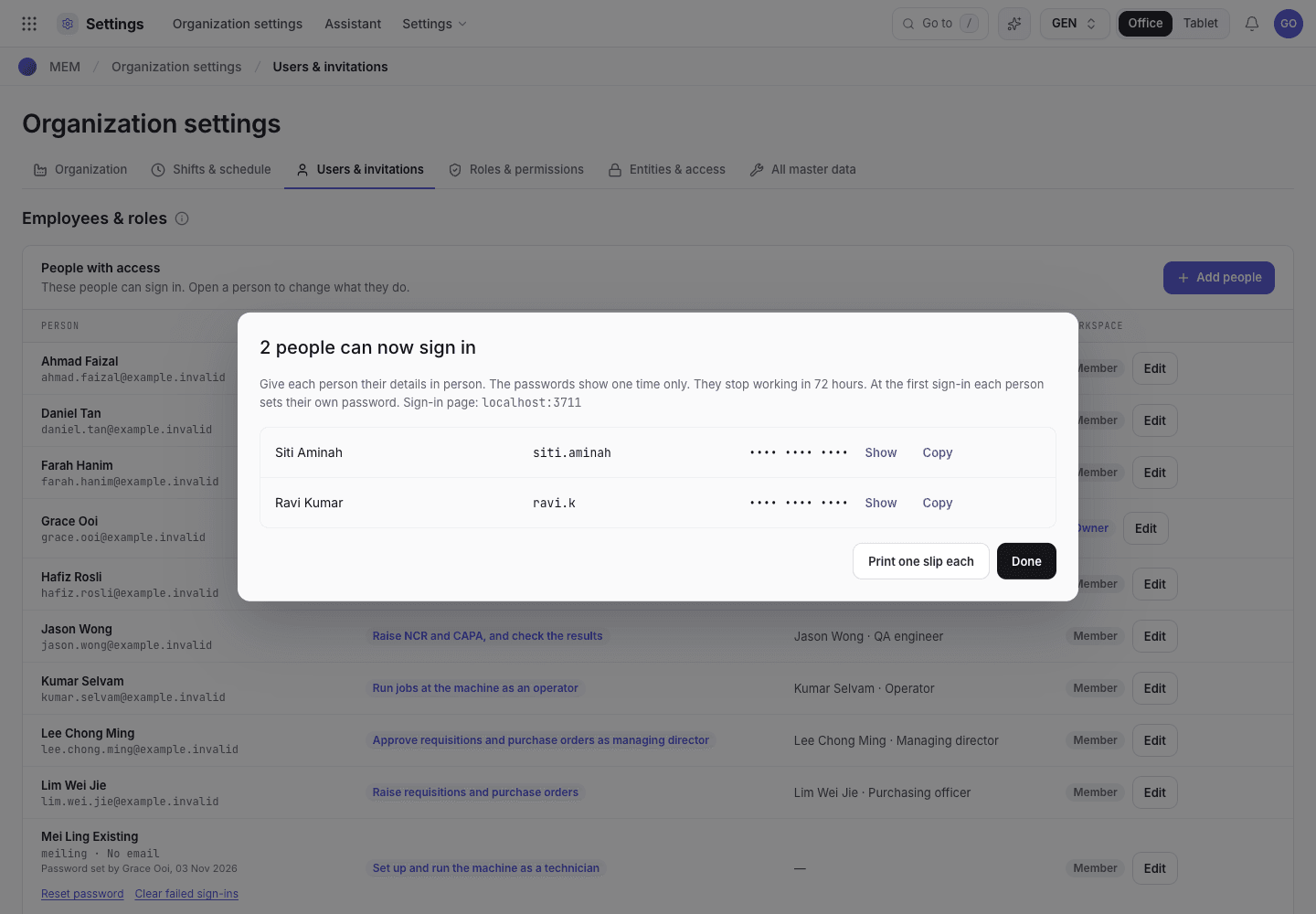
- Show or Copy the temporary password.
- Print one slip each.
Give each person their details in person. The passwords stop working after 72 hours. At the first sign-in the person sets their own password. See Logins without email.
With an email invitation sends an email with a sign-in link to each address. Only the workspace owner can send email invitations. For anyone else this tab is off. Paste one email or a list, choose a template, and choose the send button. It shows the number of invitations.
If the system refuses
| Message | What to do |
|---|---|
Only the workspace owner can send email invitations. Ask the owner, or add the person with a username. | Ask the owner, or use the With a username tab. |
This username is in use. Choose a different username. | Use the free name the row suggests, or type another. |
Only the organization owner can create a login with administrator or Settings access. | Ask the owner. The templates Org admin and HR officer give Settings access. |
You cannot change your own app roles. Ask another administrator. | Ask another administrator. |
Next steps
Link people to employeesEmployees, approval limits and delegation.Add people and link them to employees
Add people with a username or an email invitation, give each person tasks, link each login to one employee, and set approval limits, delegation and access expiry.
Logins without email
Create a username login for someone with no work email, hand over the temporary password, and reset it with a second administrator.