Release a manufacturing order
Follow a manufacturing order from Released to Completed, issue it to its machine, or cancel it.
A manufacturing order (MO) is the instruction to make a quantity of a product on one machine. The default role is Planner (Priya Menon). Open Production > Orders.
View as text
%% title: Manufacturing order statuses
flowchart LR
  R[Released or Scheduled] -->|Issue to machine| I[Issued]
  I -->|Start setup| S[Setup]
  S -->|Setup done, request first piece| Q[QA Check]
  Q -->|Accept inspection| P[In Production]
  Q -->|Reject, re-setup| S
  P -->|Complete run| F[QA Final]
  F -->|OQC pass, move to FG| C[Completed]
  R -->|Cancel| X[Cancelled]
  I -->|Cancel| X
  S -->|Cancel| X
What each status means
| Status | Meaning | Buttons |
|---|---|---|
| Released | Planned to start now. | Issue to machine, Cancel |
| Scheduled | Planned for a later start. | Issue to machine, Cancel |
| Issued | Handed to the machine tablet. Waiting for the technician. | Start setup, Cancel |
| Setup | The technician is setting up. | Setup done · request first piece, Cancel |
| QA Check | QC inspects the first piece or first article. | Accept inspection · e-sign, Reject · re-setup |
| In Production | The run is counting good and scrap parts. | Complete run, Record patrol check |
| QA Final | The finished lot waits for outgoing QC. | OQC pass · move to FG, OQC fail · hold lot |
| Completed | Done. | None |
| Cancelled | Withdrawn. | None |
On the floor the technician and QC take the steps from Setup onward on the machine tablet. See Set up and request the first piece.
Manufacturing orders on the desktop
Every order with its machine, quantity and status.
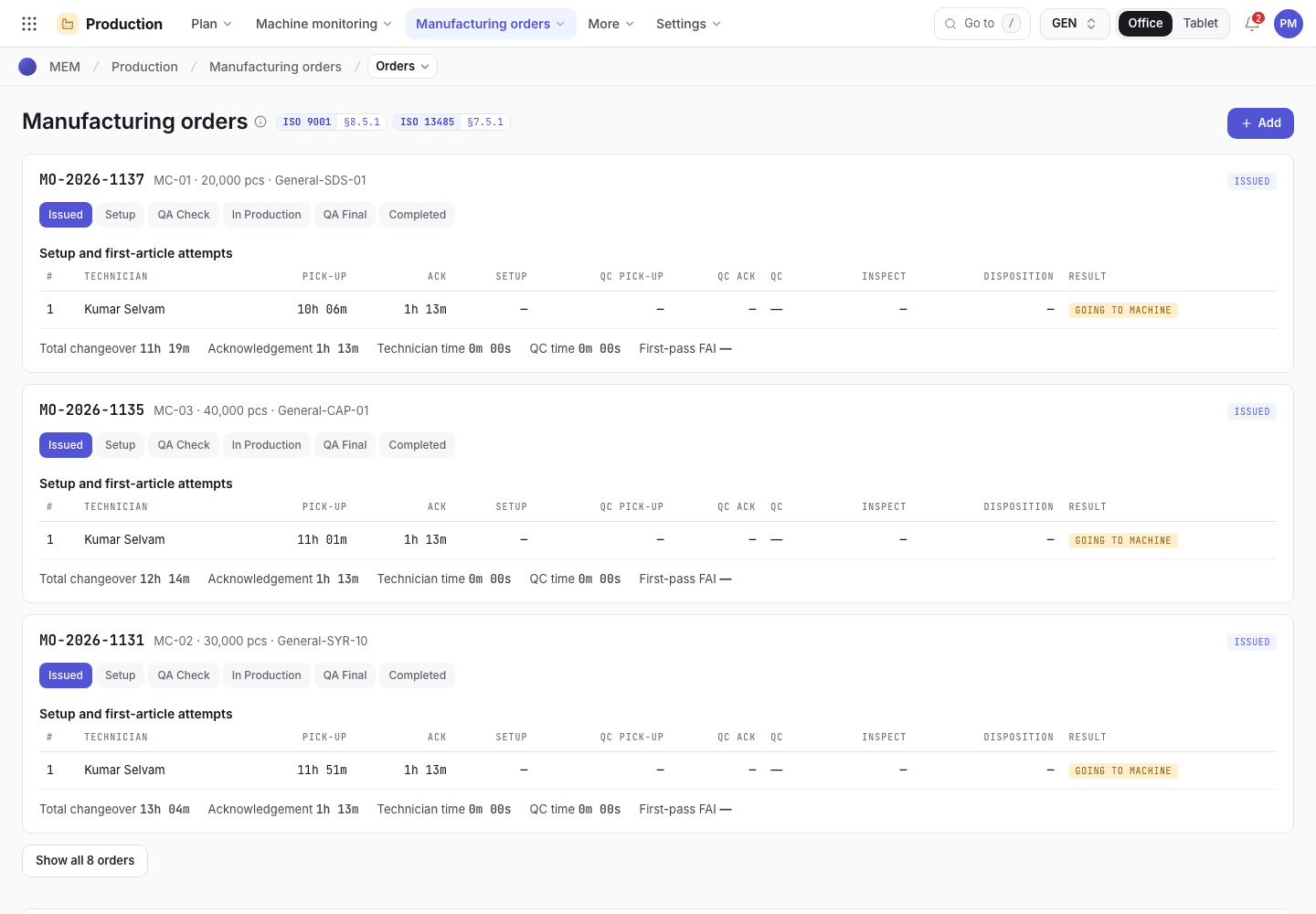
- Search and filters.
- Status chip of each order.
- Setup and first-article attempts below the list.
Issue an order to its machine
Open an order that is Released or Scheduled, for example MO-2026-1131.
Choose Issue to machine and sign. The order becomes Issued and appears on the machine tablet.
Raise the line clearance for the machine. Setup cannot start without a verified clearance. See Clear the line.
Issue needs complete product data. If the product's device master file has gaps, the system lists them.
Change an order after it is issued
You can change Machine, Mould, Method, Work instruction or Qty freely while the order is Released or Scheduled. After that, write Reason for change after issue. A new quantity needs its own new reason. A new machine or mould also needs a new line clearance and a new first-article inspection. On an order that is on the floor, the new machine must be free and its line cleared before the move.
Make the lots for a process validation
An order can be the run of a process validation. On Add, set Process validation to a validation that is Executing, choose its Product, Machine and Mould, and leave Sales order blank. This order may be set up on a mould that is Pending validation, and nothing else may. Its finished lot is held until QA approves the validation, then it releases through the normal checks. The validation cannot be changed or cleared once setup has started. See Make the PQ lots with a validation run. The planning dialog does not create validation runs.
Cancel an order
Open the order and choose Cancel. It is offered until the first piece goes to QC.
Type the reason (at least 4 characters) and sign. The order becomes Cancelled. The technician is told: "{order} was cancelled. {product} on {machine} is withdrawn. Do not start it."
An order with material still issued to it, a lot, or a patrol check cannot be cancelled. Return the material first, see Issue material to an order.
Print the job traveller
The job traveller is the A4 paper that goes with the parts. It shows the order, and for each operation the machine, the work instruction steps, the machine settings, the checks and boxes to sign. You can print it when the order is Issued or at a later status. Production and Quality can print it.
Open the order and choose Actions > Print traveller.
Print traveller on a manufacturing order
MO-2026-1137 is Issued. The Actions menu shows Print traveller.
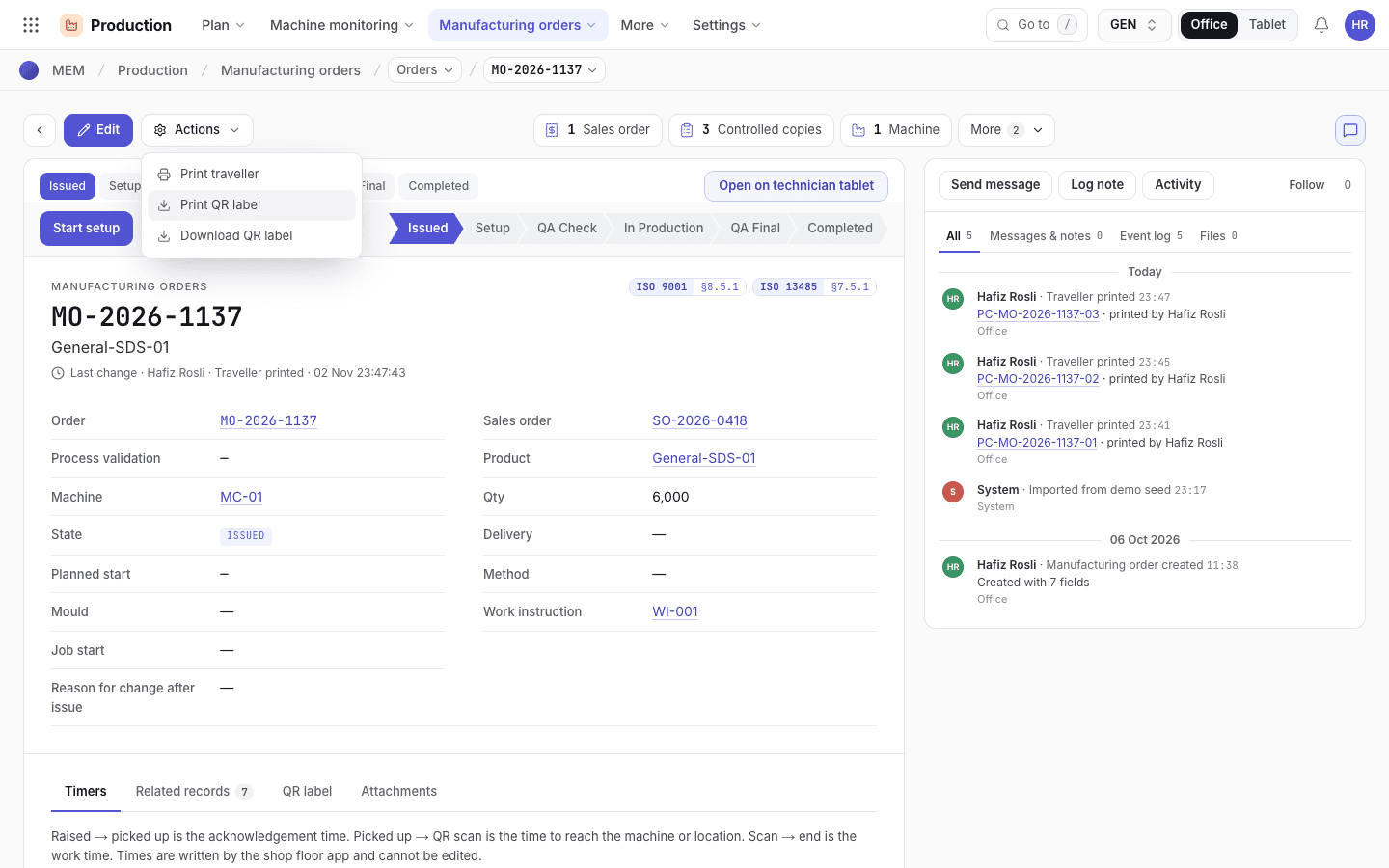
- Actions.
- Print traveller.
Print traveller on a phone
The same menu at 375 px.
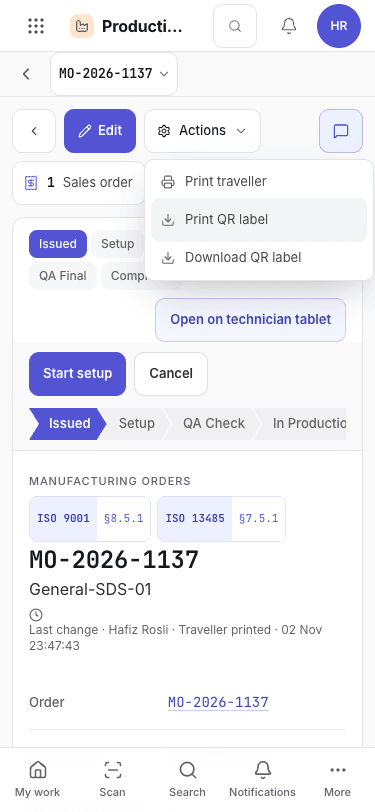
- Actions.
- Print traveller.
Read the traveller. If the order has an active copy, choose the reason for a new copy: Damaged, Lost, Additional copy for a station or Revision change. Additional copy for a station keeps the old copy valid. The other reasons end it.
The traveller before you print
The next copy ID is on the Print button.
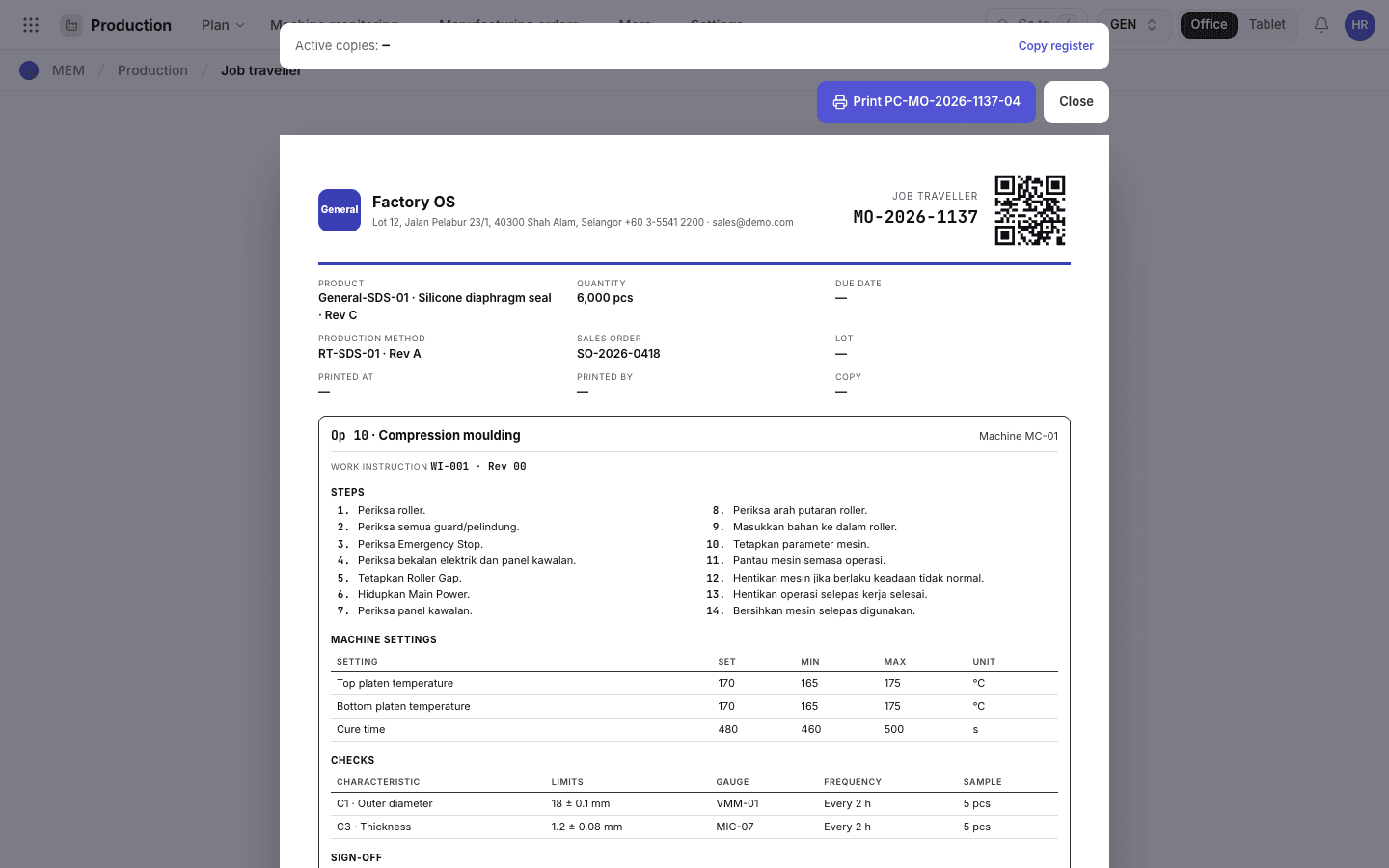
- Active copies of this order.
- Print issues the next copy.
- The order and its QR code.
Choose Print. The app issues the next controlled copy (for example PC-MO-2026-1137-05), writes the
copy ID, your name and the time on the sheet, and opens the print dialog. Print on A4 or save a PDF.
The printed traveller has:
- The order number and its QR code, the product and revision, the quantity, the due date, the production method, the sales order, the lot, and who printed the copy and when.
- One block for each operation of the method, in operation order: the machine, the mould and its cavities, the cycle time, and the work instruction number and revision.
- The work instruction steps, the machine settings (set, min, max, unit) and the checks (characteristic, limits, gauge, frequency, sample). These are the settings and checks that the work instruction steps show on the tablet.
- Boxes for the operator, the start and end time, the good and reject quantity and the signature. An operation with a QC check at handover also has a box for the QC check.
- At the bottom of each page: the order, the copy ID and the page number.
The printed traveller
Page 1 of MO-2026-1137 at A4, copy PC-MO-2026-1137-05.
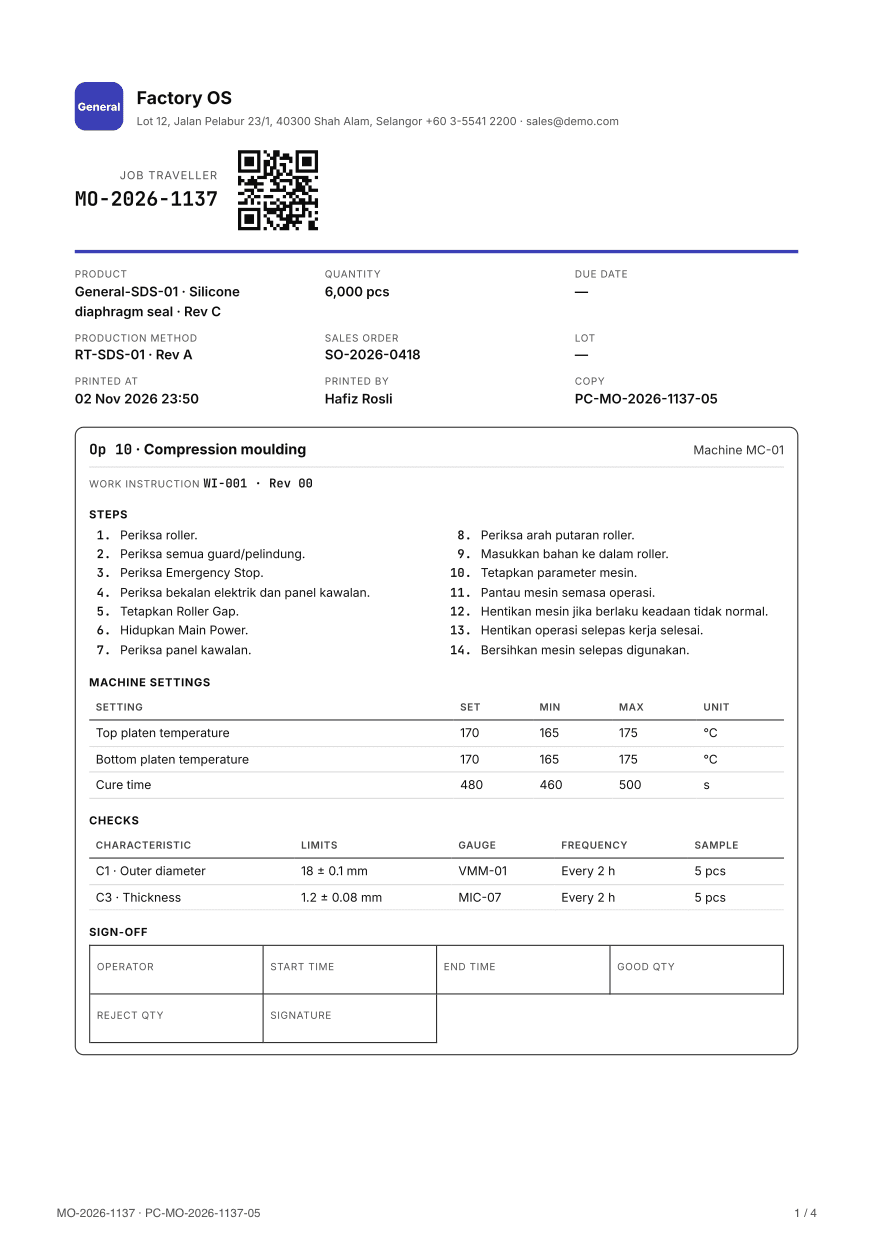
- Order number and QR code.
- Printed at, printed by and the copy ID.
- Settings and checks of the operation.
- Sign-off boxes.
- Order, copy ID and page number on each page.
Each print is a controlled copy. It shows the work instruction revisions in force on the print date. When a new revision releases, stop using the copy and print a new one. Each print also writes a Traveller printed event on the order. A print does not change the order.
Use the Print button on the traveller page. A print from the browser menu has no copy ID and no print time, and the app does not record it.
To revoke a copy, choose Copy register on the traveller page. Scan the QR at each checkpoint to record the step in the app. When you work on paper, enter the paper events later with the copy ID, see Enter a paper event.
Order costing and the traveller
Production > Order costing compares the planned baseline, frozen at release, with the actual cost from linked evidence. Missing costs stay open and block closure. Scrap material is not counted twice.
The traveller card follows the parts station by station. Open Home > Traveller. See Work from your phone and Record scrap and rejects.
One manufacturing order in production
Record MO-2026-1127 with its buttons, status and events.
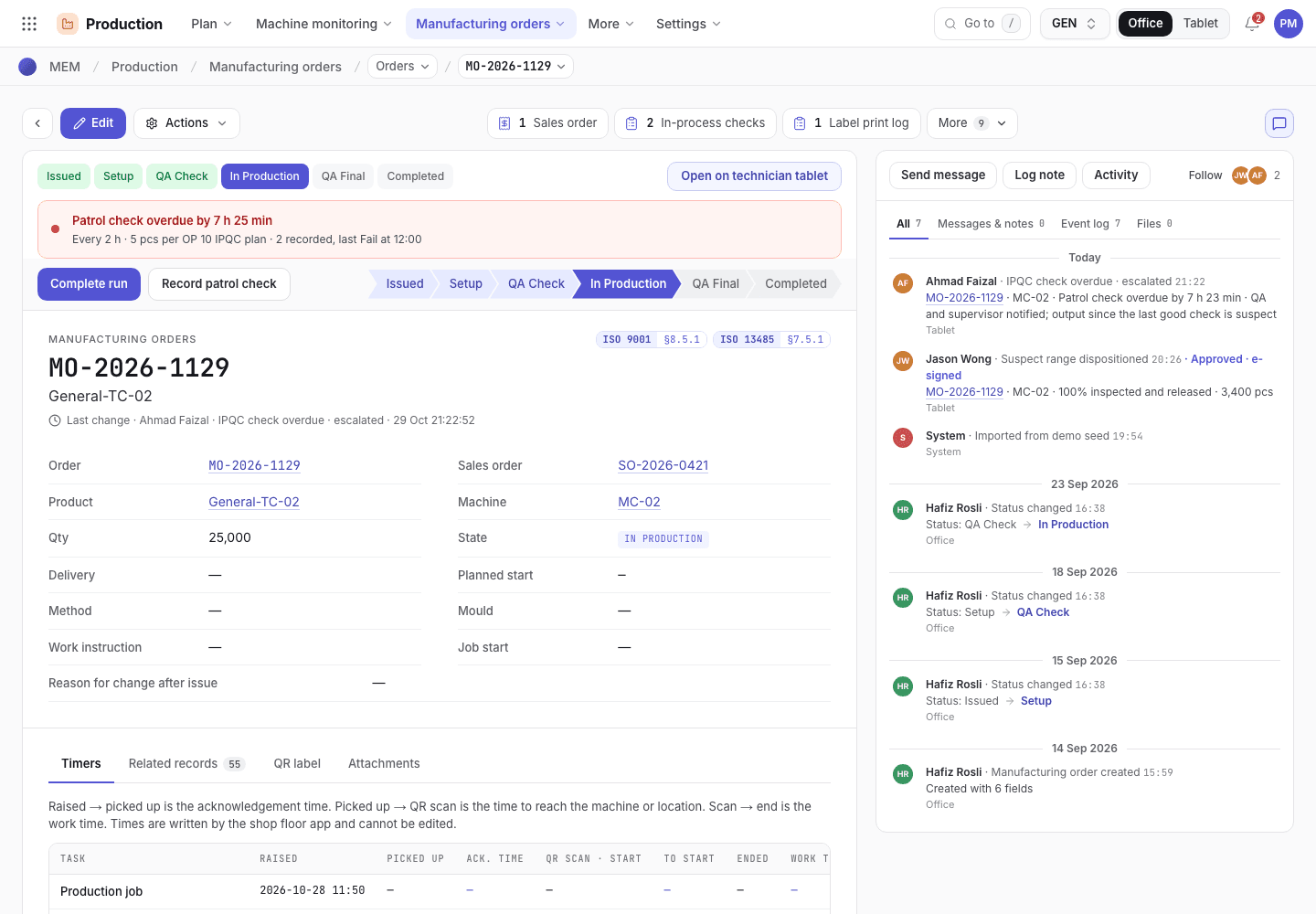
- Workflow buttons for the current status.
- Status chevrons from Issued to Completed.
- Details and events of the order.
If the system refuses
Messages shared by every flow are in Signatures and refusals. Order messages are in Planning refusals. Examples:
{product} is {status}. Only released products can be ordered for production.{order} still has material issued to it ({lots}). Return it to stock before cancelling the order.This order is {status}. Changing {fields} needs a reason; a new machine or mould also needs line clearance and first-article inspection again.