Plan production
Turn a sales order into a manufacturing order, check material and capacity, and release the plan to the floor.
Planning decides which machine makes what, and when. The default role is Planner (Priya Menon). Open Production > Plan. The screen is called Production today.
View as text
%% title: From a plan to the floor
flowchart LR
  A[New production plan] --> B[Check and suggest]
  B -->|Ready or At risk| C{Start now?}
  B -->|Blocked| X[Fix the blocker first]
  C -->|Schedule now| D[Manufacturing order Released]
  C -->|Schedule for later| E[Manufacturing order Scheduled]
Plan production from a sales order
Lines of confirmed sales orders that have no manufacturing order yet appear under Unplanned demand, for example "2 lines waiting for a manufacturing order", each with its due date.
Choose Plan production on the line. To plan without a sales order, choose New production plan at the top. If you cannot plan, the line shows Waiting for Planning instead of the button.
A line that cannot be planned yet lists each blocker on its own row, with the department that clears it (Owner: Maintenance, Engineering or Quality) and a link to the record: the PM plan, checklist or job order, the work instruction, the mould or the process validation.
The New production plan dialog opens. In Product, choose the product. Enter Quantity (pcs) and Delivery date. Choose Check & suggest. The Summary on the right (at the bottom on a phone) follows what you enter: product, quantity, delivery date and, once checked, the machine option, machine, mould, parts per cycle, run time, estimated finish against the delivery date, material that is short and any warnings.
Read the table of machine options. Each row shows Method, Machine, Job start, Mould · cav., WI, Run, Est. finish and Result. The result is Ready, At risk or Blocked. The best option is marked Suggested. Above the table, Material for {qty} pcs lists each bill-of-materials line as "need {qty} · have {qty}" with Available or Short.
Choose an option with Select {id}. Choose Schedule now, or Schedule for later and set Start.
Choose Release now (or Schedule for a later start). The system makes the manufacturing order and tells the technician. The order is Released, or Scheduled for a later start.
If you plan more than the sales order still needs, a box asks for Reason for making more than the order needs. Write one, for example "scrap allowance for the mould trial".
Production today on the desktop
The board with unplanned demand, order progress and the machine load.
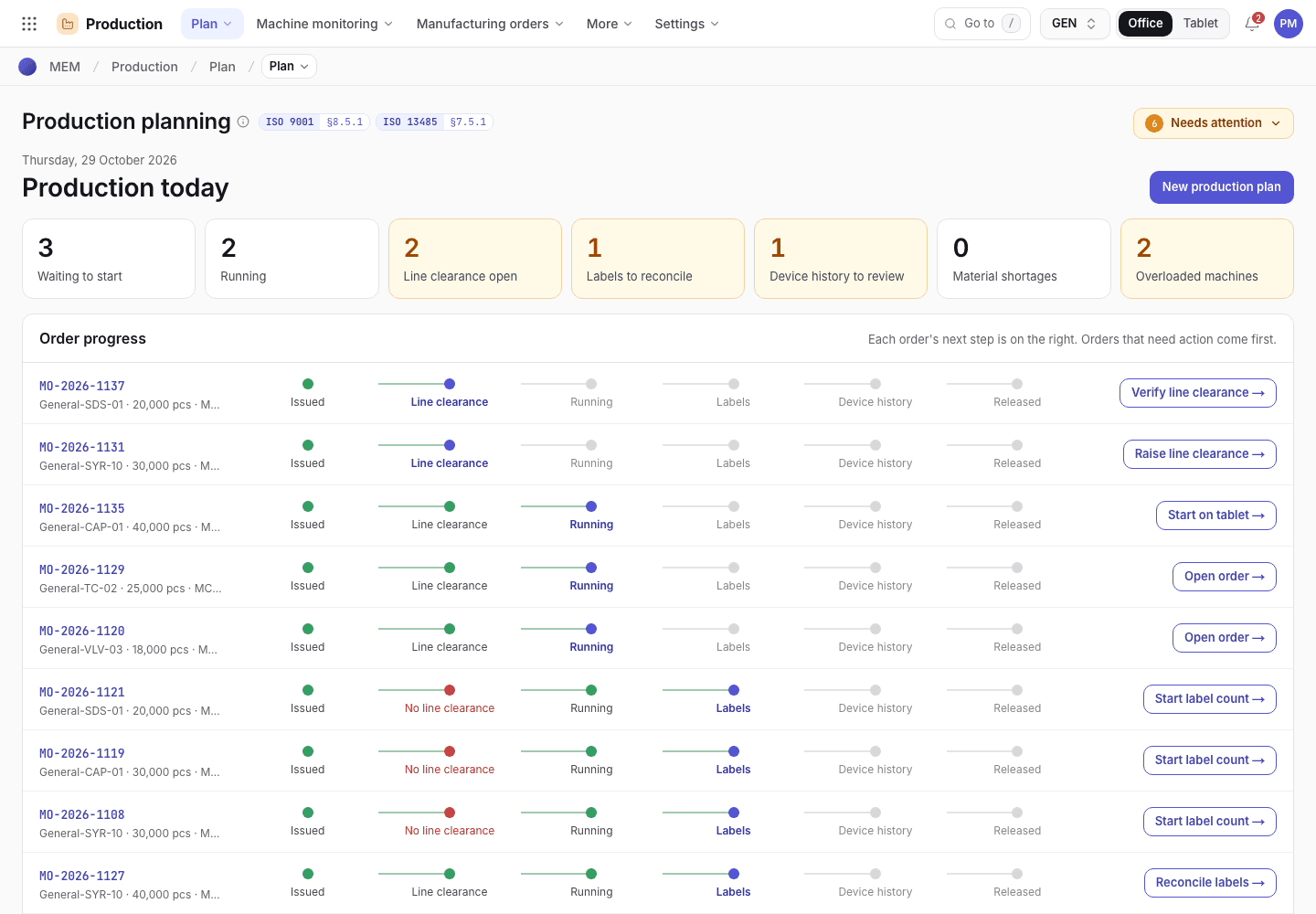
- New production plan.
- Unplanned demand. Plan production starts a plan from the line.
- Machines for the next 7 days. Red is over capacity.
Production today on the phone
The same board on a 375 px screen.
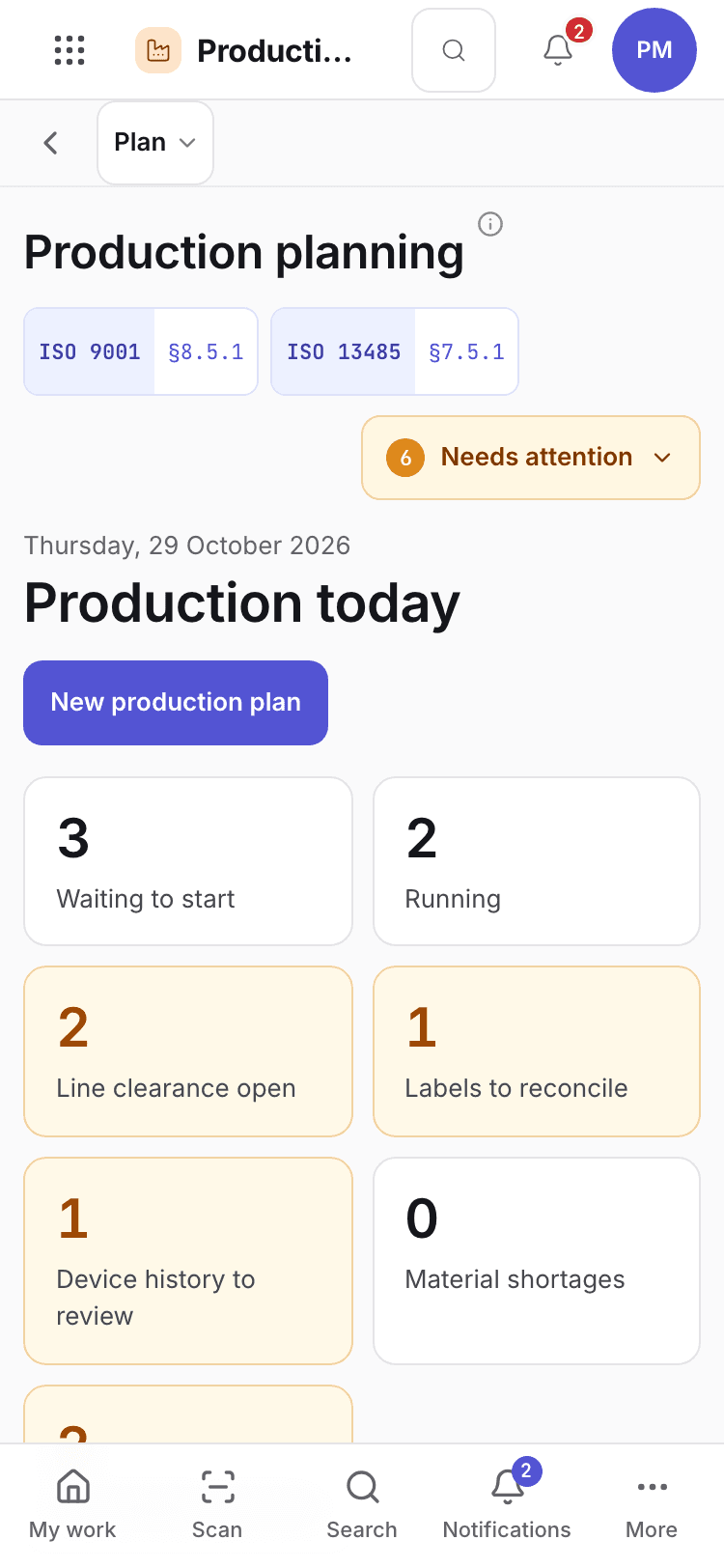
- Tiles such as Waiting to start and Running.
- Order progress. The next step is on the right.
- Needs attention.
Read the board
The tiles count Waiting to start, Running, Line clearance open, Labels to reconcile, Device history to review, Material shortages and Overloaded machines. Order progress shows each order across Issued, Line clearance, Running, Labels, Device history and Released. Orders that need action come first. The button on the right is the next step, for example Issue to machine, Raise line clearance, Verify line clearance, Start on tablet or Reconcile labels.
Check material requirements
Open Production > Material requirements. The list is worked out from orders, stock and methods. Each requirement shows what is short and which orders drive it.
Find the item. Use Search material requirements to narrow the list.
Choose Raise requisition. The dialog is titled "Raise purchase requisition" with the net quantity. Confirm it. A purchase requisition is made as Submitted, for the quantity rounded up (kilograms to 0.1), needed in 7 days, and linked to the sales order that drives it.
Purchasing approves it. See Raise and approve a purchase requisition.
Material requirements
Shortages per item with the orders that need them.
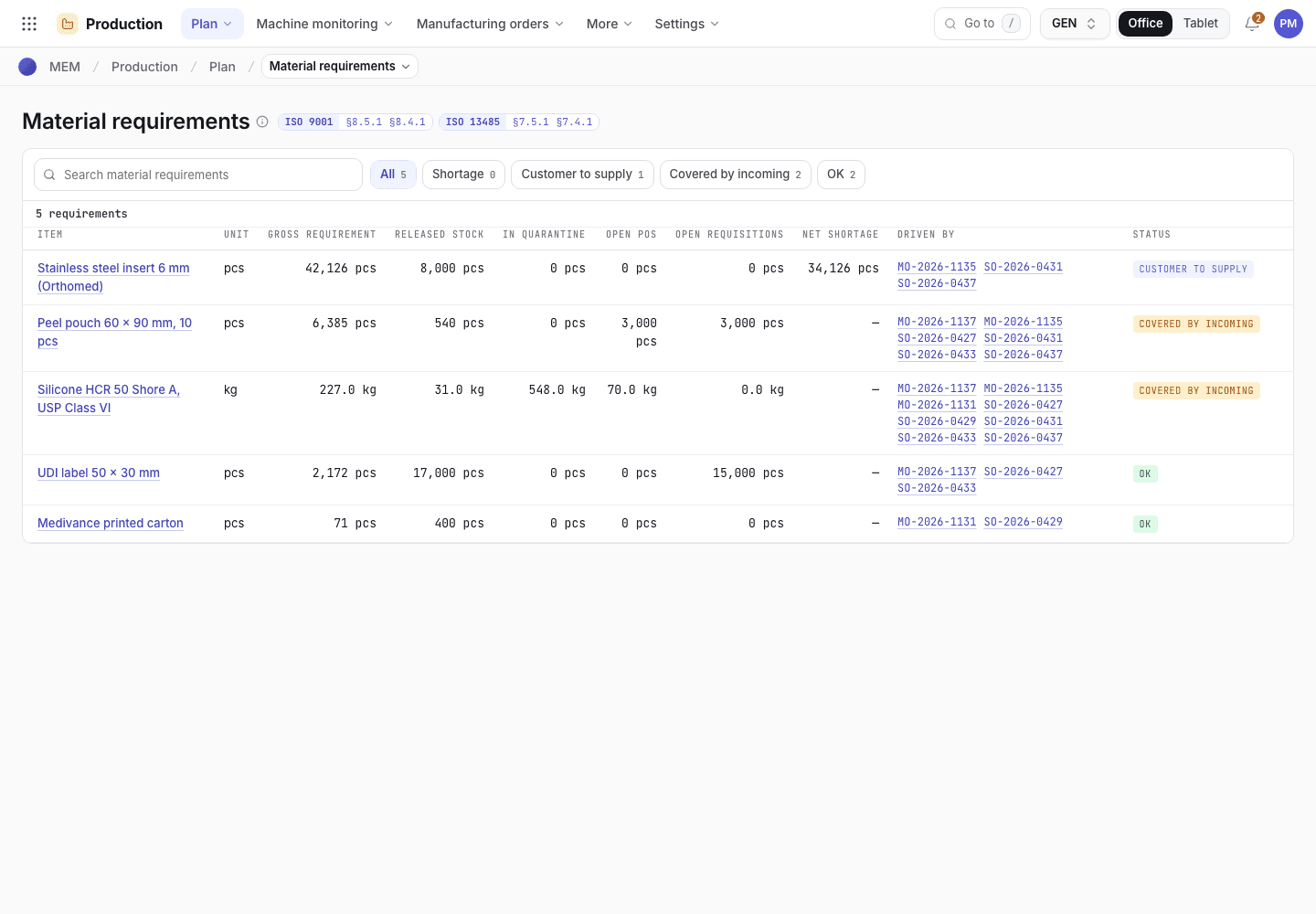
- Search material requirements.
- Net shortage and the orders that drive it.
- Raise requisition.
Check capacity
Open Production > Capacity. Each machine shows its load against available hours (7 days), the Orders on it and Due-date risk. A machine with no risk reads No due-date risk. An order with no cycle time, or no production method, is not counted. The row says so.
Schedule blocks, shifts and downtime
The schedule has three views: Swimlane, Calendar and Data table. Choose Add block to put work such as a maintenance job order on a machine. A block is at most 336 hours, cannot start in the past and cannot overlap another block on the same machine. Shifts come from Organization settings > Shifts & working hours. Without an active production shift the schedule says "No active production shifts. Add one under Organization settings › Shifts & working hours." Time outside a shift shows as Off-shift.
The machine options come from the product's production method: one row per machine, mould and work instruction. To add an option, ask Engineering to add it on the product's Machine options tab.
If the system refuses
Messages shared by every flow are explained in Signatures and refusals. Planning messages are in Planning refusals. Examples:
Cannot release on {machine}. {reason}when the option is Blocked.{qty} pcs of {product} is {n} pcs more than {so} still needs ... Enter the reason for the over-build to go ahead.{item} has no net shortage to raise a requisition for.