Run the job on the machine tablet
Count good and scrap parts, pause for a stated reason, report a stop and complete the run.
Once QC accepts the first piece, the order is In Production and the tablet shows the run phase.
The default role is Technician (Ahmad Faizal) or operator (Kumar Selvam). Open /floor/<order>, for
example /floor/MO-2026-1127.
View as text
%% title: The run phase
flowchart TD
  A[In Production] --> B[Count Good and Scrap]
  A -->|Pause with a reason| P[Paused, counting locked]
  P -->|Resume production| A
  P -->|Request maintenance| M[WIP on hold]
  M --> R[QA releases WIP, setup rechecked]
  R -->|Resume production| A
  A -->|Complete run| C[Outgoing QC]
Count parts
The title is In production with the active time. The machine panel shows Good, Scrap, Attempt, Active time, Setup time and Order.
Use the Good buttons to add or take away pieces. The steps are -1, +1, +10 and +100. For a large run, type the count the machine shows in Count shown on the machine and choose Set count: the counter moves to that number as one entry. It is whole pieces, 0 or more, and one entry changes the counter by at most 100,000. Do the same under Scrap for rejected parts.
The counters are the record. A banner counts down to the next patrol check. See Record in-process checks.
Counting opens when QC has accepted the first piece. Counting is locked while production is paused.
A job in production
MO-2026-1129 in the run phase. Its machine reports an alarm, so the stop reason panel shows above the counters.
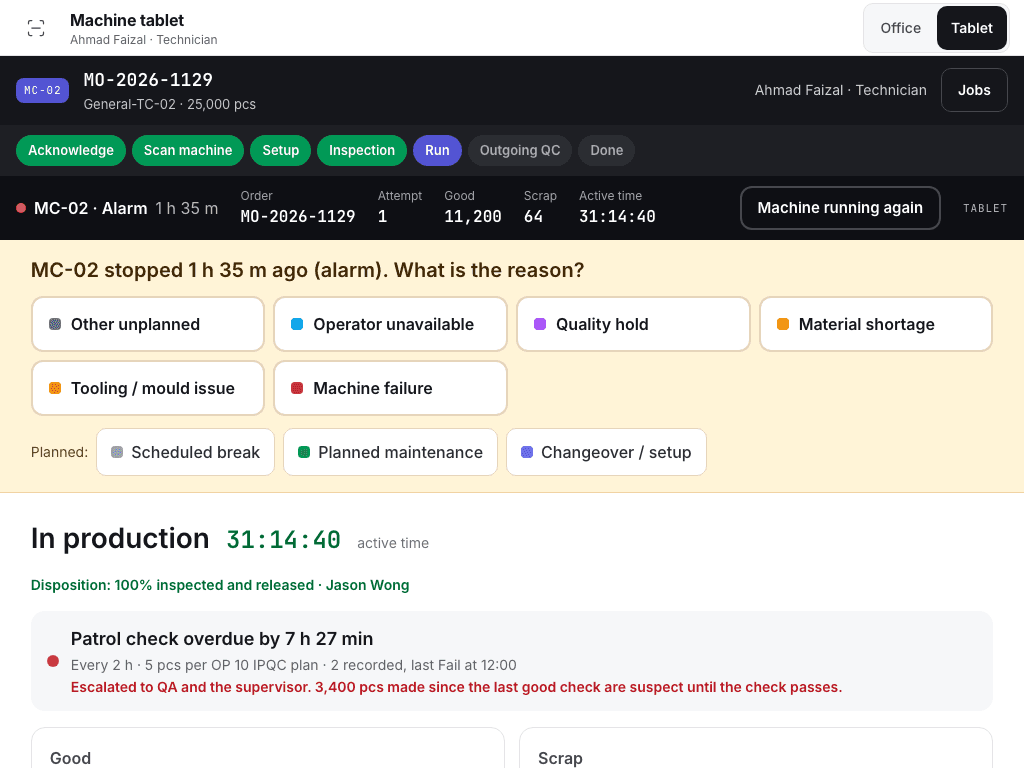
- Machine state, Good, Scrap and Active time.
- The machine stopped: pick a stop reason.
- In production and active time.
- Patrol check banner.
- Good and Scrap counters.
Pause the run
Choose Pause. The dialog asks "Why are you pausing?".
Choose a reason: Awaiting material, Material change, Tool or mould issue, Request maintenance, Quality hold, Break or shift handover or Operator break. Your administrator can add Pause reason codes, which are offered first.
The page reads "Paused · {reason}". Active time stops and counting locks. The pause frees the machine for another order.
When ready, choose Resume production. If another order has taken the machine meanwhile, the run waits.
Pausing the run
Pause asks why you are pausing and lists the reasons.
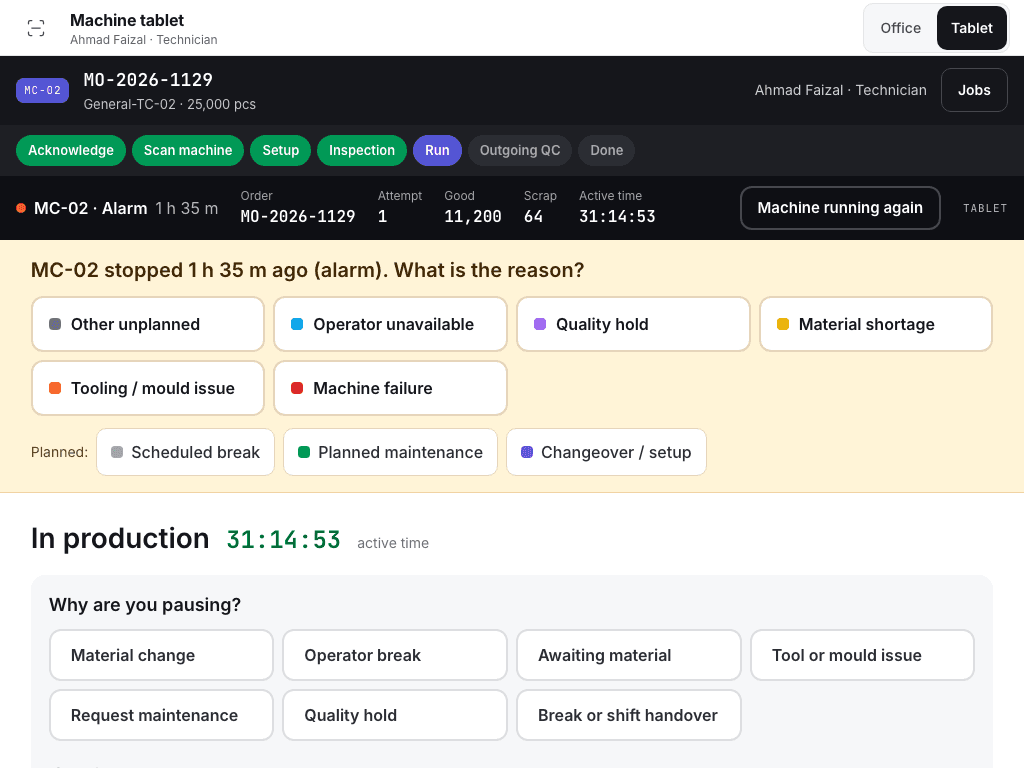
- Why are you pausing?
- The pause reasons.
Request maintenance
Choose Pause, then Request maintenance. The dialog asks "What needs maintenance?". Choose The machine or The mould. A mould fault needs an order with a mould.
The operation and the work in progress go on hold, and a maintenance job order is raised. The page reads "Operation on hold. Maintenance closes its job order, then the technician rechecks the setup before production resumes."
Maintenance hands the machine back. QA chooses QA · release held WIP once the parts are inspected. The technician chooses Setup rechecked, then Resume production.
Stops, alarms and downtime
When the machine stops (state Idle, Alarm or Offline), the tablet asks "{machine} stopped {time} ago ({state}). What is the reason?". Pick a reason. The tablet then reads Machine running again when it restarts. Each stop needs a reason before it counts in the downtime analysis. An Alarm stop with no reason also blocks the next setup on that machine, so answer it before you set up.
Unplanned reasons are Machine failure, Tooling / mould issue, Material shortage, Quality hold, Operator unavailable and Other unplanned. Planned reasons are Changeover / setup, Planned maintenance and Scheduled break. Planned downtime is left out of availability. Supervisors can answer open stops on Production > Downtime under Needs a reason.
Print labels
Open Production > Label register. Choose Print on a row, or Print {n} missing labels. Cut along the dashed lines and print at 100% scale. The register marks each object Labelled or Missing label, and the print log is written by the print itself.
Complete the run
Choose Complete run when the order is done. It uses the tablet counters. See Complete the run and create lots.
View only
Roles without Production write access see the job and the message "View only. The technician takes the steps on this screen." and, in the run phase, "View only. Production write access is needed to count or complete the run."
If the system refuses
Messages shared by every flow are in Signatures and refusals. Run messages are in Machine floor refusals. Examples:
Counting is locked while production is paused. Resume first.Maintenance must hand back the machine and setup must be rechecked before resuming{order} cannot resume on {machine}. {reason}