Validate the process
Approve a validation protocol, run it, enter the PQ readings, submit the report and keep the process failure mode analysis current.
Process validation proves that a process, a machine and a mould hold the tolerances before the product is sold. The validation protocol says what to prove. The QA engineer (Jason Wong) signs the protocol and the result. The engineer (Daniel Tan) prepares it. The numbers come from measured readings, not from typing: the minimum Cpk is calculated from the PQ readings when the report is submitted.
View as text
%% title: Status of a process validation
flowchart LR
  A["Draft"] -->|"Approve protocol"| B["Protocol approved"]
  B -->|"Start execution"| C["Executing"]
  C -->|"Submit report"| D["Report review"]
  D -->|"Approve · validated"| E["Validated"]
  D -->|"Fail"| F["Failed"]
  E -->|"Start revalidation"| A
  F -->|"Start revalidation"| A
Process validations
Every validation with its scope, mould and status.
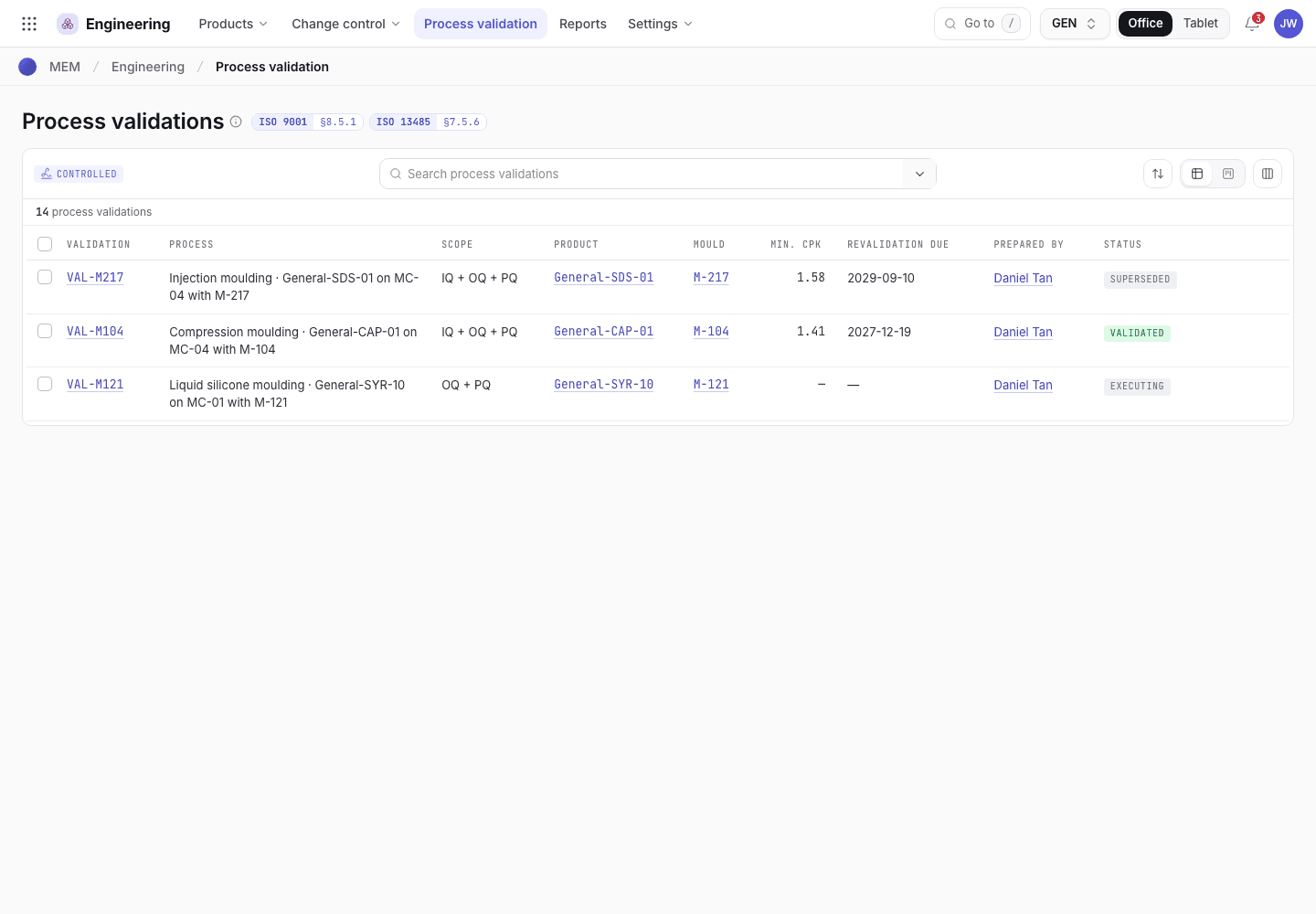
- The validation number and the process.
- Scope, product and mould.
- Revalidation due and status.
Prepare the validation
Open Engineering and choose Process validation (/engineering/pval). Choose Add. New
validations are numbered PV-2026- and four digits. The demo data has VAL-M217 (Validated) and
VAL-M121 (Executing).
Fill in the Process, the Scope (IQ + OQ + PQ, IQ, OQ, PQ or OQ + PQ) and the Trigger (New process, New mould, Engineering change note, Periodic revalidation, Relocation, After major repair or Out-of-trend results). For the trigger Engineering change note also link the change note.
Choose the Product, Mould and Machine. Enter the Protocol, Process risk (PFMEA ref), Validated parameters, Acceptance criteria, PQ lots / samples and Revalidate every (months). Prepared by fills itself with your name.
Approve the protocol
- Open the validation in Draft. The card Before QA can approve the protocol lists the fields the approval needs: Process, Scope, Trigger, Protocol, Validated parameters, Acceptance criteria and PQ lots / samples, each marked Filled in or Empty. Choose Fill in beside an empty one: the record opens in Edit with that field in view.
- Choose Approve protocol. If a field is still empty, the message "Fill in first: …" has a Fill them in button that opens Edit at the first one. The QA engineer signs. The person who approves must be someone other than the Prepared by person.
- The status becomes Protocol approved.
Run the validation
Choose Start execution. The status becomes Executing. If the validation names a mould, the mould is
held as Pending validation. For example mould M-121 is Pending validation while VAL-M121
executes.
Make the PQ lots. A mould that is Pending validation cannot run an ordinary order, so the planner adds a manufacturing order that is a validation run, see Make the PQ lots with a validation run. Run it, then use the lots it made.
In the PQ readings panel enter the readings of each PQ lot. Choose Add a lot. For each row enter
the Lot, the Characteristic, the Lower limit (LSL) and Upper limit (USL) (at least one),
and paste the Readings one per line or separated by spaces. The panel shows the count (for example
30 of 30 readings), the Mean, the Std dev and the row Cpk.
Choose Save readings. PQ readings can only be entered while the validation is Executing. Every Lot must be a lot made by a validation run of this validation; a lot name that was typed, or a lot of an ordinary order, is refused.
Make the PQ lots with a validation run
A new mould is born Pending validation, and setup refuses a mould that is not Validated. A validation run is the one order that may use it, so the lots the PQ readings come from are real.
While the validation is Executing, the planner opens Production > Orders and chooses Add. Set
Process validation to the validation (for example PV-2026-0001), the Product, Machine and
Mould of the validation, and leave Sales order blank. A validation run has no customer.
Release, issue and run the order as usual, see Release a manufacturing order. The technician sets up on the Pending validation mould and the machine tablet or phone accepts it for this order only.
The finished lot of the order is held. It cannot be released while the validation is not Validated, see What blocks a release.
Back on the validation, enter the PQ readings against the lots the run made. Make at least 3 lots (for example 3 orders) so each characteristic is measured on 3 lots.
After QA approves the validation, the lots release through the normal checks.
The planning release check does not change. Validation runs are created from the manufacturing order form, not from the planning dialog, which still refuses a mould that is not Validated.
Each characteristic must be measured on at least 3 lots with at least 30 readings per lot, and the readings must have some spread. Your organization can set other numbers, from 1 to 5 lots and from 10 to 100 readings per lot, see Set the process capability rule. The panel shows the numbers in use. It shows Not enough readings yet until that is true, then Enough readings to report and Min. Cpk from the readings.
If process capability is off for your workspace, the panel does not show the PQ readings or the Min. Cpk. The PQ is judged on its results. Submit the report and approve it without readings.
PQ readings and capability
The Executing validation with the PQ readings panel and the capability summary.
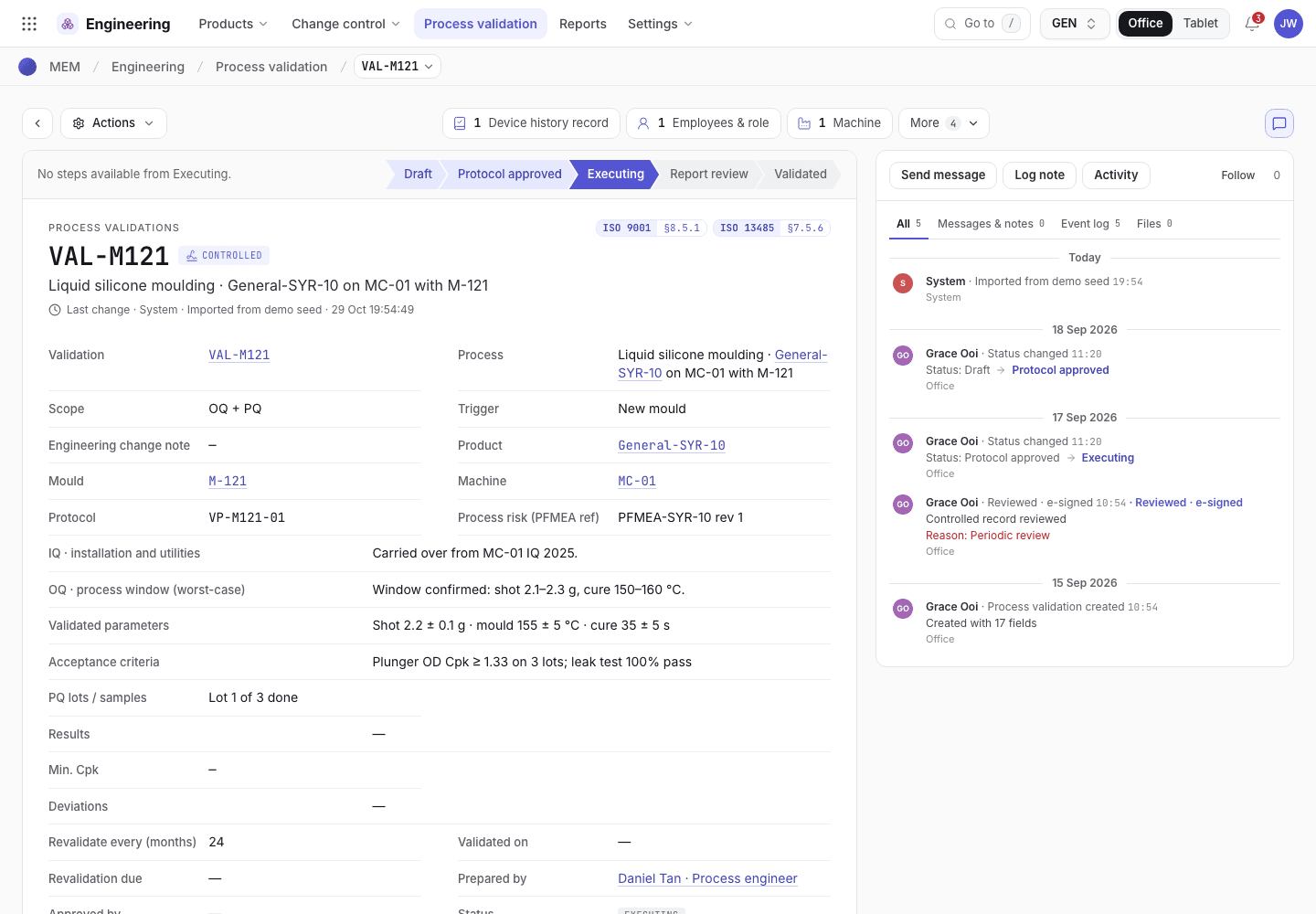
- The status chevrons. Executing is the current step.
- One row per lot and characteristic, with readings, mean and Cpk.
- Capability and validity: Min. Cpk, the limit and the revalidation due date.
Submit the report
- Fill in Results. If the scope has IQ, fill in IQ. If it has OQ, fill in OQ.
- Choose Submit report. The Min. Cpk is calculated from the readings and written to the record. You cannot type it.
- The status becomes Report review.
Approve or fail
- Choose Approve · validated to validate. The QA engineer signs. For a scope with PQ the Min. Cpk must be at least 1.33 (when process capability is on), the Revalidate every (months) must be set, and the approver must be someone other than the preparer. The record shows Validated on and Revalidation due. The mould becomes Validated. An earlier validated validation of the same mould becomes Superseded.
- Choose Fail if the process did not pass. Fill in Deviations (the reason for failure) first. The status becomes Failed and the mould is held as Pending validation.
Revalidate
From Validated or Failed, choose Start revalidation. A new draft is made with the number
-R1, -R2 and so on. The trigger is Periodic revalidation, or Out-of-trend results after a
failure. Results, Cpk and dates are cleared. Only one open revalidation can exist per validation.
Process FMEA
Open Engineering and choose Process FMEA (/engineering/fmea). Each line is a failure mode of a
process step.
Add a line: Product, Process step, Failure mode, Effect on patient / user, Cause, Current controls, and S, O and D (1 to 10; choose each, none starts filled in). Saving the line works out its RPN and Priority, so it is scored as soon as it is saved.
To change a saved line's scores, edit S, O or D (the RPN and Priority follow on save) or choose Score · set priority. The RPN is S × O × D. The Priority is High from RPN 120, or severity 9 or more with occurrence 3 or more. It is Medium from RPN 60 or severity 9 or more.
Choose Start action. Enter the Recommended action, Owner and Due first. The status becomes Action in progress.
After the action, enter S after, O after and D after, then choose Re-score · close. The QA manager signs. Severity can only drop through a design change, occurrence times detection must fall, and the line must not stay High.
If the change or new data call for another look, choose Reopen (change / new data).
The device file needs at least one scored PFMEA line before a product can be released, see Release the product documents.
If the system refuses a step here, see Product development: why the app refuses.
Next steps
Release the product documentsTake the product, method and work instructions through approval.Set the inspection plan
Define the characteristics QC measures, who checks them and how often, and the sampling plans and reason codes behind them.
Release the product documents
Check what must be ready, submit a product, method or work instruction for review, sign each approval level and read the revision register.