Build the bill of materials
List the components a product uses per 1,000 pieces, link them to operations, and see how release locks them.
The bill of materials (BOM) lists every item a product consumes, per 1,000 pieces. Stock, suppliers, incoming inspection and the material issue to a manufacturing order all follow from it. The engineer (Daniel Tan) writes it. It can only be edited while the product, or the production method it belongs to, is a Draft.
View as text
%% title: When the bill of materials can change
flowchart TD
  A["Product or method is Draft"] -->|"Add, edit, delete lines"| B["Lines saved"]
  B --> C["Submit for review"]
  C --> D["In review or Released"]
  D -->|"Any change"| E["Refused: start a new revision"]
  D -->|"New revision under an approved change note"| A
Add components
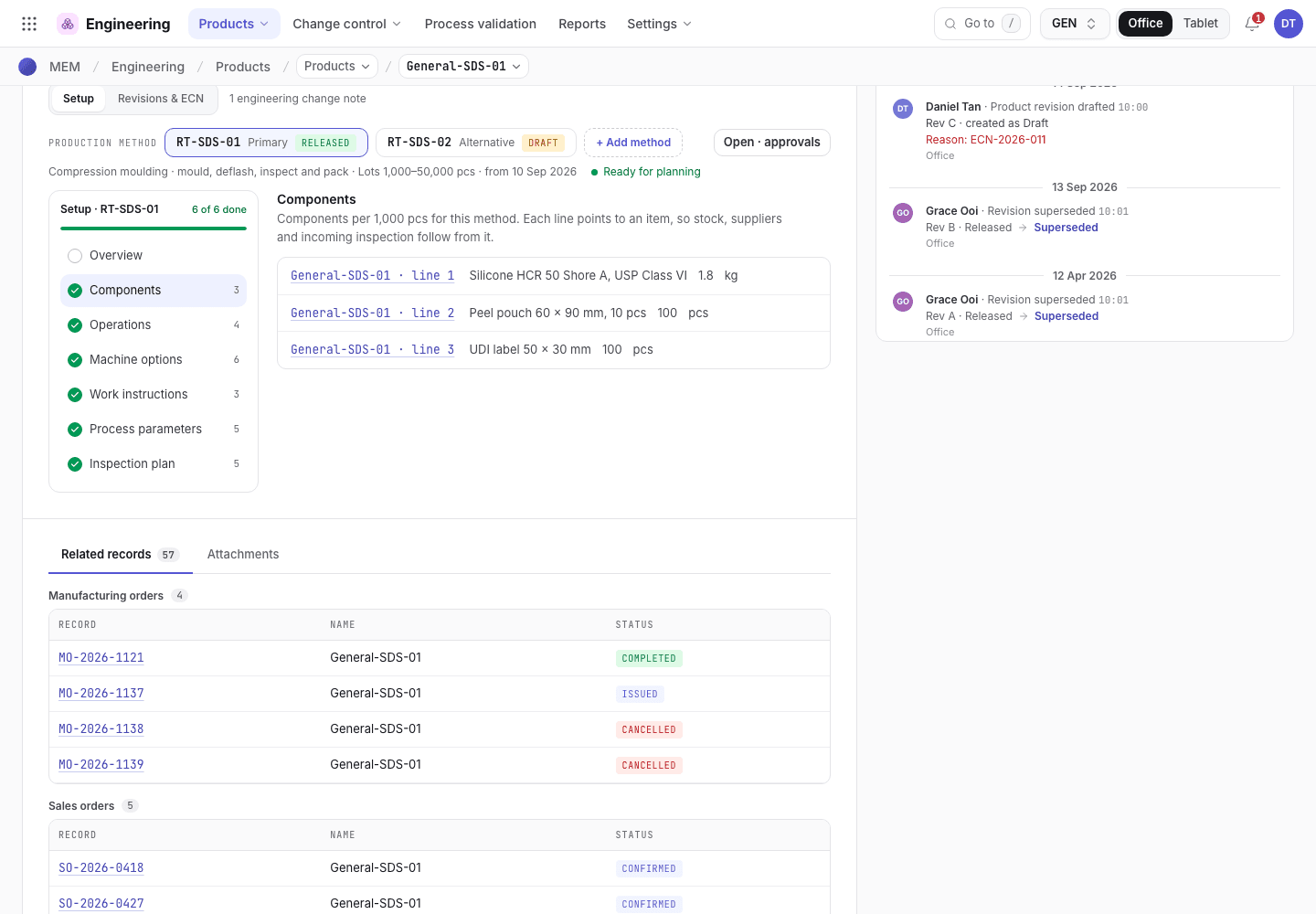
Open the product (for example /r/PROD-A). On the Engineering tab choose Setup, then choose
Components in the left rail. You can also open an operation and choose its Components tab.
Choose + Component. If you added it from an operation, Used at op is filled in. Otherwise
choose the operation from the list of the production method's operations, for example
10 · Moulding; the list opens once the product or production method is chosen, and changing the
method clears it.
The dialog shows the product and production method it is for under its title, and gives the Line the next free number. Choose the Material or component: each choice shows its item code, unit and type. The Unit fills in from the item; another unit needs an approved unit conversion. Enter the Qty per 1,000 pcs (above zero, not more than 100,000,000). The line under it works the quantity out for you, for example "That is 0.025 g for each part. An order of 5,000 pcs needs 125 g."
When you add the line from the Bill of materials list instead, choose the Product, and the Production method if the line belongs to one method. Leave the method empty for a line every method of the product shares. Leave Used at op empty to issue the material at the start of the order.
Save. Each line shows as PROD-A · line 10. A product can have only one line with the same number for
the same method.
Components of an operation
The Components tab of the operation drawer lists what the operation consumes per 1,000 pieces.
- The drawer tabs. Components is the last tab.
- Each component shows its line number and quantity per 1,000 pcs.
- + Component adds a line used at this operation.
Units and unit conversions
The Unit is the stock unit of the item. If a supplier sells the item in packs, purchasing and receiving convert with an approved unit conversion. See Set up items and products.
What a released product does to its bill of materials
The BOM follows the document it belongs to.
- While the product is a Draft, you can add, edit and delete lines.
- Once the product is In review, Released or Obsolete, every line is read-only. The message
names the product and its revision, for example
Product PROD-A rev A is in review. Start a new revision to change it. - A line that names a production method is locked with that method. A Draft method that revises a released one opens its own lines. A brand-new Draft method on a released product opens the lines that name it, but not the product's own.
- To change a released bill of materials, raise an engineering change note and start a new revision, see Change a released product.
A product cannot be submitted for review without at least one BOM line. See Release the product documents.
If the system refuses a step here, see Product development: why the app refuses.