Start a development item
Track a new product from feasibility to qualified, close its specification gaps, and see the first article reports.
A development item is a new product that is not yet qualified. It keeps a temporary identity, a list of specification gaps and a feasibility and DFM review until it is qualified. It is a controlled record: an edit needs a reason, and every stage move is e-signed. The product it develops cannot be put on a confirmed sales order or a manufacturing order until the item reaches Qualified. The engineer (Daniel Tan) owns it and signs the moves up to First article; the QA manager (Grace Ooi) signs the move to Qualified. The QA engineer (Jason Wong) reads it and uses the first article reports.
View as text
%% title: Stages of a development item
flowchart LR
  A["Feasibility"] -->|"All gaps closed"| B["DFM review"]
  B -->|"All DFM checks passed"| C["Trial"]
  C -->|"Product linked"| D["First article"]
  D -->|"QA manager signs"| E["Qualified"]
  A -.->|"Gap still open"| X["Close the specification gaps first"]
  B -.->|"Check still open"| Y["Complete the DFM review first"]
  C -.->|"No product"| Z["Link the product first"]
Create a development item
- Open Engineering and choose Development items.
- Choose + New item. The form asks for Name, Customer, Product, Customer approval ref.
and the Stage. The item number (
DEV-2026-and three digits) is given when you save. Product and Customer approval ref. can be filled in later. - Save. The item opens at Feasibility and shows Not qualified · cannot be ordered for production.
To change the name, customer, product or approval reference later, choose Edit on the item. It is a controlled record, so the form asks for the reason of the change, and your e-signature is recorded with it.
If there are no items yet, the screen says No development items and offers + New item.
Development items
The list on the left, the selected item on the right with its stage, gaps and DFM checks.
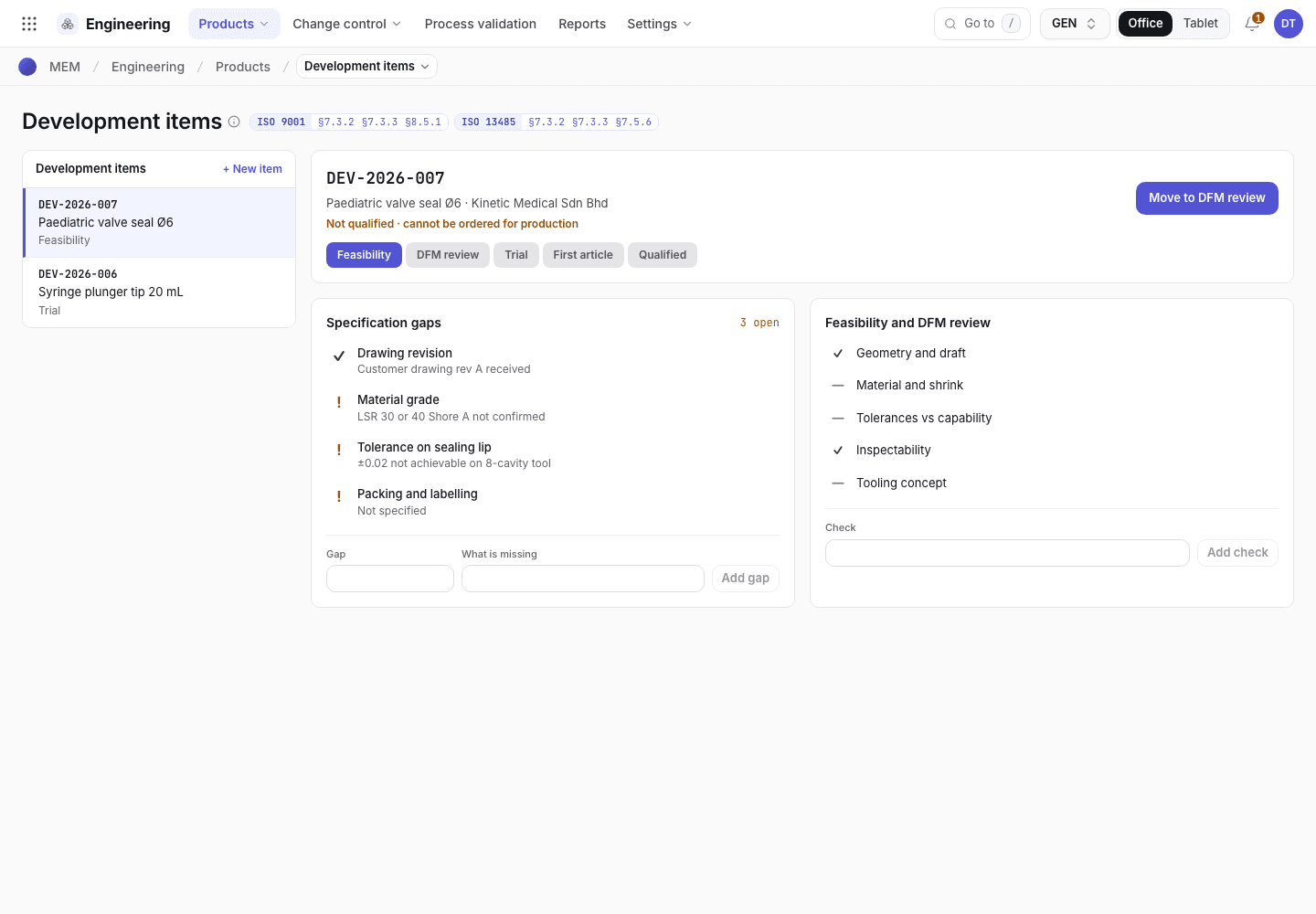
- The list of development items. Choose + New item to add one.
- The stage bar. The current stage is highlighted.
- Specification gaps. The count shows how many are still open.
- Feasibility and DFM review checks.
Close the specification gaps
A specification gap is something the customer or engineering has not yet decided, such as the material grade or the tolerance on a sealing lip.
Select the item (for example DEV-2026-007). Under Specification gaps, read the open gaps.
To record a new gap, type the Gap and What is missing, then choose Add gap.
When a gap is settled, select it to close it. Select it again to reopen it. Each change is written to the item's history.
Complete the feasibility and DFM review
Under Feasibility and DFM review, add a Check and choose Add check. Pass a check when the team has reviewed it. The seeded list covers geometry and draft, material and shrink, tolerances against capability, inspectability and the tooling concept.
Move the item to the next stage
Choose the button beside the item's name. It is named for the next stage: Move to DFM review, Move to Trial, Move to First article, and for the last stage Approve · qualified. Each move is an e-signature, so a confirmation shows who signs and what the signature means before anything is recorded. When a gate holds the move, the button is disabled and the reason is written under it.
- Feasibility moves on when at least one specification gap is recorded and every one is closed.
With none recorded it says
Record the specification lines first. - DFM review moves on when at least one DFM check is recorded and every one is passed. With none
recorded it says
Record the DFM checks first. - Trial moves on when the Product is linked: choose Edit and pick it. Without it the item says
Link the product first. - First article moves to Qualified only when the linked product has an accepted first article
report, a validated process and, when the item names a Customer, the Customer approval ref. is
written. The button names each one that is missing, all at once. The QA manager signs this move; the
engineer sees the button disabled with
This step needs a QA manager signature.
An accepted first article report is one in First article reports with the result Accepted for the same product. A validated process is a process validation of the product at Validated.
At Qualified the item has no more buttons and is locked. The product can now be quoted, ordered and produced. Until then a sales order for the product cannot be confirmed and no manufacturing order can be raised for it, except a validation run (an order with a Process validation set), which is how the process is proven. Release the product itself on the product page, see Release the product documents.
First article reports
Open Quality and choose First article reports (/quality/fair). A first article report is
written when QC accepts or rejects a full first article during setup on the machine tablet. Reports are
numbered FAI-2026- and four digits and cannot be deleted. Each shows the product, revision, method,
mould, machine, manufacturing order, the Trigger, the Characteristics measured, the
Document checks, who approved it, the date and the Result (Accepted or Rejected).
A full first article is required instead of a first piece when the trigger is New product, New revision, New mould, Process change, Production gap or Customer request.
First article reports
Every report with its trigger and result.
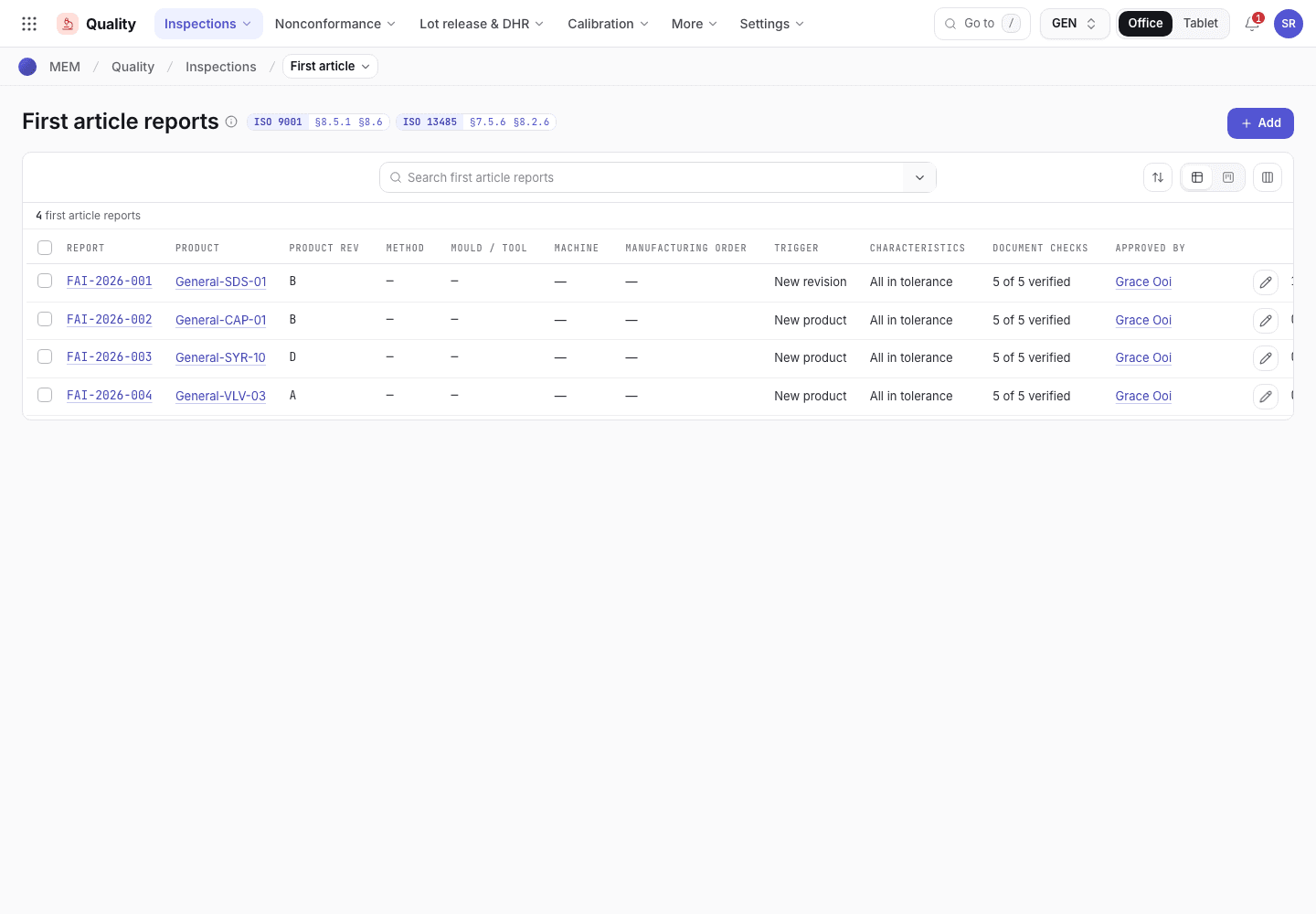
- The report number, product and revision.
- The trigger that required a first article.
- The result: Accepted or Rejected.
Device files and regulatory requirements
If your organization has ISO 13485 switched on, Engineering also shows Device files
(/engineering/mdf) and Regulatory (/engineering/regr).
- Device files is read-only. It lists, per product, the bill of materials, production methods, machine options, work instructions, process validation, PFMEA, change notes, device history records and complaints. The Missing column names what is not there yet. The status is Complete or Incomplete.
- Regulatory records the markets, regulations and device class of a product. A requirement starts as a draft. The QA manager chooses Approve to make it Active, which sets the next review one year later. Record review repeats the review. Retire needs a reason of at least four characters.
- Cleanliness (
/engineering/clnr) records the cleanroom and hygiene requirements of a product. A requirement starts as a draft. The QA engineer chooses Approve to make it Active, and Record verification each time it is checked. A failed verification (Last result OK set to No) must link a nonconformance report.
If the system refuses a step here, see Product development: why the app refuses.