Set up items and products
Create the materials a product uses, then the product record, its workspace tabs and its sales prices.
A product is made from items (materials and components) and sold at a price. Engineering owns the technical product record. Sales owns the price, quantities and packaging. The store keeper (Farah Hanim) owns the item list, and purchasing (Lim Wei Jie) can edit it too. The engineer (Daniel Tan) creates the product.
View as text
%% title: What you set up, in order
flowchart LR
  A["Item types and units"] --> B["Materials and items"]
  B --> C["Product (Draft)"]
  C --> D["Bill of materials and method"]
  C --> E["Sales product and prices"]
The setup forms help you as you go. Every field has an (i) that says what it is, gives an example and what happens if you leave it blank. Long forms are split into steps named by what they hold, such as The operation, Quality checks and If a part fails for an operation, and each step starts with one line on what it is for.
Create a material or an item
Open Inventory and choose Items (/inventory/invItems). Choose Add.
Fill in the Description and, if your team has one, the Internal reference (your old item code).
The Item code is assigned on save, for example ITM-0012. Choose the Inventory type: Purchased or
Customer consignment. For consignment stock choose the Owner (consignment).
Choose the Type, the Unit, the Picking rule (FEFO takes the lot that expires first, FIFO the oldest received) and the Storage condition.
Set the Shelf life (days) and the Min. shelf life at issue (days) if the material expires. Add the Purchase spec and the Supplier if you know them.
For a compound tested at incoming inspection (item type CoA + tests), copy its limits from the purchase spec into Incoming hardness min (Shore A), Incoming hardness max (Shore A), Incoming cure time min (s) and Incoming cure time max (s). Each grade has its own: incoming inspection judges every lot against them, and cannot accept a lot of a silicone compound that has none.
Save. On hand, Available and Quarantine / hold fill in by themselves from the stock lots. You cannot type them.
The item Type decides how incoming material is inspected. Item types (for example a resin or a printed carton) carry one of CoA + tests, AQL sampling, CoC only or None. See Inspect incoming material.
Materials and items
The item list with stock figures calculated from the lots.
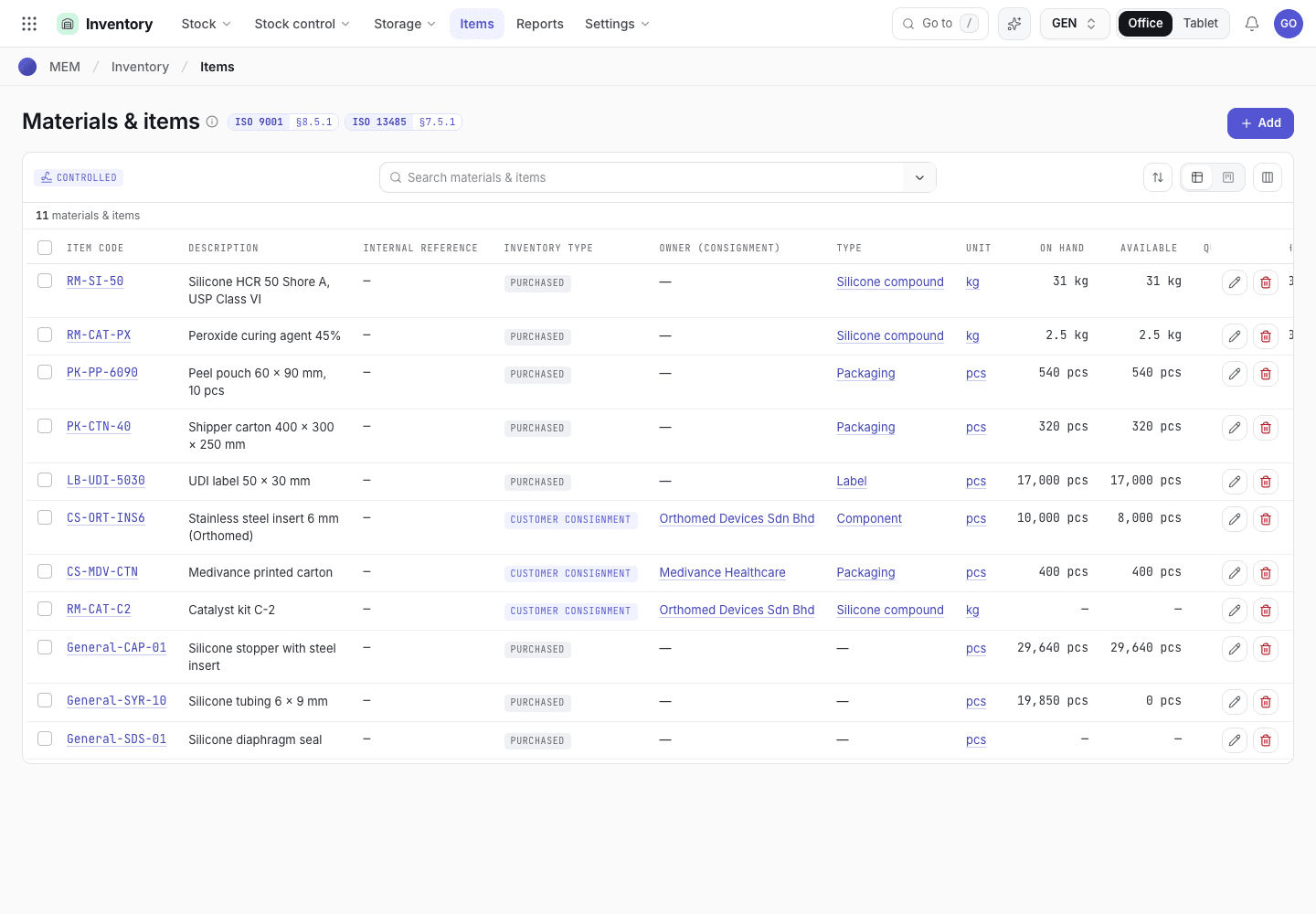
- Add opens the new item form.
- Item code (assigned on save) and description.
- On hand, Available and Quarantine / hold come from the stock lots.
Units and unit conversions
Quantities use the units in Units of measure. If you buy in drums but stock in kilograms, add a
unit conversion: open Inventory and choose Unit conversions (/inventory/uomc). A conversion
names the Item, the Base unit, the Transaction unit with its pack size (for example
drum (25 kg)), the Factor and the Precision. The item must exist first, so add the item
under Materials & items (with its base unit) and then its pack conversion. A new conversion is
Pending approval. Someone other than the person who created it, for example QA or purchasing, chooses
Approve conversion, a signed step that uses their e-signature (if they sign for a delegator, the
delegator must not be the creator either). Until it is approved, transactions in that unit are
refused. If you change an approved conversion, it goes back to Pending approval.
Create a product
Open Engineering and choose Products (/engineering/engineering). Choose Add.
Fill in the Name, the Part no. (the customer's or your engineering part number) and the Rev.
The Product ID is assigned on save, for example PRD-0007, and the part number can be changed later.
Choose the Customer if it is known. Set the Shelf life (days) if the
finished product expires: each finished lot then gets an Expiry that many days after it is made.
Leave it blank for a product that does not expire. Add the customer drawing number if you have it.
Under Bill of materials, add one line for each material or component the product uses: pick the Material or component from your materials and enter the Qty per 1,000 pcs. Choose Add a line for the next one. The first line becomes the product's main Material. The lines are saved with the product as the bill of materials of its primary production method, so a product that uses two materials has two lines. You can change them later on the bill of materials.
Save. The product starts in Draft and stays editable. Example: PROD-A is a Draft product,
General-SDS-01 is Released. Products made before numbering keep their part number as their ID.
Pickers show Name · Part no., and you can search by either.
Products
The engineering product list. Add creates a Draft product.
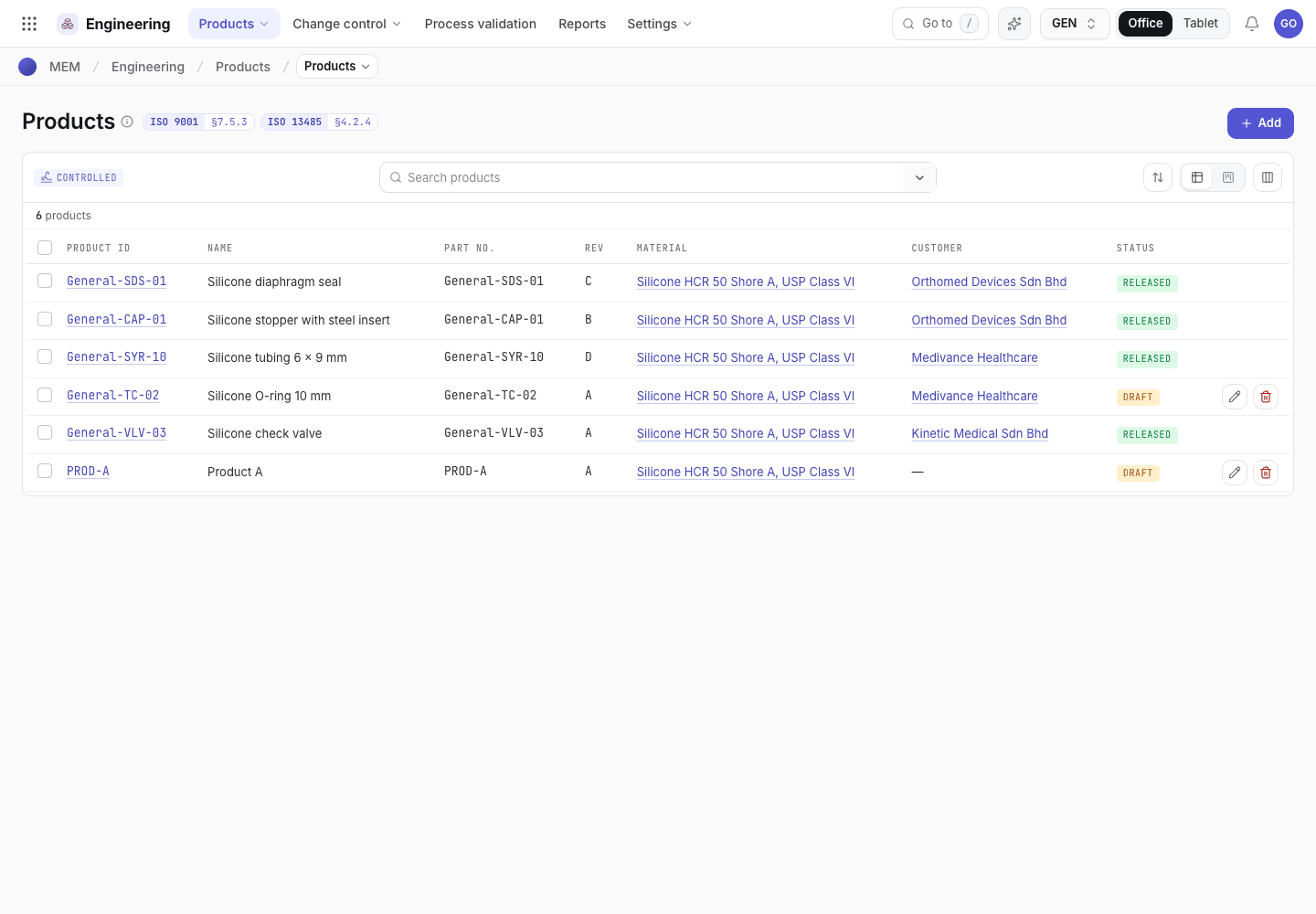
- Add opens the new product form.
- Product ID, name, part number and revision.
- Status: Draft, In review, Released or Obsolete.
The product workspace
Open the product (for example /r/PROD-A). The tabs are Engineering, Sales, Purchasing,
Production, Quality, Logistics and Attachments. Drag a tab to reorder them for yourself;
Reset order restores the default.
- Engineering has two views: Setup (the production method, its operations, components, machine options, work instructions, parameters and the inspection plan) and Revisions & ECN (approvals, revision history and the change notes).
- Sales, Purchasing, Production, Quality and Logistics show what other departments hold for this product: prices, quotations, orders, vendor prices, manufacturing orders, moulds, process validations, the inspection plan, first article reports, stock lots and delivery orders. Choose Open list to go to the full list.
- Attachments holds the customer drawing and specifications. The default category is Drawing / specification.
A Draft product
The product workspace for PROD-A, with its tabs and the Engineering Setup view.
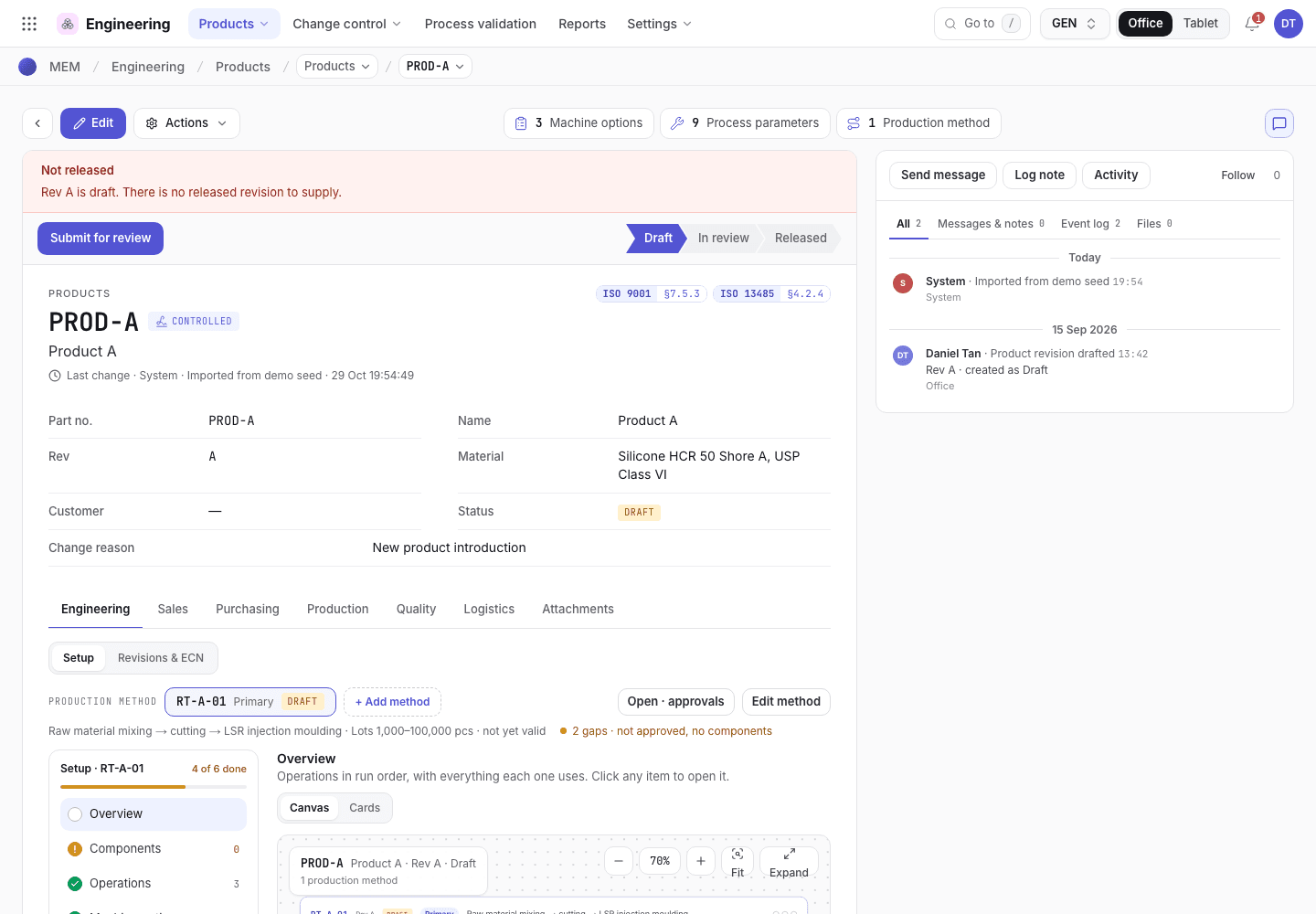
- The part number, revision and status.
- The workspace tabs.
- Setup and Revisions & ECN switch the Engineering view.
Sales product and prices
Open Sales and choose Products (/sales/salesProducts). Add a sales product for the
engineering part. Enter the List price (RM), MOQ (pcs), Lead time (days), the Unit of
Measure (UoM) and the Packaging. UDI-DI (GTIN) is optional. Website & catalogue is
Published or Unpublished (give an Unpublish reason when you unpublish).
- Price breaks give a unit price from a quantity (From quantity (pcs) and Unit price (RM)).
- Customer prices give a customer a price, with their Customer part no., Valid until and an Agreement ref.
Sales owns these numbers. Engineering owns the revision and drawings and changes them under change control.
If the system refuses a step here, see Product development: why the app refuses.