Change a released product
Raise an engineering change note, assess its impact, get the change board to sign, implement it and close it with evidence.
A released product, method or work instruction cannot be edited. To change it, raise an engineering change note (ECN). The note says what changes and why, which documents it affects, and who must agree. When the change board approves it, draft revisions of the affected documents start by themselves. The engineer (Daniel Tan) raises it. The QA manager (Grace Ooi) and the change board sign.
View as text
%% title: Status of an engineering change note
flowchart LR
  A["Draft"] -->|"Submit for assessment"| B["Impact assessment"]
  B -->|"Send to change board"| C["CCB review"]
  C -->|"Last member signs"| D["Approved"]
  D -->|"Mark implemented"| E["Implemented"]
  E -->|"Close · verified"| F["Closed"]
  B -->|"Reject"| R["Rejected"]
  C -->|"Reject"| R
  C -->|"A member returns it"| B
The stage bar on the note names the same steps: Request, Impact assessment, Change board, Implementation, Verification and Closed. Choose a stage to read what ISO 13485, ISO 9001, IATF 16949 and 21 CFR 820 ask for at that stage.
Raise the note
Open Engineering and choose Engineering change notes (/engineering/chg). Choose Add. The
number is ECN-2026- and four digits. ECN-2026-015 is a Draft in the demo data.
Fill in the Change, the Type (Product, Process, Material, Mould / tooling, Document or Supplier), the Reason (Customer request, CAPA, Supplier change, Process improvement or Regulatory) and the Description. Choose the Product the change applies to. For a change to a document only, set the Type to Document.
Under Affected items, choose Item type (product, production method, work instruction, QMS document or drawing), the Document, and Add item. The action is Revise, Obsolete or New. A drawing or specification has Update and a New revision. Revise starts a draft revision when the change board approves.
Choose Submit for assessment. The note needs the change, type, reason, affected items and description. If you typed the document in Source record or Affected documents and have not added it under Affected items, submitting adds it there with the action Revise (a product, production method, work instruction or QMS document that is not obsolete). If the text names no document, add it yourself first. The status becomes Impact assessment and the note records where the product is used (open orders, stock, routings).
Engineering change notes
The list of notes with their status.
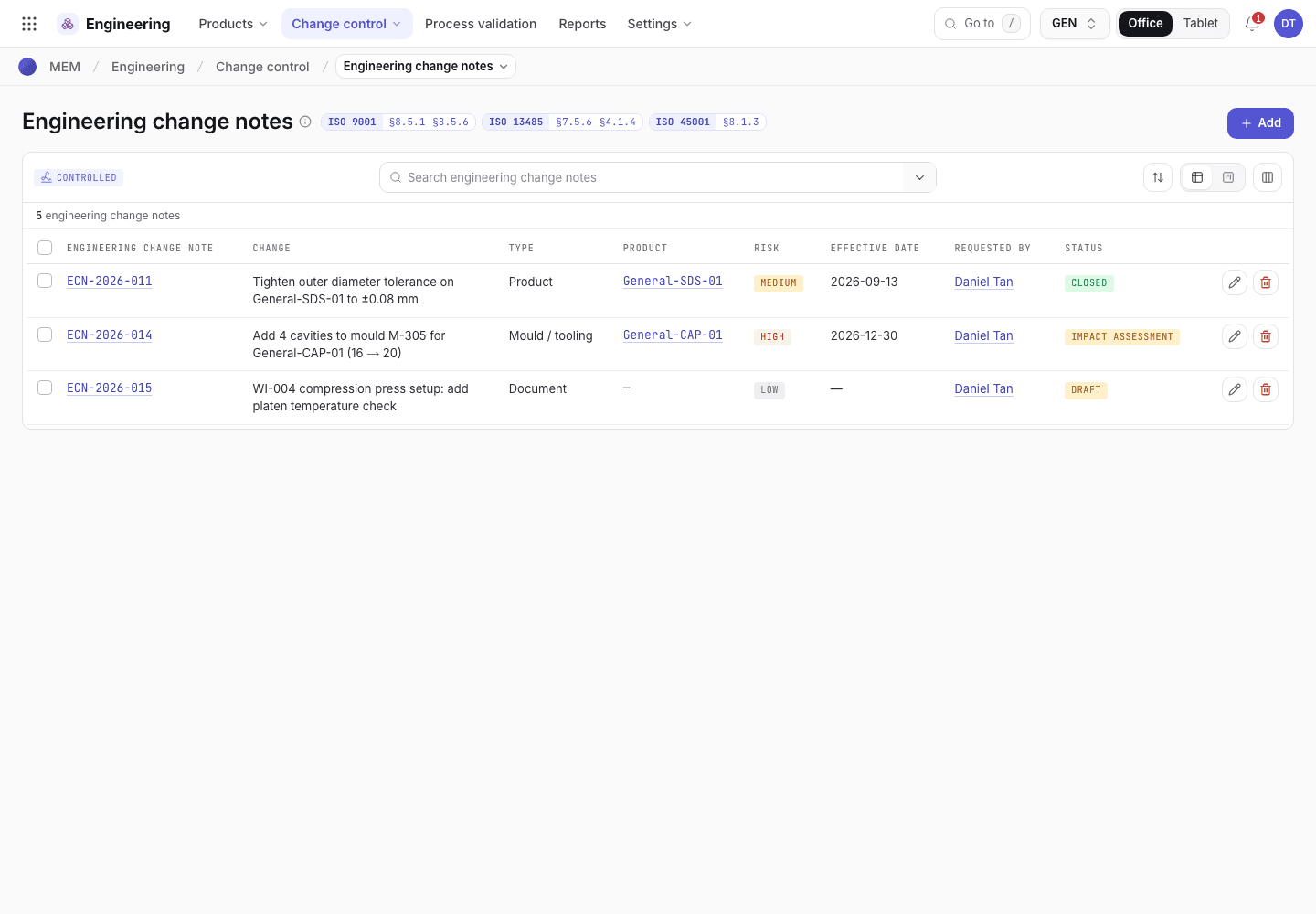
- Add raises a new note.
- The note number and what changes.
- Risk and status. Open a note to work on it.
Complete the impact assessment
On the note, fill in the impact the board will review:
- Impact on safety and performance, Risk (Low, Medium, High) and Revalidation (None, FAI only, PQ, OQ + PQ, IQ + OQ + PQ). If revalidation is needed, enter the Validation / FAI record before implementing.
- Regulatory impact, and EHS impact (Not assessed, None, Yes). If Yes, add the EHS review notes, the updated Risk assessment / aspect updated and the EHS reviewer.
- PFMEA reviewed (doc · rev) for a product, process, material or mould change.
- Customer notice (Not required, Required · pending, Notified · approved) and the Customer approval ref.
- Existing stock and WIP (Use up, Rework, Scrap, Hold for disposition, Not affected), Retraining needed, and Effective by (Immediate, Date, Lot, Stock run-out) with the Effective date or First lot.
Then choose Send to change board (a signed step) or Reject (also signed).
Sign as the change board
The board route lists who signs. By default: Engineering, Production and Quality assurance always; Regulatory when there is a regulatory impact; EHS when the EHS impact is Yes. The organization can change the route and choose Sequential or Parallel signing in the Engineering settings.
Open the note in CCB review. Under Change board find your function.
Choose Approve · sign. A dialog shows who signs and the meaning of the signature (Approved); choose Sign · Approve to e-sign for your function. In a sequential route the next function in the list signs first. One person can sign one function only, and the person who raised the note does not sign its board: another person holds the seat. The one exception is a seat only the requester can fill (a plant with a single engineer); the note then records that the requester signed it.
To send it back, choose Return, write the reason (at least 4 characters), and choose Return to impact assessment. All signatures are cleared.
When the last member signs, the note is Approved, the approver is recorded, and a draft revision starts for each item marked Revise.
A note in impact assessment
ECN-2026-014 with its stage bar, impact assessment and affected items.
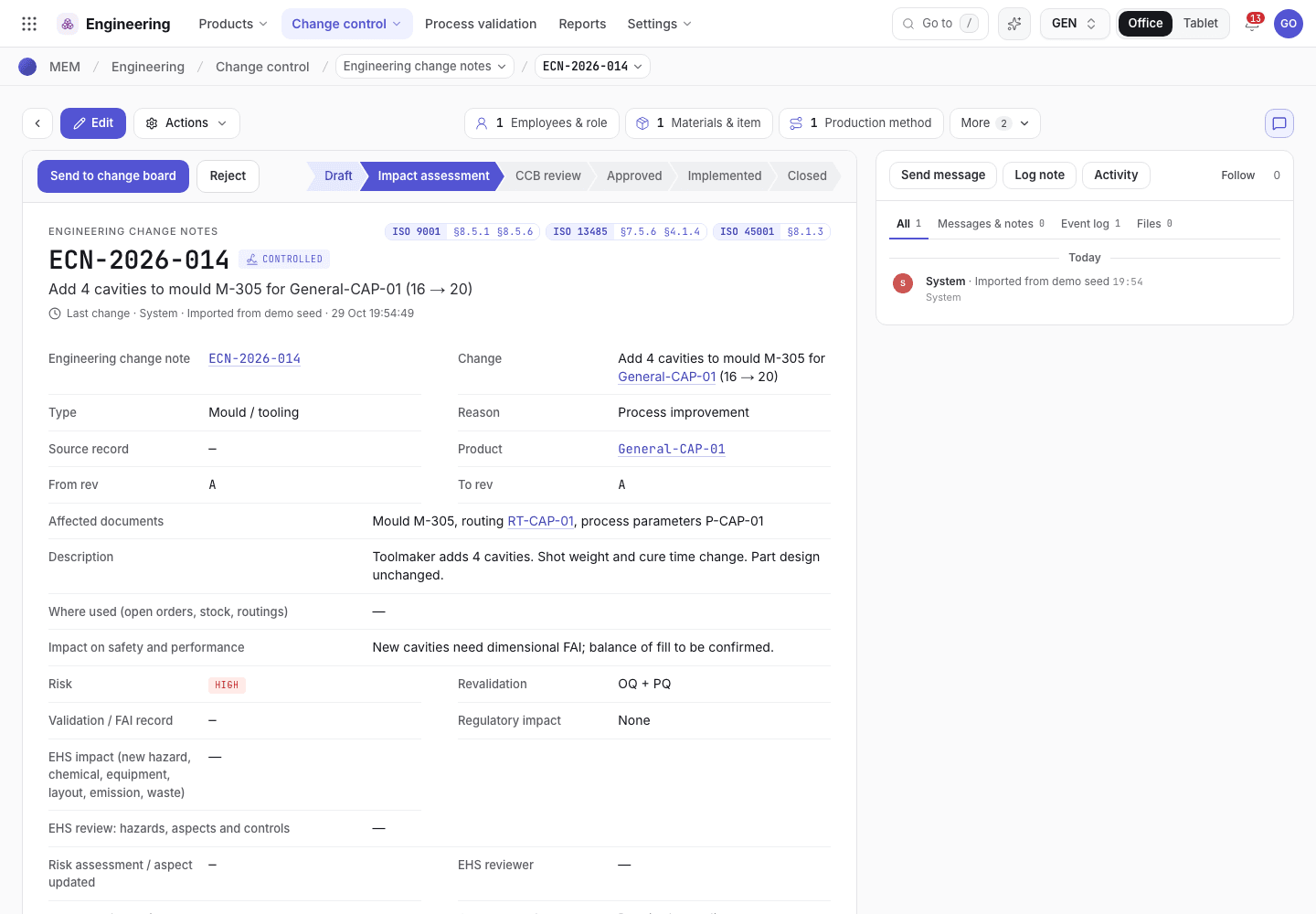
- The stage bar. Impact assessment is the current stage.
- Send to change board and Reject are signed steps.
- Affected items with their action and revision.
- The standards for this stage, and the evidence list.
Implement the change
After approval the page shows Effectivity and orders and the Implementation checklist, one list per affected item. Lines you do by working in the document have an Open button. A line for an item you obsolete has Make obsolete. A line that is a manual step has Tick.
- For Revise: the draft revision starts, the changes are made and submitted for review, and the new revision is released. If retraining is needed, the training matrix lists who is due.
- For Obsolete: the document is made obsolete.
- For New: created, reviewed and released.
- For a drawing or specification: the updated copy is received, checked and filed, and superseded copies are withdrawn.
- Tick the Stock and WIP disposition when the stock decision is done, if the note needs one.
Orders saved after the effective date are blocked until the new revisions are released. Obsolete work instructions cannot be put on an order.
Fill in the Implementation record, then choose Mark implemented (signed). The page counts the
lines left, for example 2 lines left before Mark implemented.
Close the note
Enter the Verification evidence, check that retraining is complete, and choose Close · verified
(signed). The note is Closed and is kept as a record. ECN-2026-011 is a closed example.
What an approved note unlocks
On a released document, New revision asks you to pick an approved change note that lists it, or that
is for the same product. Without one the app says A new revision needs an approved engineering change note. If none exists, the picker offers Raise an engineering change note. The new revision starts as a
Draft, the released revision stays effective until the new one is released (production, planning and
the floor keep using it while the new revision is a Draft or in review), and the note keeps the from and
to revision. See Release the product documents.
Change board route
The organization manager sets the route in the Engineering settings (/engineering/cfg): the Function,
the Approver and Required when (Always, Risk high, Regulatory impact, EHS impact,
Customer approval required, Revalidation needed or a Type). A new route applies to notes
sent to the board from now on. Notes already in review keep the route they were sent with.
If the system refuses a step here, see Engineering changes: why the app refuses.