Define the production method
Write the operations, machine options, moulds and process parameters a product is made with, then submit the method for review.
A production method says how a product is made: its operations in order, the machines and moulds that can run each one, the work instruction and the validated process parameters. The planner and the machine tablet read it. The engineer (Daniel Tan) writes it as a Draft, and it goes through review before production can use it.
View as text
%% title: Status of a production method
flowchart LR
  A["Draft"] -->|"Submit for review"| B["In review"]
  B -->|"Approve, three levels"| C["Released"]
  B -->|"Return to draft"| A
  C -->|"New revision (needs an approved change note)"| A
  C -->|"Make obsolete (QA manager)"| D["Obsolete"]
  A -.->|"Operations have gaps"| X["Refused"]
Create a method and its operations
Open the product (for example General-SDS-01) and choose Setup on the Engineering tab. Choose
+ Add method. To work on a method that exists, open it by number (for example RT-SDS-02, a Draft
method of General-SDS-01).
The Method number is assigned on save. Enter the Rev, an optional Description and Internal reference, Valid from, Valid to, and the lot size range (Lot size from (pcs) and Lot size to (pcs)). Choose the Preference: Primary or Alternative.
In the route, choose + Add operation. Give the Operation a name and choose the Station (machine), or choose Or store bin for an operation done at a location. Enter the Std time (min / 1,000 pcs). An operation done only at a store bin (a hold, such as finished goods awaiting outgoing inspection) needs no work instruction, standard time or machine option.
Add the other operations. Insert after places one between two others. Duplicate copies one five numbers on. Remove deletes one and asks you to confirm. To start from another method, choose Copy operations from…, pick the method, and confirm Replace.
Reorder by dragging. The operations are renumbered 10, 20, 30 and so on. The components, machine options, parameters and checks that name an operation follow it to its new number.
Each operation can also carry: an Alternative and 2nd alternative station, a Work instruction, a QC gate, a Rework route and Rework station, a Parallel group (A to D), Required or Optional with a Run when condition for optional operations, and first-piece and IPQC settings (see Set the inspection plan).
Read the layouts
- Canvas shows the method as a map with zoom and Fit. Cards shows the same as cards.
- Flow, Table and List are three layouts of the operations.
- The summary line gives the operation count, the minutes per 1,000 pieces along the critical path (an optional operation is left out and a parallel group counts once, by its longest branch), the line rate in pieces per hour and the setup minutes.
- Lead time estimates the run hours and the shifts of 8 hours for a quantity you type.
- Compare methods puts two methods of one product side by side and shows how much slower or faster one is.
A Draft production method
The method canvas of RT-SDS-02 with its operations and the readiness list.
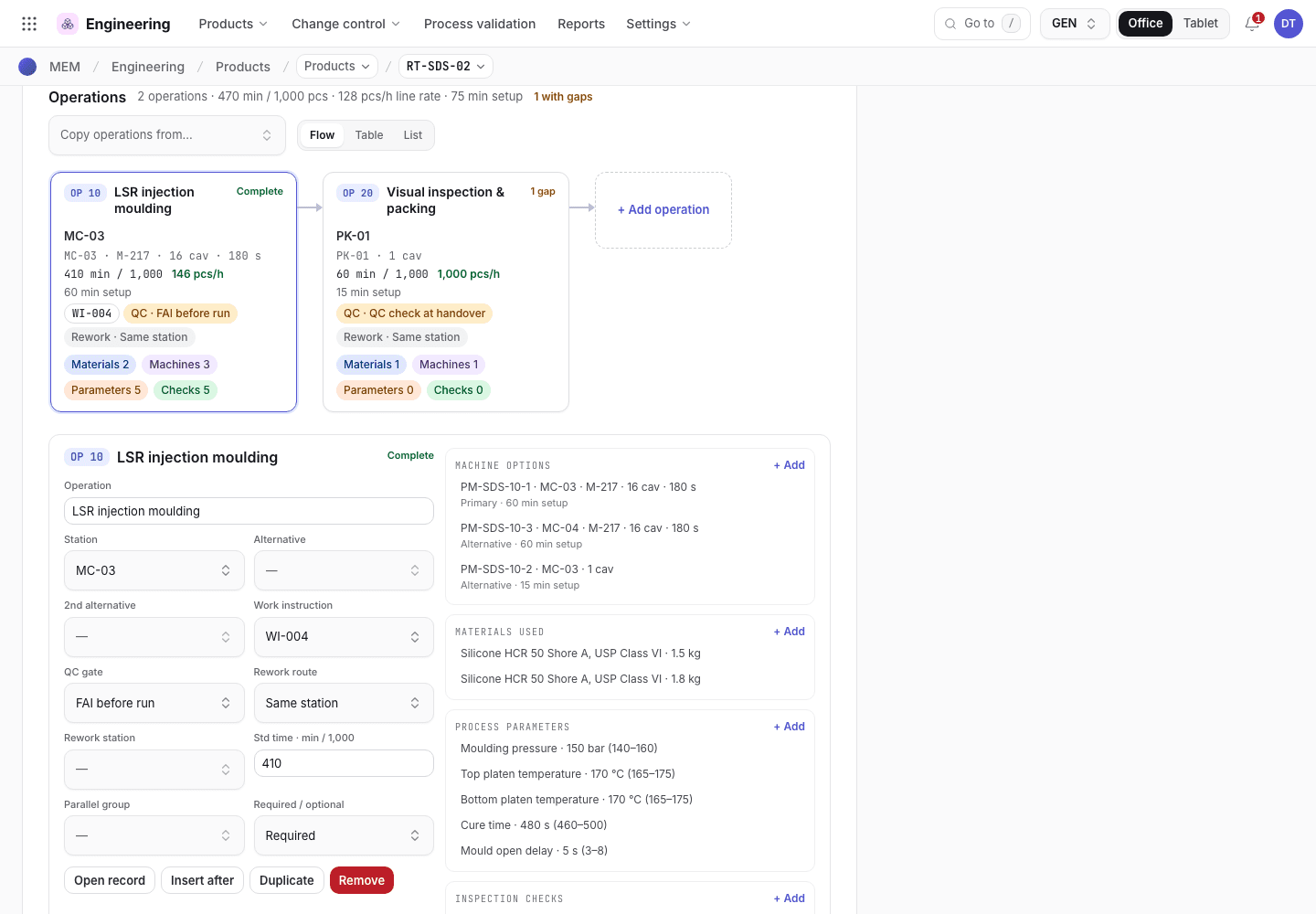
- The method, its revision and status. Draft can be edited.
- Operations in run order. The gaps count shows how many operations are incomplete.
- The readiness list: operations complete, components, method approved.
Add machine options and moulds
A machine option says which machine, and which mould, can run one operation. The planner chooses from these.
- Open the operation. In the drawer choose the Machines tab and choose + Machine.
- The Operation is the one you opened; when you add an option elsewhere, choose it from the
method's operations (for example
10 · Moulding). You do not type an option code: the option is shown by its machine and mould, for exampleMC-03 · M-217 · OP 10. Enter the Machine. Choose whether it Uses a mould; then the Mould, or the Parts per cycle. Enter the Cycle (s) and the Setup (min). - Choose the Preference: Primary or Alternative. Set the Status to Active or Inactive. An Inactive option is kept for history and does not count as a machine option.
A mould needs a cycle above 0 seconds. An operation without a mould, such as trim or pack, may keep 0.
Uses a mould says whether the option needs a mould. Select Yes and choose the Mould: the Parts per cycle come from the mould's Cavities and you cannot type over them. Select No and enter the Parts per cycle yourself (1 when one cycle makes one part); they are required, because planning needs them to estimate the run time. An older option with no mould and no parts per cycle shows the gap "parts per cycle" on its operation until you fill it in.
Machines of an operation
The Machines tab of the operation drawer lists every machine that can run the operation.
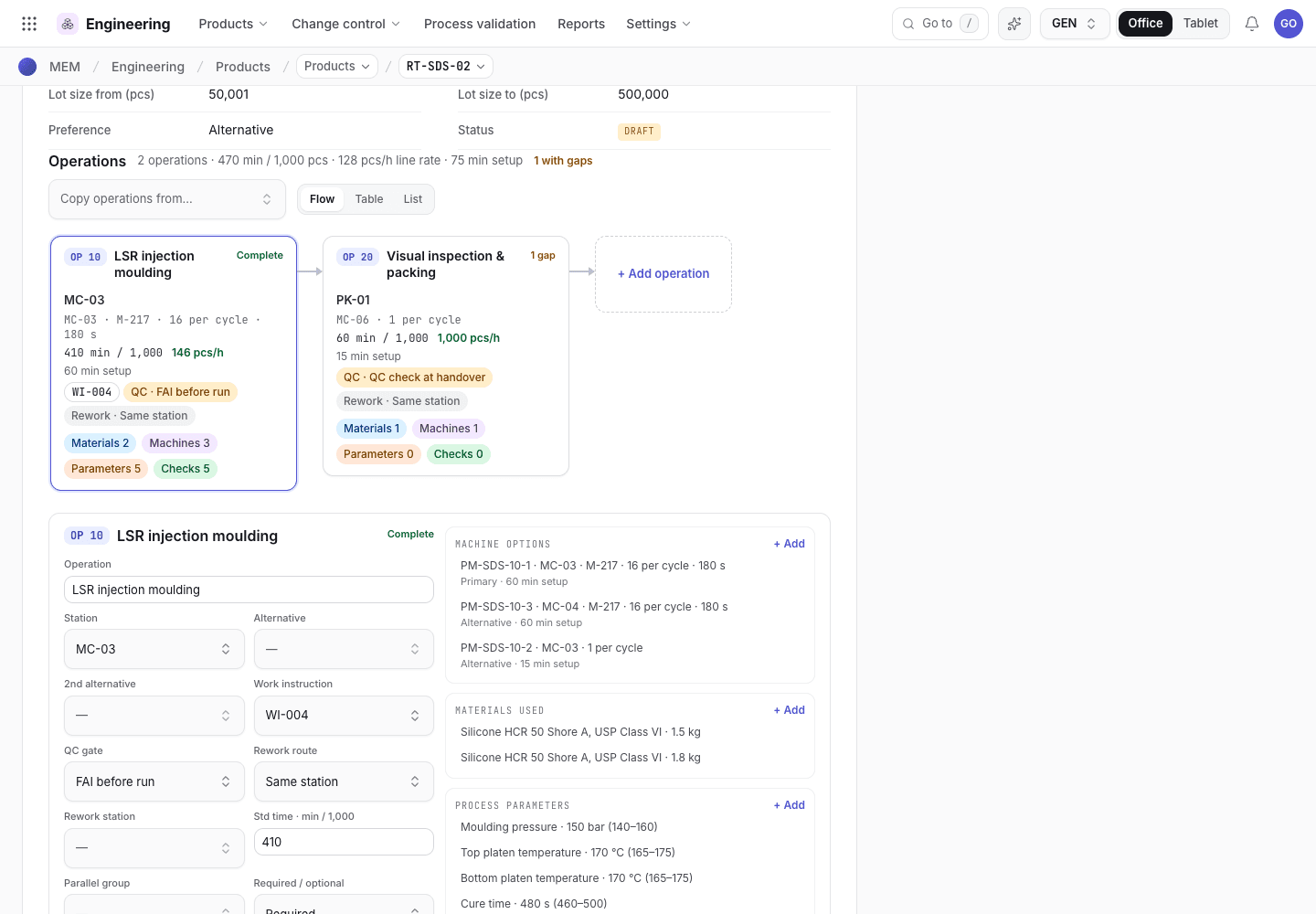
- The six drawer tabs: Machines, Work instruction, Parameters, Inspection, QC gates, Components.
- Each machine option shows its machine, mould, parts per cycle, cycle and setup time.
- + Machine adds another option.
Build the method in the studio
On the production method, the operations view has a fourth choice: Studio. It shows the whole method on one screen, one section for each operation, from top to bottom.
- Release readiness at the top lists what the product still needs before production, for example PFMEA or process validation. Choose an item to add it.
- Each operation shows Where it runs (machine options), Components (BOM lines that the operation uses), Machine settings, Checks and its Work instruction. Each row shows its status. Choose Add machine, Add component, Add setting or Add check to add a row: the form opens with the product, production method and operation filled in. Choose the edit button of a row to change it.
- Open in studio opens the work instruction of the operation in its step editor.
- Add operation adds an operation at the end. To change the order, use the Flow, Table or List view.
Every row keeps its own rules and approvals: releasing the method covers its operations, machine options and components; a work instruction, a setting and a check keep their own controls. On a phone, each operation is a section that you can close.
Set the process parameters
On the Parameters tab choose + Parameter. The dialog shows the product and production method under its title and has three steps:
- What to control: the Parameter and its Unit. Select a common name (for example
Barrel temperature) and unit (for example°C), or type your own. - Allowed range: the Set value and the Validated min and Validated max that process validation proved. A bar shows where the set value is in the window and says when it is outside.
- Where it applies: the Op from the method's operations and, for one machine only, the Machine option. Leave them empty to use the parameter for all of them.
The set value must sit inside the validated window. The tablet shows these set points during setup, and readings outside the window block the next step. Each parameter can be saved once for a product, method, machine option and operation.
The primary method
A product can have several methods. The planner uses the primary one. The rule:
- An Obsolete method is ignored.
- A brand-new Draft is ignored while the product has a Released method, an In review method or a revision of a released one.
- The method whose approved preference is Primary wins. If none is, the oldest released one wins.
Changing Preference on a Draft does not change the primary method until the method is approved.
Submit, review and release
When every operation is complete, open the method record and choose Submit for review. The method needs at least one operation, and every operation needs a station or bin, a released work instruction, a standard time and a machine option. Approval then goes through three levels, see Release the product documents.
A released method is read-only. To change it, start a new revision under an approved change note, see Change a released product. While the new revision is a Draft or in review, planning, orders, material issue, the traveller and inspection keep using the released revision of the method, with its operations and the bill of materials, machine options, parameters and characteristics that name it. They move to the new revision when it is released.
If the system refuses a step here, see Product development: why the app refuses.