Issue a purchase order
Approve a purchase order, send it to the supplier, record the acknowledgement, amend it, and close it.
A purchase order tells a supplier what to deliver. Open Purchasing > Purchase orders.
View as text
%% title: Purchase order status flow
flowchart LR
  A[Draft] -->|Approve · e-sign| B[Approved]
  B -->|Issue to supplier| C[Issued]
  C -->|Receive goods| D[Partially received]
  C -->|Receive goods| E[Received]
  D -->|Close short| F[Closed]
  E -->|Close| F
  C -->|Amend · new revision| B
  A -->|Cancel| G[Cancelled]
  G -->|Reset to draft| A
Approve and issue an order
Open the draft order, for example PO-2026-0523. Check the supplier, the unit price, the
Specification / drawing rev and Quality requirements. The order cannot be approved without
them. An order made from a requisition gets the specification from the item's Purchase spec.
If it is empty, choose Edit: a draft order takes the item's current Purchase spec when the
form opens. If the item has none, enter it. Picking an item on a new order also fills it in.
PO rev, Amendment reason and Supplier acknowledgement show only after an amendment or
an acknowledgement records them.
Choose Approve · e-sign and sign. Each approval level signs in turn. See How purchase approvals work. When the last level has signed the order is Approved. You cannot approve an order you created or whose supplier, quantity or price you set or changed: the button shows why, and another approver signs it. The order is approved on its own amount, whatever its requisition was approved at.
Choose Issue to supplier and sign. The order is now Issued. For a Conditional supplier, the trail records the tightened inspection note.
When the supplier confirms, choose Record supplier acknowledgement and enter Supplier acknowledgement, the supplier's reference.
An approved order, ready to issue
The buttons on the right depend on the status.
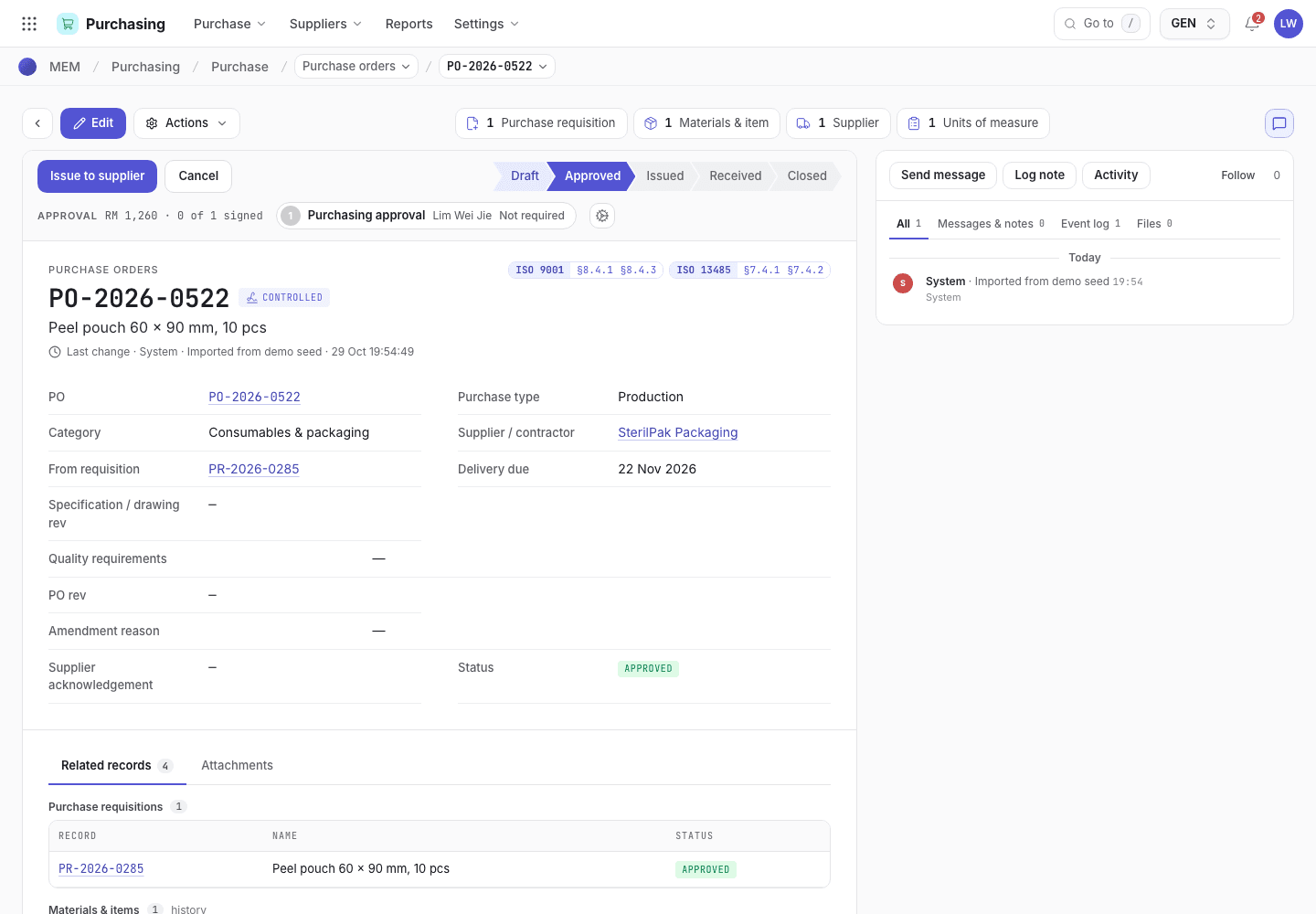
- Issue to supplier sends the order.
- Supplier, item, quantity and unit price.
- Approval strip with every level signed.
Change an issued order
Choose Amend · new revision on an Issued order. Enter Amendment reason, and change Specification / drawing rev or Quality requirements if they changed. Sign. The order gets a new revision, loses its acknowledgement and returns to Approved. Issue it again and record the new acknowledgement.
Cancel, reset, close
| Button | When | What happens |
|---|---|---|
| Cancel | Draft, Approved, Issued | The order is Cancelled. Not possible once goods are received against it. |
| Reset to draft | Cancelled | The order returns to Draft. Every approval level signs again. |
| Close short | Partially received | The order is Closed with what arrived. |
| Close | Received | Everything arrived. Sign to close. |
Receiving goods is in Receive goods.
An issued order waiting for goods
Receive goods, Amend · new revision and Cancel appear on an issued order.
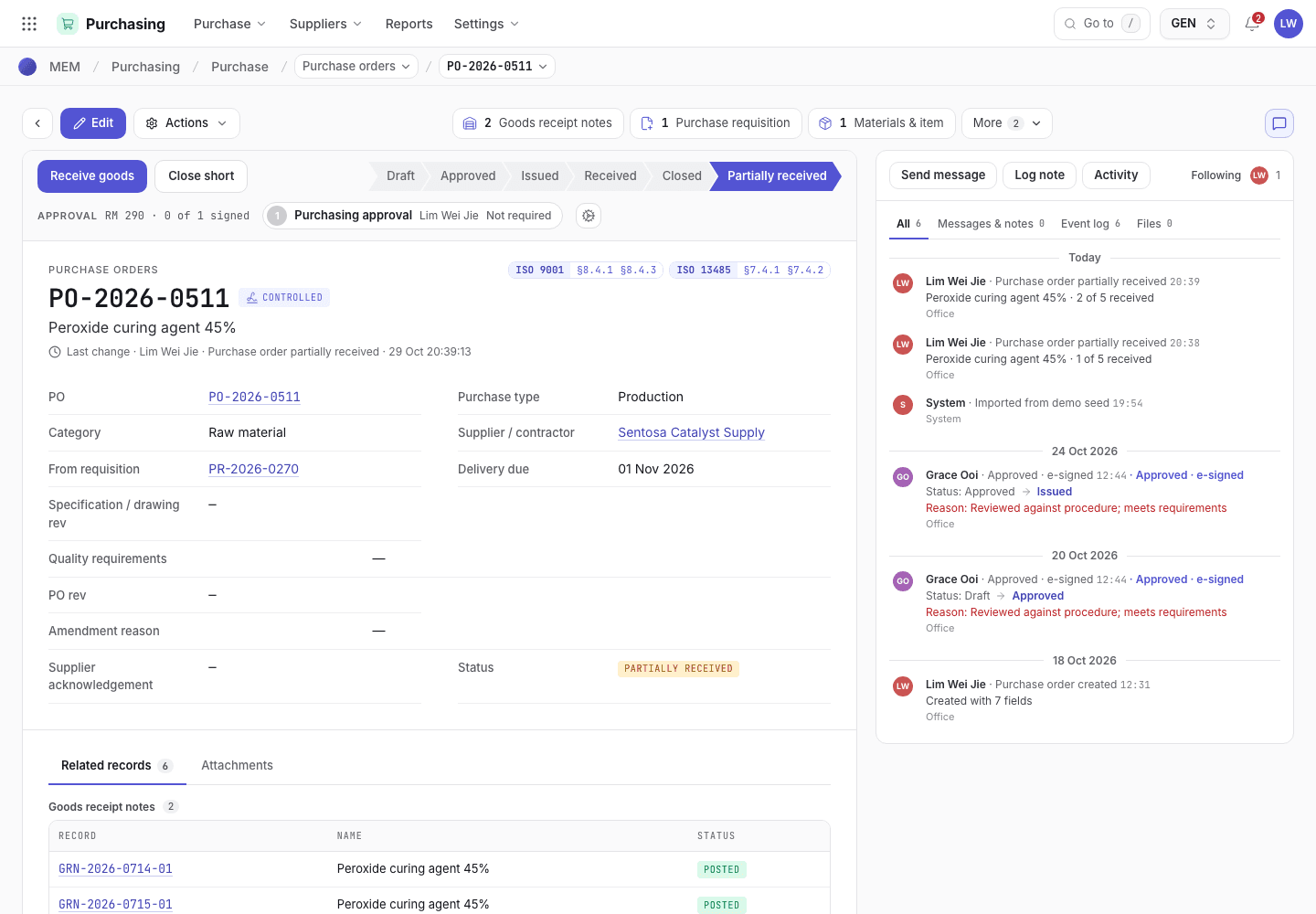
- Receive goods, Record supplier acknowledgement, Amend and Cancel.
- Supplier acknowledgement reference.
- Order lines with ordered, received and outstanding quantity.
If the system refuses
An order cannot be approved or issued while any of these is true: the supplier is not on the list, is not Approved or Conditional, has no certificate expiry or an expired one, has no re-evaluation date or is overdue, has no signed quality agreement, supplies an outsourced process with no control reference, or the order has no specification or quality requirements. The first one found is shown. See Purchasing refusals for the exact text.