Receive goods
Book a delivery against an issued purchase order, count it, scan the bin and issue the goods receipt note.
Receiving puts a delivery into stock. Every line is received on its own goods receipt note (GRN) and its own lot. The default role is Store (Farah Hanim). Open Inventory > Goods receipts.
View as text
%% title: Receiving a delivery
flowchart LR
  A[Issued purchase order] --> B[Quality sample check]
  B -->|Accepted| C[Quantity check]
  B -->|Rejected| X[Lot rejected, not booked into stock]
  C --> D[Scan the bin]
  D --> E[Issue GRN and store]
Receive a delivery from the receiving panel
The receiving panel has three steps: Quality · sample check, Quantity check and Issue GRN & store.
Wait for Incoming QC to accept the delivery. The panel says "Quantity check and goods receipt open once Incoming QC accepts a delivery against an issued purchase order." A line still waiting shows Awaiting Incoming QC. Rejected lots are not booked into stock. See Inspect incoming material.
In Step 2 · Quantity check, weigh or count each lot against the delivery order. Enter the
quantity in Counted. The Result column shows Match, Short {n} or Over {n}. For a
weighed item, choose the Scale.
Enter the supplier lot of each line. The panel asks for it with "Enter the supplier lot of each line before issuing the GRN." If the pack shows them, also pick the Manufactured date and the Supplier expiry date.
In Step 3 · Issue GRN & store, scan the QR label on each store bin. The button Scan {bin} confirms the put-away place. If you scan the wrong bin, the panel says "Scanned {scanned}. This line goes to {expected}."
When every line matches and every bin is scanned, choose Sign · Issue {grn} & store. Each lot is booked into its bin.
If the count does not match, the panel says "Counted quantity does not match the delivery order. Recount, or raise a discrepancy with Purchasing before issuing the GRN."
Goods receipts on the desktop
Deliveries waiting for the quantity check, and receipts already posted.
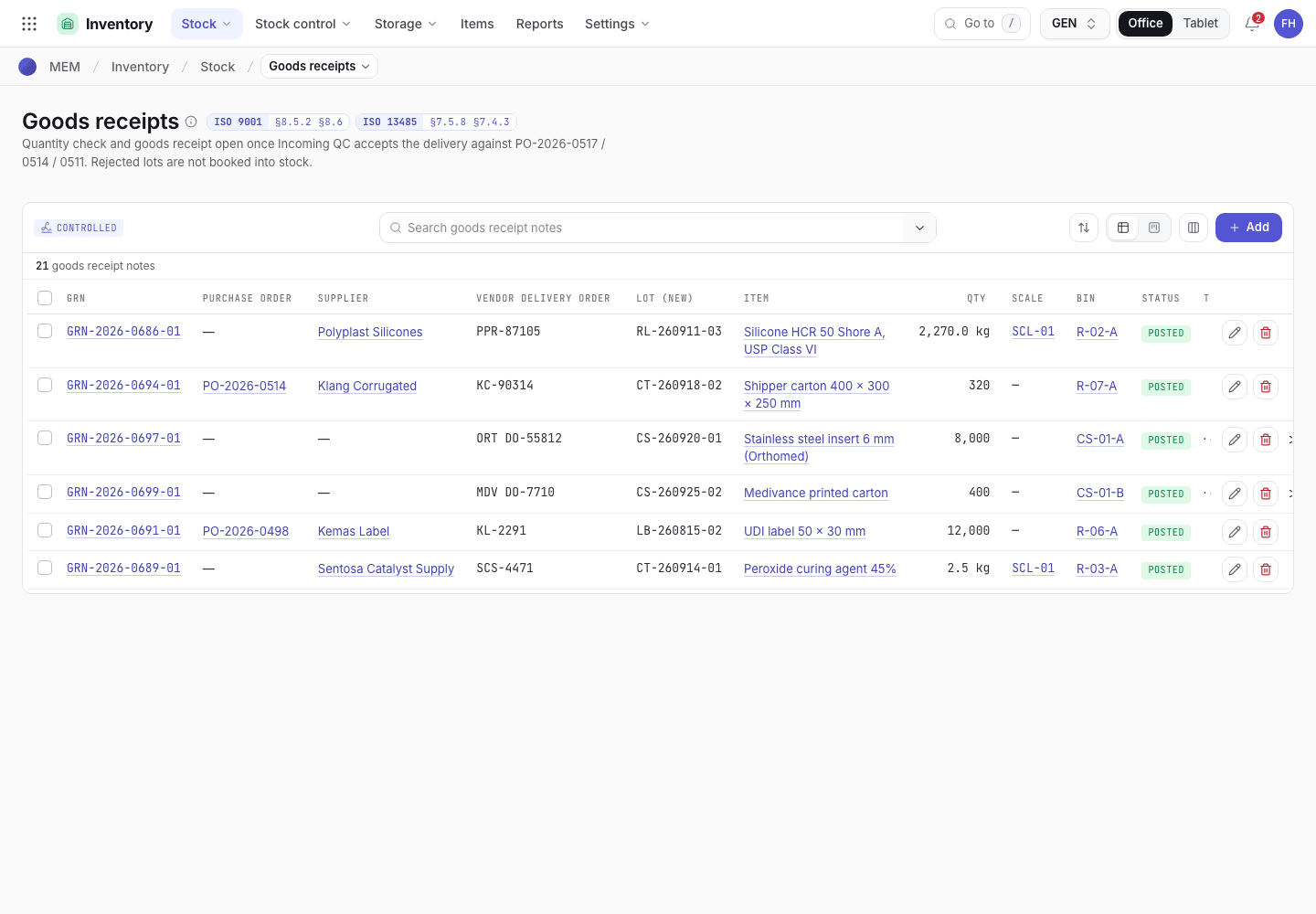
- Step 1 to 3 of the receiving panel.
- Counted quantity and result for each lot.
- Posted goods receipt notes.
Goods receipts on the phone
The same panel on a 375 px screen, used at the dock.
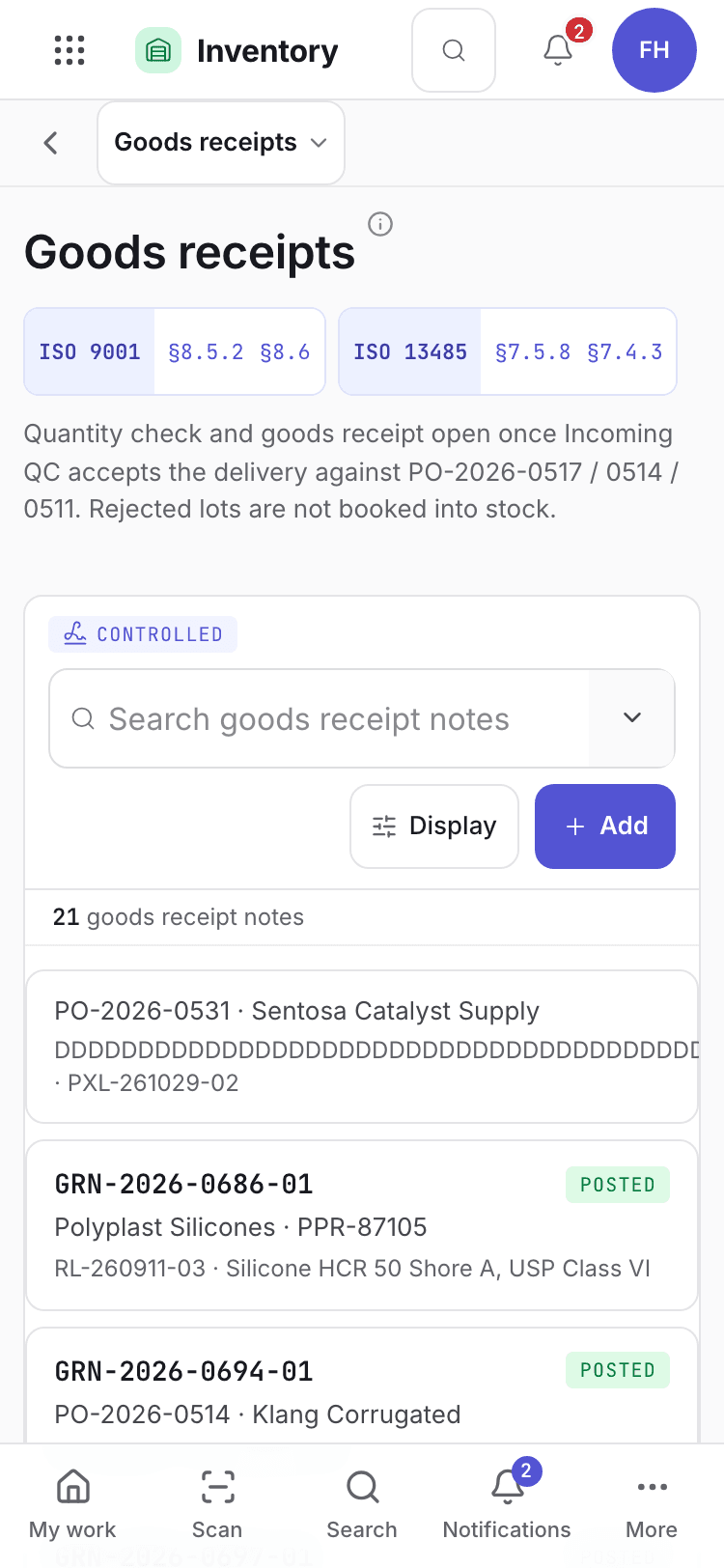
- Receiving panel with the step you are on.
- Lot, item and counted quantity.
- Scan the bin, then issue the GRN.
Receive against a purchase order
You can also receive one line from the order itself.
Open an Issued or Partially received order, for example PO-2026-0514, and choose
Receive goods.
For the line, enter Qty (for example 25 kg), Vendor delivery order, Lot, Bin,
Scale (weighed items) and Received (the date). Add the supplier's Supplier batch,
Manufactured date and Supplier expiry from the pack or the certificate of analysis. The table shows Ordered, Received
and Outstanding.
Choose Sign · Receive. The lot goes into quarantine and an incoming inspection is queued. If Incoming QC already accepted the dock sample, the lot is released into stock.
You can receive less than the outstanding quantity. The order becomes Partially received. When everything has arrived it becomes Received.
A partially received order
The order shows what was ordered, received and is still outstanding.
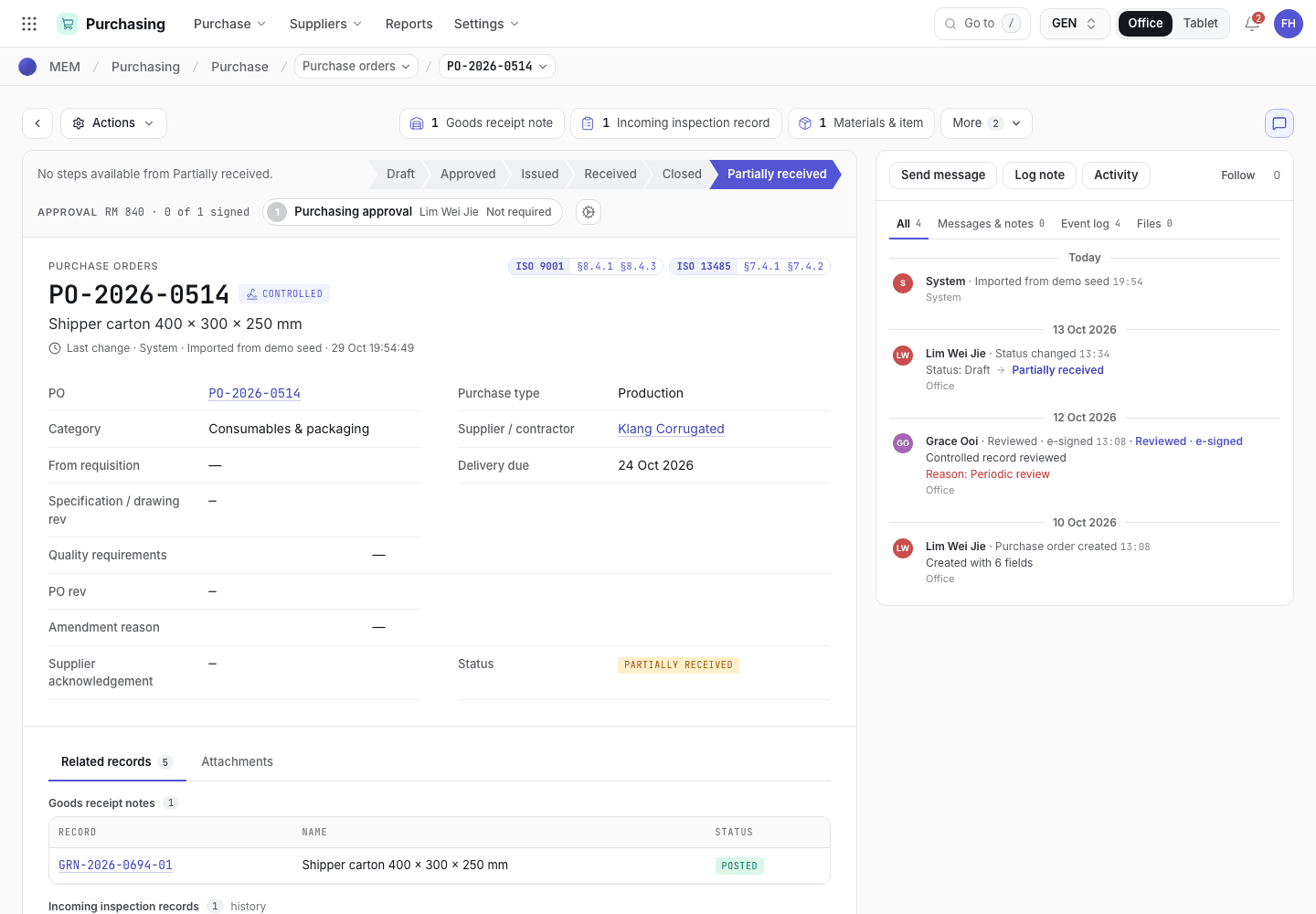
- Receive goods books the next delivery.
- Ordered, received and outstanding quantity.
- Goods receipt notes already posted against this order.
Lots, locations and storage conditions
- A new lot waits in quarantine until Incoming QC accepts it. Stock waiting for inspection cannot be issued to production.
- Goods go to a bin that exists. If the item needs a storage condition and the bin has another, the receipt is refused.
- The lot's expiry is the supplier expiry or the receipt date plus the item's shelf life, whichever is earlier. The supplier batch and manufacturing date stay on the receipt and the lot, and the trace and the device history record show the supplier batch.
- A delivery can join an existing lot only while that lot is still in quarantine in the same bin.
- A posted receipt cannot be edited or deleted. To send goods back to the supplier, raise a nonconforming stock disposition. See Inspect incoming material.
If the system refuses
The messages for receiving are in Receiving refusals. Examples:
{po} is {status}. Goods are received against an issued purchase order.{item} has {qty} outstanding on {po}. Receive that or less, or ask Purchasing to amend the order.{name} is not on the approved supplier list. Receive from an approved supplier.