Approve and manage suppliers
Keep the approved supplier list current, record supplier documents, answer supplier problems with a SCAR, and score suppliers each year.
Only an Approved or Conditional supplier can receive a purchase order. This page covers the supplier list, the supplier's paperwork, corrective action requests (SCARs) and evaluations. It is for Purchasing and QA. The default roles are Purchasing (Lim Wei Jie) and QA (Jason Wong, Grace Ooi).
What the supplier statuses mean
Open Purchasing > Suppliers to see the list.
| Status | Can it receive a purchase order? | What it means |
|---|---|---|
| Approved | Yes | Passed its evaluation with a score of 85 or more. |
| Conditional | Yes, under tightened inspection | Scored 70 to 84. The order screen shows "{name} is conditional" and the note to follow. |
| KIV | No | On hold. The order screen says "{name} is KIV (on hold)". |
| Disqualified | No | Scored below 70, or the certificate has expired. |
You cannot set Approved or Conditional by editing the supplier. An approved supplier evaluation sets it. A new supplier is added as KIV: the Add form shows the status locked, with the note that the supplier is on hold until a supplier evaluation approves it. See Score a supplier.
Each supplier row also shows three things that update by themselves:
- Certificate reads
Valid to {date},Expires in {n} d(within 60 days) orExpired {date}. - Inspection level reads
Normal,Tightened · {n} of last 5 rejectedorReduced · 10 accepted in a row. Incoming inspection follows this level. - Re-evaluation reads
Due {date}orOverdue since {date}. A supplier overdue for re-evaluation cannot get a new purchase order approved.
The approved supplier list
Status, certificate validity and re-evaluation date for every supplier.
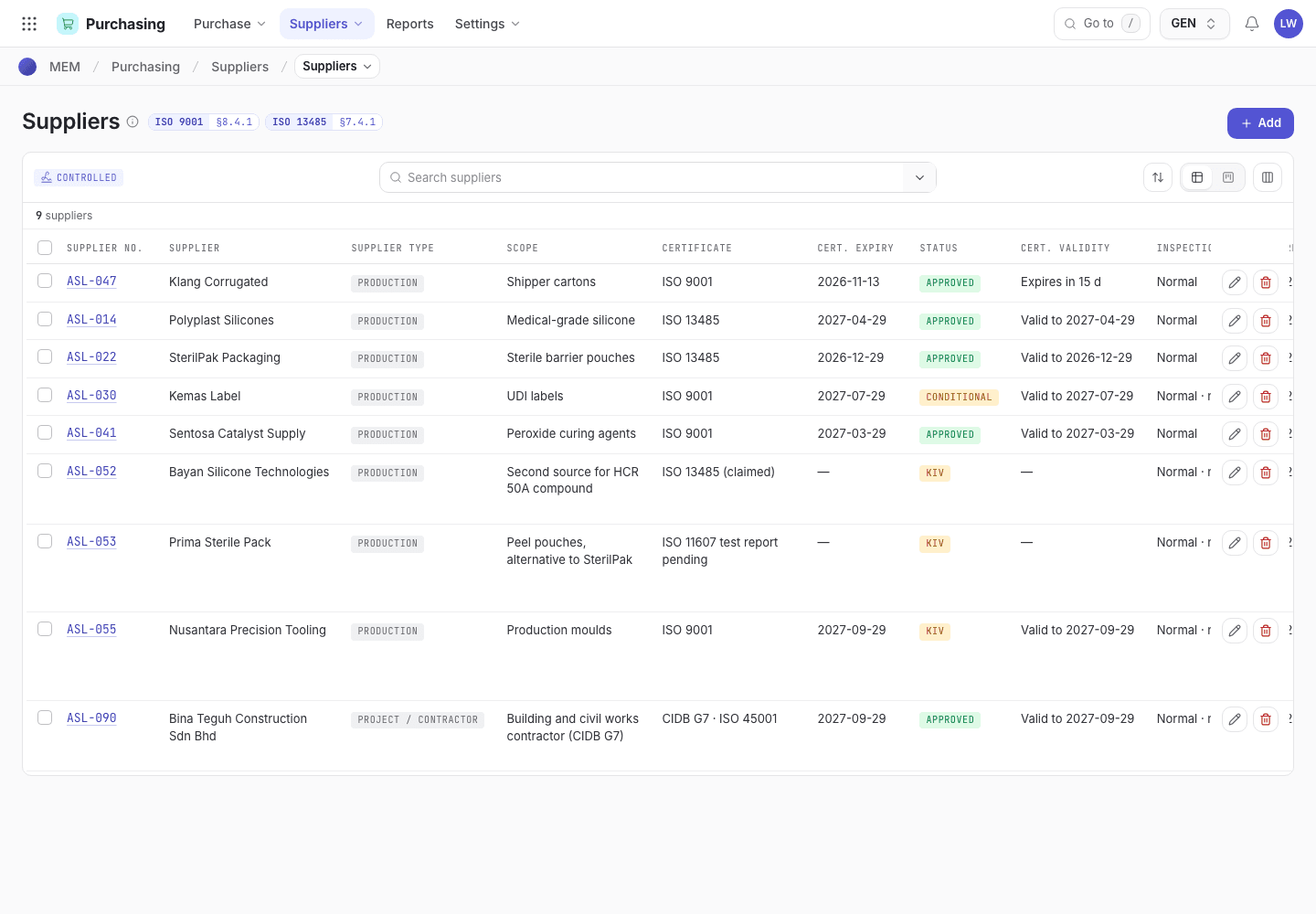
- Filter or search the list by supplier name or status.
- Status chip: Approved, Conditional, KIV or Disqualified.
- Certificate validity and inspection level of each supplier.
Record supplier documents
Use this when a supplier sends a new certificate, a signed quality agreement or an outsourced process control. One person records it. A QA manager who is a different person verifies and signs it. Nothing applies until then.
Open Purchasing > Suppliers and open the supplier, for example ASL-052.
Choose Record supplier documents.
Fill only the fields that change: certificate, expiry, quality agreement, agreement reference and revision, outsourced process, and its validation or control reference.
In Evidence, enter the certificate number, agreement reference or audit report that supports the
change. For example ISO 13485 certificate No. 4471.
Attach the certificate in Certificate file and the signed agreement in Quality agreement file. Both are optional, but they are the proof the QA manager checks. The files are stored on the supplier record, in its Attachments.
Choose Send for verification. The supplier now shows Waiting for the QA manager, with the files you attached.
The QA manager opens the same supplier and checks the evidence and the listed files. When nothing was attached, the banner and the dialog say "No file attached". Then choose Verify and sign and sign. The new values apply when the signature is accepted.
If you filed it by mistake, choose Withdraw. If the supplier's documents changed after you filed it, the banner says "The supplier's documents changed after this was recorded. Withdraw it and record it again." Choose Withdraw, then Record again.
A supplier record with a request waiting
The banner shows who recorded the change and who must verify it.
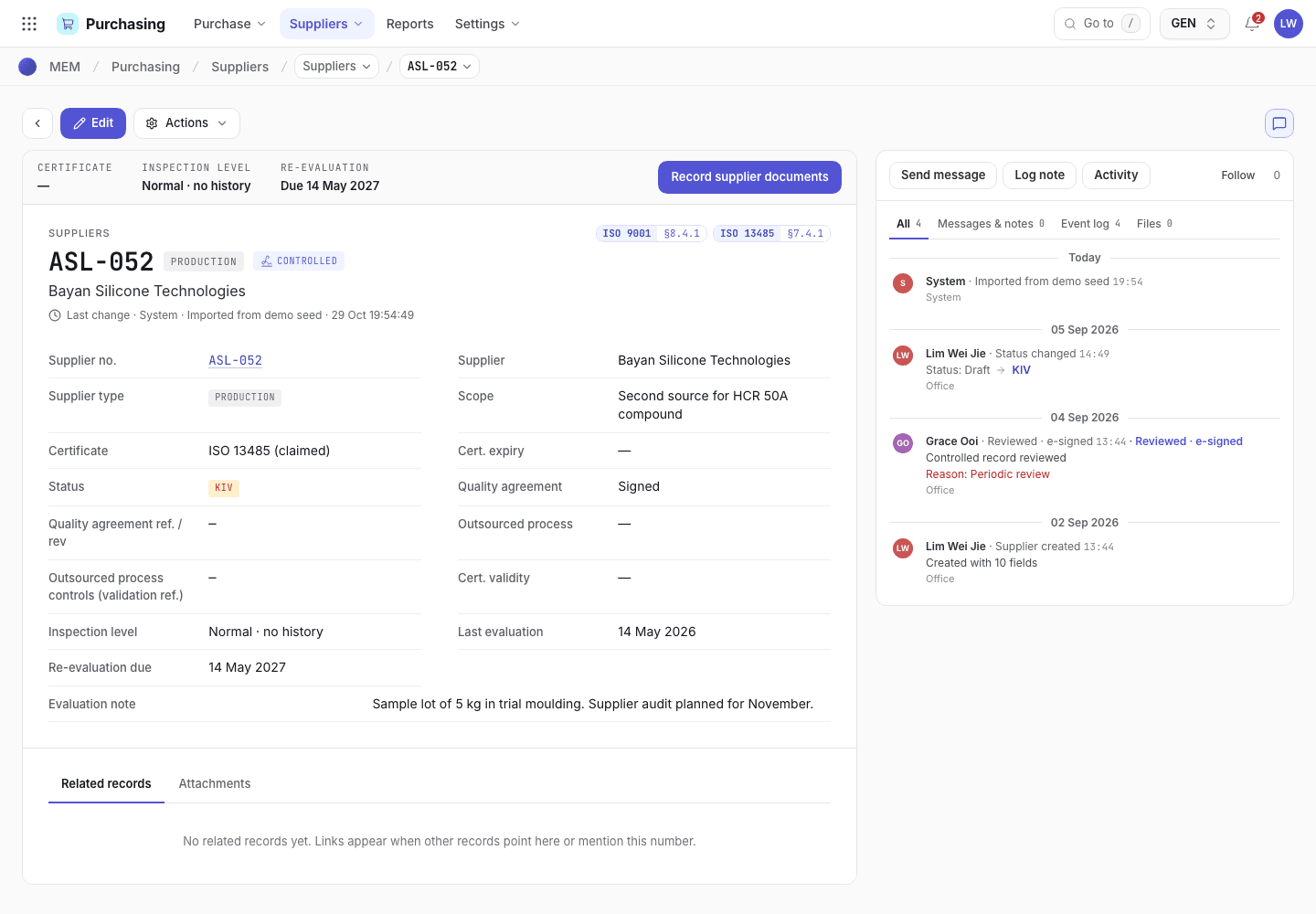
- Record supplier documents starts a change.
- The banner shows the request is waiting for a QA manager.
- Supplier details: status, certificate, agreement, outsourced process.
Answer a supplier problem with a SCAR
A SCAR (supplier corrective action request) asks the supplier to contain a problem, find the root cause and fix it. Open Purchasing > SCARs.
View as text
%% title: SCAR status flow
flowchart LR
  A[Draft] -->|Issue to supplier| B[Issued]
  B -->|Record supplier response| C[Response received]
  C -->|Accept response · verify| D[Verifying]
  C -->|Reject response| B
  D -->|Close · effective| E[Closed]
D -->|Not effective · reissue| B| Status | Buttons | Who signs |
|---|---|---|
| Draft | Issue to supplier | The person issuing. Describe the problem first. |
| Issued | Record supplier response | Anyone in Purchasing. Needs containment, root cause and corrective action. |
| Response received | Accept response · verify, Reject response | QA engineer (Jason Wong). |
| Verifying | Close · effective, Not effective · reissue | Close · effective: QA manager (Grace Ooi). Not effective · reissue: QA engineer. |
| Closed | None |
Open the SCAR in Draft. Choose Issue to supplier and enter the Problem. The supplier has 14 days to answer.
When the supplier replies, choose Record supplier response. Enter Supplier containment, Root cause and Corrective action.
The QA engineer chooses Accept response · verify to start checking, or Reject response. A rejection needs Reason response rejected, and the supplier has 7 days to answer again.
The QA manager chooses Close · effective once three lots from that supplier were accepted since the response. If fewer than three arrived, enter Verification on following lots instead. If the fix did not work, the QA engineer chooses Not effective · reissue.
The SCAR register
Each SCAR shows its supplier, due date and status.
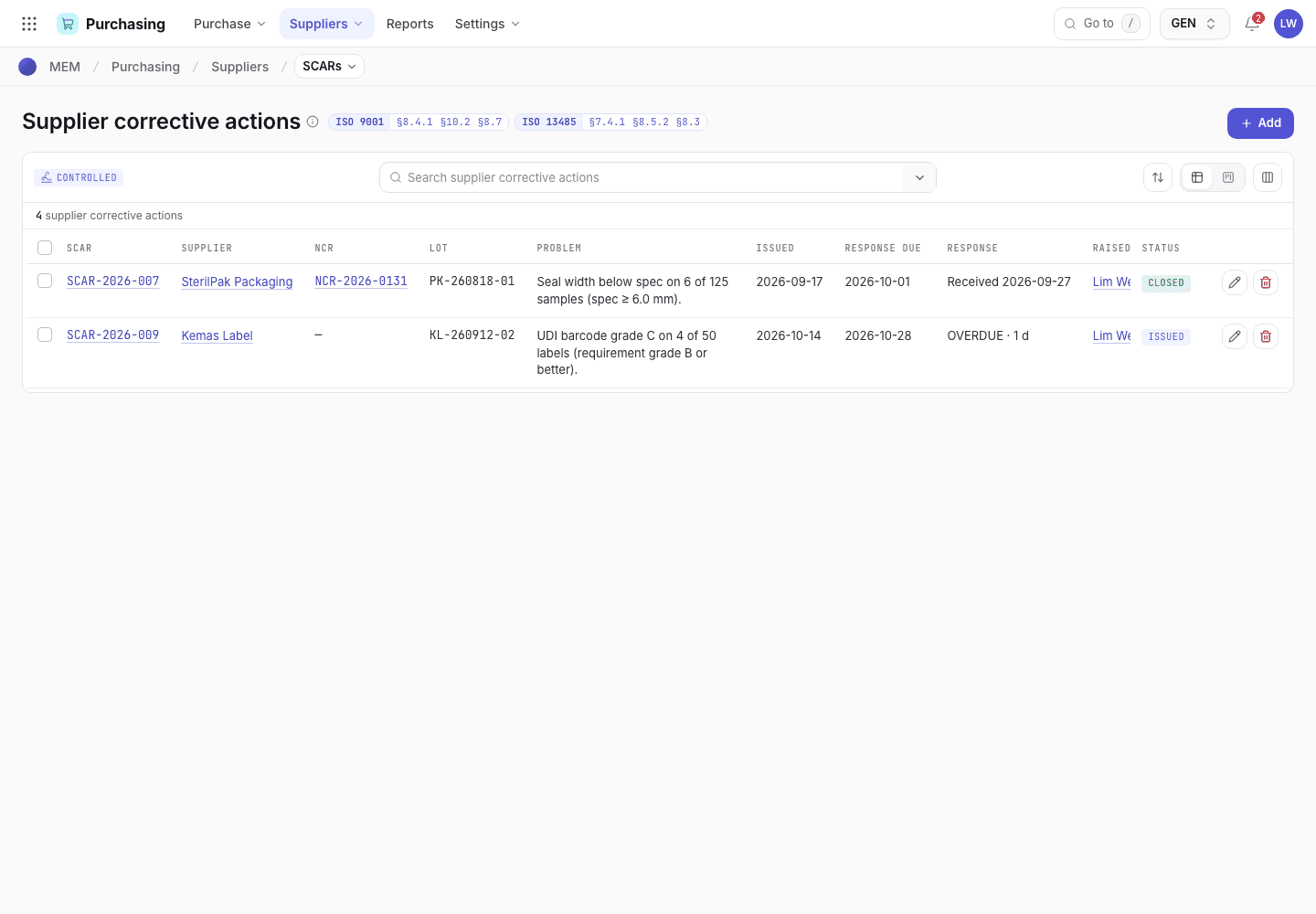
- Search for a supplier or SCAR number.
- Status chip shows where the SCAR stands.
- Due date for the supplier's response.
Score a supplier
Each approved supplier is evaluated at least once a year. Open Purchasing > Evaluations and add an evaluation. Evaluation type is Periodic for a supplier that has delivered, or Initial for a new supplier with no receipts yet. The status flow is Draft, Scored, Approved.
Periodic evaluation
Nothing is typed. Calculate score counts what the system already holds for the supplier between Period from and Period to (blank is the 12 months up to today):
| Figure | Counted from |
|---|---|
| Lots received | Incoming inspections of the supplier's lots that were decided, Accepted or Rejected, in the range. A lot still Pending or On hold is not counted yet. |
| Lots rejected | Those decided as Rejected. |
| On-time delivery % | Posted goods receipts in the range that were received on or before the due date of their purchase order, out of the receipts whose order has a due date. |
| NCRs raised | NCRs raised for the supplier's incoming lots in the range. An NCR names no supplier, so it belongs to the supplier through the lot it was raised for. |
| SCARs open past due | The supplier's SCARs that are Issued and past their due date today. |
| Certificate valid | The supplier's certificate expiry in the supplier register: valid when an expiry is recorded and has not passed. |
In Draft, set Period from and Period to if you want a range other than the last 12 months, then choose Calculate score. The record shows the figures and, under Scored from, where each one came from, with the numbers of the inspections and NCRs counted.
The score is half lot quality, three tenths on-time delivery, and two tenths a penalty of 15 per NCR and 30 per overdue SCAR. 85 or more is Approved. 70 to 84 is Conditional. Below 70, or without a valid certificate, is Disqualified.
A QA manager other than the person who scored it chooses Approve · update supplier and signs. For a Conditional result, enter the conditions first, for example tightened inspection.
A supplier with no decided lot in the range cannot be scored this way. Use an initial evaluation. To count a different range after scoring, choose Re-calculate; typed figures are never used.
Initial evaluation of a new supplier
A supplier with no receipts has no lots to count, so an initial evaluation is judged on documents, an audit and a sample. It has no score: the Outcome is the result.
- Choose Evaluation type Initial.
- Set Quality agreement signed, Supplier audit (Passed, Failed or Not done) and Sample / first lot (Accepted, Rejected or None). Whatever you claim needs its reference: Audit report ref. for an audit, Sample / first-lot ref. for a sample.
- Choose Calculate score. The certificate comes from the supplier register.
| Outcome | When |
|---|---|
| Disqualified | The certificate is not valid, the audit Failed, or the sample was Rejected. |
| Approved | The certificate is valid, the quality agreement is signed, and the audit Passed or the sample was Accepted. |
| Conditional | Anything else: something is still missing. Enter the conditions at approval. |
Approval is the same for both kinds: a QA manager other than the person who scored it signs. It updates the supplier's status and sets the next evaluation date: one year for Approved, six months for Conditional. Later evaluations of the supplier are periodic, scored from its receipts, inspections and NCRs.
If the system refuses
The messages for these tasks are listed in Purchasing refusals. Signature authority, reason and access refusals are explained in Signatures and refusals.