How purchase approvals work
Which approval levels apply to a requisition or purchase order, who signs them, and what happens over a limit.
Every requisition and purchase order passes a ladder of approval levels. Which levels apply depends on the document, its purchase type and its value in RM. This page is for approvers and for the organization admin who sets the rules.
Which levels apply
These are the default rules. Open Purchasing settings (/purchasing/cfg), tab Approvals, to
see or change your organization's rules.
| Document | Purchase type | From value (RM) | Approval level | Default approver |
|---|---|---|---|---|
| Requisition | Any type | 0 | Department head | Hafiz Rosli (supervisor) |
| Requisition | Production | 20,000 | Purchasing review | Lim Wei Jie (buyer) |
| Requisition | Project | 0 | Engineering review | Daniel Tan (engineering) |
| Purchase order | Any type | 0 | Purchasing approval | Lim Wei Jie (buyer) |
| Purchase order | Production | 50,000 | QA review · new or critical material | Grace Ooi (QA manager) |
| Purchase order | Project | 0 | Engineering review | Daniel Tan (engineering) |
| Purchase order | Any type | 100,000 | Managing director | Lee Chong Ming |
Every rule that matches the document applies. A production requisition is valued at the item's last PO price. A project requisition is valued at its budget. A purchase order is valued at quantity times unit price, or the contract value.
View as text
%% title: Approval ladder for a RM 120,000 production purchase order
flowchart LR
  A[Submitted] --> B[Purchasing approval]
  B --> C[QA review · new or critical material]
  C --> D[Managing director]
  D --> E[Approved]
Read the approval strip
Every requisition and purchase order has an Approval strip. It shows {n} of {m} signed and one
row for each level.
| State | Meaning |
|---|---|
| Signed | The level was signed, with the date and time. |
| Waiting | This level can sign now. |
| Pending | An earlier level has to sign first. |
| Not required | The value is below the level's threshold. |
| Escalated | The level was passed on without a signature. The row says over limit or requester. |
If no level applies, the strip says "No approval levels apply at this value".
The approval strip
One row for each level, with who signed and when.
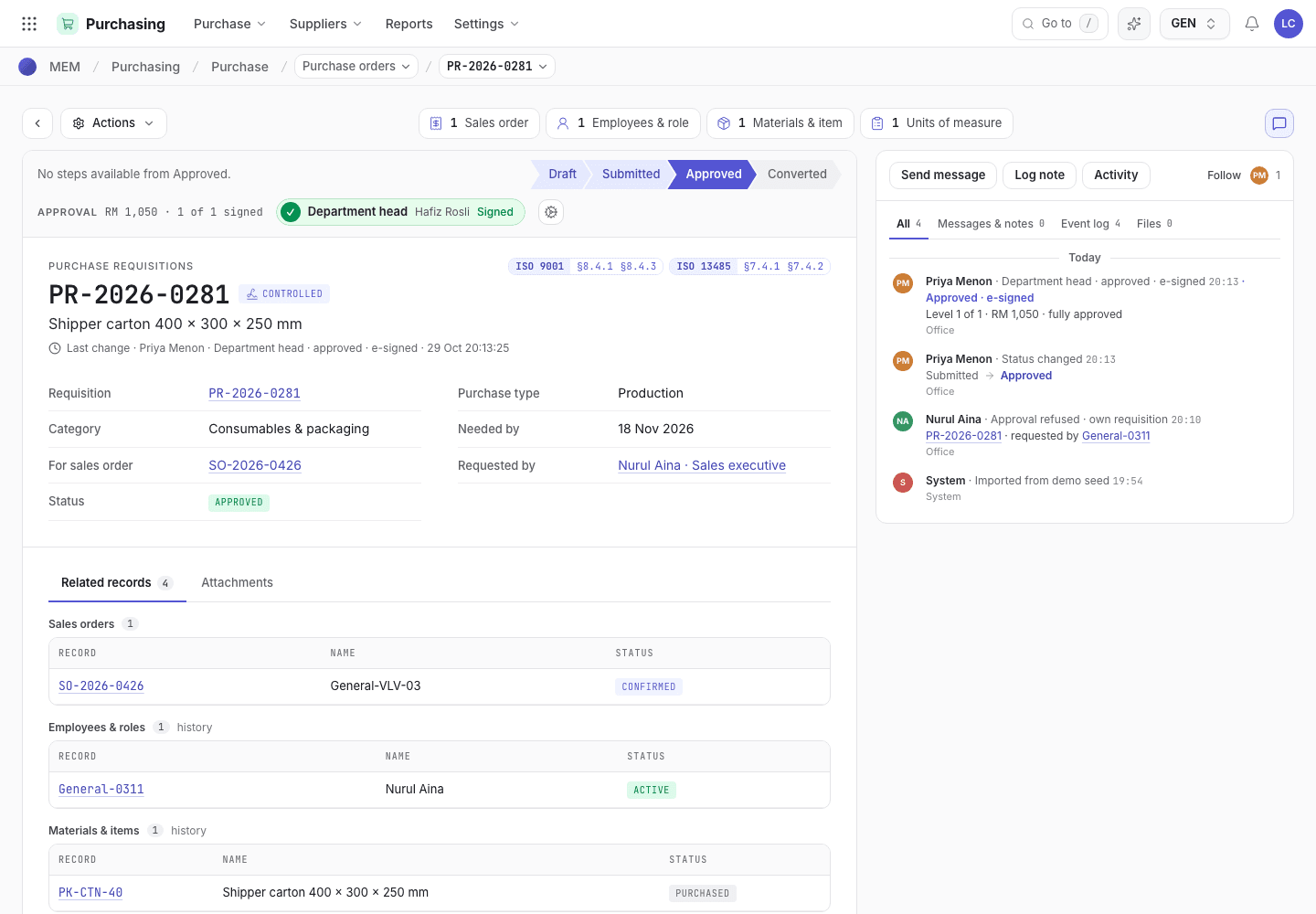
- Progress: how many levels are signed.
- A level with its approver and state.
- Approve · e-sign appears when you hold the open level.
Signing order and who signs
The signing order is set for each document type under Approvals:
- Sequential: levels sign one after another, lowest threshold first. This is the default.
- Parallel: every level that applies can sign at the same time.
A level can have more than one approver. Any one means one signature is enough. All means every approver signs.
Six rules always hold:
- The requester never approves their own requisition. If the requester holds a level, it is
passed on and marked Escalated with
requester. - Whoever created a purchase order, or set or changed its supplier, quantity or price, never approves it. This holds at every level, in person and as someone's delegate. Another approver signs it.
- One person cannot sign two levels of the same document.
- The last level must be signed within the signer's approval limit.
- A rejection needs the same authority as an approval. Only someone who holds an open level can reject.
- A purchase order is approved on its own amount (quantity times price). The approval of its requisition never stands in for it, so an order that is larger than the requisition, or priced when the requisition was not, goes through every level its own amount reaches.
Approval limits and delegation
An approver can have a limit in RM. A signature above the limit moves to the next level and the
level is marked Escalated with over limit. The last level has nowhere to go, so the system
refuses and asks for a higher level.
The organization admin sets limits and delegates under Settings > Entities & access
(/config/people): Approval limit (RM), Delegate, From and To. During a delegation
window the delegate signs on behalf and both names are recorded.
With the default permissions, planner, engineering and the managing director can only view Purchasing. If you hold a level but cannot sign it, ask the organization admin to give you full access to Purchasing, or to delegate the level. The organization admin can sign any level.
Approval rules in settings
Each row is one level. Changes apply to the next document that is submitted.
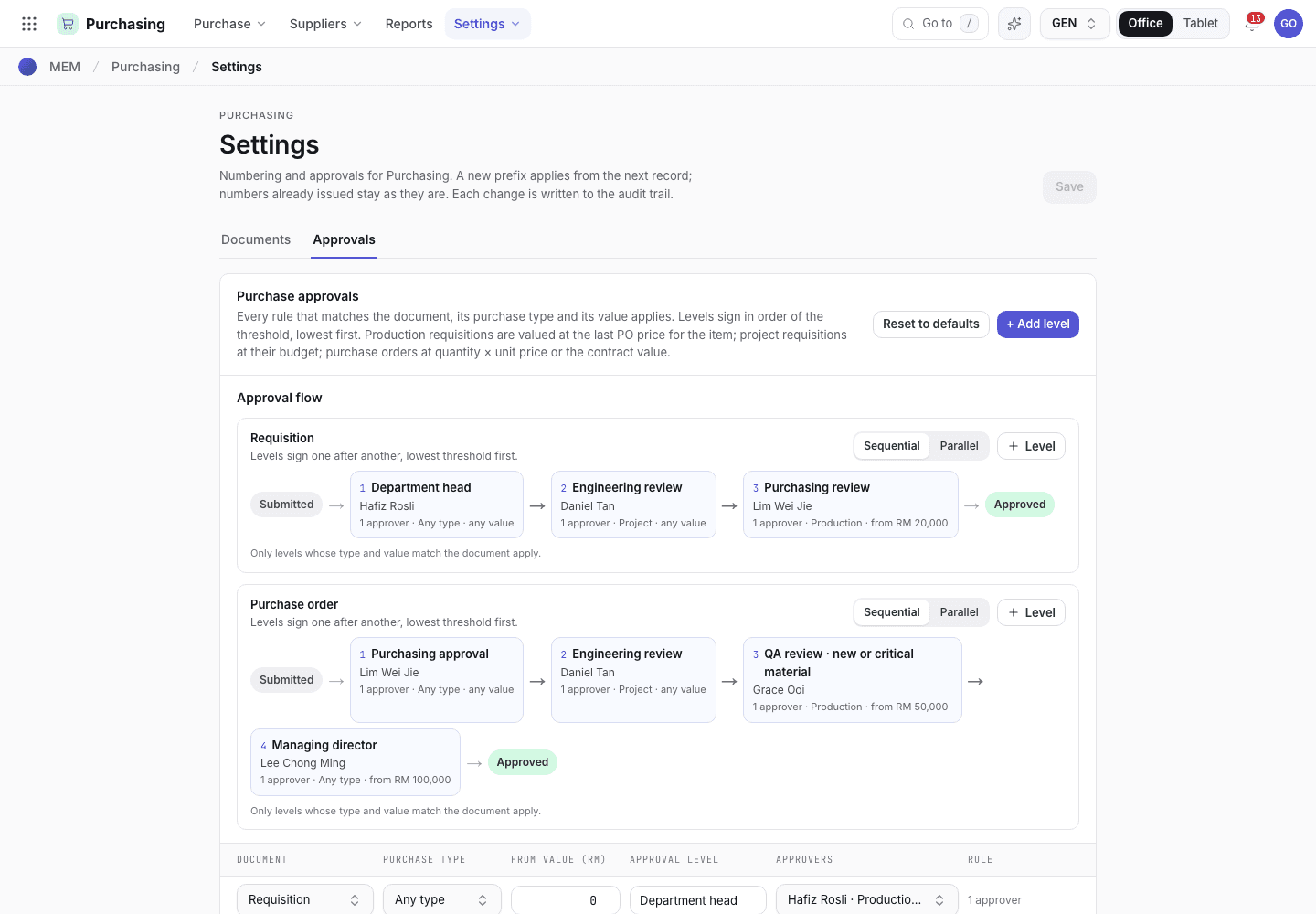
- Switch between Documents and Approvals.
- One row for each level: document, purchase type and value.
- Approvers and the Any one or All rule.
Owner self-approval
In a small team the Managing Director can be the only approver. When the Managing Director raises a requisition, nobody else can approve it. The Owner self-approval setting lets the Managing Director approve their own requisition.
- Open Settings › Approvals.
- In Purchase approvals, turn on Owner self-approval. Only the Org admin can change it.
The setting is off by default. When it is on:
- It applies to requisitions only. Purchase orders still need another approver.
- It applies only at a level where the Managing Director is the approver.
- The Managing Director must sign in person. A delegate cannot use it.
- Every other requester is still refused.
- The activity of the requisition shows "Self-approved by the Managing Director under the owner self-approval setting". The audit log records each change to the setting.
ISO 9001 and ISO 13485 clause 7.4 require control of purchasing, not a second person. Record the reason for the setting in your quality manual.
If the system refuses
The approval messages are in Purchasing refusals. Examples:
{name} can approve up to RM {limit}. This goes to {level}.{name} has already signed this document. {level} must be signed by another approver.{key} can be rejected only by an approver of {level} ({names}).