Quote and confirm a sales order
Send a quotation, turn it into a sales order, finish the contract review and confirm the order.
A quotation is a price offer. When the customer says yes, you Confirm it and the app creates the sales order. The order is then confirmed only after its contract review is signed. This page is for Sales (Nurul Aina) and the Planner (Priya Menon), who answer the capacity and material questions.
View as text
%% title: Quotation and sales order status flow
flowchart LR
  Q1[Quotation Draft] -->|Send to customer| Q2[Sent]
  Q1 -->|Confirm · e-sign| Q3[Confirmed]
  Q2 -->|Confirm · e-sign| Q3
  Q3 -.creates.-> S1[Order Draft]
  S1 -->|Sign contract review| S1
  S1 -->|Confirm · e-sign| S2[Order Confirmed]
  S2 -->|Plan production| S3[In production]
  S2 -->|Create delivery order| S4[Delivery]
  Q1 -->|Cancel| X[Cancelled]
Print a quotation or sales order
Open the document, then choose Actions > Print quotation or Actions > Print sales order. The preview opens in a dialog over the record. Choose Close or press Escape to return without losing your place or unsent notes. Choose Print to print or save a PDF through your browser. The document uses your workspace letterhead and its saved lines, discounts, tax, terms and status. Printing does not change the record or issue a controlled-copy number. Configure your company logo, address, contact and footer under Sales > Settings > Document layout.
Actions > Open sales order or Open quotation opens the linked document. View status actions takes you to the workflow buttons. View-only Sales access permits printing, but changes need write access. Shipped and closed-short orders have no further status actions.
Write and send a quotation
Open Sales > Quotations. The list shows the quotation number, customer, total and status.
The quotations list
Every quotation with its customer, total, valid-until date and status.
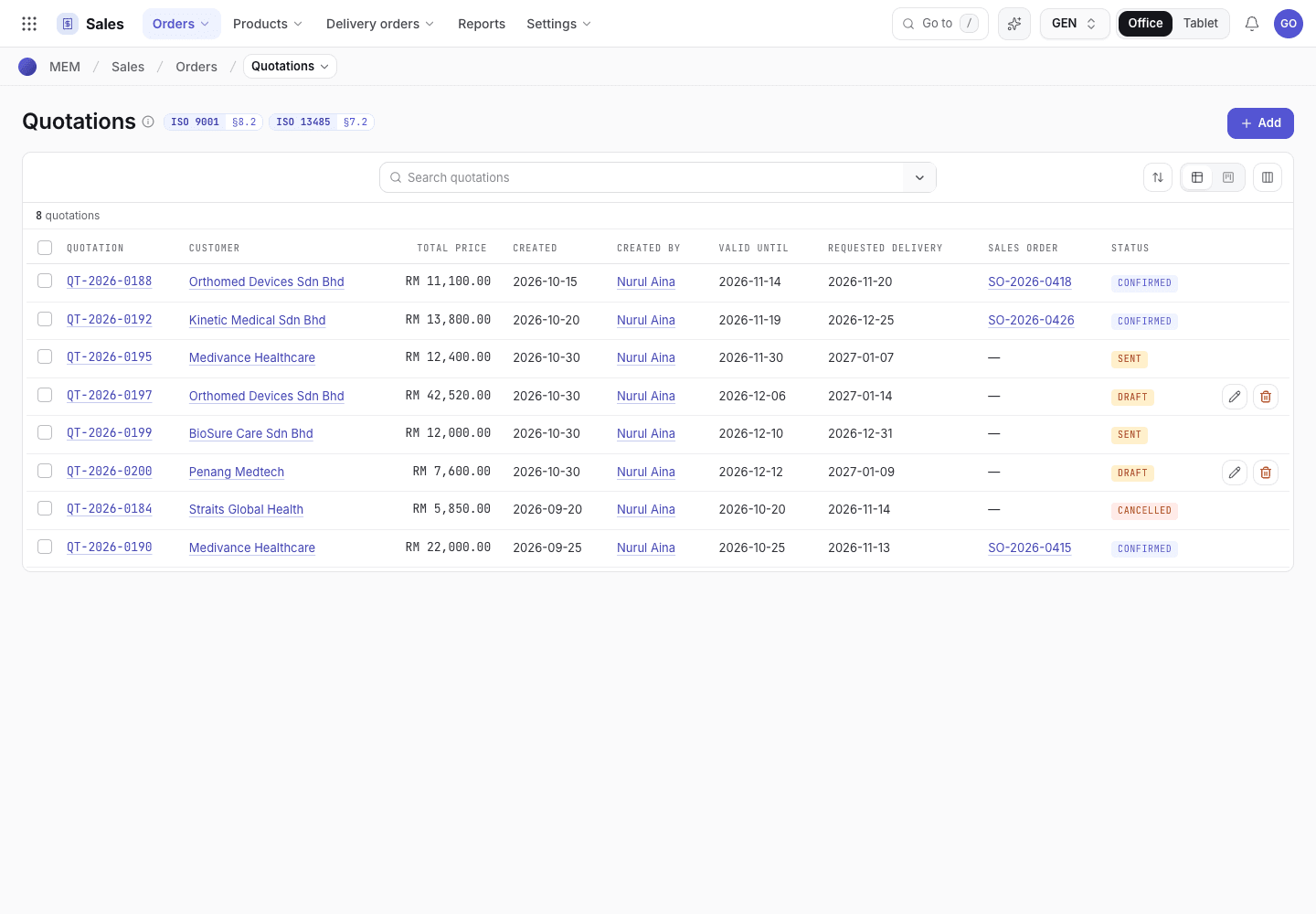
- Add starts a draft quotation.
- Search by number or customer.
- Status chip: Draft, Sent, Confirmed or Cancelled.
Choose Add. The order editor opens. Choose a Customer, the Valid until date and the Delivery date. Created by fills itself with your name.
Under Order lines, add each product, the quantity and the price. The app fills the price for you in this order: the customer's own price, then the price break for the quantity, then the list price. You can type over it.
Set Order risk. If it is anything other than Standard (New customer, New product,
New market, Tight lead time, Special requirement), write the actions in Risk actions,
for example Extra review, longer lead time, FAI.
Choose Payment terms and a Terms & conditions template, then save.
You can save a draft before you know the products: a draft needs only the customer (and, for a sales
order, the due date). If you close the editor halfway, with the X or by clicking outside it, what you
entered is kept as a Draft and the app says Kept as a draft · QT-…. Discard throws the changes
away. Sending and confirming still need at least one product line with a product and quantity.
Choose Send to customer. Check the Customer email, Subject and Message. Choose Send by email to open your email app, or Copy to clipboard to paste into WhatsApp. Either way the quotation becomes Sent and the message is kept in the record's history.
A quotation is only editable while it is Draft. To change a Sent quotation, choose Reset to draft, edit it, and send it again with Send again.
A sent quotation
QT-2026-0195 is Sent. Confirm, Send again, Reset to draft and Cancel are on offer.
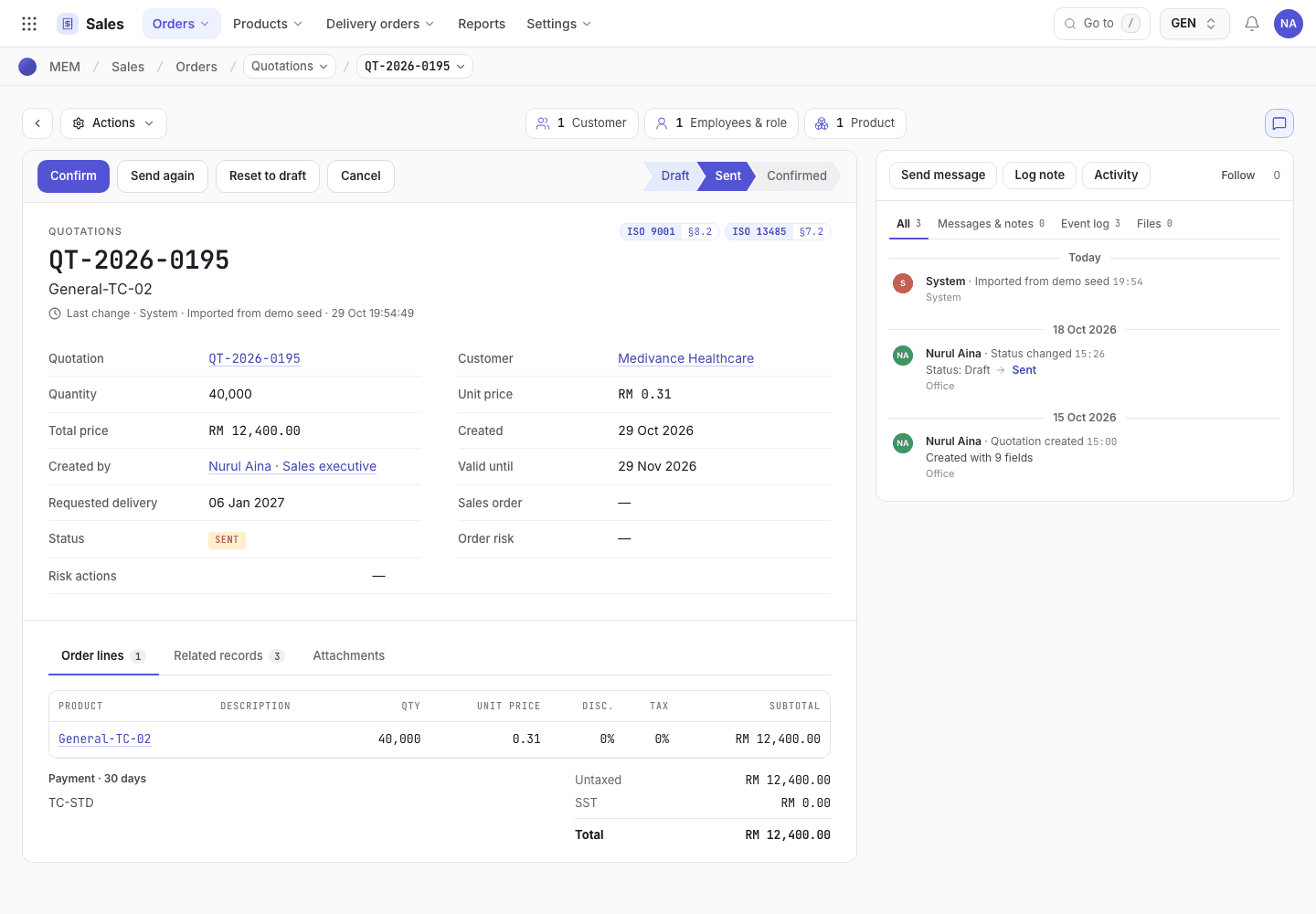
- Step buttons for the current status: Confirm, Send again, Reset to draft, Cancel.
- Customer, valid-until date and total.
- Order lines with product, quantity and price.
Confirm a quotation
When the customer accepts, open the quotation and choose Confirm. Sign with your e-signature. The app creates a Draft sales order with the same customer, product lines, quantity, terms and delivery date, and opens it. The quotation becomes Confirmed and shows the order number.
If you reset a confirmed order back to its quotation earlier, Confirm brings that same order back to Draft instead of making a second one.
Check the order risk first
Both Send to customer and Confirm need the order risk. Without it the app stops and tells you. See Quote and order refusals.
Do the contract review
A new order is a Draft. It cannot be confirmed until its Contract review is signed (ISO 13485
7.2.2). Open the order, for example Sales > Orders and SO-2026-0424.
Contract review on a draft order
Nine questions, each answered Yes, No or N/A. Sign when all are answered and none is No.
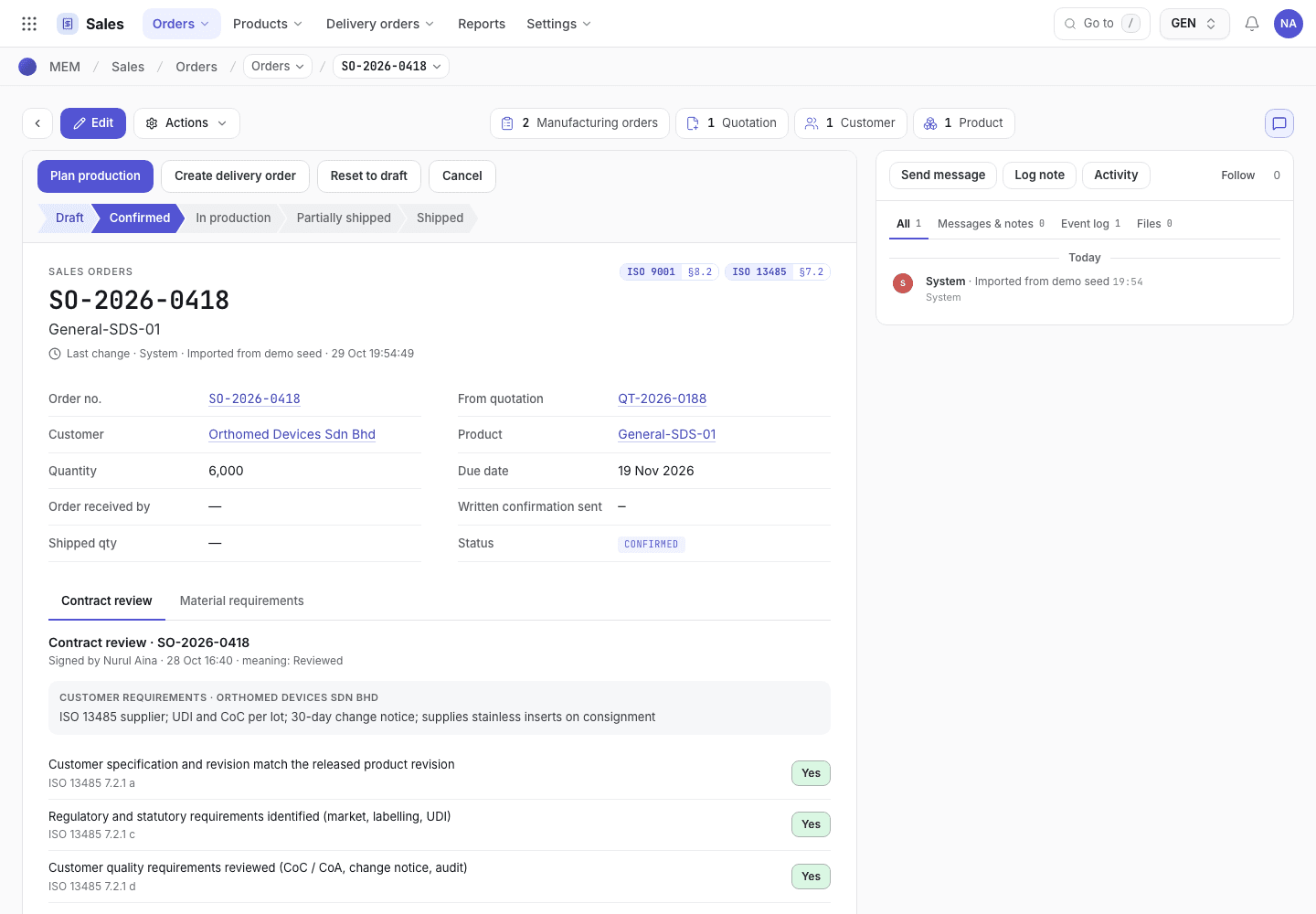
- Status chip and step buttons of the order.
- The nine review questions with Yes, No and N/A.
- Sign review is available once every question is answered.
The same order on a phone
Contract review and its status line on a phone, for the planner who answers capacity and material.
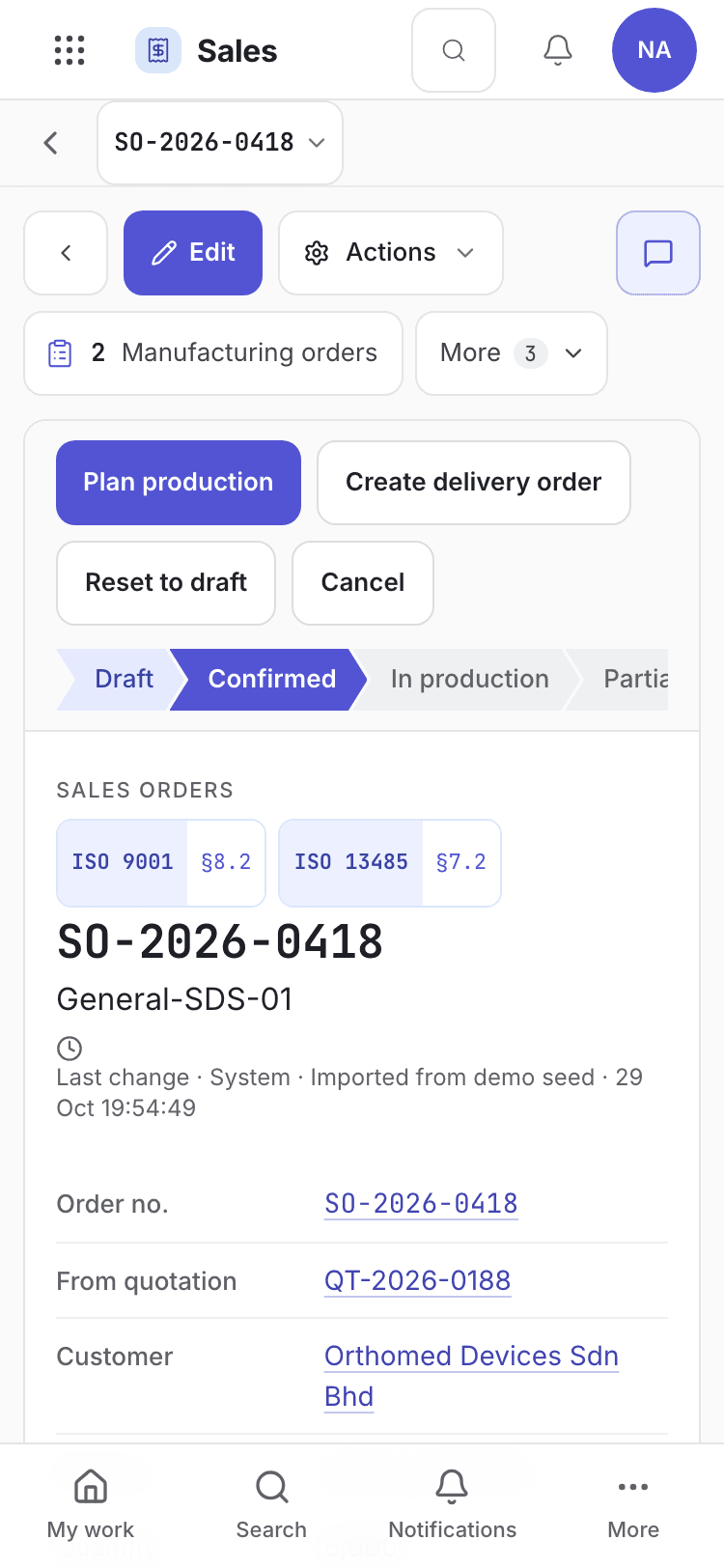
- Order number and status.
- Contract review questions with Yes, No and N/A.
- Step buttons for the order.
Under Contract review, answer each of the nine questions with Yes, Accepted risk, No or N/A:
- Customer specification and revision match the released product revision.
- Regulatory and statutory requirements identified (market, labelling, UDI).
- Customer quality requirements reviewed (CoC / CoA, change notice, audit).
- Packaging, labelling and sterility requirements defined.
- Validated process and tooling available for this product.
- Capacity and delivery date confirmed with Planning.
- Material availability checked.
- Differences from the quotation resolved.
- User training needs identified, if any.
Use Material requirements on the same order to see what the bill of materials needs against released stock. Choose Raise purchase requisition for a shortage. Customer-supplied (Consignment) items are never bought.
Write deviations and open points in Notes and risks.
Choose Sign review. The line reads Signed by {name} · meaning: Reviewed. If an answer is No, the
app says Resolve items marked No before signing. Change the answer once the point is solved.
Use Accepted risk for a requirement you knowingly take on and have a plan for, for example a new
product whose process validation is still running, or a tight date. The review can be signed with it, but
only after the order records the risk: set Order risk (not Standard) and write what you will do in
Risk actions. Until then the app says An item is answered Accepted risk: set Order risk and write the Risk actions before signing. The signed review lists each accepted risk with the order's risk and actions.
To take a signed review back before confirming, choose Reopen review. This works only on a Draft order.
Confirm the sales order
Open the draft order and choose Confirm, then sign. The app checks:
- A Phone or Verbal order has a reference in Written confirmation sent.
- A Customer PO order has the customer's PO number in Customer PO no., and that PO is not already on another open order of the same customer.
- Every product on the order is released in Engineering, has an approved production method and a machine option.
- The contract review is signed.
The order becomes Confirmed, and its page shows the Customer PO no. you saved (a later change is logged as "Customer PO no.: old → new"). From here choose Plan production (opens Production planning; it asks for no e-signature, because it only opens the screen) or Create delivery order. See Pick, pack and ship.
Change a confirmed order
A confirmed order's quantity and due date no longer change by editing.
Open the order and choose Amend order.
Enter the new Quantity or Due date and the Reason for change, for example
Customer PO rev 2 received 5 Oct.
Choose Submit amendment and sign. The order gets a revision (Rev 1, Rev 2). The contract review
reopens for Capacity, Material and Differences from the quotation. Planning and Store are told.
Answer those three questions again and choose Sign review. Until then the order cannot move.
Set an order back or cancel it
- Reset to draft returns a quotation or order to Draft. If the order came from a quotation, both go back together and the order waits to be confirmed again.
- Cancel stops a Draft or Confirmed order. Cancel is refused while a manufacturing order or delivery order is open.
Customer terms
Reusable terms are kept in the Terms & conditions list. Open it from the Sales settings page (/sales/cfg), or from Settings > All master data, group Sales (Code, Name, Applies to: Both,
Quotation or Sales order, Default, Terms). The default template fills every new document. You can
edit the text on one document without changing the template. Changes to templates are controlled and
logged.
If the system refuses
The most common messages for this page are below. Every message is on Quote and order refusals.
| Message | What to do |
|---|---|
Set the order risk on {key} before {sending or confirming} (ISO 9001 6.1, ISO 13485 7.1). | Choose an Order risk on the quotation. |
{risk}: record the risk actions (e.g. extra review, longer lead time, FAI) before continuing. | Fill in Risk actions. |
Complete and sign the contract review before confirming {key}. | Answer all nine questions and choose Sign review. |
{key} was amended (rev {n}). Sign the re-review before changing status. | Answer the reopened review items and sign. |
Next steps
Pick, pack and shipCreate the delivery order and ship the lots.Release and DHR refusals
Every message the system gives when it refuses an outgoing inspection, a retention sample, a lot release or a DHR step, and what to do.
Pick, pack and ship
Create a delivery order from a confirmed sales order, pack and load it, confirm the dispatch, and ship it with a certificate of conformance.