Pick, pack and ship
Create a delivery order from a confirmed sales order, pack and load it, confirm the dispatch, and ship it with a certificate of conformance.
A delivery order sends released finished goods against a confirmed sales order. Sales (Nurul Aina) creates and ships it. The Store (Farah Hanim) packs and loads it on the Packing & dispatch screen. Only lots that QA released can ship.
When the Org admin enables Purchasing delivery work in Settings > Roles & permissions, authorized Purchasing and Store staff can also open Purchasing > Delivery orders and Purchasing > Packing & dispatch. These pages use the same delivery orders as Sales. Their Purchasing or Inventory access level controls the additional work; signing authority and the independent dispatch check still apply.
View as text
%% title: Delivery order status flow
flowchart LR
  A[Draft] -->|Mark as picked · e-sign| B[Picked]
  B -->|Pack, load, Confirm dispatch| B
  B -->|Ship · issue CoC · e-sign| C[Shipped]
  B -->|Return to draft| A
  B -->|Return dispatch · QA manager| B
  A -->|Cancel| D[Cancelled]
  D -->|Reset to draft| A
Create the delivery order
With Purchasing delivery work enabled, choose New in Purchasing > Delivery orders and select the existing sales order, customer and product. The same quantity, released-stock and order checks apply. Sales can continue to create deliveries from an order as described below.
Open a Confirmed or In production order in Sales > Orders, for example SO-2026-0418.
Choose Create delivery order. On an In production order the app asks for your e-signature.
The app makes one Draft delivery order for each product still to ship. It picks the lots for you,
earliest expiry first, from released stock only. The message ends lots allocated FEFO, or
short {n} pcs of released stock if there is not enough.
Only one open delivery order exists for an order at a time. Ship or clear it before making another.
The delivery orders list
Every delivery order with its sales order, customer, lots and status.
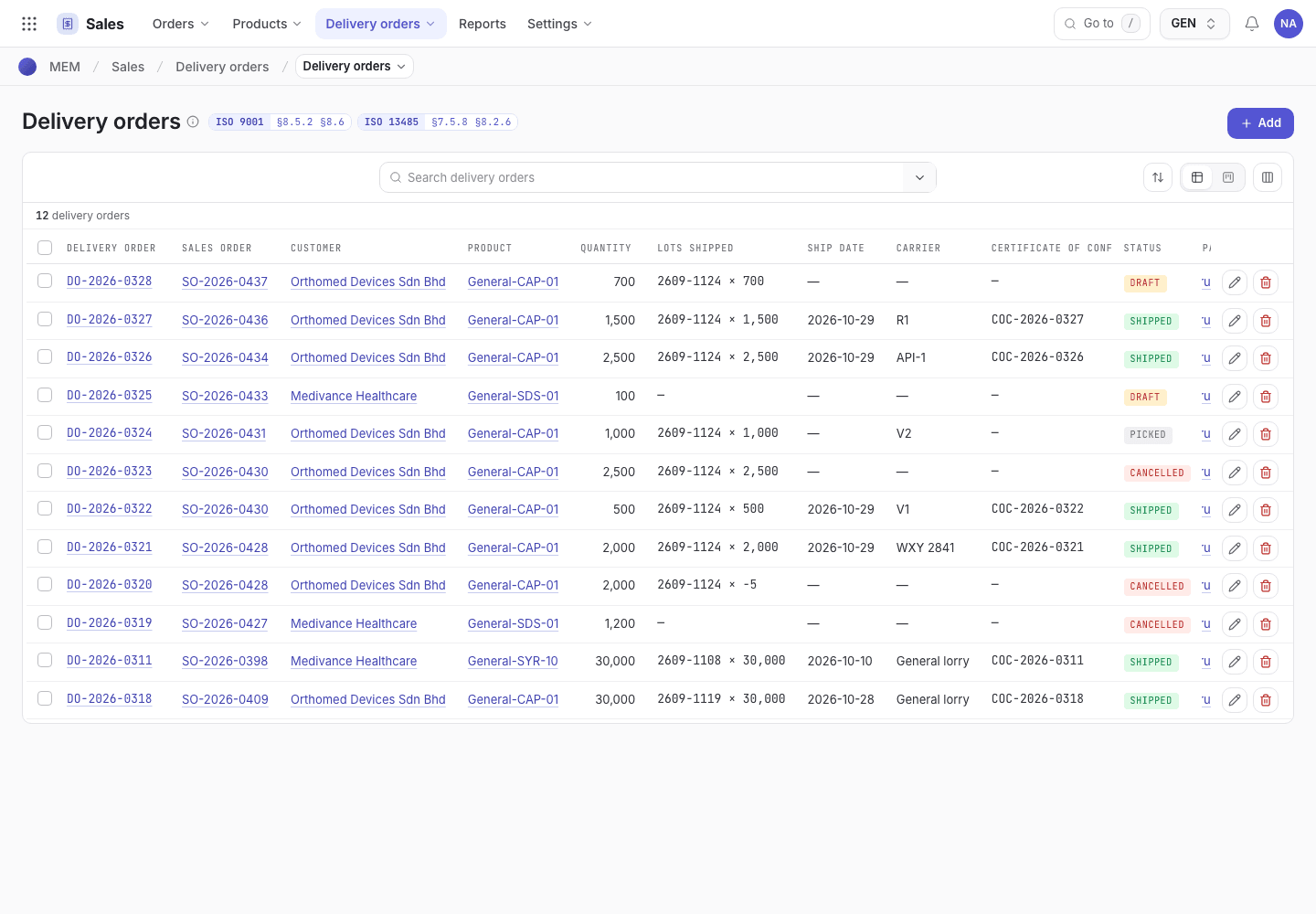
- Search by delivery order, customer or sales order.
- Lots shipped: the lots the delivery takes from.
- Status chip: Draft, Picked, Shipped or Cancelled.
Mark as picked
Open the delivery order and check the Quantity, Lots shipped and Carrier. Choose Mark as picked and sign. It becomes Picked and appears on the packing screen.
Pack, load and dispatch
Open Sales > Packing & dispatch. The queue Deliveries to pack lists every Draft or Picked delivery order. A delivery order shows Ready to pack, Waiting for QA release, Part dispatched or Dispatched.
Packing and dispatch on the Store's phone
Build and label packs, scan them onto the vehicle, confirm the dispatch.
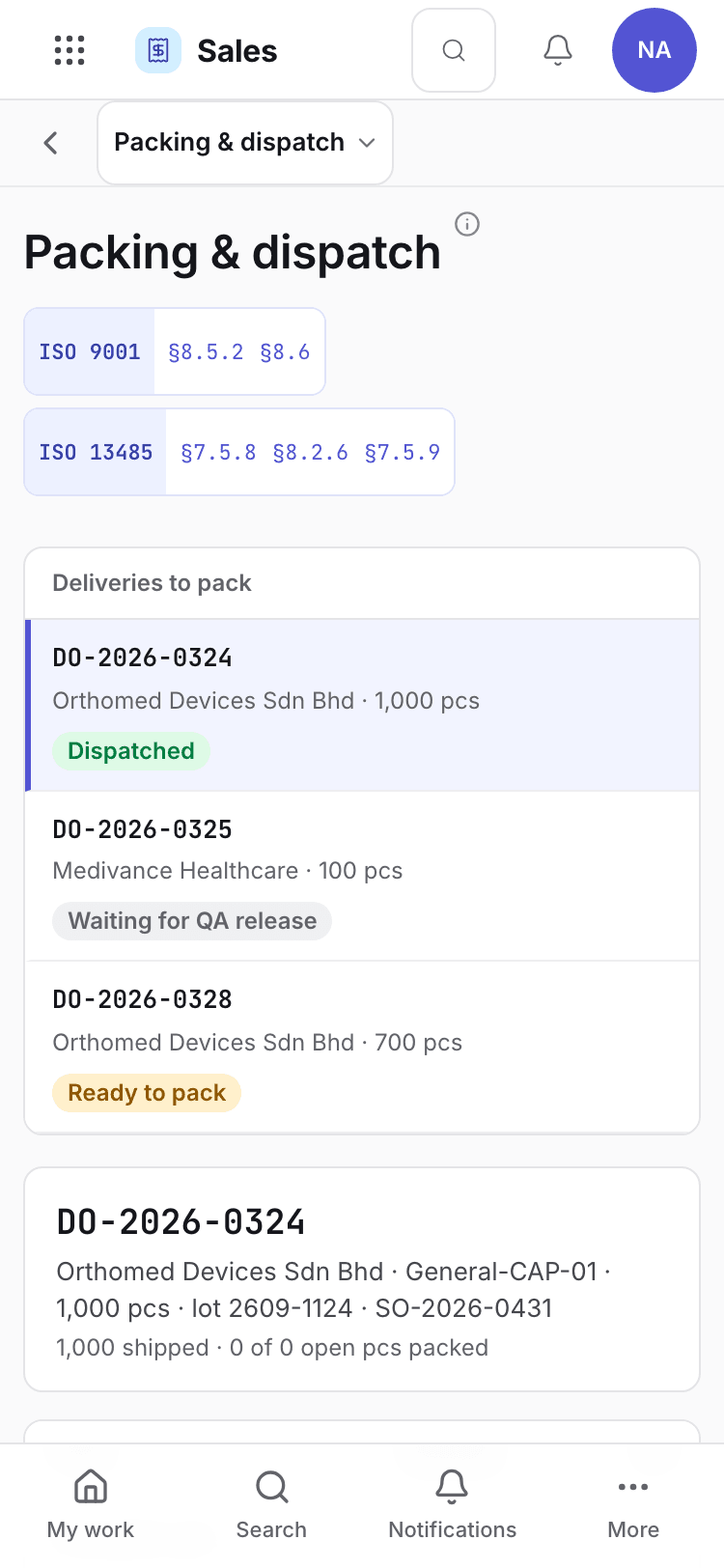
- Pick the delivery order to pack.
- Build and label next pack. Each pack shows its lot and quantity.
- Dispatch checks and Confirm dispatch.
Choose the delivery order.
Choose Build and label next pack. The pack takes the carton size of the product, never more than
what is still open or what the lot holds. Repeat until the line reads {packed} of {open} open pcs packed with the same number twice.
Scan the label of each pack as it goes on the vehicle, or type its Pack ID (for example
PK-2026-0324-01) in the Pack ID field and press Enter, or type it and choose Scan load on
that pack. The ID is checked: the label of another pack is refused. The pack shows Loaded.
Enter the Vehicle registration. Check the five Dispatch checks:
- Lot released by QA
- No open holds on the lot or order
- Customer ownership matches
- Pack quantity equals the open quantity (or within it, for a partial dispatch)
- Every pack scanned onto the vehicle
When all five pass, choose Confirm dispatch and sign. The signature (meaning Verified) goes on
the delivery order's trail. Someone other than the person who built the packs confirms the dispatch,
so a second Sales login (in the demo, the Org admin, Grace Ooi) signs it. When the store keeper built the packs, any Sales login can confirm. The store keeper builds and loads packs but cannot confirm a dispatch. The signer needs Sales write access and a login linked to a person with a signature specimen: an owner whose login is linked to no person cannot sign, so link it first in Settings. The screen shows
Dispatched {time} · vehicle {registration}.
A lot that QA has released but that is still in Q-FG-01 cannot be packed. The store keeper first posts its put-away in Inventory > Movements (see Inspect outgoing lots and release them).
Ship and issue the certificate
Back on the delivery order (DO-2026-0318 is a shipped example), choose Ship · issue CoC and
sign. The app:
- sets the delivery order to Shipped and fills the Certificate of conformance number and ship date;
- takes the pieces out of each lot and records a Shipment stock movement;
- sets the sales order to Shipped, or Partially shipped if pieces are still owed.
A shipped delivery order
DO-2026-0318 is Shipped. The CoC number and the lots are on the record.
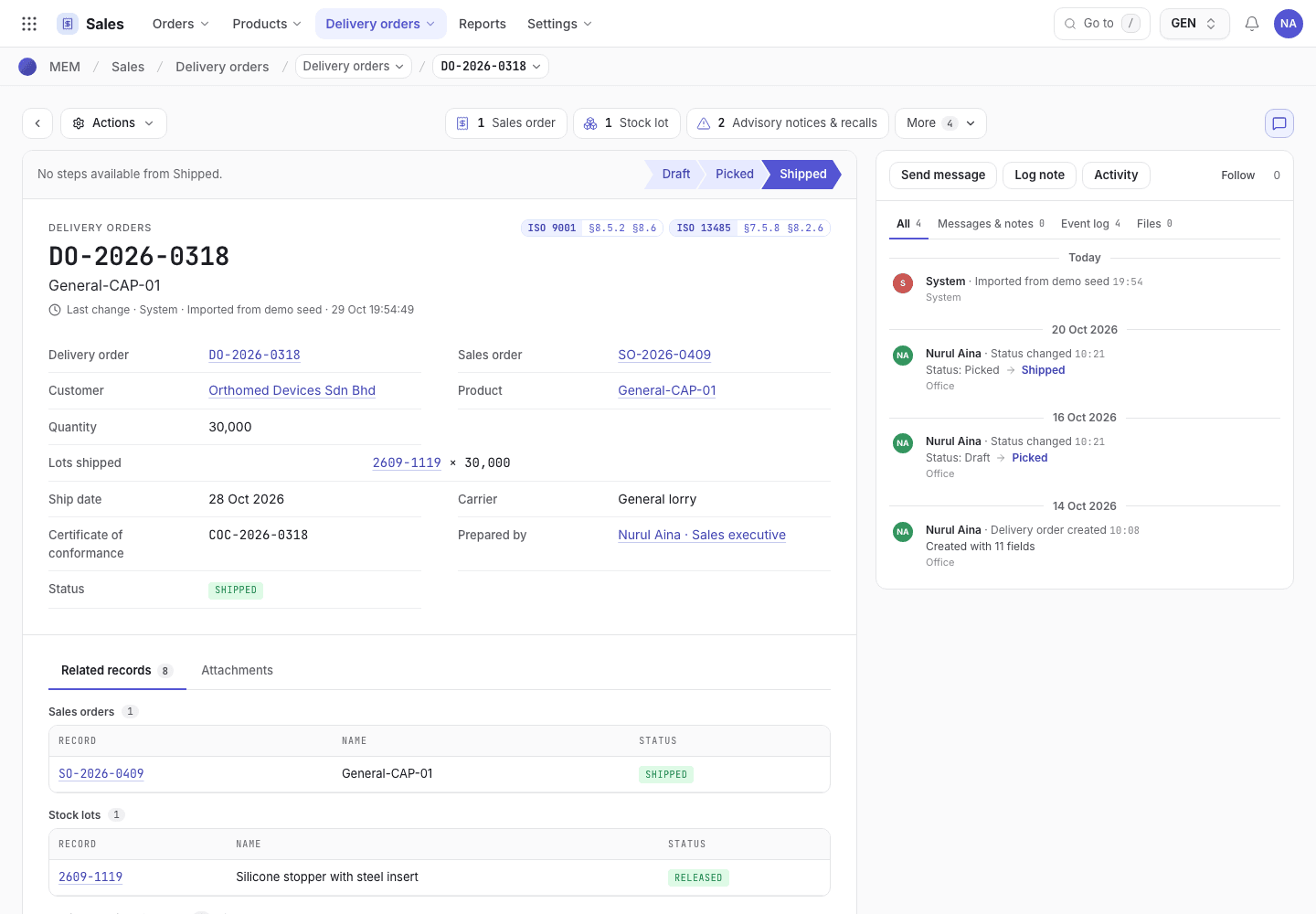
- Status chip and step buttons.
- Lots shipped, ship date and carrier.
- Certificate of conformance number.
Print the certificate of conformance
Shipping writes the certificate number on the delivery order. The certificate itself is the page a customer receives: open a Shipped delivery order and choose Certificate of conformance in the strip above the record (it shows the Certificate number). Sales and Quality can open it.
The certificate shows, on one A4 sheet:
- your company, the certificate number, and the customer, with the customer's PO number, the sales order, the delivery order and the ship date;
- one row for each lot delivered: the product, its name and revision, the lot and its pieces, the manufacturing order that made it and when, the outgoing inspection that accepted it, and the lot release that released it, with who and when;
- a statement that the lots were made, inspected and released under the quality management system and conform to the product specification at the revision shown;
- who issued it and when.
A lot with no accepted outgoing inspection or no lot release on record shows No accepted inspection on record or No lot release on record in that place. The certificate shows only what the records hold;
it never fills a gap in.
Choose Print to print the sheet or save it as a PDF. On a phone each lot is a stacked card; on paper it is a table.
The goods that leave are the packs confirmed on the packing screen. If you confirmed a partial dispatch, the delivery order keeps only what was sent. The balance moves to a new Picked delivery order of the same sales order. See Ship part of an order.
Go back
- Return to draft takes a Picked delivery order back to Draft. It is refused once a dispatch is confirmed.
- Cancel withdraws a Draft delivery order, and Reset to draft brings a cancelled one back.
- Return dispatch reverses a confirmed dispatch that cannot ship, for example when the lot no longer holds the pieces. A QA manager signs it with a reason. The packs stay built, the scans are cleared, and the delivery order goes back to the packing screen.
If the system refuses
Every message is in Delivery refusals. The usual ones:
| Message | What to do |
|---|---|
Not released: {lots}. Only released lots can ship. | Pick released lots, or ask QA to release the lot. |
Pack, load and confirm the dispatch of {key} on the Packing screen before shipping. | Finish the packing steps first. |
Complete the dispatch checks first | Fix the failing check on the packing screen. |
{key} has a dispatch confirmed, so goods have left. ... | Ship it, or use Return dispatch. |