Compile and approve the DHR
Build the device history record of a finished lot from the order's records, then have a second person review and approve it.
A device history record (DHR) is the proof that a lot was made as planned. It applies while ISO 13485 is on. The lot release needs an Approved DHR. If ISO 13485 is off, the screen says device history records do not apply.
View as text
%% title: DHR status flow
flowchart LR
  A[Draft] -->|Compile DHR| B{Open items?}
  B -->|None| C[Compiled]
  B -->|Some| D[Incomplete]
  D -->|Re-compile| B
  C -->|Re-compile| B
  C -->|Review · approve DHR| E[Approved]
Compile a DHR
Open Production > Device history (the list) or Quality > Device history (the lot screen). Each record belongs to one manufacturing order and one finished lot. People with write access to Production or to Quality can create it from the lot screen with Create DHR record, and both can compile it. The QA engineer and the QC inspector can therefore compile the record the QA manager later reviews.
Choose Add. Pick the Manufacturing order and enter the Lot. The number is made from the lot, for example DHR-2609-1127. A lot has one record.
Choose Compile DHR and sign. The system reads the order's records and fills Contents and Open items. You are named Compiled by.
If Open items says None, the status is Compiled. If it says {n} open, the status is
Incomplete. Read Contents: a tick line is complete, a cross line is open.
Fix each open item in its own record, then choose Re-compile. Repeat until the status is Compiled.
You can also create the record from Quality > Device history: pick the lot or order and choose Create DHR record. That screen also prints the record with Print device history record.
What the DHR pulls in
| Section | Complete when |
|---|---|
| Manufacturing | The order is on the record. The work instruction is named. The line clearance is Verified. A process validation is approved. |
| Materials | Material was issued from the store for every bill of materials line (lots are listed). |
| In-process QC | Every in-process check passed and no SPC reaction is open. |
| Labels | Labels were reconciled. |
| Outgoing QC | The latest outgoing inspection is Accepted. |
| Release | No NCR is open against the lot or order. |
Review and approve a DHR
The QA manager reviews. The reviewer cannot be the person who compiled it.
Open the DHR. The status must be Compiled.
Choose Review · approve DHR and sign. The system compiles it again first. If anything is open it refuses and the record goes back to Incomplete.
The status becomes Approved, and you are named Reviewed by (QA). The lot and order of an approved DHR cannot change.
Device history records
Every DHR with its lot, open items and status.
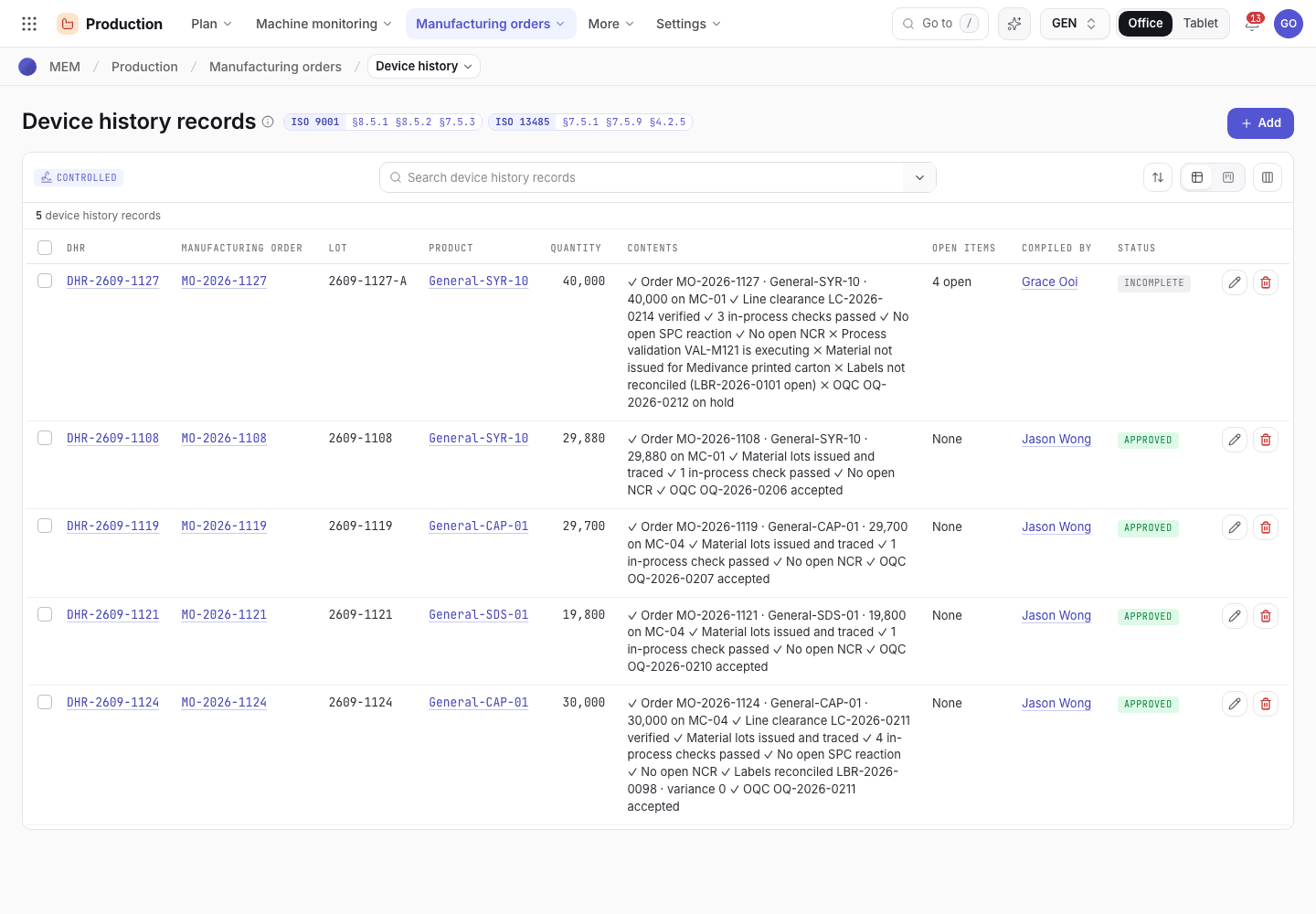
- Add a new DHR.
- Open items: None, or the number still open.
- Status: Draft, Incomplete, Compiled or Approved.
A compiled DHR
The checklist and the approve button.
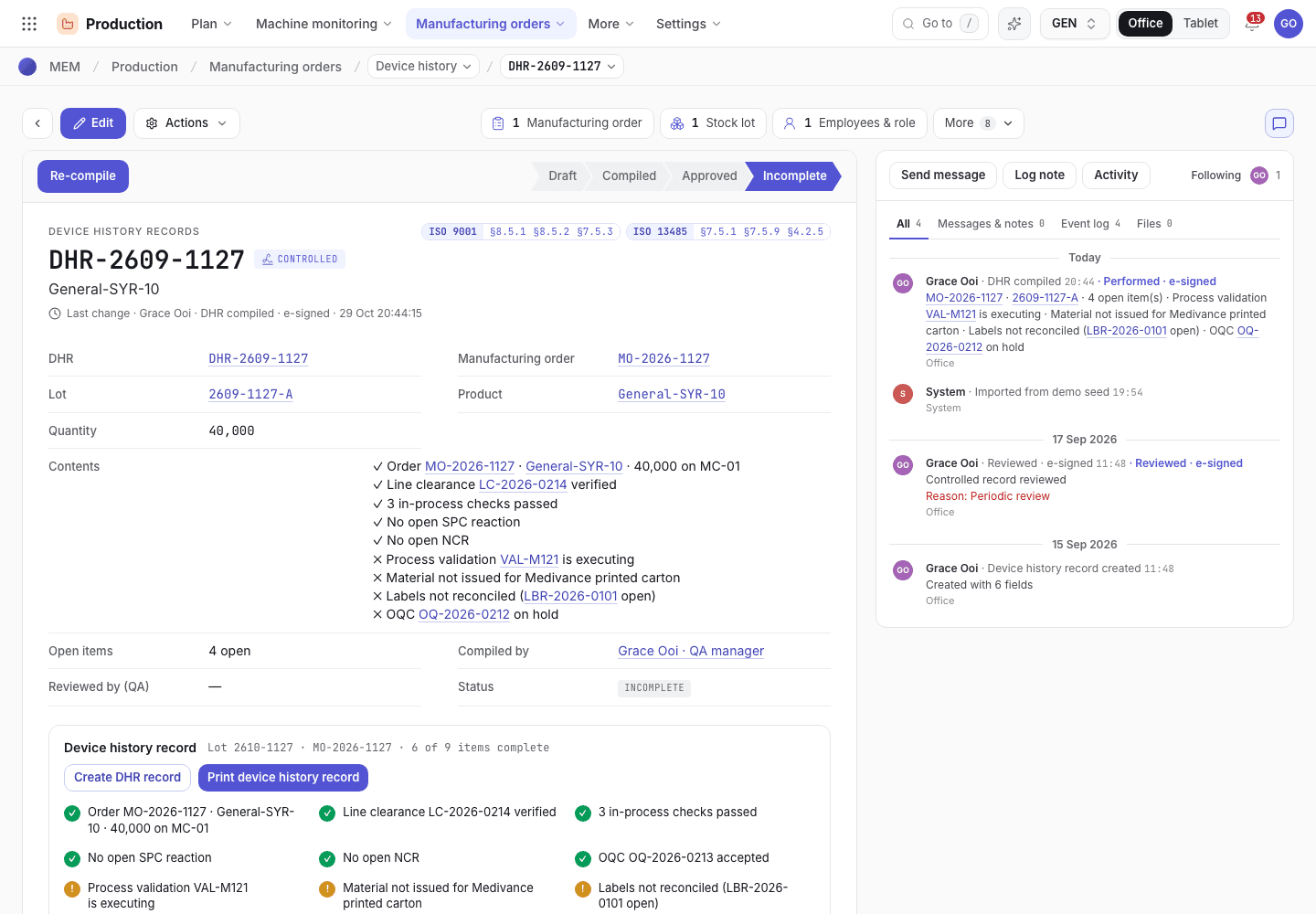
- Review · approve DHR and Re-compile.
- Contents: ticks are complete, crosses are open.
- Compiled by and Reviewed by (QA).
Compiling a DHR is a signed step too. Your signature must be set up and your training current. See Signatures and refusals.
If the system refuses
The messages are in Release and DHR refusals.
Next steps
Inspect outgoing lots and release themThe release that needs an approved DHR.Inspect outgoing lots and release them
Pass or hold a finished lot at outgoing inspection, keep retention samples, run the release checks and sign the lot release.
Release and DHR refusals
Every message the system gives when it refuses an outgoing inspection, a retention sample, a lot release or a DHR step, and what to do.