Handle a customer complaint
Log a complaint, investigate it, decide whether it must be reported to the authority, answer the customer and close it with an NCR or CAPA.
Open Quality > Complaints. Sales or QA logs the complaint. The QA manager decides what happens next. The default QA manager is Grace Ooi.
View as text
%% title: Complaint status flow
flowchart LR
  A[Received] -->|Start investigation| B[Investigating]
  B -->|Record reportability decision| C[Decision recorded]
  C -->|Send response| D[Response sent]
  D -->|Close complaint| E[Closed]
  C -->|Re-decide reportability| B
Log a complaint
Choose Add. Enter Received, Customer, Product and Complaint (what the customer reported). Add the Lot if you know it. Pick the Category: Product defect, Labelling, Packaging, Documentation or Delivery.
The number is made for you, for example CC-2026-0007. The status is Received. Add photos from the record's Attachments.
Investigate and decide reportability
The QA manager opens the complaint and chooses Start investigation and signs. The status becomes Investigating.
Edit the complaint. With ISO 13485 on, answer Death or serious injury involved (No, Yes or Unknown). Set Reportability (Not reportable or Reportable) and write the Reportability rationale.
Choose Record reportability decision and sign. Only the QA manager can sign it. The status becomes Decision recorded. If the decision is Reportable, the system sets Report due: 10 days after Received when death or serious injury is involved, and 30 days otherwise.
With ISO 13485 off there is no reportability assessment. The same button records the outcome as
ISO 13485 off · no regulatory reportability assessment.
Change a decision you already signed
From Decision recorded, the decision is locked. To correct it, choose Re-decide reportability, type the reason (at least 4 characters) and sign. The complaint goes back to Investigating with reportability cleared, and the earlier decision stays in the history. Then record the decision again.
Raise an NCR or CAPA
From Investigating or Decision recorded, choose Raise NCR. From Decision recorded or Response sent, choose Raise CAPA. The new record is linked to the complaint.
- The NCR has source Customer and the complaint number and lot as its record.
- The CAPA has source Customer complaint, type Corrective, and is due 30 days after Received.
A complaint takes one NCR and one CAPA.
Answer the customer and close
Edit the complaint and write the Response to customer. If the complaint is Reportable, also enter Authority report ref..
Choose Send response and sign. The status becomes Response sent.
Link an NCR or a CAPA, or write in the rationale why none is needed (for example "no NCR needed"). Choose Close complaint and sign. The status becomes Closed.
Customer complaints
Every complaint with its customer, product and status.
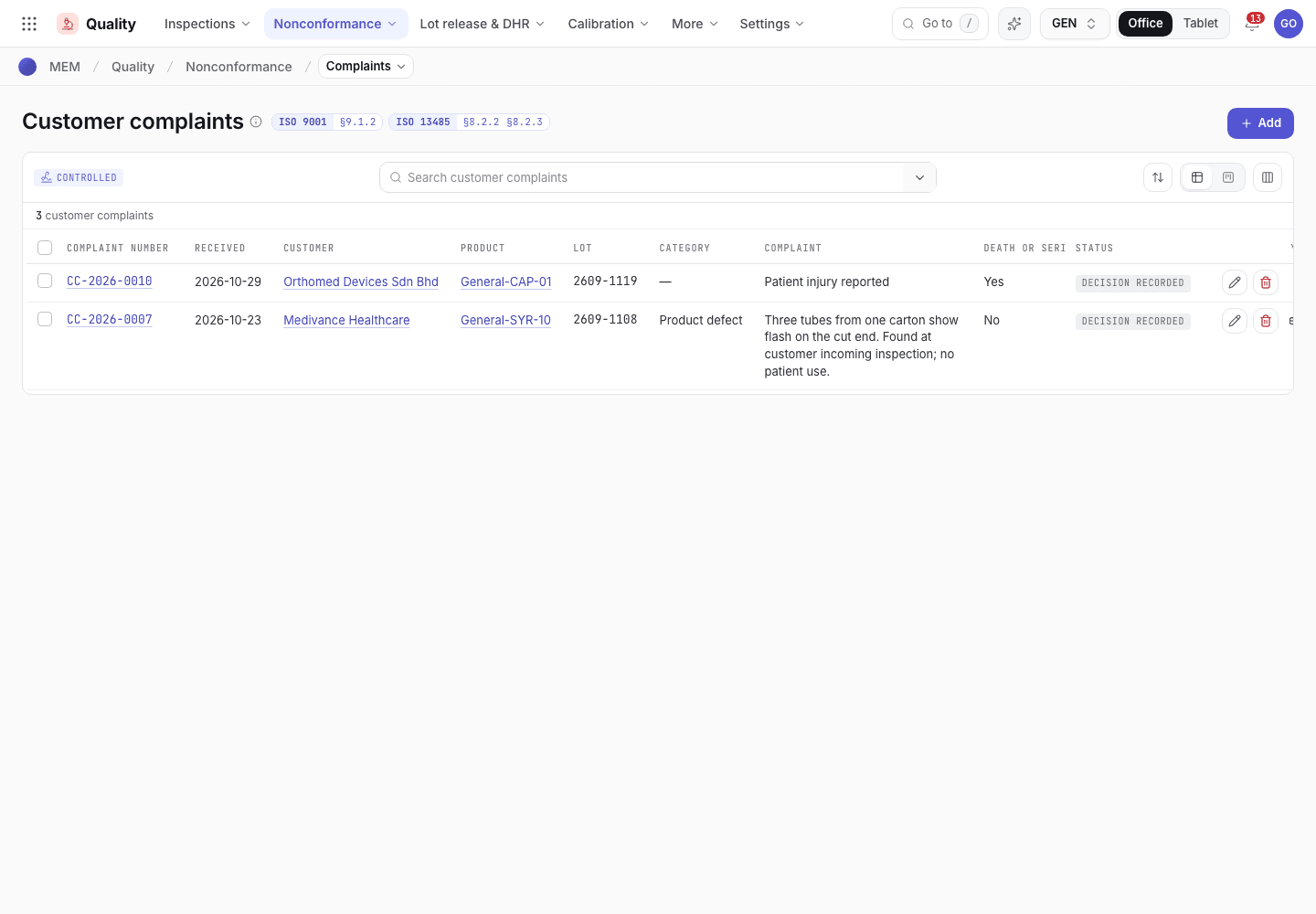
- Add a complaint.
- Customer and product.
- Status from Received to Closed.
A complaint record
The reportability panel and the next button.
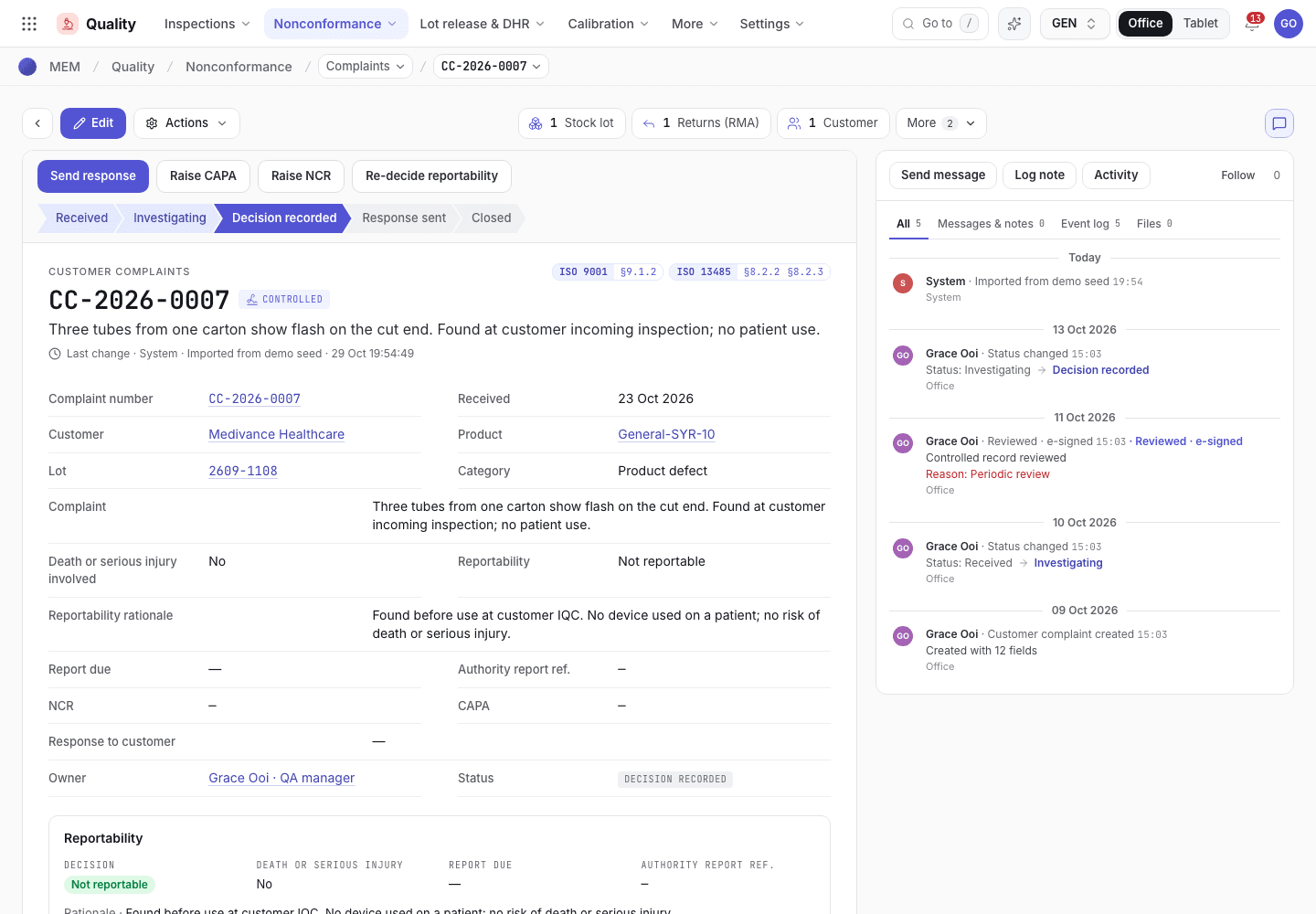
- The next step: Send response, Raise CAPA, Raise NCR or Re-decide reportability.
- Reportability: decision, harm, rationale and report due.
- Linked NCR and CAPA.
A reportable complaint has a deadline. The record shows how many days are left, Due today, or how many days it is overdue.
If the system refuses
The messages are in Complaints and recalls refusals.
Next steps
Handle nonconformances and CAPAWhat the raised NCR and CAPA need.Handle nonconformances and CAPA
Record a nonconformance, decide its disposition, close it with a signature, and run a corrective action from containment to proof that it worked.
Issue an advisory notice or recall
Trace a suspect lot to the customers who got it, approve a notice, tell the customers, record their replies and close with an effectiveness check.