Find your way around
The home page, the account menu, and global search.
Home and the account menu
After sign-in, / shows Apps: one tile for each module that your role can open. Your initials
at the top right open the account menu:
- My settings opens your Factory OS settings, for example your signature.
- Account and security (
/account) opens your profile, language, password, two-factor sign-in and sessions. - Workspaces (
/workspaces) opens the workspaces that you belong to and the members of the open workspace. - User guide opens this site in a new tab.
- Sign out ends the session on this device.
On a phone, the bottom tabs open My work, Scan, Search, Notifications and More.
The account menu on a desktop
Apps is the home page. Your account, your workspaces and this guide are in the account menu.
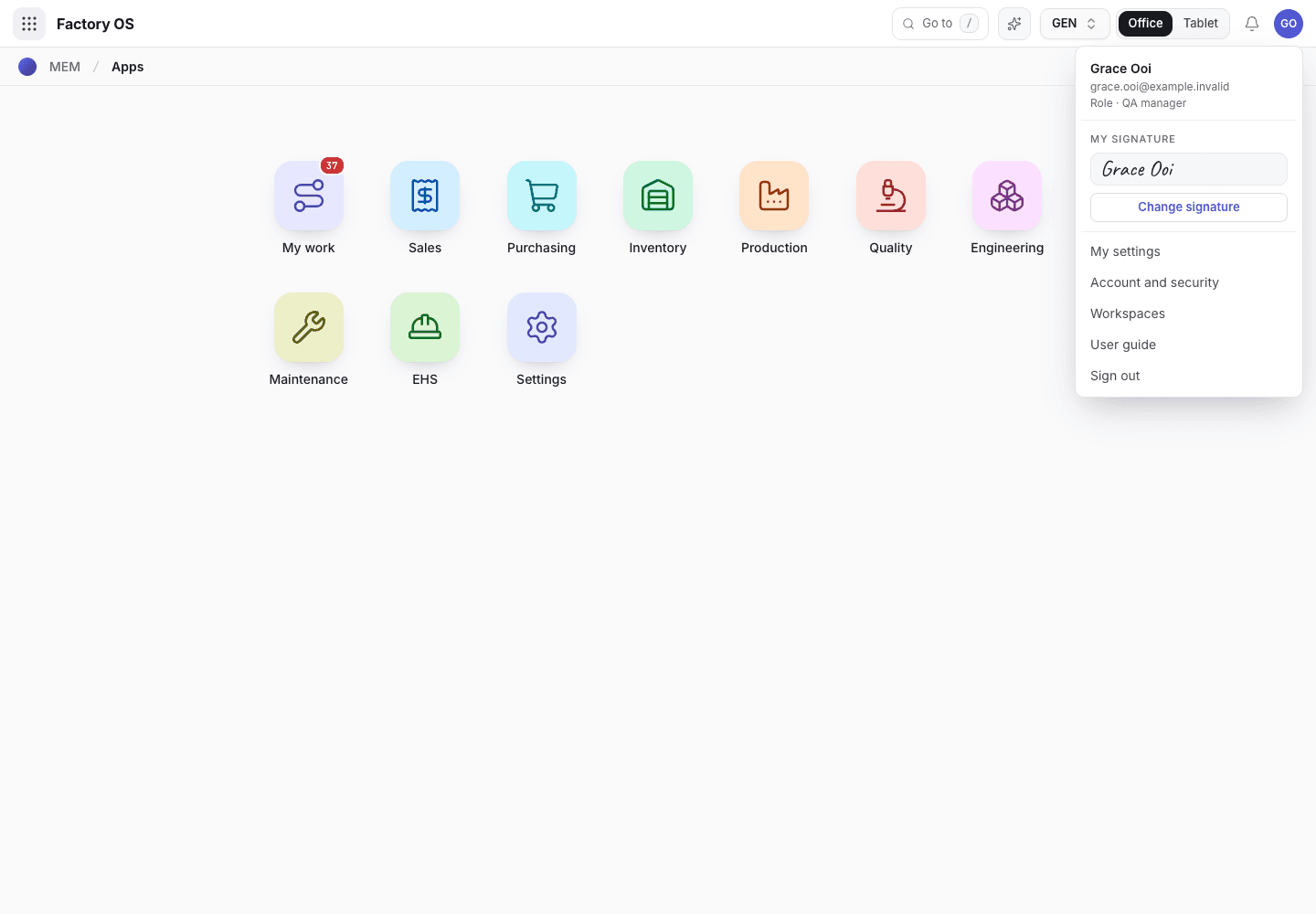
- Select your initials to open the account menu.
- Account and security, Workspaces and the user guide.
The same menu on a phone
The menu has the same items on every device. The bottom tabs stay at the bottom of the screen.
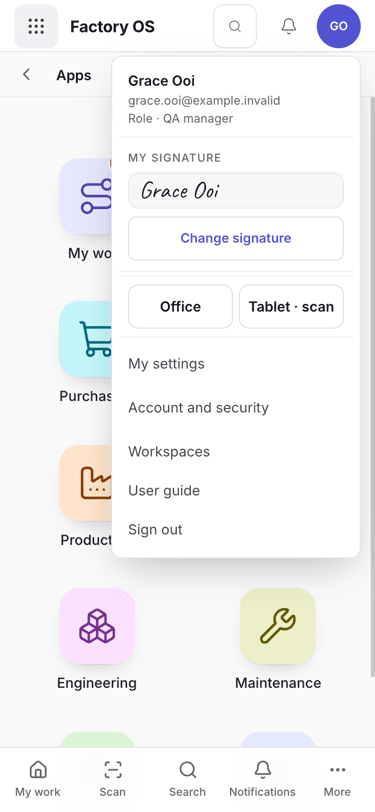
- Your initials open the account menu.
- The bottom tabs: My work, Scan, Search, Notifications and More.
Search
Press Cmd+K on macOS or Ctrl+K on Windows and Linux, or choose the search trigger in the header. The command dialog searches navigation and the API's allow-listed resources. Select a result to navigate. Close it with Escape. Search does not expose arbitrary organization or account data.
Pick a linked record
Fields that point at another record, such as Machine, Mould, Product or Item, show a short line under each choice so you can tell them apart, for example a machine's capacity, area and status, or a mould's cavities. Once a record is chosen, the details button (i) beside the field shows its preview card: hover over it with a mouse, or tap it on a phone or tablet. Your form stays as it is.
Find a destination quickly
The command dialog supports typing, arrow keys, Enter, and Escape. API results are limited to approved resources.
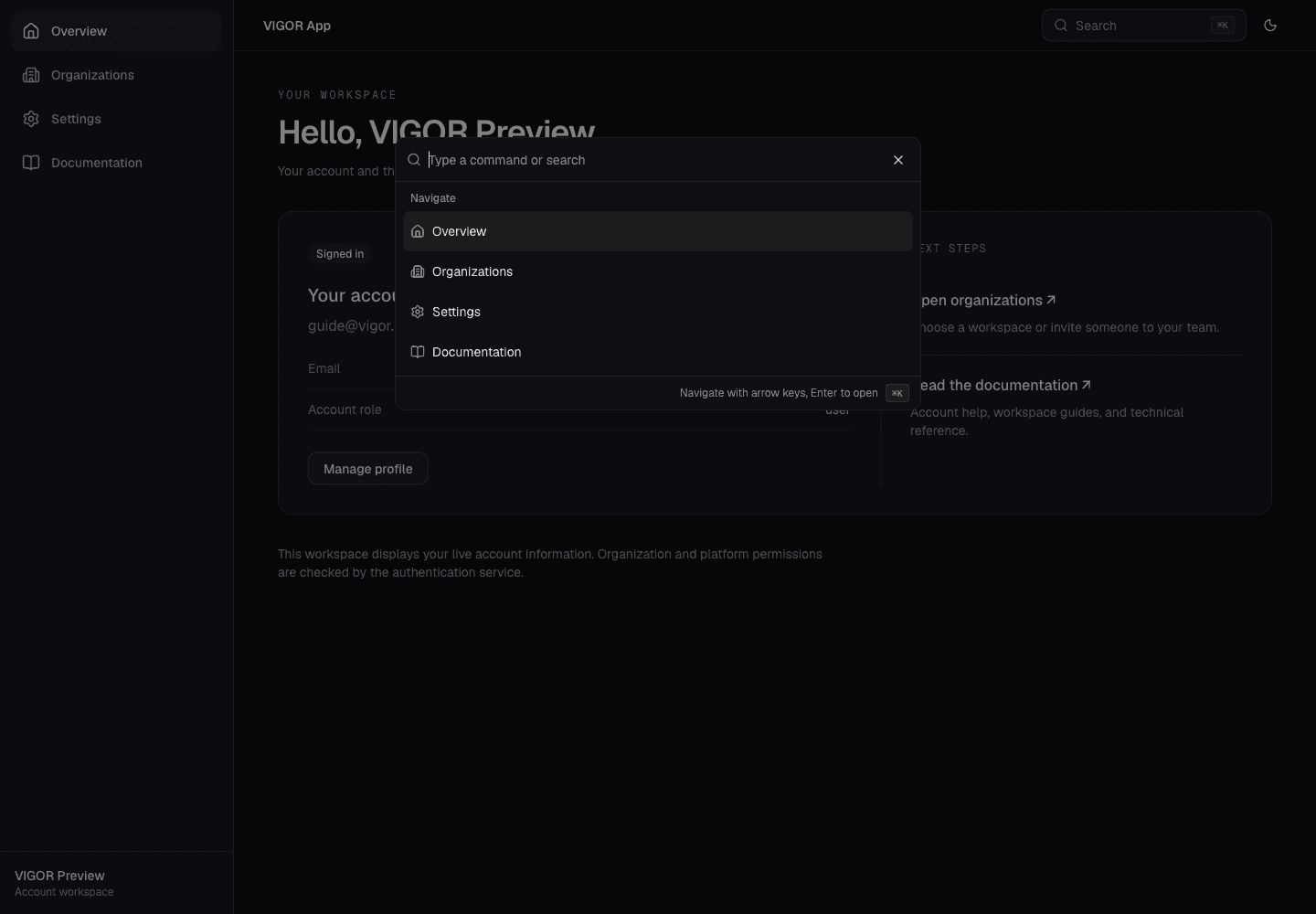
- Type a command or destination into the search field.
- Choose a result with the pointer, or use the arrow keys and Enter.
Right-click menus
Right-click a module tile, a menu section, a Go to result or a record number to see Open, Open in new tab and Copy link. Right-click a row or a card in a list to also see Preview, Edit, Duplicate, the workflow steps that you can do, Print traveller where the record has one, Export CSV, Copy for the record number, and Delete. Right-click the top of a record page to see its Actions menu and the copy items.
Select several rows, then right-click a selected row or choose More actions in the selection toolbar. The menu names the selected count and acts on those records together. It offers only workflow steps shared by every selected record, plus permitted bulk editing, duplication, label printing, copying IDs, CSV export and deletion. Choosing an unselected row clears the previous selection and opens that row’s menu. Related links keep their own link menu.
- On a phone or tablet, touch and hold the item for half a second.
- With a keyboard, move to the item and press Shift+F10 or the menu key.
- A menu shows only what you can do. Each item is also on the screen: the Actions button, the buttons of the row, or the link.
Fill in a long form
Records with many fields open their Add and Edit form in steps, such as Basics, More details and Review. Choose Next to move on, or choose any step to go back to it. Fields marked with an asterisk are required before you can leave their step.
A summary of what you have entered sits beside the steps and updates as you type. It lists each field you filled in, grouped by step, and marks required fields that are still blank as Required. Select a step or a row in the summary to open that step. On a phone or tablet, choose Summary in the form header to see it, and Back to form to return. The last step, Review, shows every field before you save.
See everything you entered
On a desktop the summary is a column beside the form, grouped by step.
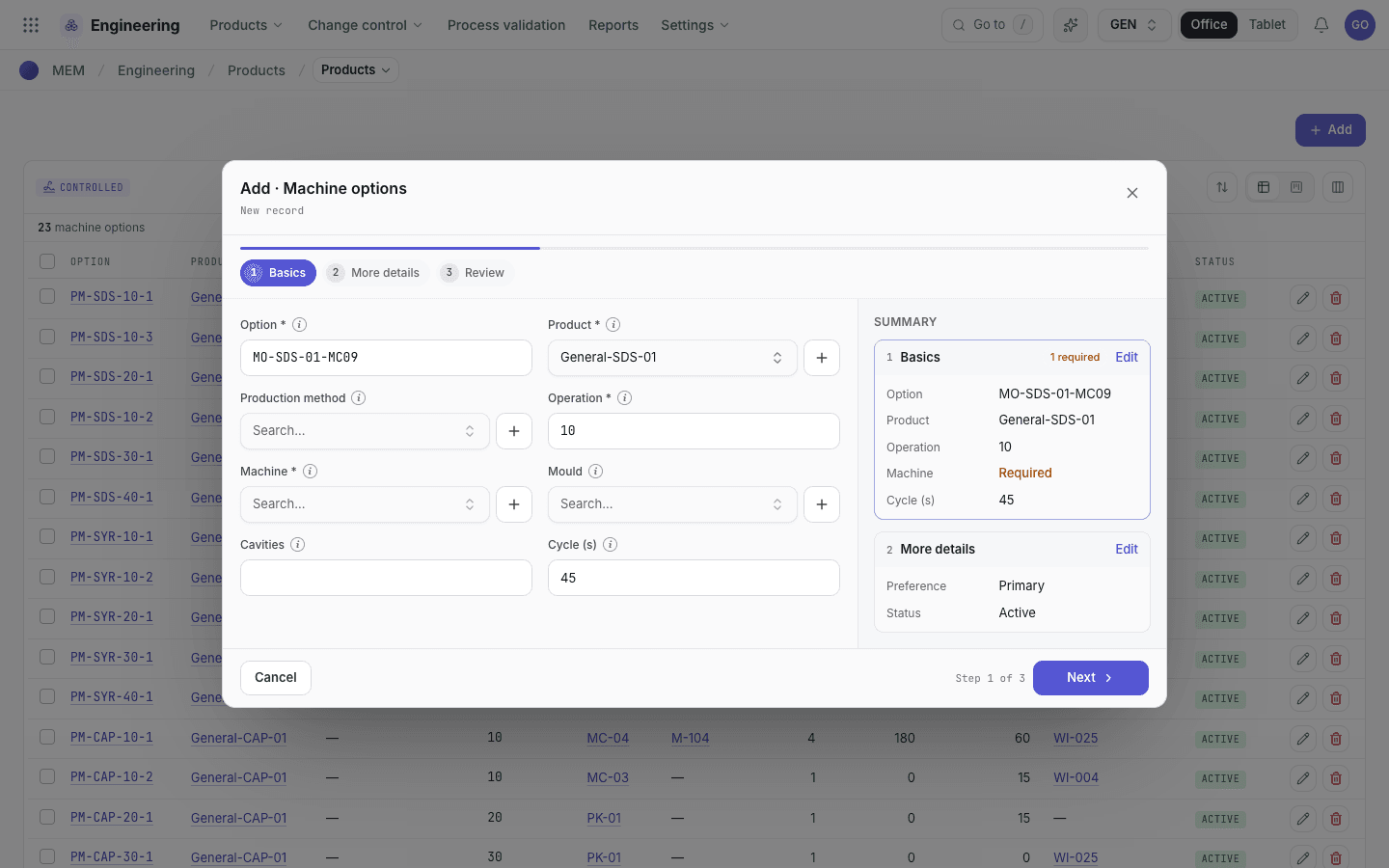
- The steps of the form. Choose Next, or a step, to move between them.
- The summary lists what you entered so far, grouped by step.
- A required field that is still blank is marked Required. Select it to open its step.
The summary on a phone
Choose Summary in the form header; the summary opens over the fields without making them smaller.
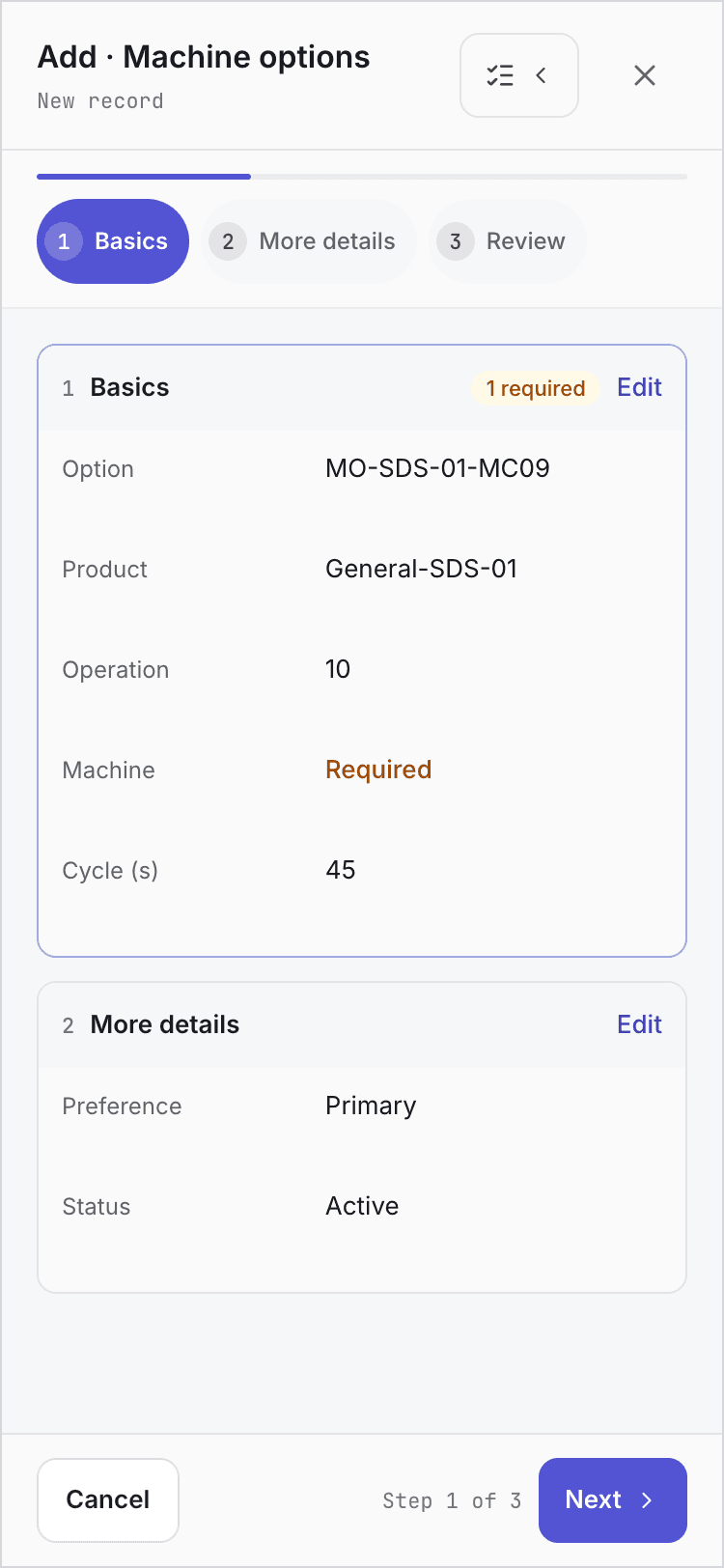
- Summary opens the summary and Back to form closes it.
- Select a step or a row to go to that step.