Invite a customer
For the VIGOR team. Create a customer's workspace by inviting its owner, then track, resend or withdraw the invitation.
Only platform administrators (the VIGOR team) see this. Open Settings › Organization settings › Customers in your own VIGOR workspace.
- Choose Invite customer.
- Enter the company name and the owner's name and email, then choose Send invitation. Factory OS creates the empty workspace and emails the owner a link that works for 7 days.
- The customer appears as Pending until the owner sets a password, then Active. After 7 days an unused invitation shows Expired: choose Send again.
While nobody has joined, Revoke withdraws the invitation and deletes the empty workspace. An owner already running a workspace cannot be invited as the owner of another.
Customer workspaces
The Customers tab with the invite dialog open.
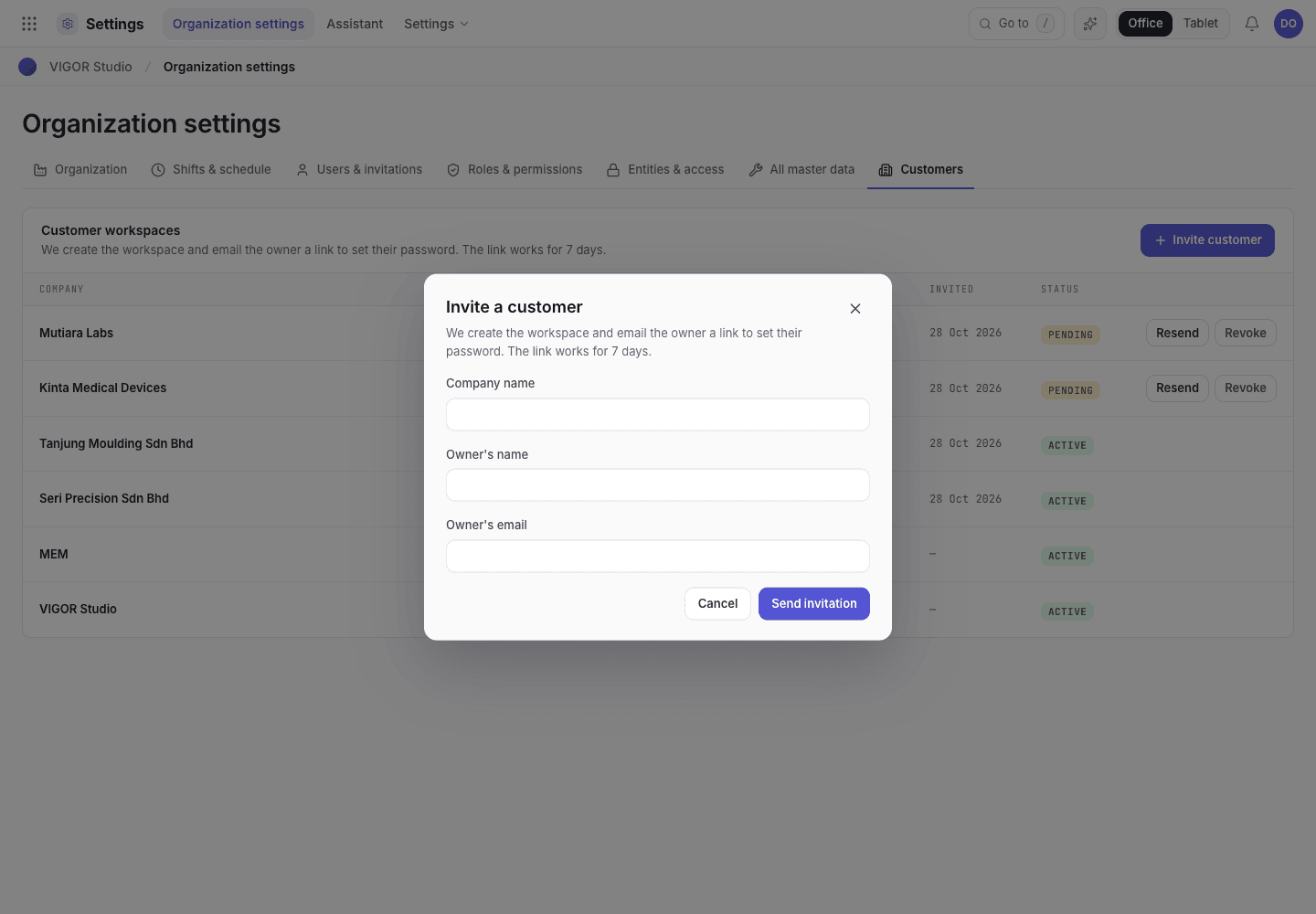
- Company, owner's name and email.
- Send invitation creates the workspace and emails the owner.
Next steps
Set up your workspaceWhat the owner sees after accepting: company, site and team.Invite your team
Owners and Org admins invite people by email with a Factory OS role; the role decides what they see and sign.
Onboard a customer without email
For platform admins. Create a customer's workspace and its owner's username login in one step, hand over the temporary password, and give a new one when it is lost.