Onboard a customer without email
For platform admins. Create a customer's workspace and its owner's username login in one step, hand over the temporary password, and give a new one when it is lost.
Only platform admins see this. Open Settings › Organization settings › Customers in your own workspace. A customer whose owner has a work email is invited by email instead: see Invite a customer.
- Choose Invite customer.
- Enter the company name and the owner's name, tick The owner has no email, and enter a
username for the owner, such as
aisyah.seri(3 to 30 letters, digits, dots or underscores; unique across Factory OS). - Choose Create workspace. Factory OS creates the workspace and the owner's login, and shows the temporary password once.
- Choose Print slip or Copy, and hand the slip to the owner in person. Nothing is emailed, and the password is not shown again.
A customer whose owner has no email
The invite dialog with The owner has no email ticked.
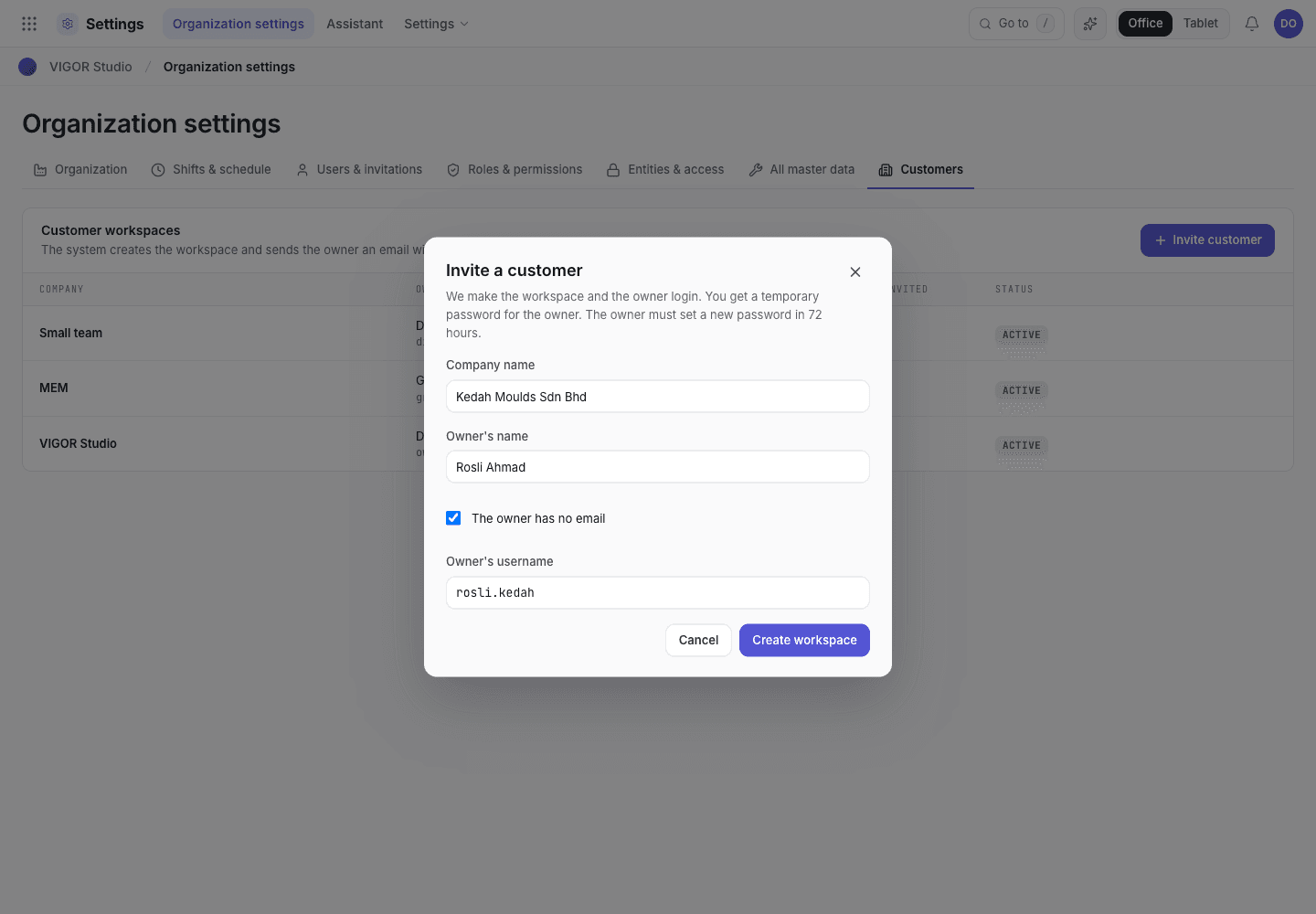
- Tick when the owner has no email.
- The owner signs in with this username.
The temporary password, once
Print or copy it now; it is never shown again.
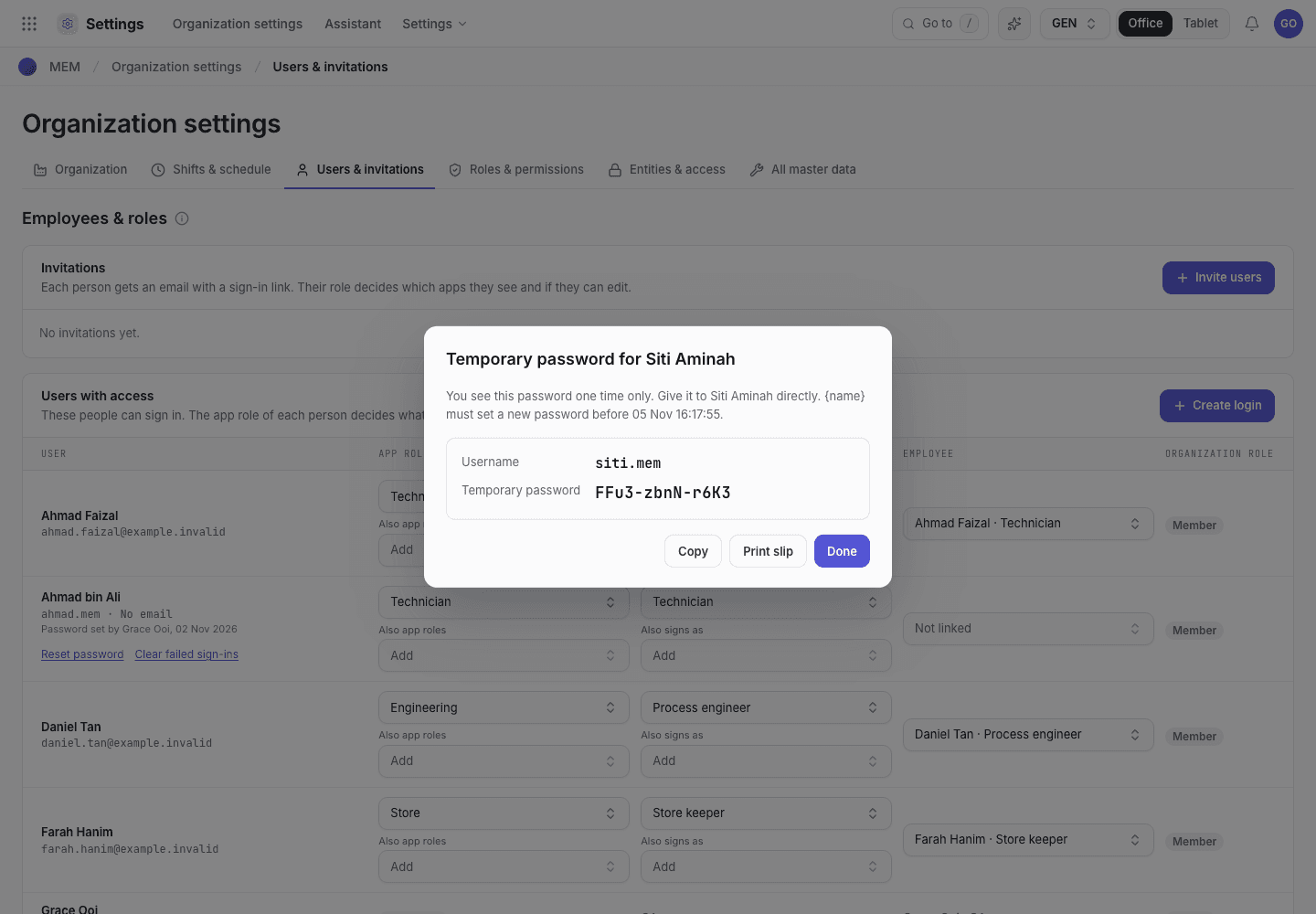
- Hand this over in person.
The owner signs in at the accounts page with the username and the temporary password, chooses their own password straight away (within 72 hours), sets up the workspace, and adds their team: by email invitation, or with logins without email from Settings › Users & invitations (see Logins without email).
The owner lost the password
On the customer's row choose New temporary password. The owner's old password stops working, they are signed out everywhere, and you get a new slip to hand over. Two-factor stays on.
Who are platform admins
A platform admin is a Super Admin in the admin console. A Super Admin gives staff roles under Users › Change role: Super Admin, Support, Finance, Engineering, Read-only or Account manager. Each role can do only its own tasks. Nobody can change their own role, the last Super Admin cannot be removed, and a login without email cannot have a staff role. Every change is in the audit log, with the role before and after.
Staff must turn on two-factor sign-in before the admin console opens its pages. A staff session ends after 30 minutes without activity.
Give each customer an account manager
An account manager answers the questions of a customer. A Super Admin gives a person the Account manager role under Users › Change role, then gives them customers under Customers: choose the rows, then Assign account manager. Each customer has one account manager at a time. Each change is in the audit log.
An account manager sees My customers in place of Customers. They see and help only their own customers and the people in them. Other customers and accounts do not show for them.
All customers
Every customer workspace, with its owner and account manager.
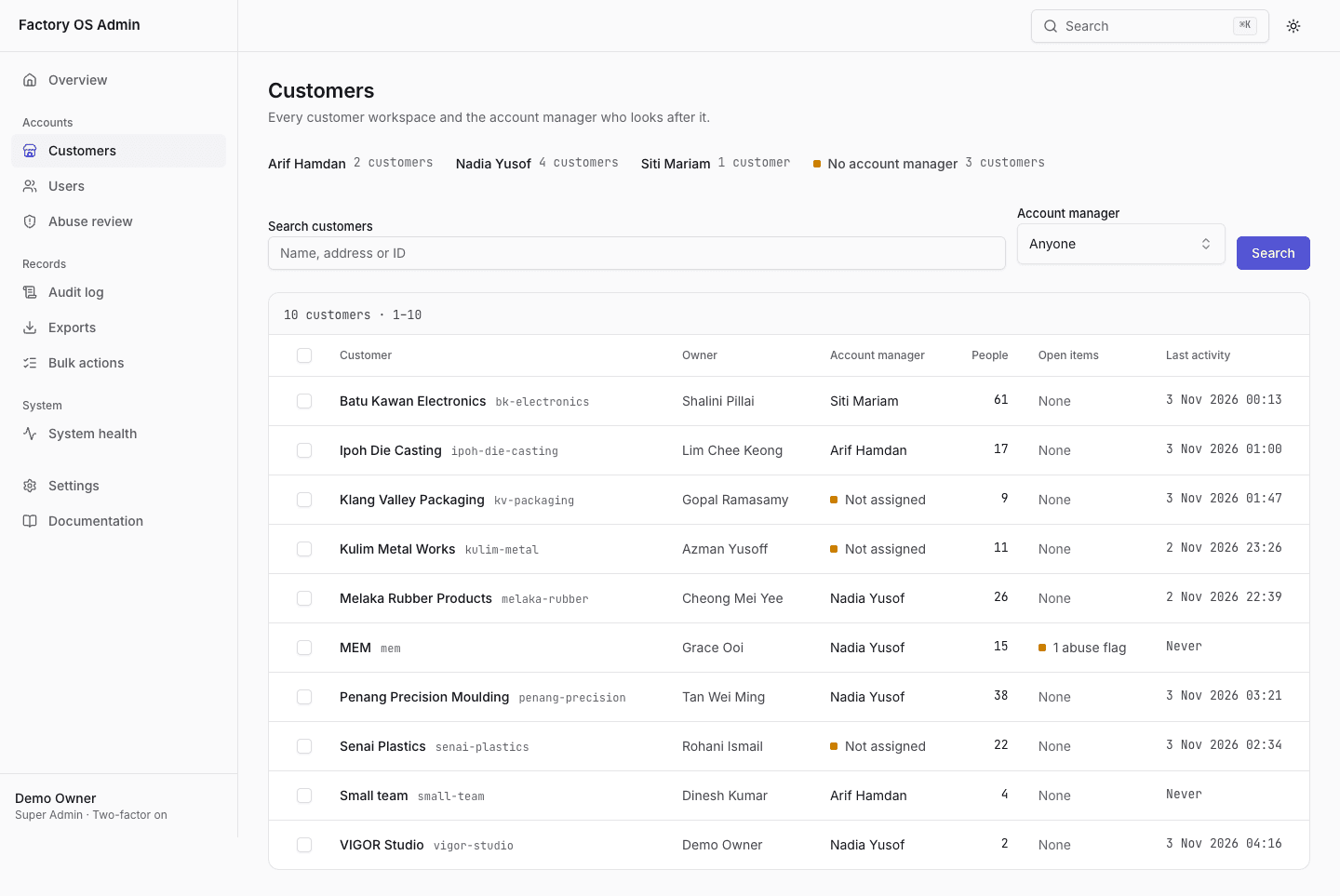
- Each account manager and the number of their customers. Choose one to filter.
- Choose rows, then Assign account manager.
- A customer without an account manager is marked.
One customer
The Overview tab and the account manager of the customer.
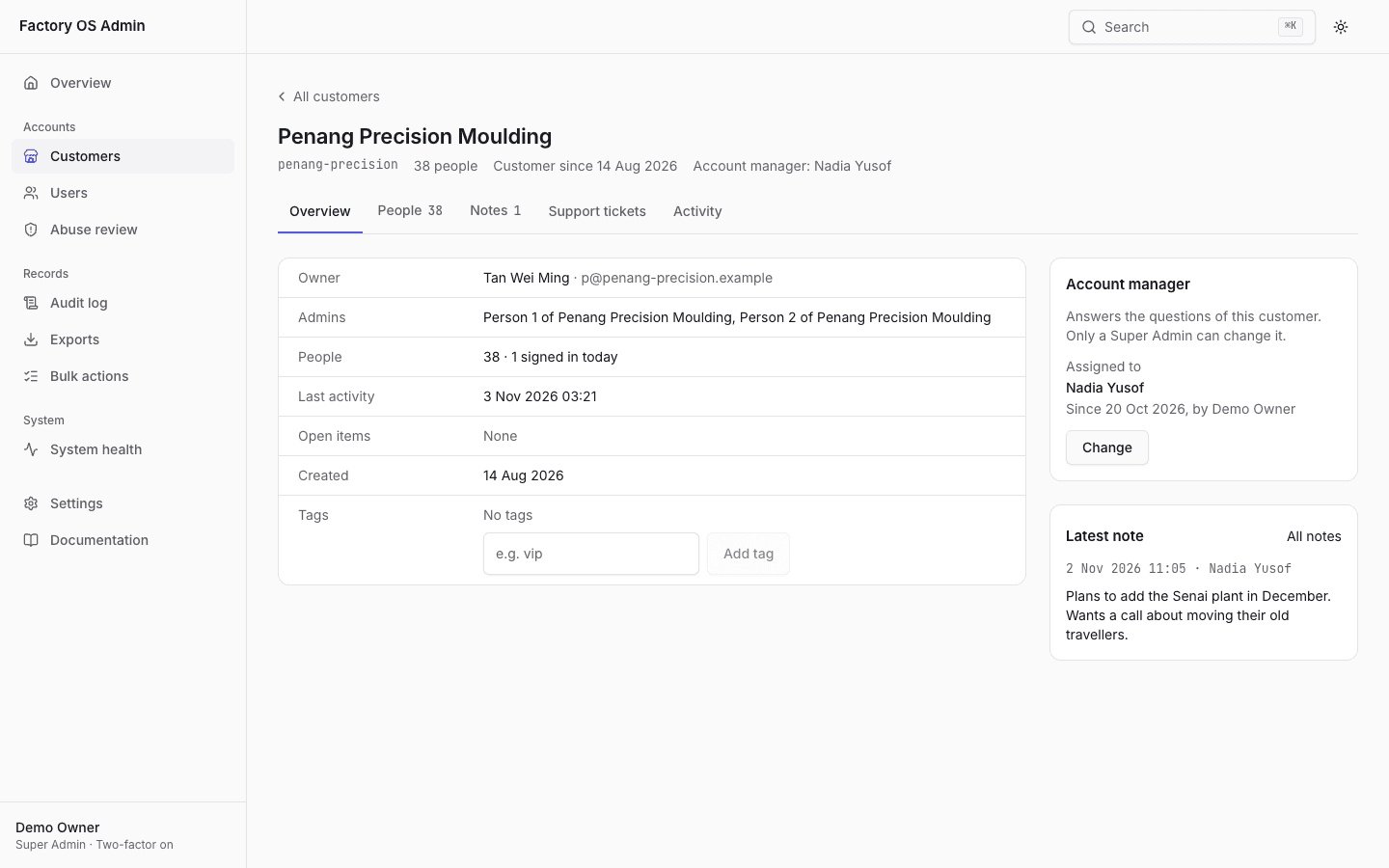
- People, Notes, Support tickets and Activity of this customer.
- Who looks after the customer, who assigned them and since when.
- Only a Super Admin can change the account manager.
Help a customer with their account
Find the person under Users (part of their email, name, company or email domain), or press Cmd+K. Their page shows their organizations, sessions and recent activity. From there, depending on your role, you can send a password reset, sign them out everywhere, mark their email verified, suspend the account, or delete it (it can be restored for 30 days).
One person's account
The Overview tab with the actions your role allows.
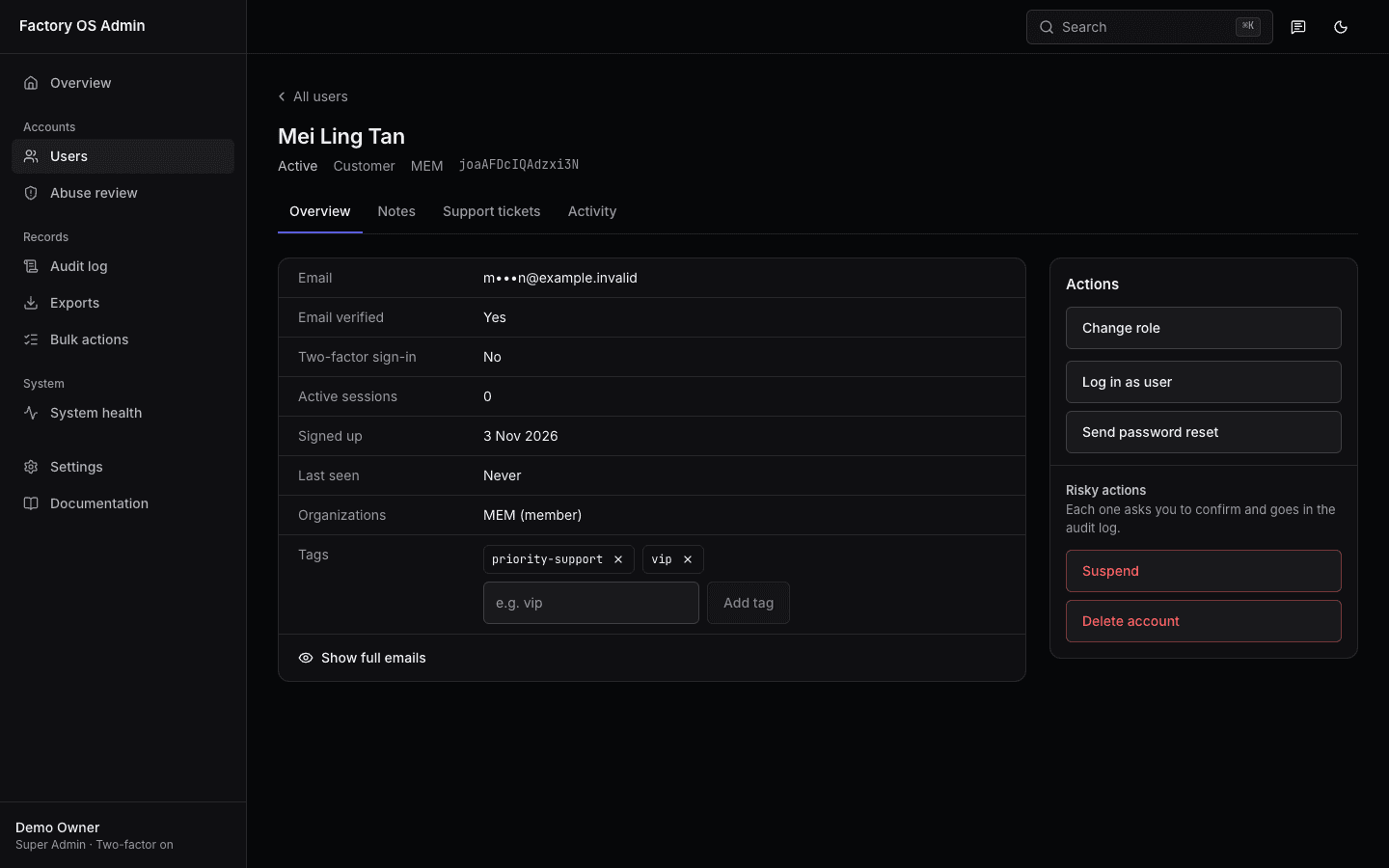
- Activity lists everything done by or to this person.
- Only the actions your role allows are shown.
- Suspend and Delete account sit apart, under Risky actions.
- Showing the full email is recorded in the audit log.
Write down what happened under Notes: what you promised and the ticket number. Pin a note that everyone should read first. Tags such as "vip" or "at risk" go on the Overview; Users can filter by them. Customers never see notes or tags. Support tickets lists their conversations in the support desk.
Notes about a customer
Staff-only notes, newest first, with the pinned note on top.
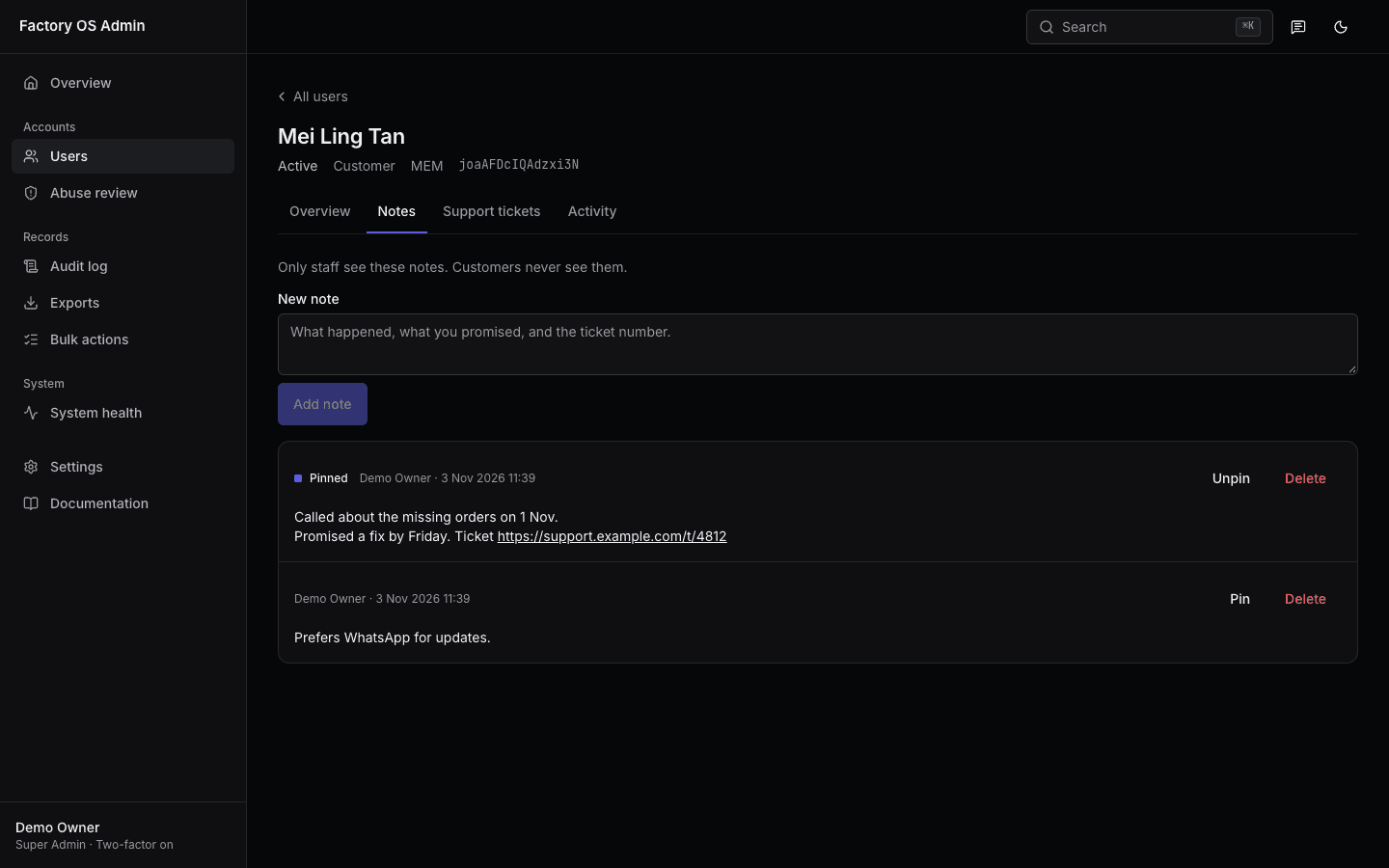
- Notes, Support tickets and Activity are tabs of the account.
- Pinned notes stay on top; links open in a new tab.
- Only the author or a Super Admin can delete a note.
To see what they see, choose Log in as user and give a reason, such as the ticket number. You can look for 15 minutes but not change anything; a banner at the top of the app has Exit.
Logged in as the person
The app as they see it, with the banner on every page.
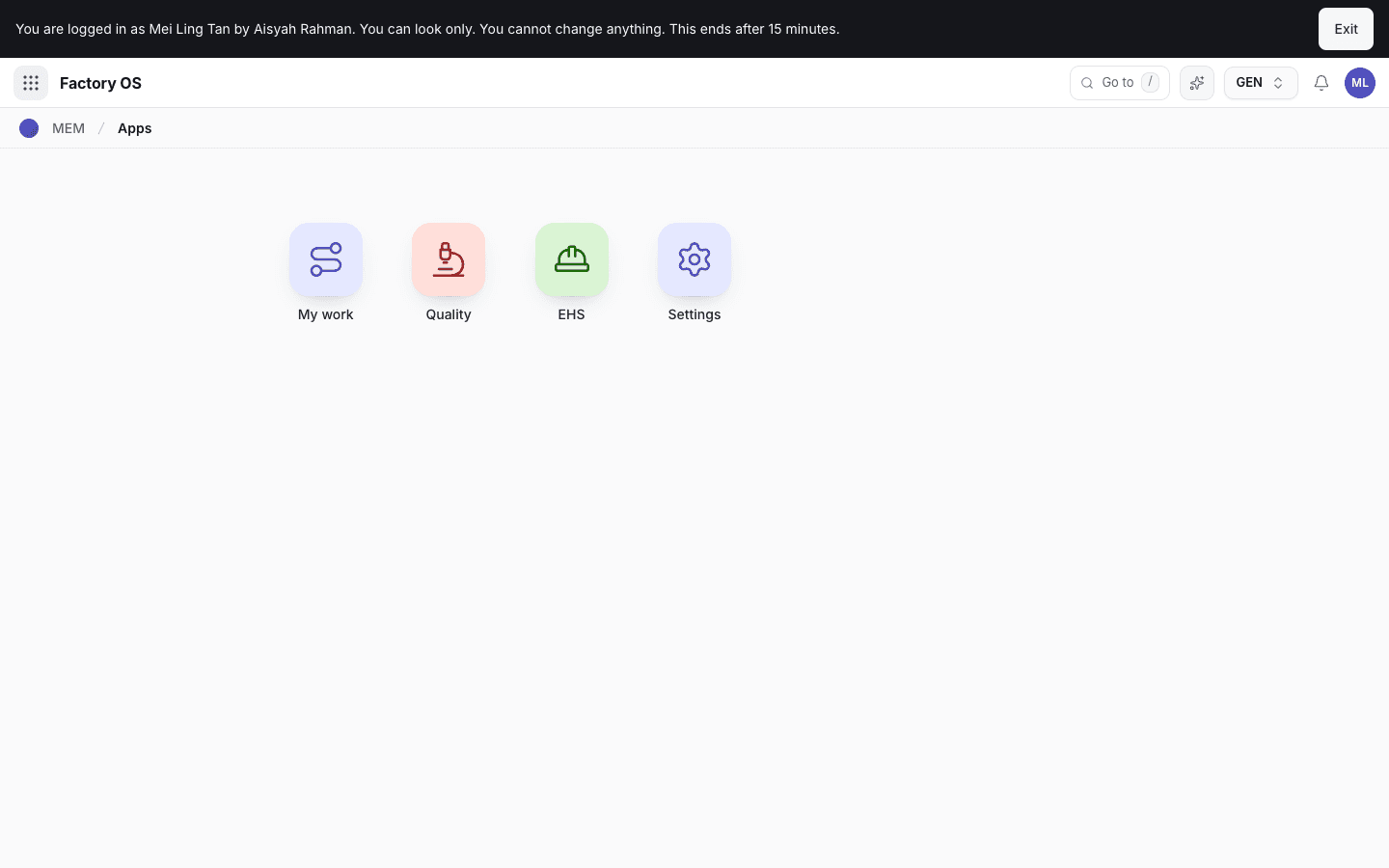
- Who you are logged in as, and that you can look only.
- Exit returns you to their page in the admin console.