Workspace owner and admin
What the workspace owner and workspace admin can do, and how that differs from the Org admin app role.
A workspace has its own roles, separate from the factory roles on Roles at a glance. They decide who may manage the workspace itself: its name, its members and its invitations.
| Workspace role | Who | What it is for |
|---|---|---|
| Owner | The person the workspace was created for | Everything, including renaming the workspace and managing every member. There is always one. |
| Admin | Someone the owner trusts to run it | Manage members and invitations. |
| Member | Everyone else | Work in the workspace. No member or invitation management. |
The Org admin is a different thing. It is a Factory OS app role: full access to every module and the only role that edits roles and permissions, standards and operating hours. See Org admin. A person can be a workspace member and the Org admin, or a workspace admin and a Planner.
Where you start
You manage members and invitations in two places. Both are open to the workspace owner.
- Organizations in the main navigation lists your workspaces, their members and invitations.
- Settings > Users & invitations inside Factory OS invites people with a Factory OS role.
Organizations
Your workspaces, with the members and invitations of the one that is active.
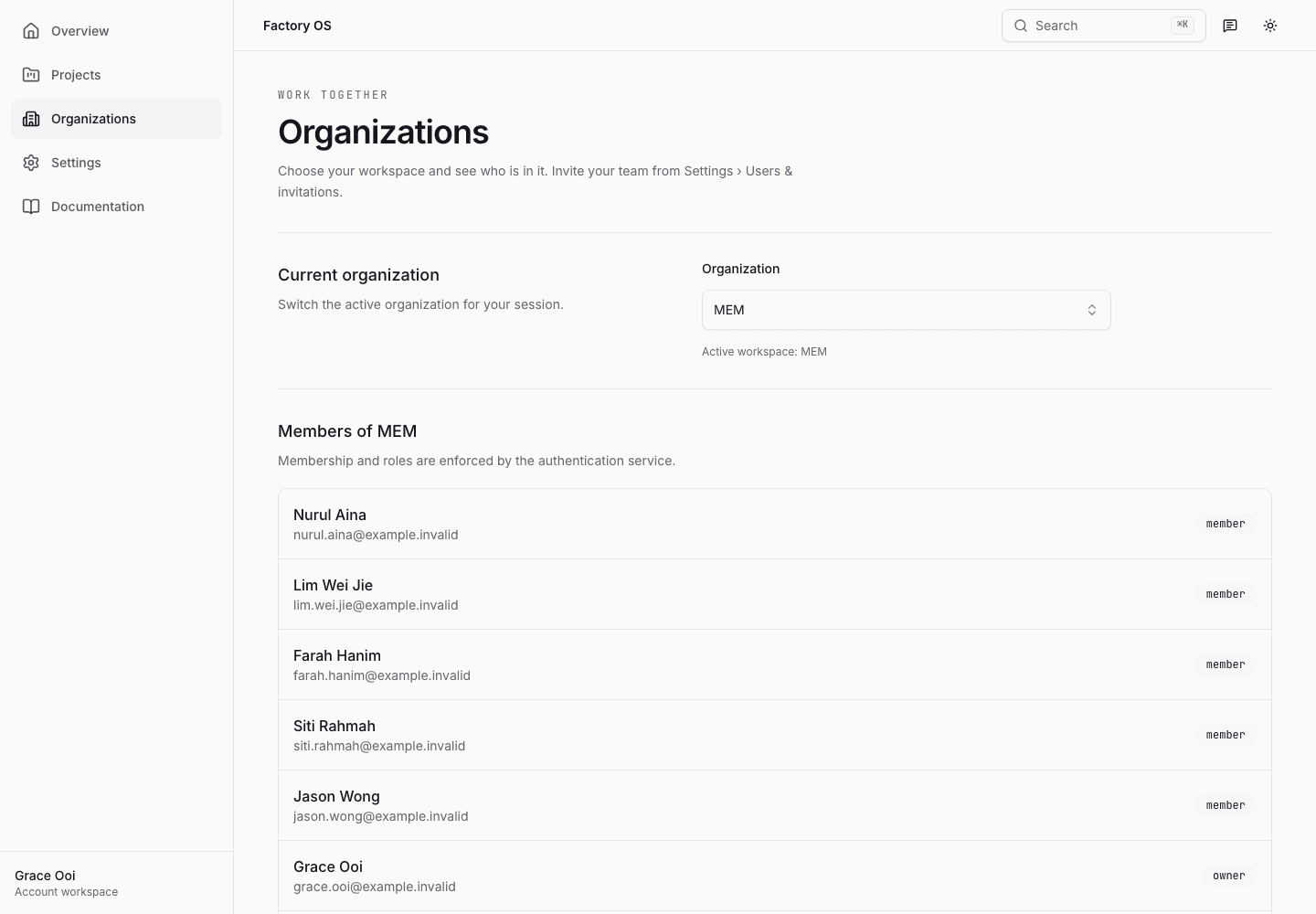
- Switch or create a workspace.
- Members of the active workspace and their workspace role.
- Pending invitations. Resend or revoke them here.
The launcher as the workspace owner
The apps launcher shows every module your Factory OS role can open.
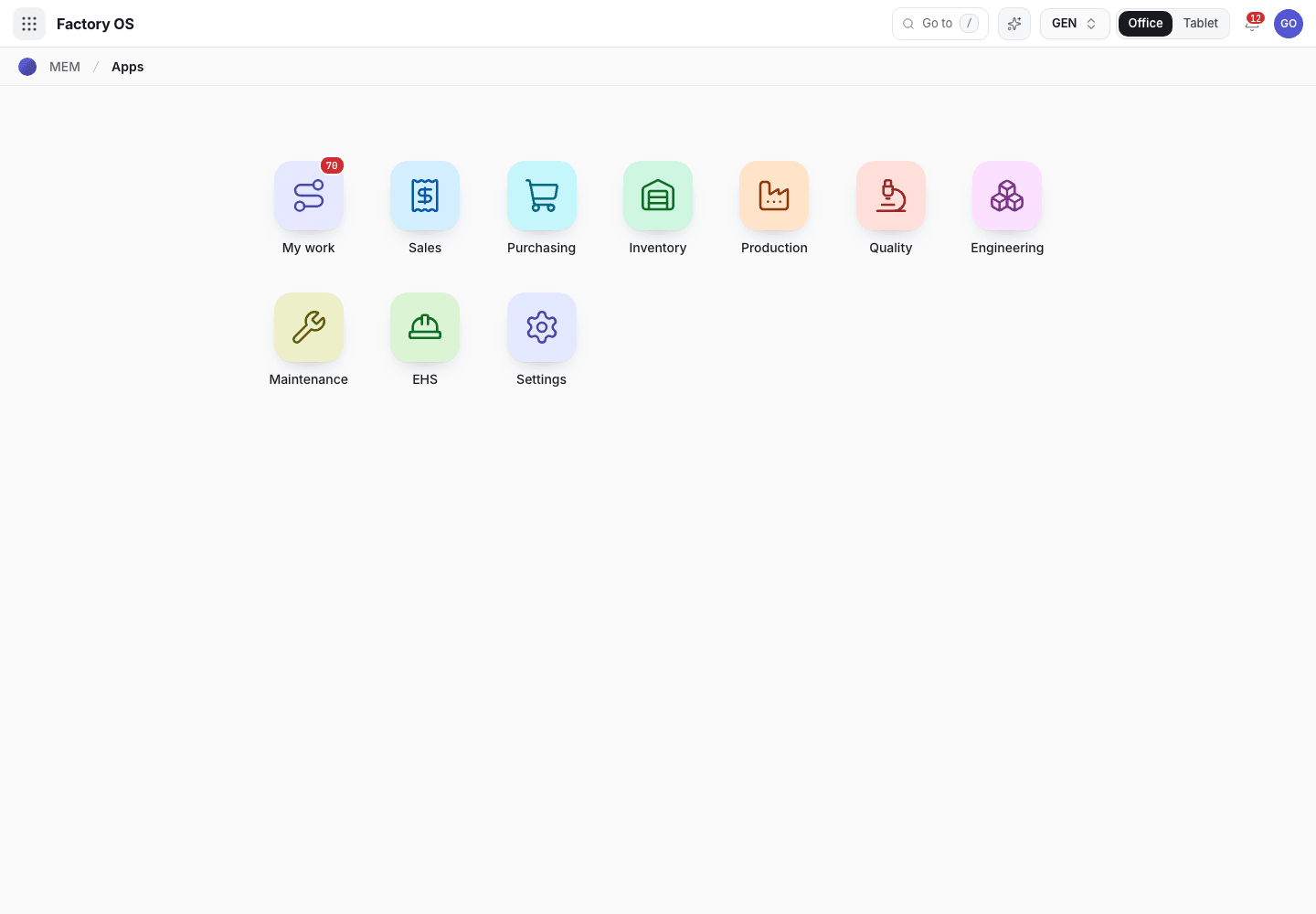
- My work: records waiting on you.
- Settings: members, roles and permissions, organization settings.
Your queue on a phone
My work on a phone.
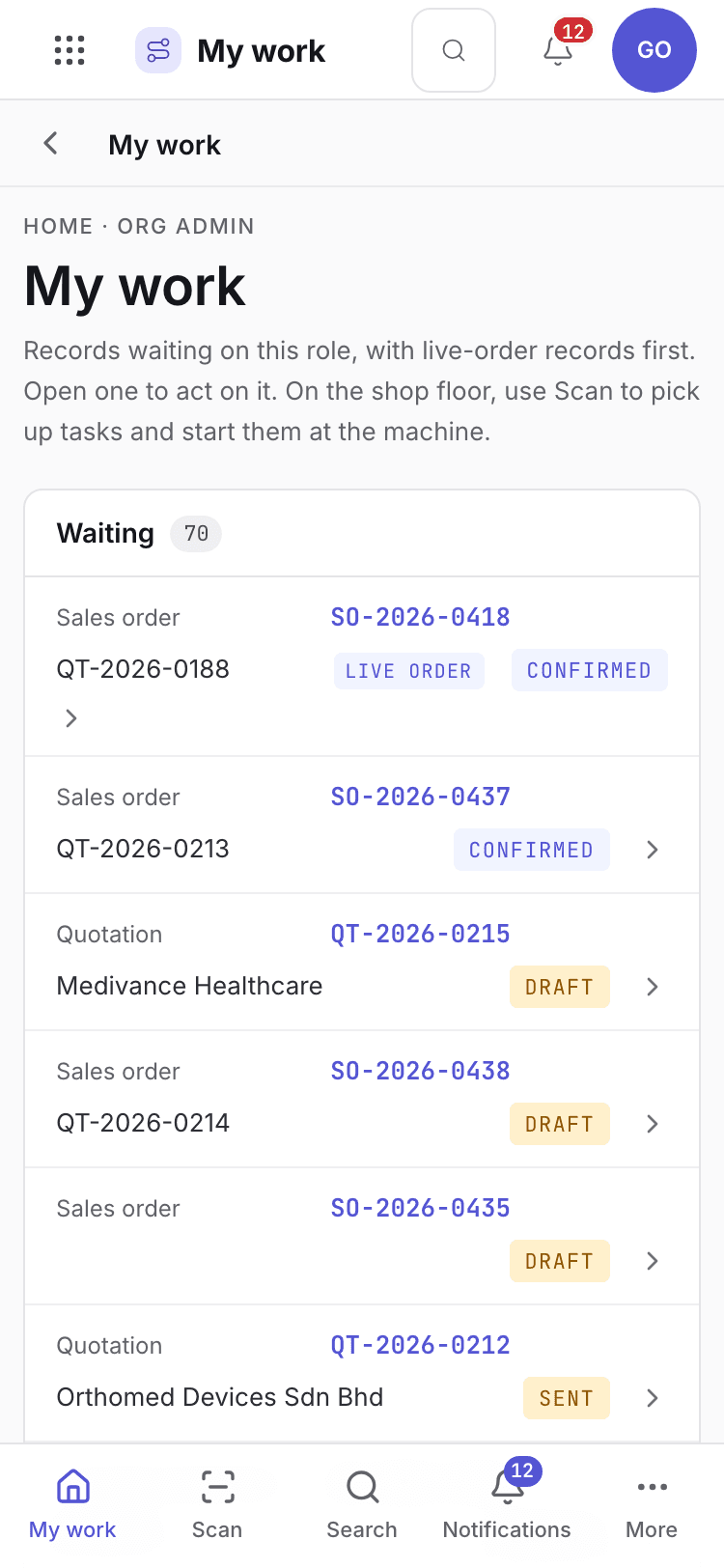
- Page title and your role.
- One card per record waiting.
What you can do
- Invite people with a Factory OS role, and revoke or resend an invitation. See Invite your team.
- Change or remove a member. Change their workspace role, or remove them. Removing a person ends their access on their next request.
- Rename the workspace or change its details. Only the owner may do all of this; an admin may only do it when their Factory OS role has full Settings access.
- Transfer ownership to another member.
What you can see but not change
A workspace admin whose Factory OS role has Settings on View can read the settings and cannot change them.
What you cannot do and who does it
These checks run on the server, whatever the screen shows.
| You try to | Message | Who can do it |
|---|---|---|
| Change workspace settings without being the owner or having full Settings access | Only the organization owner or a member with full Settings access can do this. | The owner, or a member whose role has full Settings access. |
| Change them when your role has Settings on View | Your role can view Settings but not change it. | The Org admin changes your access. |
| Change the organization details when you are not the Org admin | Only the Org admin can change the organization details. | The Org admin. |
| Act after your factory access window ended | Your access to the factory system has expired. Ask your administrator to renew it. | An administrator renews it under Settings > Entities & access. |
A typical day
Open Organizations and check the invitations that have not been accepted. Resend any that expired after 7 days. Details: Invite your team.
When a person joins or changes job, set their Factory OS role. Details: Users and invitations.
When someone leaves, remove them. Details: Workspaces.