Org admin
What the Org admin role does, sees and signs in Factory OS, and how a typical day runs.
The Org admin is a Factory OS app role with full access to every module. In the demo it is Grace Ooi, who is also the QA manager. This page describes the Org admin app role. For the workspace roles owner, admin and member, see Workspace owner and admin.
What you do
You run the system for the organization. You set what each role can open, choose the standards the factory works to, set operating hours, keep the master data, invite people, and set numbering and approval rules. If your person is also the QA manager, you sign QA manager steps as well.
Where you start
The apps launcher shows every module, and Home opens on My work. Your queue is the busiest of all roles: it lists quotations, sales orders, suppliers in KIV, requisitions and orders waiting for approval, QC orders and inspection records, nonconformances and corrective actions, mould job orders, checklists with NG open, and machines in Maintenance.
The launcher as Org admin
Every module is available to you.
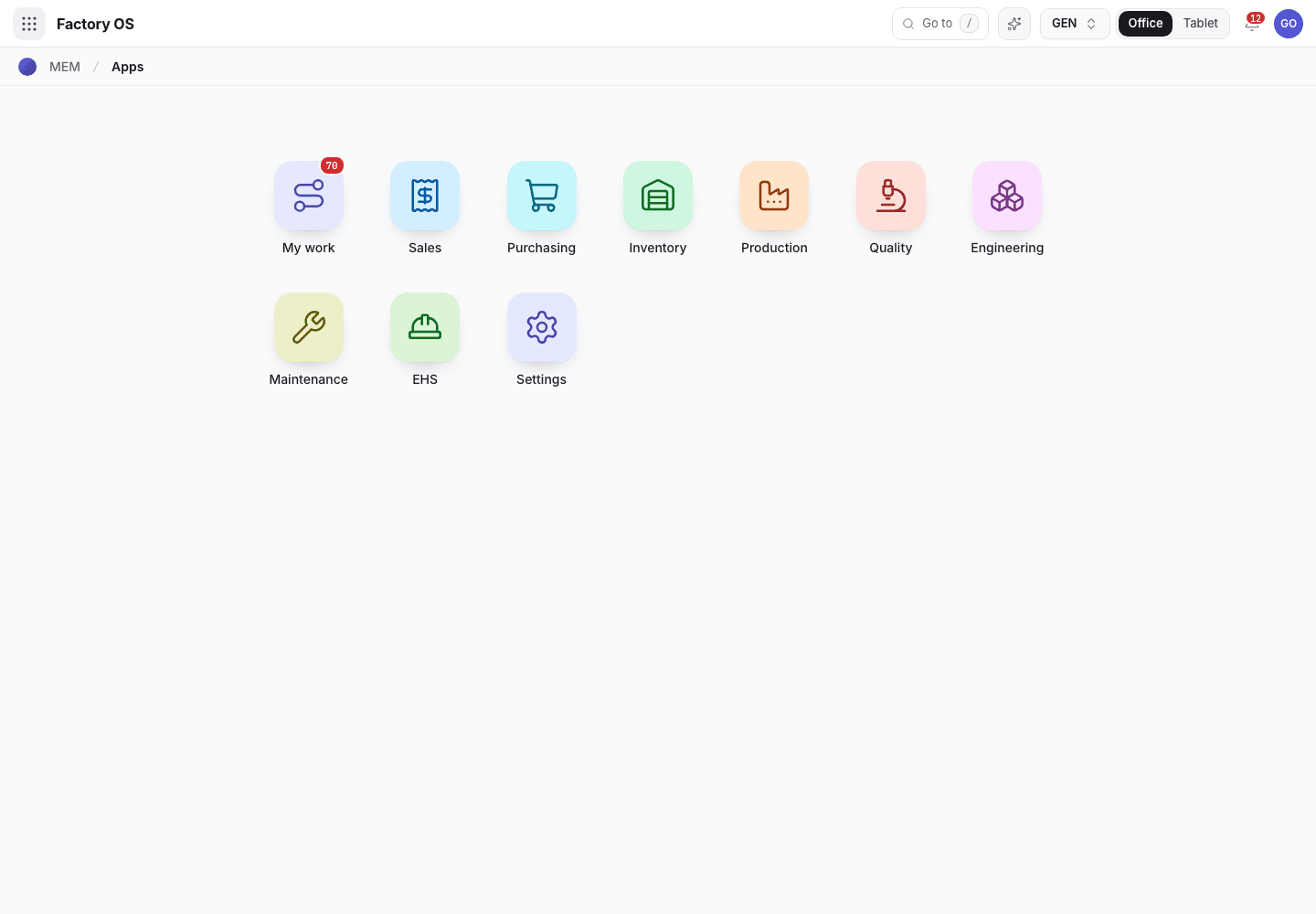
- My work: the number of records waiting on you.
- Module tiles. You see all of them.
- Settings: organization, people, permissions, master data.
Your work queue on a phone
My work on a phone.
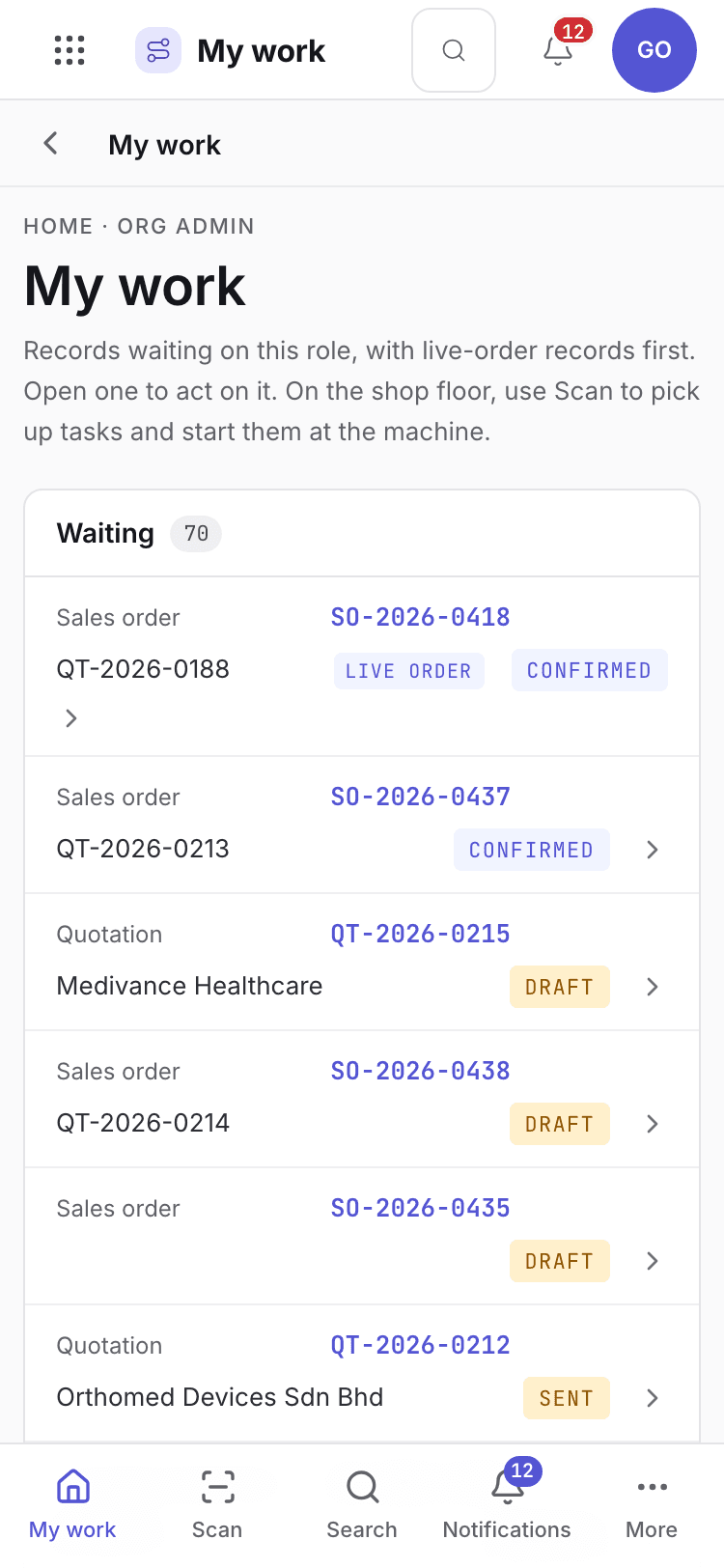
- Page title and your role.
- One card per record waiting. Live-order records come first.
- Bottom tabs to move between modules.
Your daily screens
| Screen | Where | What you do there |
|---|---|---|
| Organization | /config/org | Company details, operating hours, OEE target, shop-floor languages. |
| Roles & permissions | /config/perms | Set Full, View or None for each role and module. |
| Entities & access | /config/tenancy | Approval limits, delegation windows and access expiry. |
| Shifts | /config/shifts | Shift patterns and the calendar. |
| People | /config/people | Link each login to a person and an employee. |
| All master data | /config/setup | Customers, items, units, locations and the rest. |
| Numbering and approvals | /<module>/cfg | Numbering and approval rules for a module. |
| Setup wizard | /setup | The three-step first-run setup: Company, Site, Team. |
Organization settings
Company details printed on certificates and device history records, and the working week.
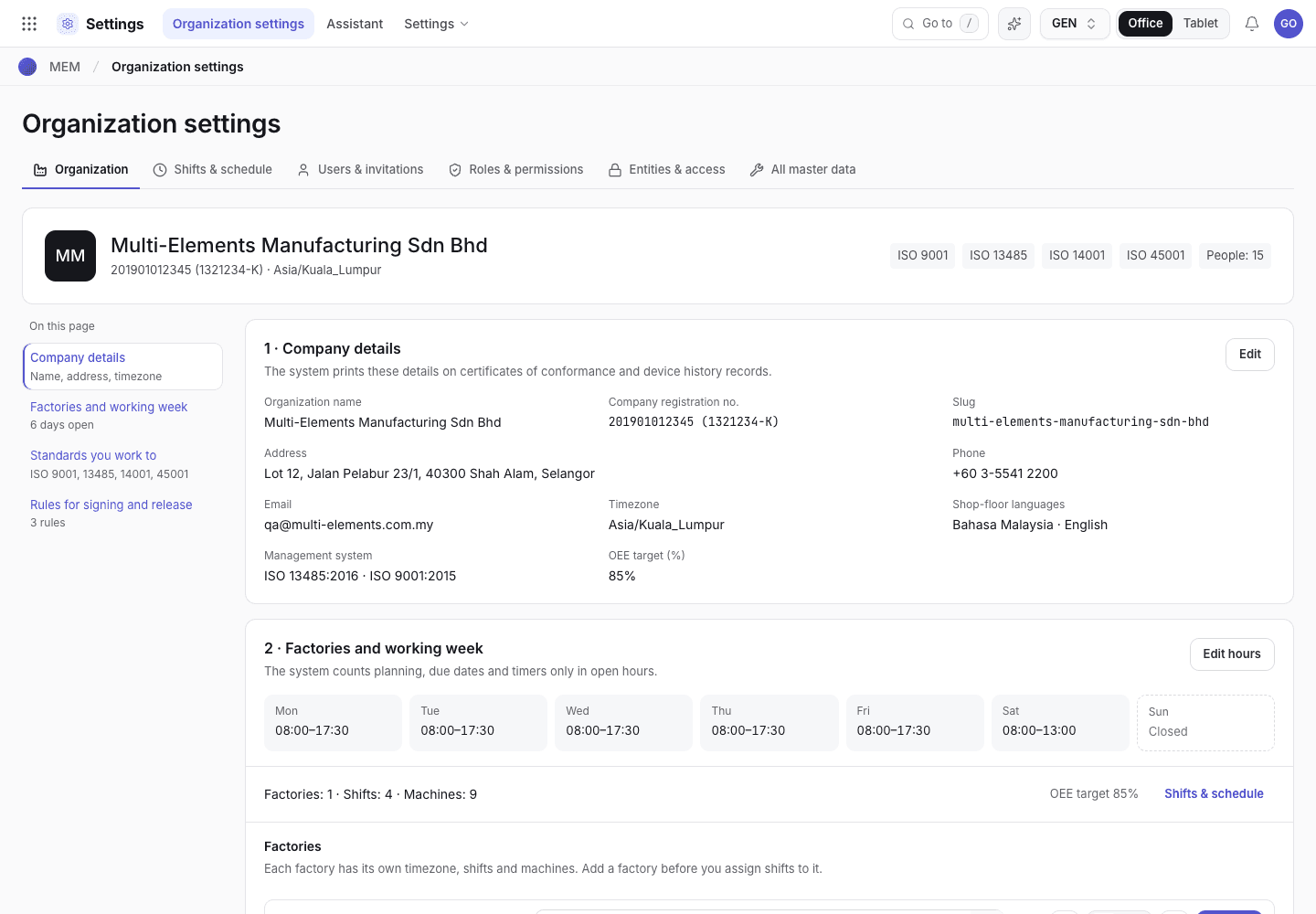
- Company name, registration number, timezone and the standards that are on.
- Company details, printed on documents. Edit changes them.
- Working week: the open hours by day.
What you can do
You have full access to Sales, Purchasing, Inventory, Production, Quality, Engineering, Maintenance, Settings and EHS. Only you can change:
- the roles and permissions matrix (the Org admin row is locked at Full);
- which ISO standards are on (ISO 13485, ISO 14001, ISO 45001), which turns their records on or off;
- the operating hours.
On the Organization screen, Only the Org admin can change the organization details. is what any other role sees.
Each change to access is written to the audit trail with who made it.
What you can see but not change
Nothing is View for you. Your limits are rules, not access.
What you cannot do and who does it
| You cannot | Why | What you see |
|---|---|---|
| Sign a step only a particular person may sign | The Org admin has no special signing standing. The step needs the person's own authority or a delegation. | This step needs a QA manager signature. You are signed in as {name} ({title}). |
| Route an approval to yourself in settings | Settings must not let the person who writes a chain be the only one who signs it. | You cannot raise the access of your own role ({role}: {module} {from} → {to}). Ask another administrator. You cannot add or move a level you can sign yourself ({where}: {level}, {role} ({name})). Ask another administrator. You cannot add or change a purchase approval level you can sign yourself ({document}: {level}, {role} ({name})). Ask another administrator. You cannot leave {where} with only levels you can sign yourself. Ask another administrator. |
| Take a signed step without a linked person or employee | Fail closed. | {name} is not linked to a person, so signed steps and steps that need training are blocked. Ask an administrator to link your person in Settings › Users & invitations. |
Grace Ooi signs as the QA manager because her login is linked to that person, not because she is Org admin. If you are Org admin and not linked to a person, you manage settings and sign nothing until another administrator links you in Settings > Users & invitations. In a new workspace where you are the only administrator, you choose your own Signs as there once.
A typical day
Open My work and clear the records that need an administrator. Details: Find your way around.
Invite a new person and set their role. Details: Users and invitations.
Adjust what a role can open. Details: Roles and permissions.
Set a delegation window for someone on leave. Details: Signatures, reasons and common refusals.
Maintain numbering and approval levels. Details: Numbering and approvals.