QC inspector
What the QC inspector role does, sees and signs in Factory OS, and how a typical day runs.
Default demo person: Siti Rahmah, QC inspector. This page describes the default access of the QC inspector role. The Org admin can change it under Settings > Roles & permissions; see Roles at a glance.
What you do
You inspect incoming material, check the first piece at the machine, run in-process patrol checks, and pass or fail finished lots.
Where you start
Sign in, choose your workspace, and the apps launcher opens. It shows one tile for each module your role can open. My work carries a number when records are waiting for you.
Your apps launcher
The apps launcher with the tiles this role can open.
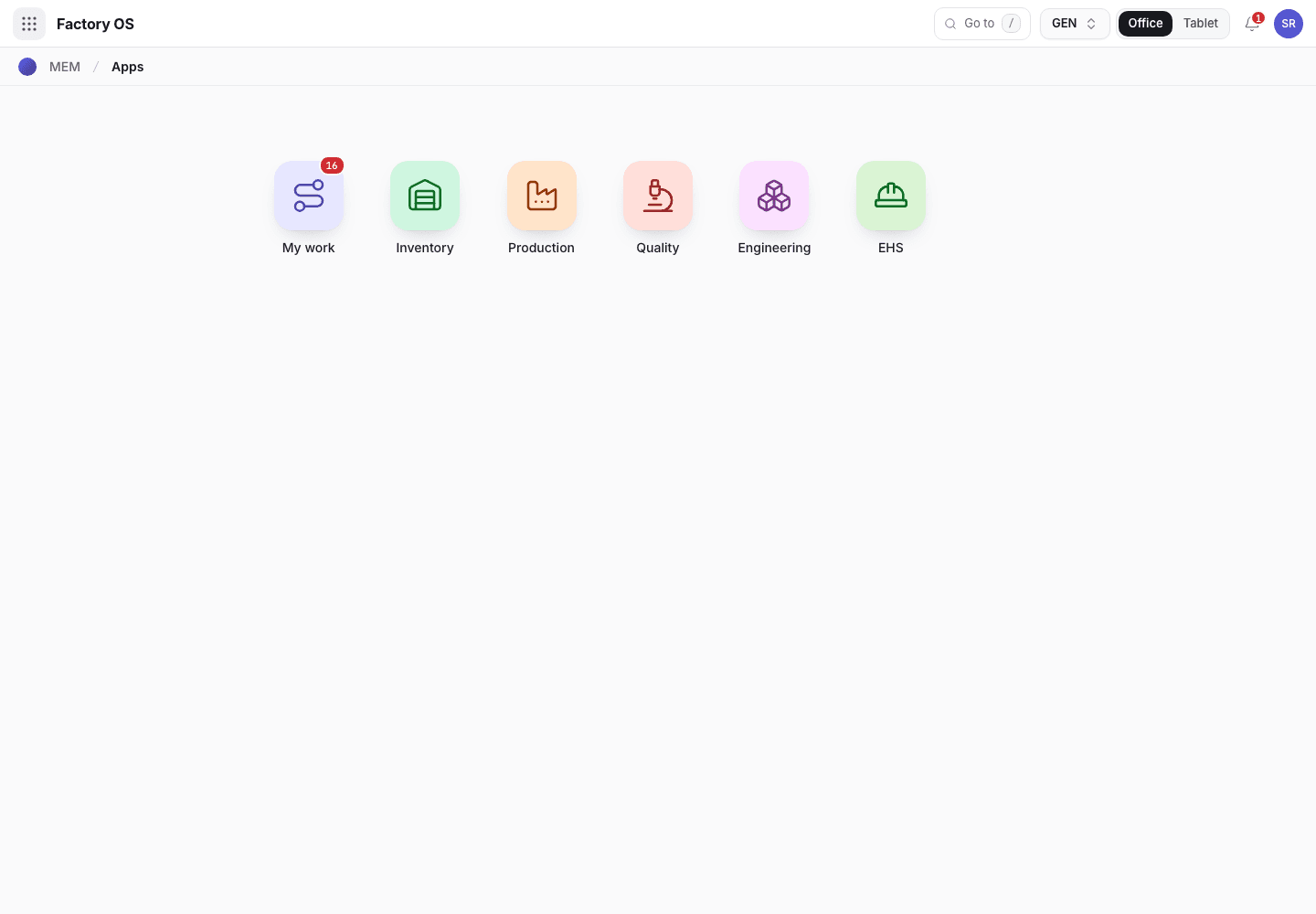
- My work: the number of records waiting on you.
- Module tiles. Only the modules your role can open appear.
- Settings, if your role has it.
Your queue on Home > Queue (My work): QC orders, incoming inspection records, in-process checks and outgoing inspection records.
Your work queue on a phone
My work on a phone, the records waiting for this role.
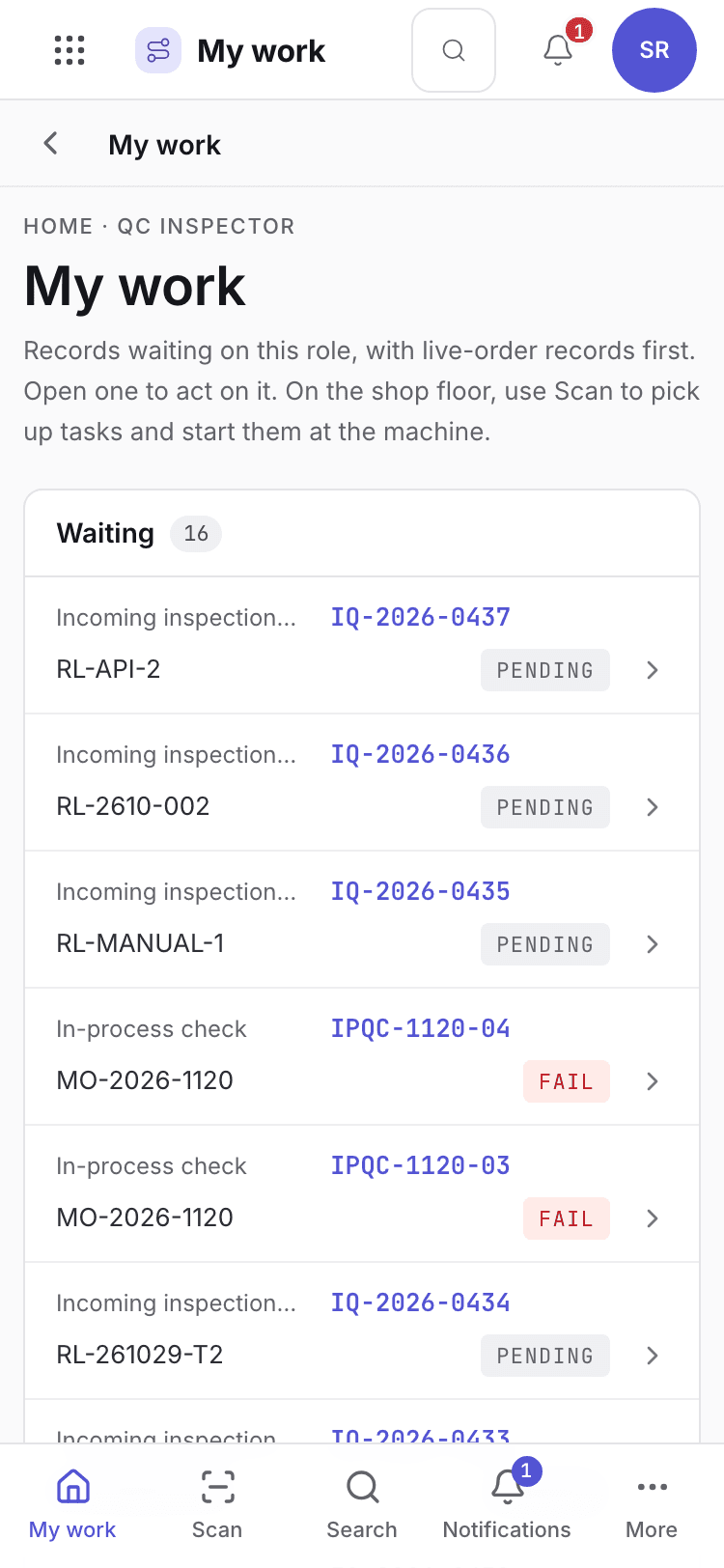
- Page title and your role.
- One card per record waiting. Live-order records come first.
- Bottom tabs to move between modules.
Your daily screens
| Screen | Where | What you do there |
|---|---|---|
| QC orders | /quality/qcos | Work through the inspections waiting for you. |
| First article | /quality/fair | First article reports. The accept or reject at the machine files them; a report cannot be typed in as Accepted, and a filed one cannot be edited or deleted. |
| Incoming | /quality/iqc | Inspect delivered lots. |
| In-process | /quality/ipqc | Patrol checks during a run. |
| Outgoing | /quality/oqc | Inspect finished lots. |
| Retention samples | /quality/rsmp | Withdraw or dispose of retained samples. |
| Machine tablet | /floor | Accept the first piece at the machine. |
QC orders
QC orders list.
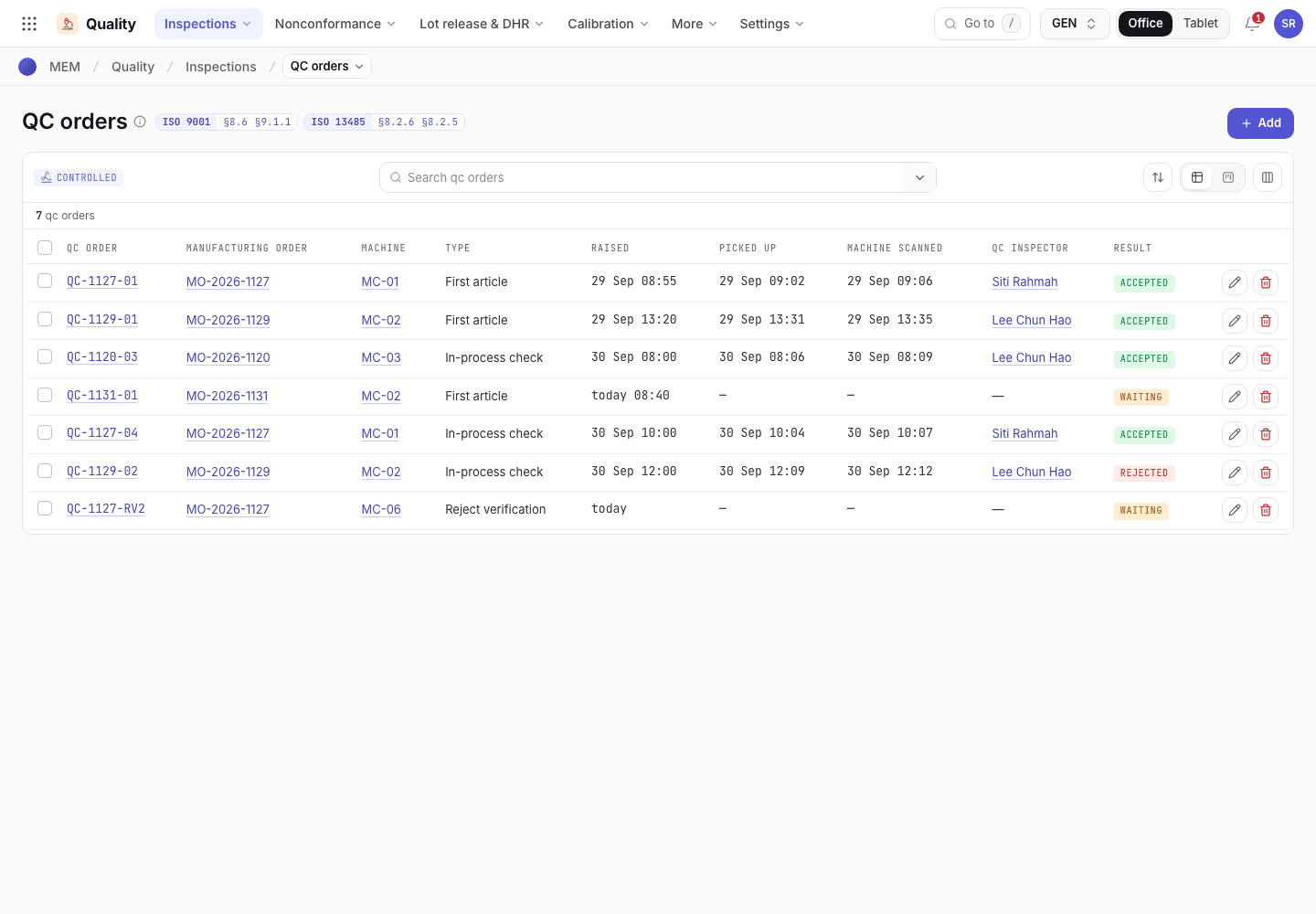
- Filter the QC orders.
- Each row is one inspection waiting for you.
- Open one to inspect it.
What you can do
You have full access to: Quality. You can create, edit and take steps there.
Steps you sign, with the button names on screen:
| Record | Steps |
|---|---|
| Incoming inspection | Accept · release lot, Reject |
| Retention samples | Withdraw sample, Dispose |
| Manufacturing orders (on the tablet) | Accept inspection · e-sign for the first piece |
A signed step needs your e-signature specimen and, where a requirement is set, current training.
What you can see but not change
View access: Inventory, Production, Engineering, Maintenance, EHS. You can open and read these. Their action buttons are disabled with Your role can view this but not change it. The one step you take in Maintenance is Record first-part check on a PM job order, which you sign as QC; see Maintenance.
What you cannot do and who does it
| You cannot | Who does it | What you see |
|---|---|---|
| Release a lot for shipment | QA manager | This step needs a QA manager signature. You are signed in as Siti Rahmah (QC inspector). |
| Approve a device history record | QA manager | Same message. |
| Open Sales or Purchasing | Org admin can change access | Your role has no access to Sales. |
Hidden for your role: Sales, Purchasing, Settings. They do not appear on the launcher. If you open one by address you see You do not have access to this page and Back to apps.
A typical day
Open My work. Read the inspections waiting. Details: Find your way around.
Inspect delivered lots and accept or reject each. Details: Incoming inspection.
Accept the first piece at the machine when a technician requests it. Details: Setup and first piece.
Run patrol checks during the run. Details: In process checks.
Verify rejected parts. Details: Scrap and rejects.
Inspect the finished lot. Details: Outgoing inspection and lot release.