Sales
What the Sales / office role does, sees and signs in Factory OS, and how a typical day runs.
Default demo person: Nurul Aina, Sales executive. This page describes the default access of the Sales / office role. The Org admin can change it under Settings > Roles & permissions; see Roles at a glance.
What you do
You quote customers, confirm sales orders, start production planning from a confirmed order, deliver and ship, and handle returns.
Where you start
Sign in, choose your workspace, and the apps launcher opens. It shows one tile for each module your role can open. My work carries a number when records are waiting for you.
Your apps launcher
The apps launcher with the tiles this role can open.
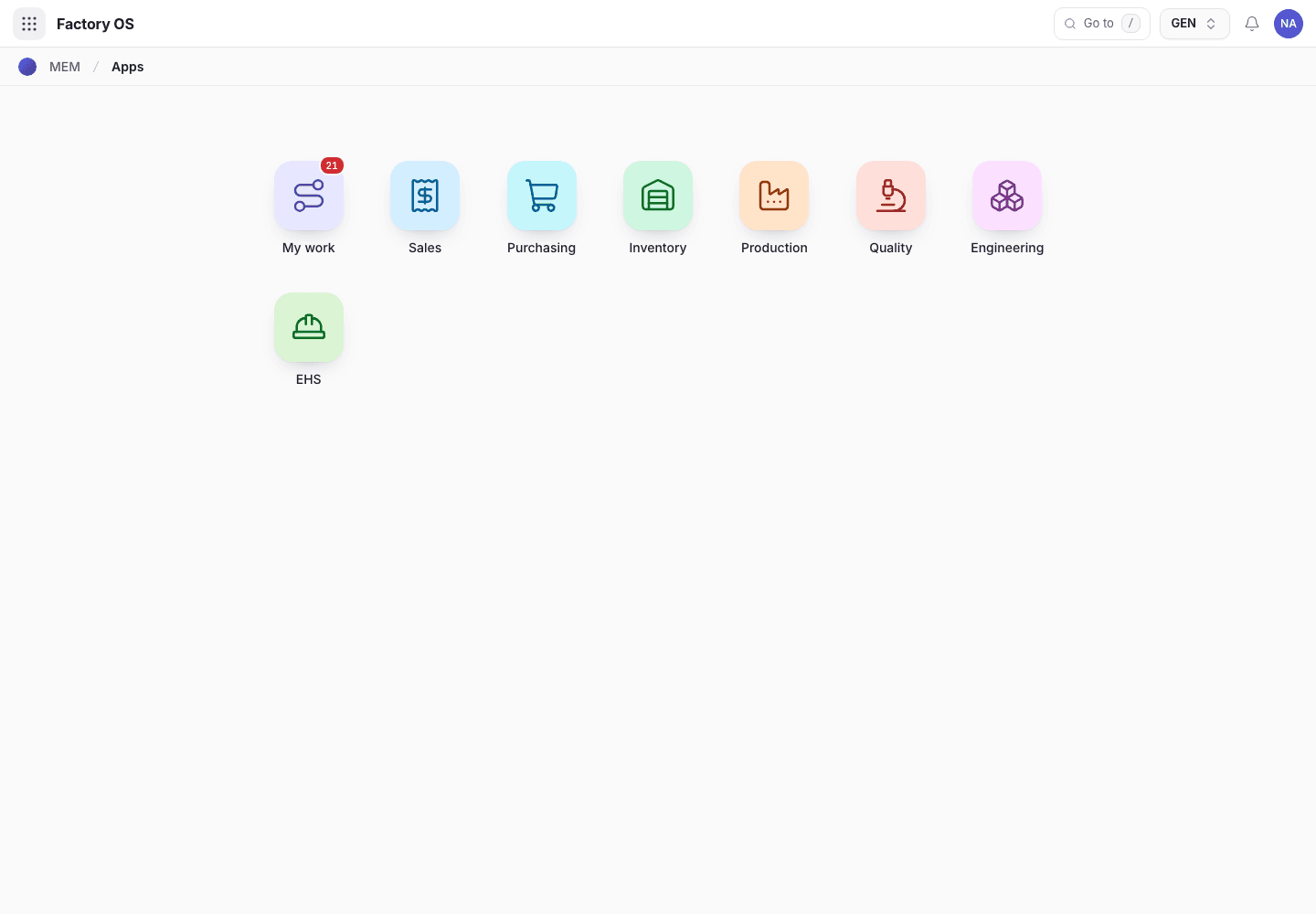
- My work: the number of records waiting on you.
- Module tiles. Only the modules your role can open appear.
- Settings, if your role has it.
Your queue on Home > Queue (My work): Quotations in Draft and Sent, and sales orders in Draft and Confirmed.
Your work queue on a phone
My work on a phone, the records waiting for this role.
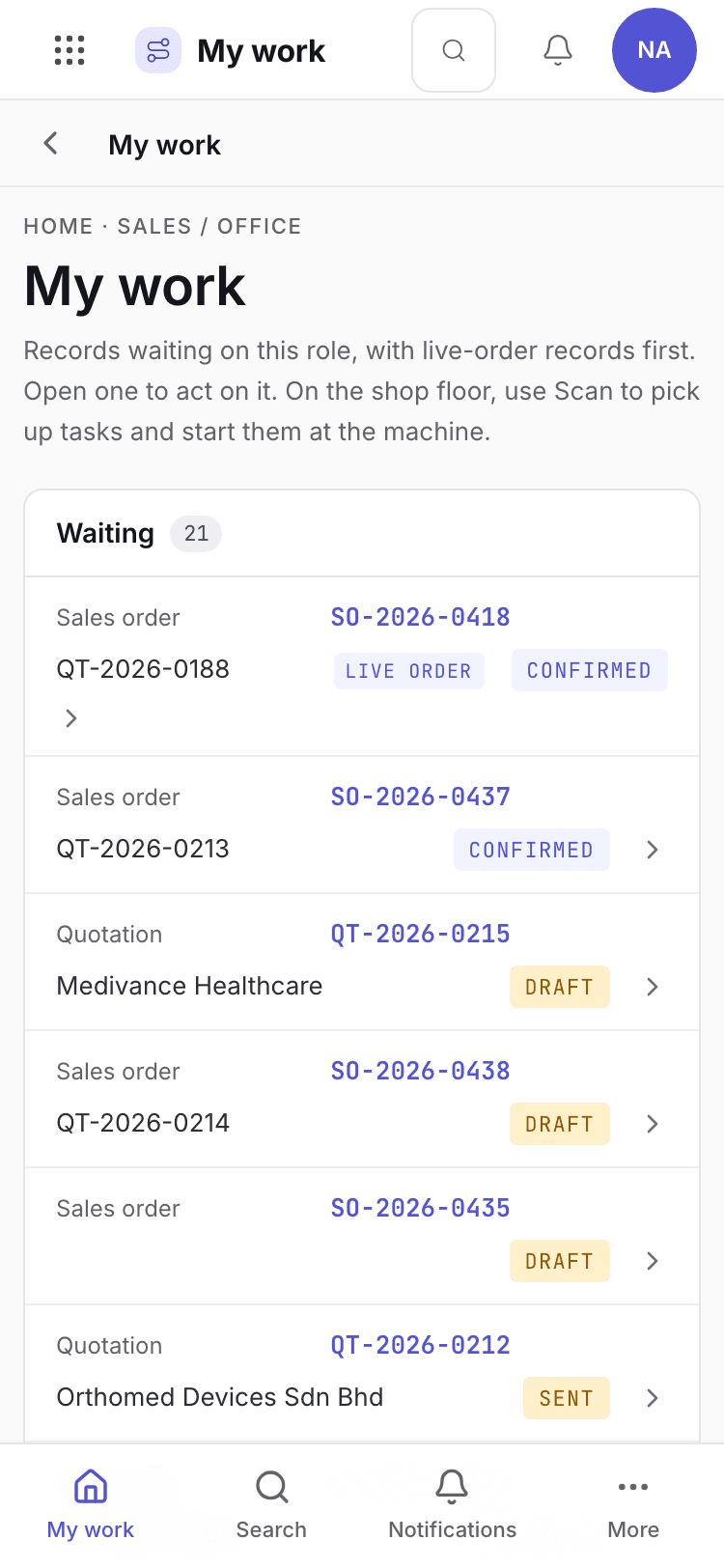
- Page title and your role.
- One card per record waiting. Live-order records come first.
- Bottom tabs to move between modules.
Your daily screens
| Screen | Where | What you do there |
|---|---|---|
| Quotations | /sales/quotes | Draft, send and confirm quotes. |
| Orders | /sales/sales | Confirm orders, plan production, create delivery orders. |
| Customers | /sales/customers | Keep contacts, payment terms and prices. |
| Delivery orders | /sales/dos | Pick, ship and issue the certificate of conformance. |
| Packing & dispatch | /sales/pkd | Pack and dispatch. |
| Returns | /sales/rma | Authorise and inspect customer returns. |
The sales orders list
Sales orders list with status chips and the Orders menu.
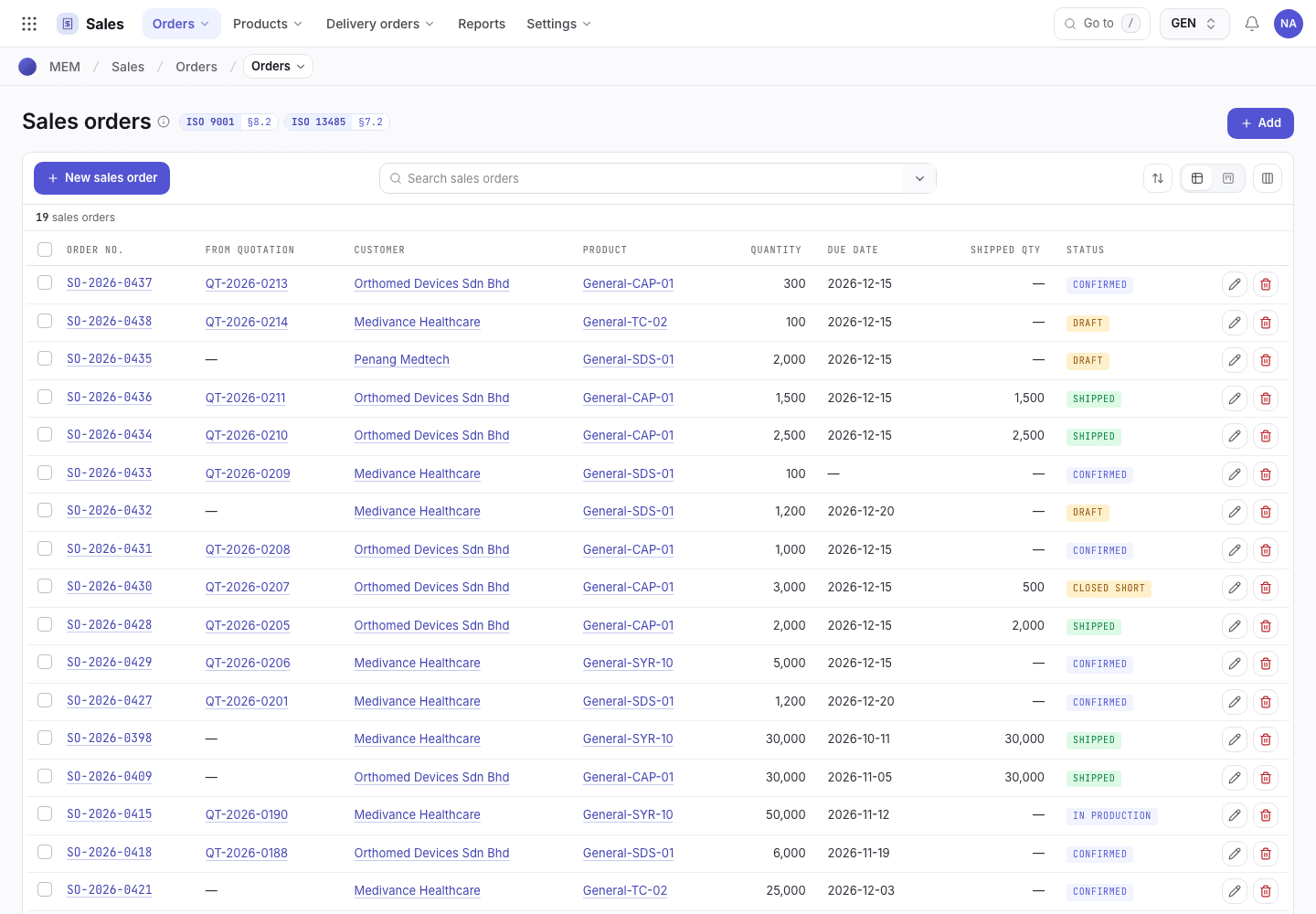
- Search or filter the orders.
- Status chip: Draft, Confirmed, In production, Partially shipped or Shipped.
- Open an order to confirm it or plan production.
What you can do
You have full access to: Sales. You can create, edit and take steps there.
Steps you sign, with the button names on screen:
| Record | Steps |
|---|---|
| Quotations | Confirm |
| Sales orders | Confirm, Create delivery order · remaining qty, Close short (asks a reason) |
| Delivery orders | Mark as picked, Ship · issue CoC, Return dispatch (asks a reason) |
| Returns | Authorise return, Refuse, Receive into quarantine, Record inspection, Close · disposition done |
A signed step needs your e-signature specimen and, where a requirement is set, current training.
What you can see but not change
View access: Purchasing, Inventory, Production, Quality, Engineering, EHS. You can open and read these. Their action buttons are disabled with Your role can view this but not change it.
What you cannot do and who does it
| You cannot | Who does it | What you see |
|---|---|---|
| Approve a purchase requisition or order | Purchasing officer | Purchasing is View for you, so the buttons are disabled. |
| Release a lot or approve a device history record | QA manager | This step needs a QA manager signature. You are signed in as Nurul Aina (Sales executive). |
| Open Maintenance or Settings | Org admin can change access | Your role has no access to Maintenance. |
Hidden for your role: Maintenance, Settings. They do not appear on the launcher. If you open one by address you see You do not have access to this page and Back to apps.
A typical day
Open My work and read the quotations and orders waiting. Details: Find your way around.
Send a quote to the customer and confirm it when they accept. Details: Quote and order.
Confirm the sales order and choose Plan production. Details: Quote and order.
When the lot is released, create the delivery order, mark it picked and ship it. Details: Delivery and shipping.
Ship the rest later, or close the order short with a reason. Details: Partial and close short.
When the customer reorders, start from the last order. Details: Repeat order.