Technician
What the Technician and Operator roles do, see and sign in Factory OS, and how a typical day runs.
Default demo person: Ahmad Faizal, Technician. Kumar Selvam, Operator. This page describes the default access of the Technician role. The Org admin can change it under Settings > Roles & permissions; see Roles at a glance.
What you do
You set up the machine, request the first piece, run the order on the machine tablet or phone, count good and rejected parts, and complete the run. Operators run and count; technicians also set up.
Where you start
Sign in, choose your workspace, and the apps launcher opens. It shows one tile for each module your role can open. My work carries a number when records are waiting for you.
Your apps launcher
The apps launcher with the tiles this role can open.
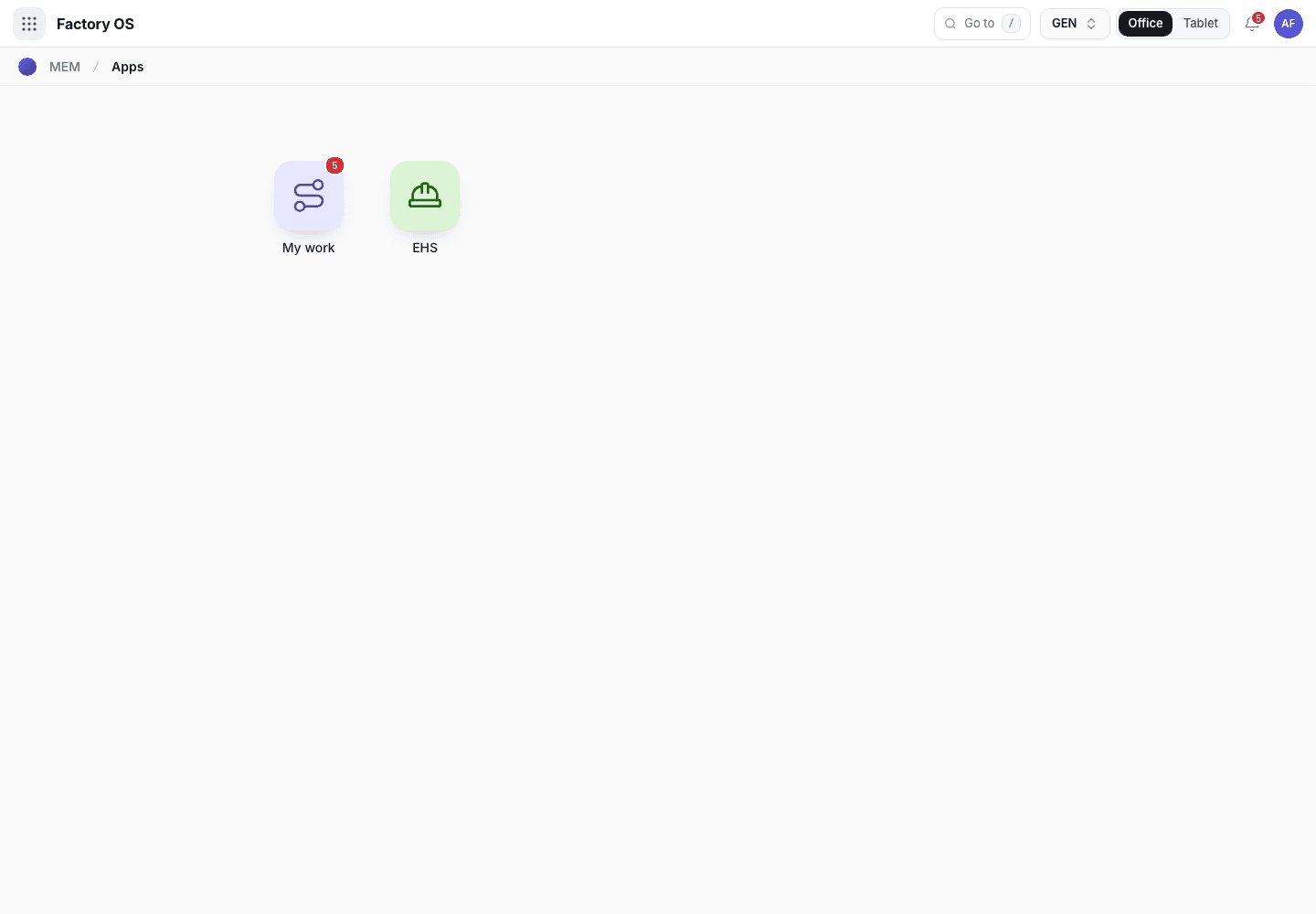
- My work: the number of records waiting on you.
- Module tiles. Only the modules your role can open appear.
- Settings, if your role has it.
Your queue on Home > Queue (My work): Manufacturing orders, and mould maintenance job orders in Planned and In progress.
Your work queue on a phone
My work on a phone, the records waiting for this role.
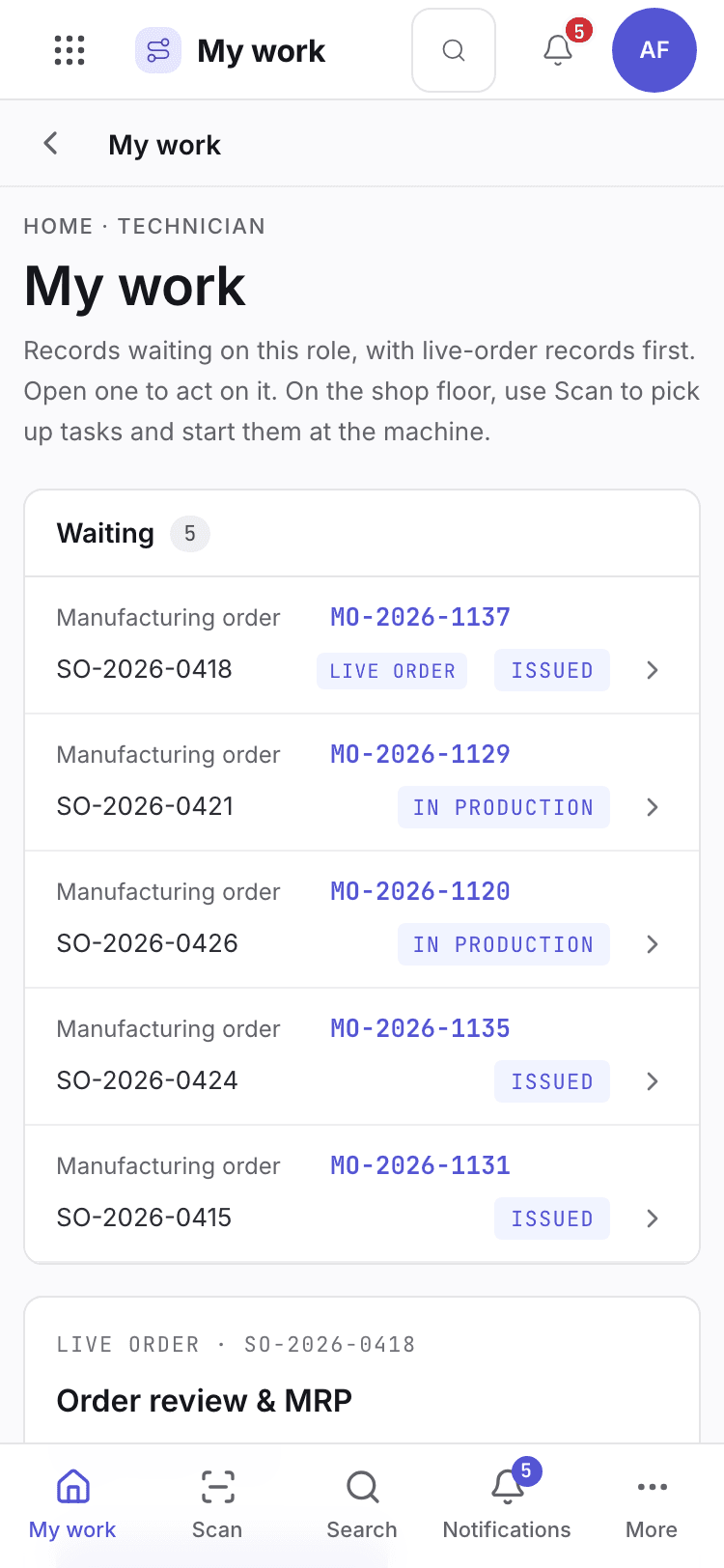
- Page title and your role.
- One card per record waiting. Live-order records come first.
- Bottom tabs to move between modules.
Your daily screens
| Screen | Where | What you do there |
|---|---|---|
| Traveller | /home/traveller | Follow an order from station to station and record transfers. |
| Scan | /scan | Pick up a task on a phone and start it at the machine. |
| Machine tablet | /floor | Pick the job for your machine. |
| One job | /floor/MO-2026-1127 | Run the order on the tablet. |
| Orders | /production/orders | See manufacturing orders. |
The machine tablet
Machine tablet job picker.
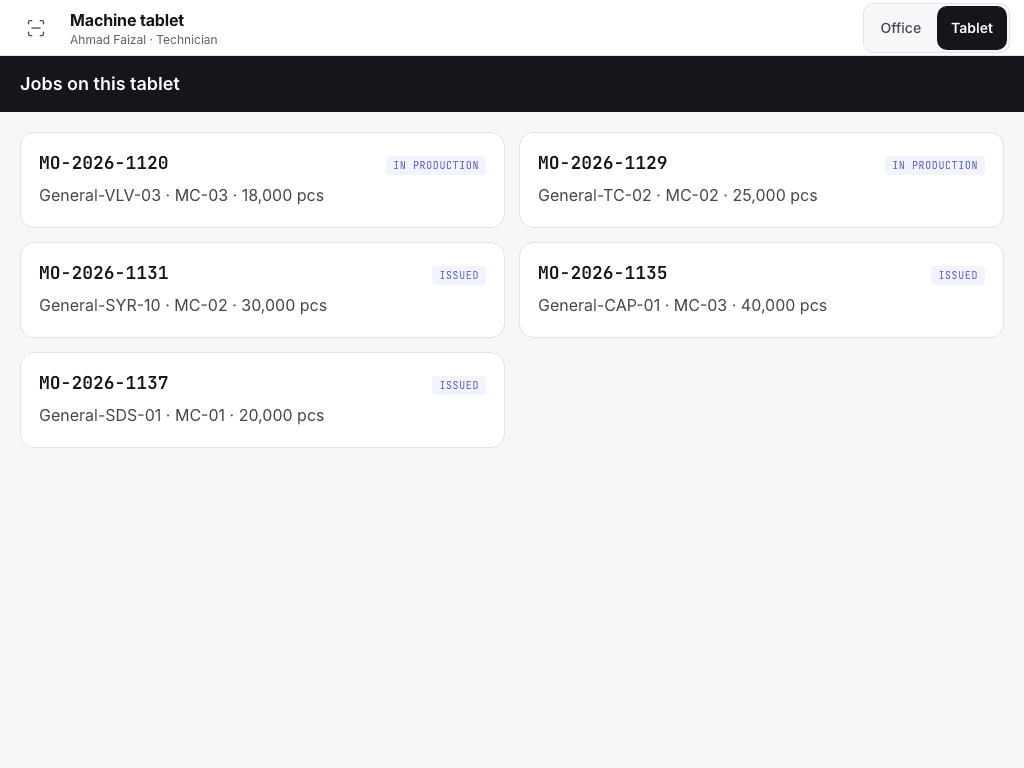
- Pick the machine.
- One card per order waiting at that machine.
- Open a job to start working.
The phone scan screen
Phone scan screen.
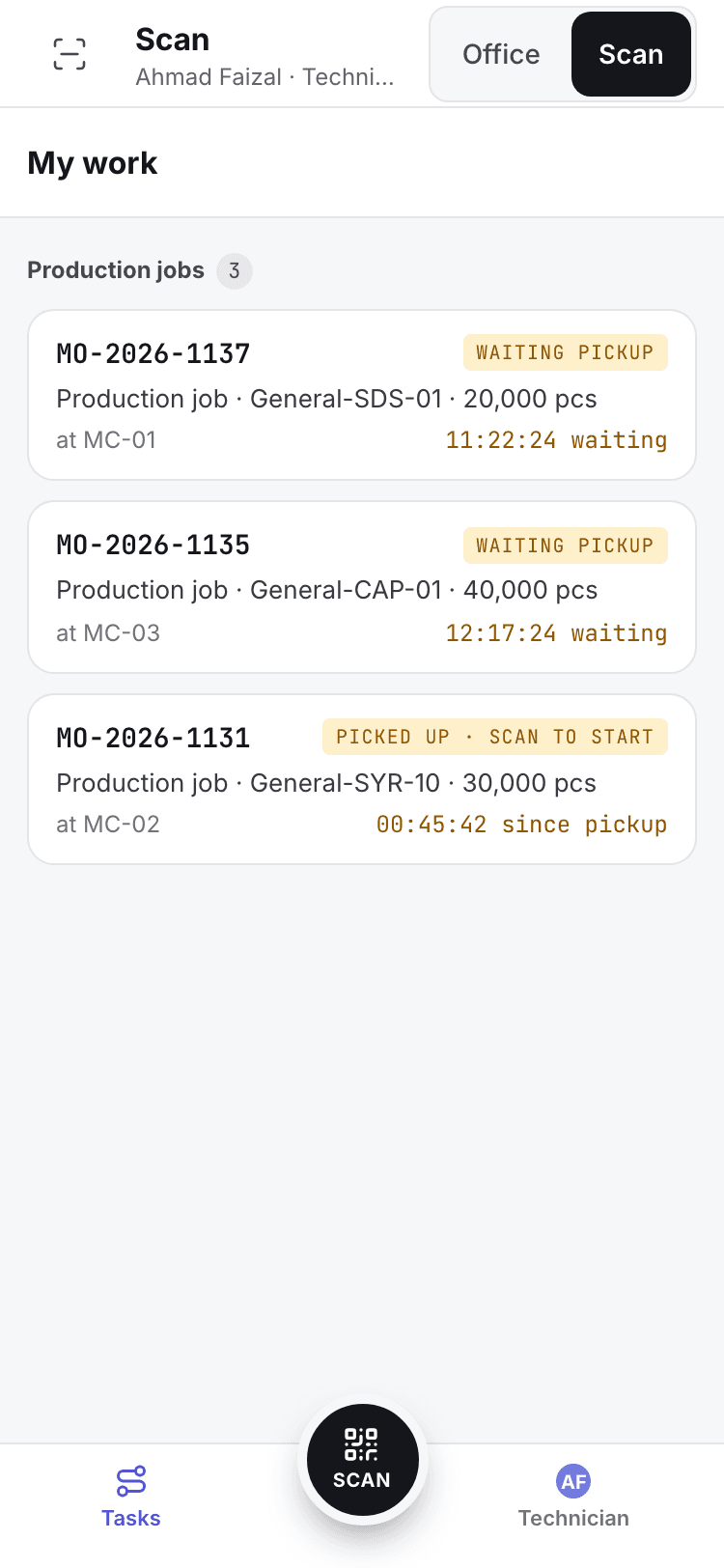
- Scan or type a machine, location or order.
- Tasks waiting for you.
What you can do
You have full access to: Production. You can create, edit and take steps there.
Steps you sign, with the button names on screen:
| Record | Steps |
|---|---|
| Manufacturing orders | Start setup, Setup done · request first piece, Complete run, Cancel (asks a reason); Record patrol check |
| Traveller transfers | Count and sign each transfer with Confirm & sign |
A signed step needs your e-signature specimen and, where a requirement is set, current training.
What you can see but not change
View access: EHS. You can open and read these. Their action buttons are disabled with Your role can view this but not change it.
What you cannot do and who does it
| You cannot | Who does it | What you see |
|---|---|---|
| Accept the first piece | QC inspector | You request it with Setup done · request first piece. QC accepts. |
| Pass outgoing inspection | QC inspector | OQC pass · move to FG is QC's step. |
| Release a lot | QA manager | This step needs a QA manager signature. You are signed in as Ahmad Faizal (Technician). |
Hidden for your role: Sales, Purchasing, Inventory, Quality, Engineering, Maintenance, Settings. They do not appear on the launcher. If you open one by address you see You do not have access to this page and Back to apps.
A typical day
Open My work or the machine tablet. Pick up the order for your machine. Details: Run on tablet.
After line clearance, start setup and follow the work instruction. Details: Setup and first piece.
Request the first piece and wait for QC to accept. Details: Setup and first piece.
Run the order. Count good and rejected parts. Details: Run on tablet.
Respond to patrol checks. Details: In process checks.
Complete the run. Details: Complete and lots.