Purchasing
What the Purchasing role does, sees and signs in Factory OS, and how a typical day runs.
Default demo person: Lim Wei Jie, Purchasing officer. This page describes the default access of the Purchasing role. The Org admin can change it under Settings > Roles & permissions; see Roles at a glance.
What you do
You keep the approved supplier list, raise and approve purchase requisitions, issue purchase orders, and chase corrective actions with suppliers.
Where you start
Sign in, choose your workspace, and the apps launcher opens. It shows one tile for each module your role can open. My work carries a number when records are waiting for you.
Your apps launcher
The apps launcher with the tiles this role can open.
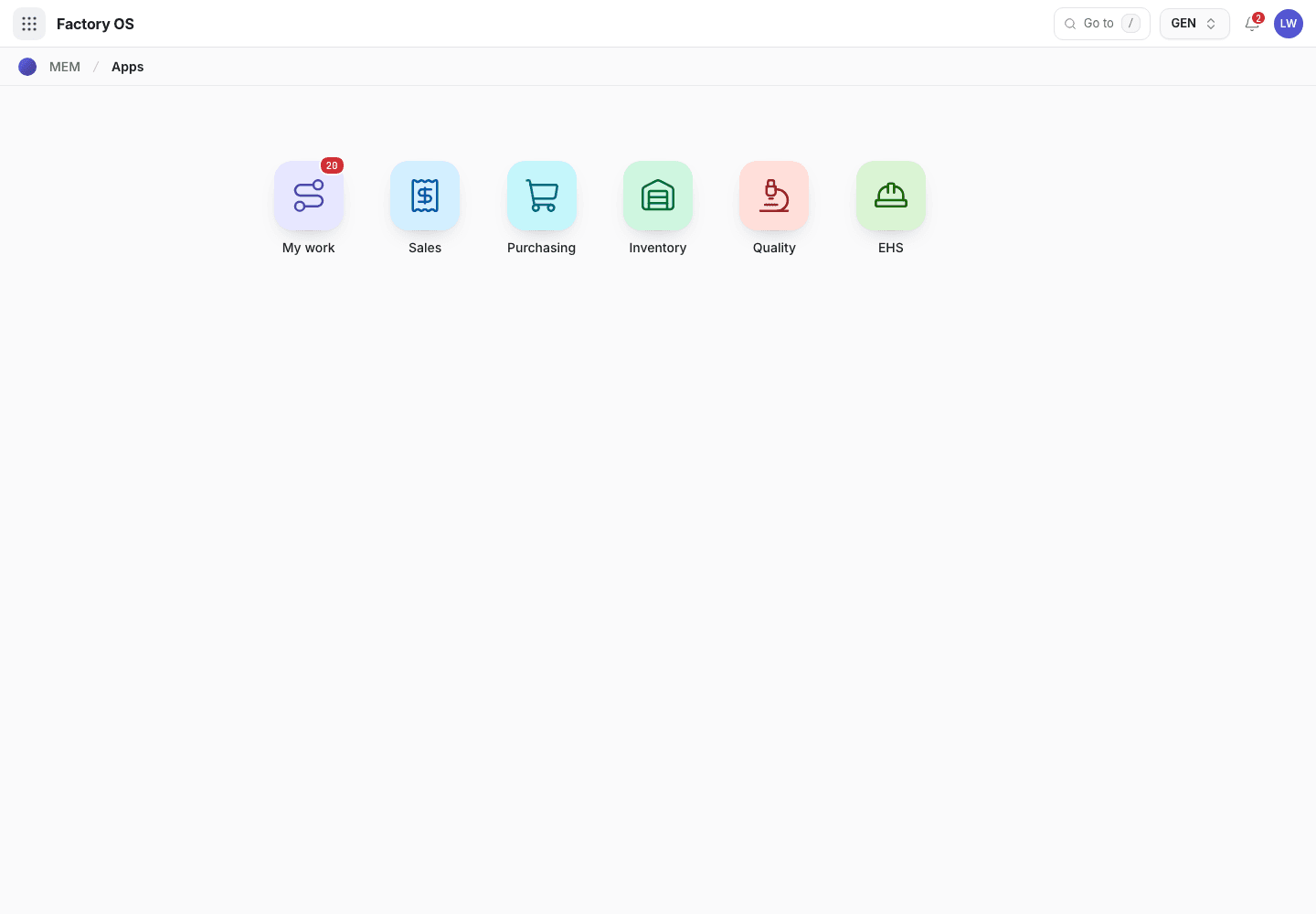
- My work: the number of records waiting on you.
- Module tiles. Only the modules your role can open appear.
- Settings, if your role has it.
Your queue on Home > Queue (My work): Suppliers in KIV, requisitions in Submitted and Approved, and orders in Draft, Approved, Issued and Partially received.
Your work queue on a phone
My work on a phone, the records waiting for this role.
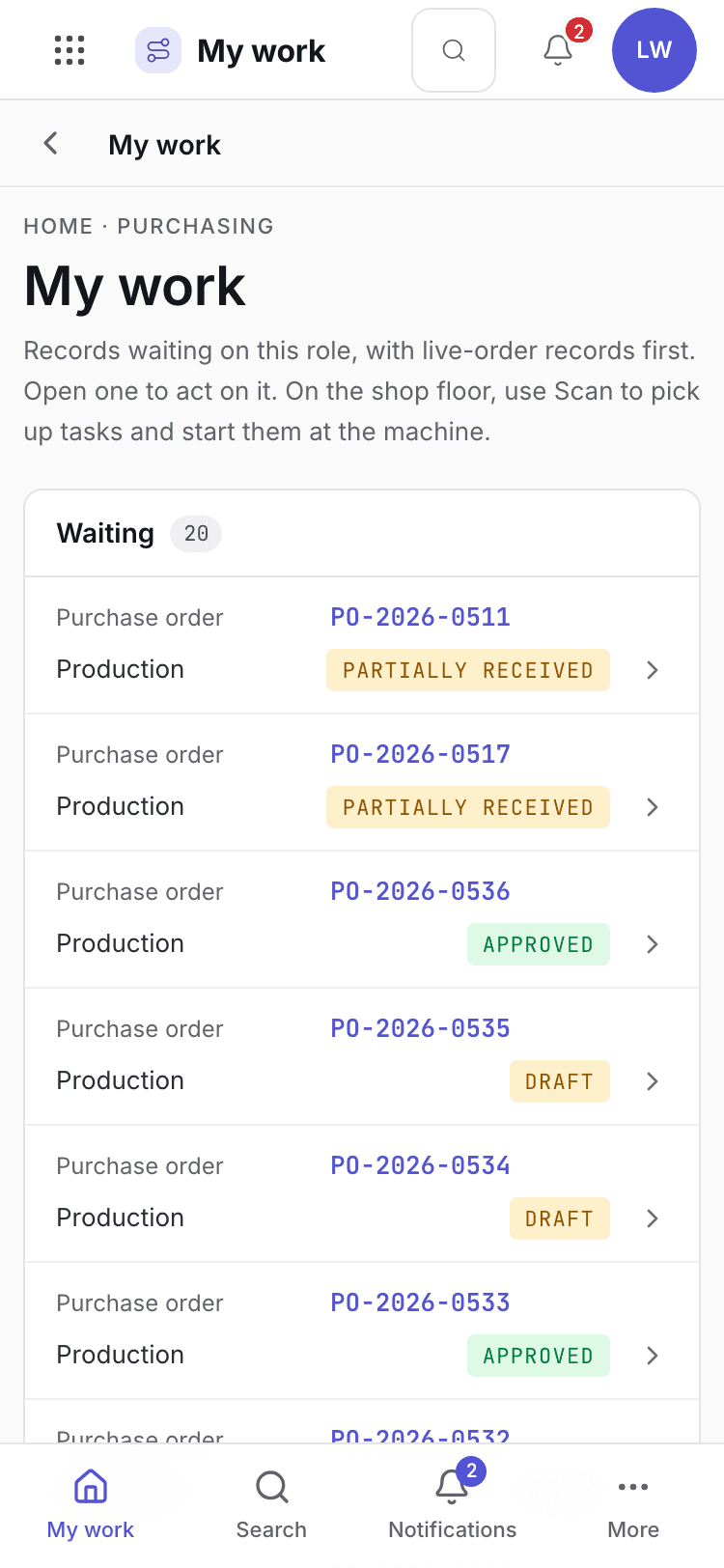
- Page title and your role.
- One card per record waiting. Live-order records come first.
- Bottom tabs to move between modules.
Your daily screens
| Screen | Where | What you do there |
|---|---|---|
| Purchase requisitions | /purchasing/purchasing | Submit, approve and convert requests to buy. |
| Purchase orders | /purchasing/purchasing | Approve, issue and amend orders. |
| Suppliers | /purchasing/suppliers | Keep the approved supplier list. |
| SCARs | /purchasing/scar | Corrective action requests to suppliers. |
| Evaluations | /purchasing/seval | Score suppliers. |
The purchasing list
Purchasing list with requisitions and orders.
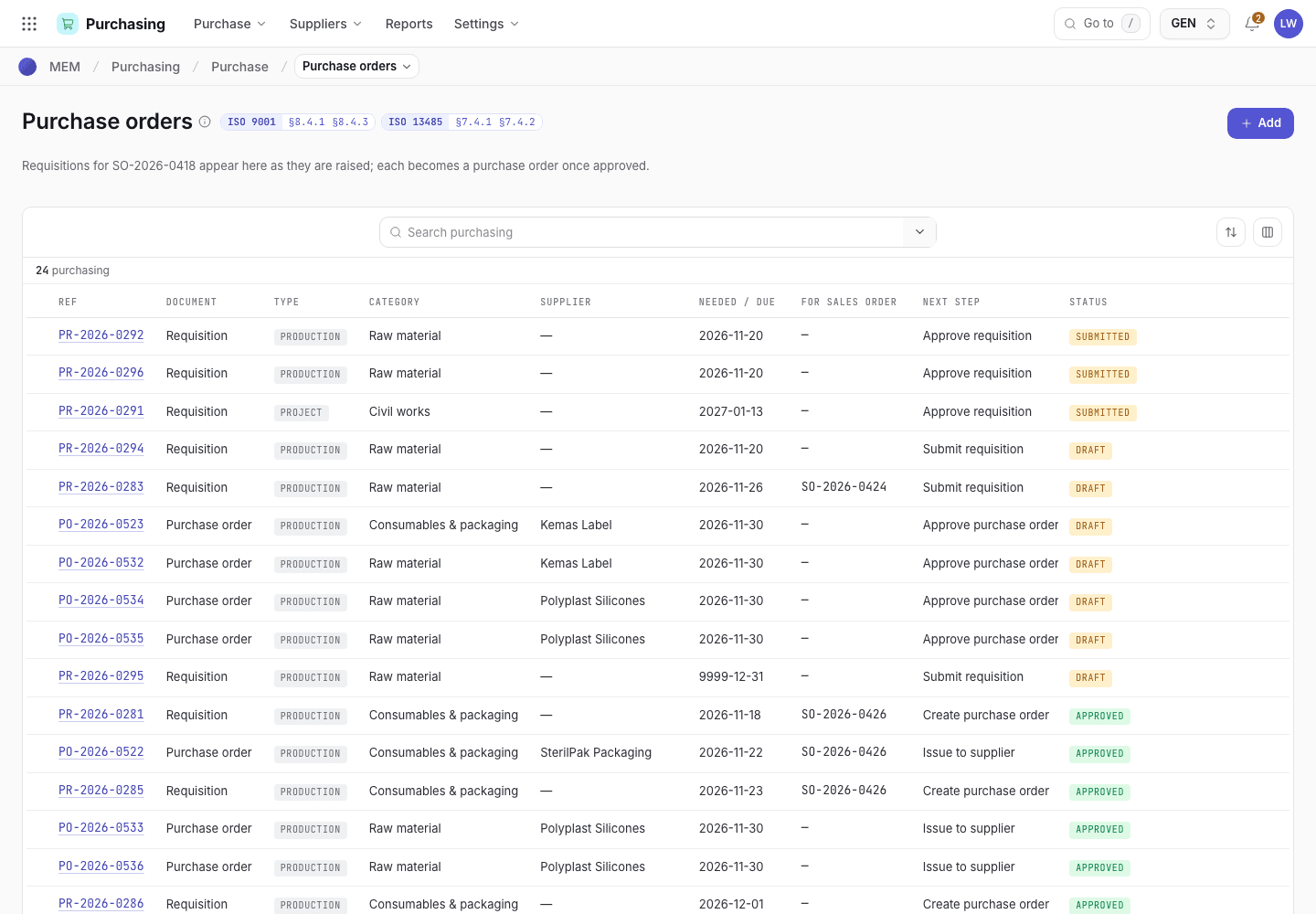
- Filter by Requisition or Purchase order.
- Status chip for each document.
- Open a document to see its approval levels.
What you can do
You have full access to: Purchasing. You can create, edit and take steps there.
Steps you sign, with the button names on screen:
| Record | Steps |
|---|---|
| Requisitions | Submit, Approve · e-sign, Create purchase order |
| Purchase orders | Approve · e-sign, Issue to supplier, Amend · new revision, Close |
| Supplier corrective actions | Issue to supplier, Accept response · verify, Reject response, Close · effective, Not effective · reissue |
| Supplier evaluations | Approve · update supplier |
A signed step needs your e-signature specimen and, where a requirement is set, current training.
What you can see but not change
View access: Sales, Inventory, Quality, EHS. You can open and read these. Their action buttons are disabled with Your role can view this but not change it.
What you cannot do and who does it
| You cannot | Who does it | What you see |
|---|---|---|
| Accept or reject a delivered lot | QC inspector | This step needs a QC inspector signature. You are signed in as Lim Wei Jie (Purchasing officer). |
| Receive goods into the store | Store keeper | Inventory is View for you. |
| Approve the higher levels of the ladder | The person each level names | Each level is signed by its own approver. See the approval ladder. |
Hidden for your role: Production, Engineering, Maintenance, Settings. They do not appear on the launcher. If you open one by address you see You do not have access to this page and Back to apps.
A typical day
Open My work and read the requisitions and orders waiting. Details: Find your way around.
Check that every supplier you will order from is approved. Details: Suppliers.
Approve the requisitions assigned to you and convert them to orders. Details: Requisitions.
Follow the approval levels on each order until it is Approved. Details: Approval ladder.
Issue the order to the supplier. Details: Purchase orders.