Store
What the Store role does, sees and signs in Factory OS, and how a typical day runs.
Default demo person: Farah Hanim, Store keeper. This page describes the default access of the Store role. The Org admin can change it under Settings > Roles & permissions; see Roles at a glance.
What you do
You receive deliveries, keep stock lots and locations, issue material to manufacturing orders, count stock and hold nonconforming material.
Where you start
Sign in, choose your workspace, and the apps launcher opens. It shows one tile for each module your role can open. My work carries a number when records are waiting for you.
Your apps launcher
The apps launcher with the tiles this role can open.
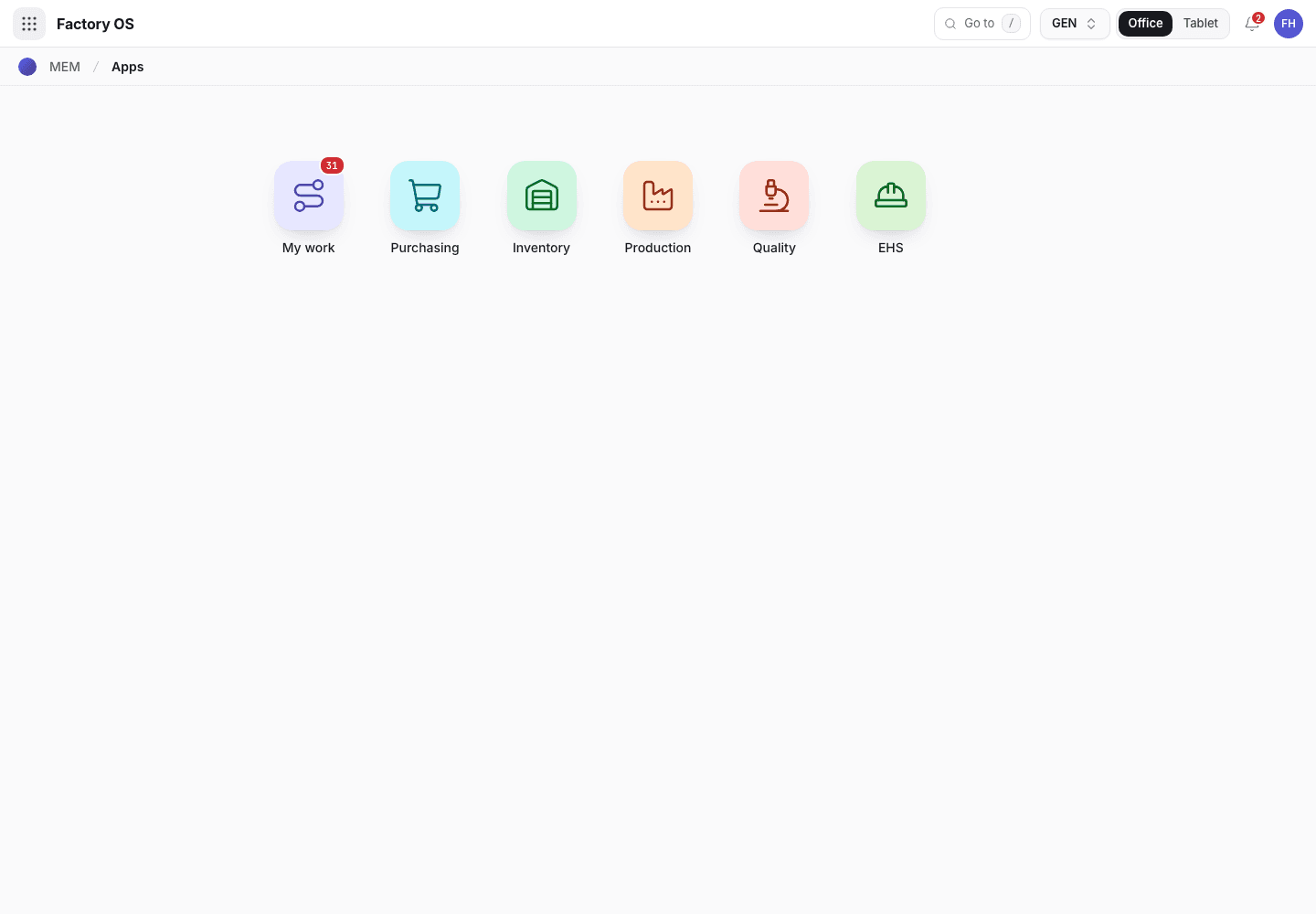
- My work: the number of records waiting on you.
- Module tiles. Only the modules your role can open appear.
- Settings, if your role has it.
Your queue on Home > Queue (My work): Goods receipt notes and stock lots.
Your work queue on a phone
My work on a phone, the records waiting for this role.
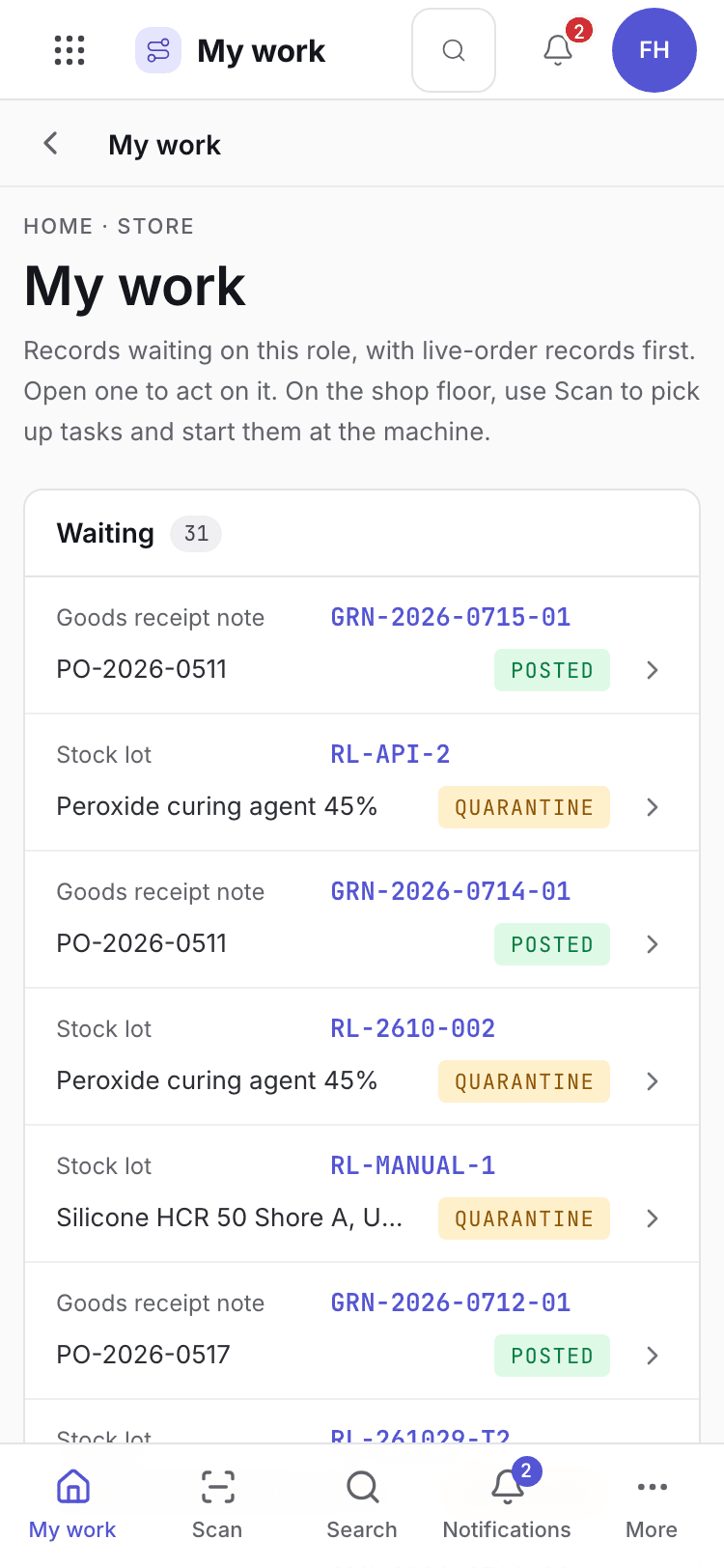
- Page title and your role.
- One card per record waiting. Live-order records come first.
- Bottom tabs to move between modules.
Your daily screens
| Screen | Where | What you do there |
|---|---|---|
| Stock lots | /inventory/stockLots | See every lot, its location and its status. |
| Goods receipts | /inventory/inventory | Receive deliveries and issue goods receipt notes. |
| Material issue | /inventory/issue | Issue material to a manufacturing order. |
| Movements | /inventory/smov | Move stock between locations, and put away a lot QA released (post its Draft put-away into the bin you chose). |
| Nonconforming | /inventory/mrb | Hold and dispose of nonconforming stock. |
| Counts | /inventory/scnt | Count stock and post adjustments. |
| Shelf life | /inventory/expiry | Watch expiry dates. |
| Packing & dispatch | /sales/pkd | Build and label the packs of a delivery order, and scan each pack onto the vehicle. Sales confirms the dispatch. |
Goods receipts
Goods receipts list.
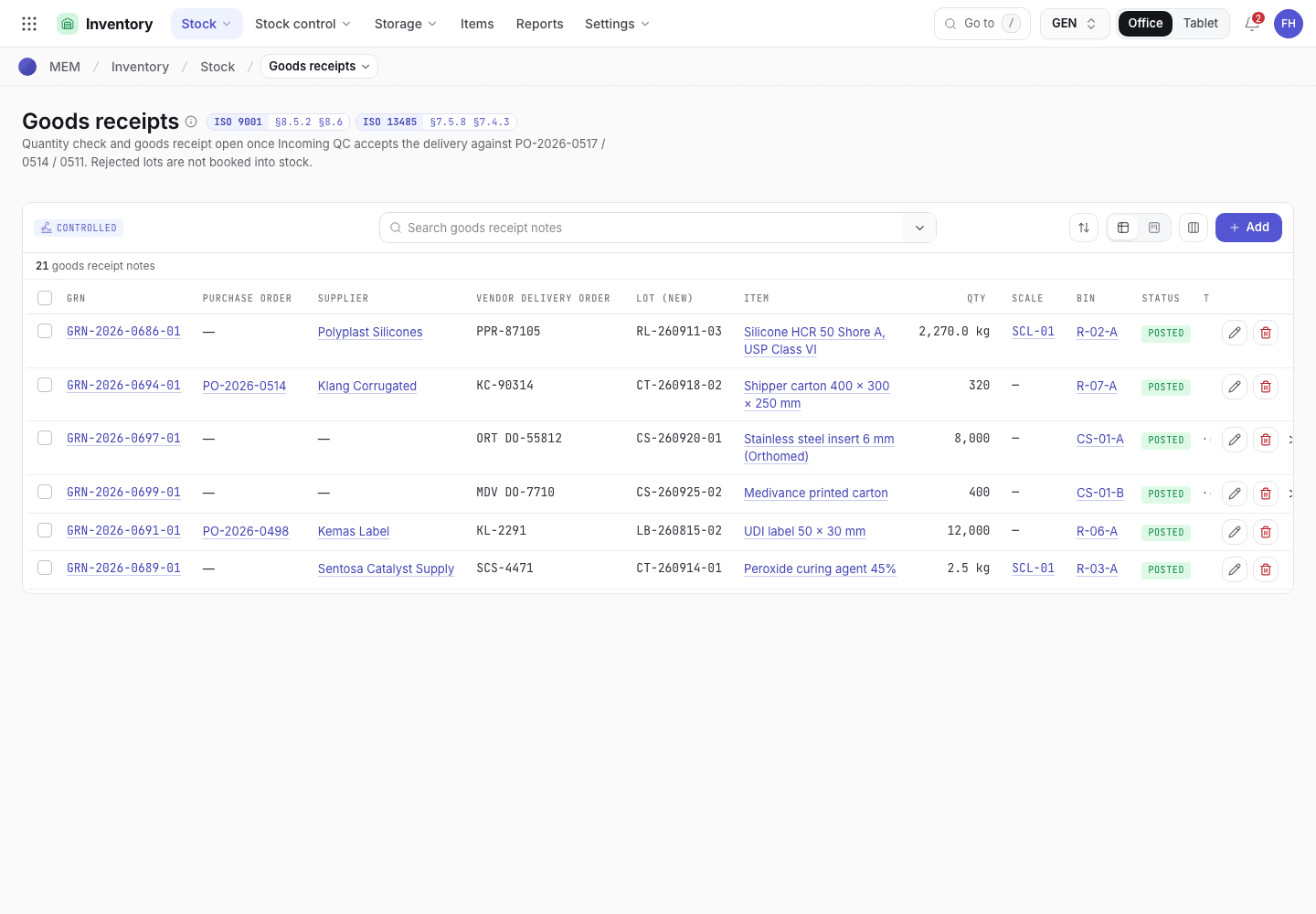
- Filter the receipts.
- Status of each goods receipt note.
- Open a receipt to see its lots.
Stock lots on a phone
Stock lots list on a phone.
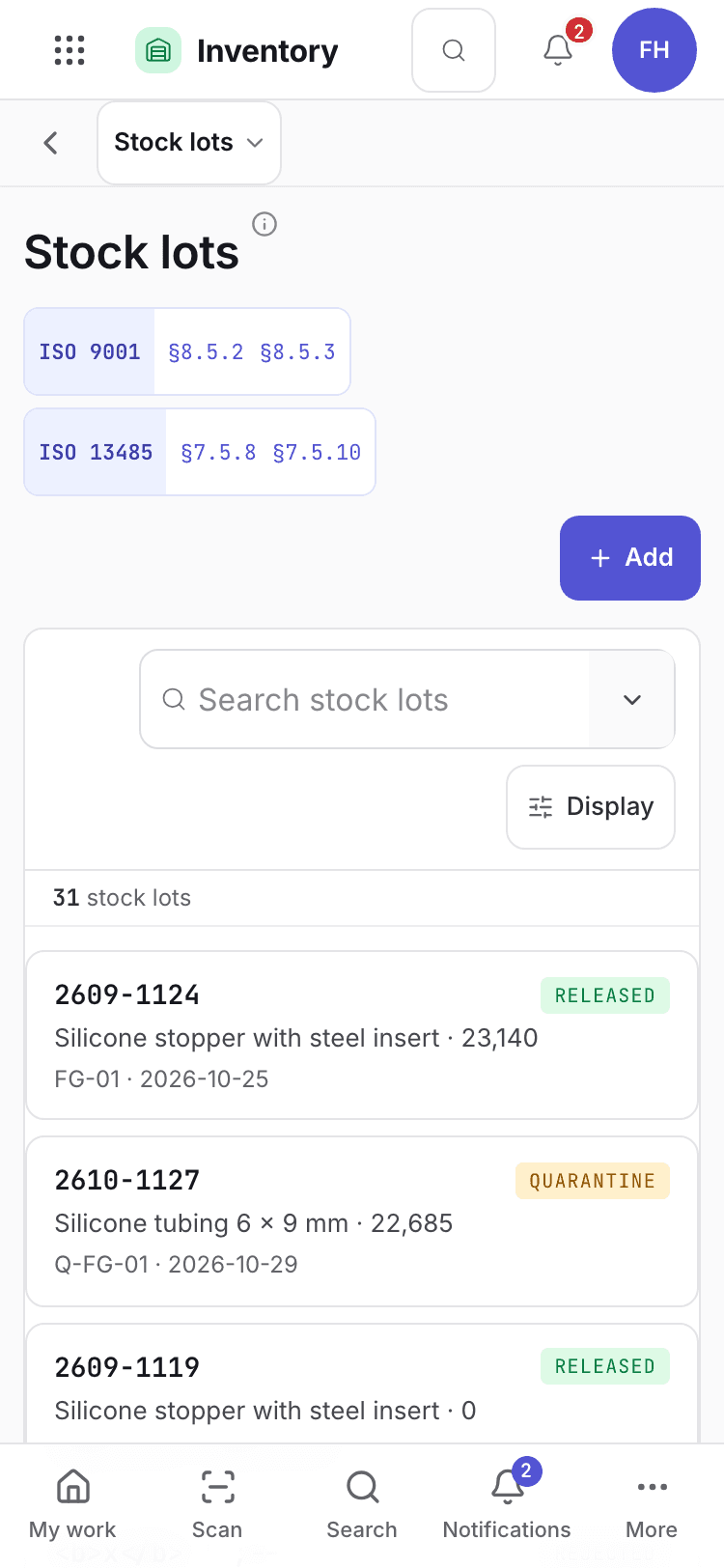
- Search for a lot.
- One card per lot: number, material, quantity and status.
What you can do
You have full access to: Inventory. You can create, edit and take steps there.
Steps you sign, with the button names on screen:
| Record | Steps |
|---|---|
| Storage environment | Record reading, Close · assessed |
| Nonconforming stock | Submit for QA, Approve disposition, Complete disposition |
| Stock counts | Start count, Submit count, Approve · post adjustments |
| Housekeeping | Submit check, Close · action taken |
| Stock movements | Post movement, Approve · post |
| Unit conversions | Approve conversion |
A signed step needs your e-signature specimen and, where a requirement is set, current training.
What you can see but not change
View access: Purchasing, Production, Quality, EHS. You can open and read these. Their action buttons are disabled with Your role can view this but not change it.
What you cannot do and who does it
| You cannot | Who does it | What you see |
|---|---|---|
| Accept a delivered lot as good | QC inspector | The lot stays on hold until the inspector signs Accept · release lot. |
| Approve a purchase order | Purchasing officer | Purchasing is View for you. |
| Confirm a dispatch | Sales | Confirm dispatch does not show on Packing & dispatch. |
| Open other Sales pages, or Settings | Org admin can change access | Your role has no access to Sales. |
Hidden for your role: Engineering, Maintenance, Settings, and every Sales page except Packing & dispatch. They do not appear on the launcher. If you open one by address you see You do not have access to this page and Back to apps.
A typical day
Open My work. Check the goods receipts and lots waiting. Details: Find your way around.
Receive a delivery against its purchase order. Details: Receive goods.
Put accepted lots away after incoming inspection. Details: Incoming inspection.
Issue material to a manufacturing order. Details: Issue material.